00197392-02_IM_OIS_SIS_11.2_DE_EN.pdf - 第24页
SIPLAC E OI S V11. 2 / Ins tallatio n Manual Ausgabe 05/2014 Edit ion 24 3.4 Repair ing the i nstall ation This Repair opt ion is us ed to repair a n exist ing inst allation . The pr ogram is restored us ing the specif i…
SIPLACE OIS V11.2 / Installation Manual Ausgabe 05/2014 Edition
24
3.4 Repairing the installation
This Repair option is used to repair an existing installation. The program is restored using the
specifications and entries originally specified.
► Click the Windows Start button and select Settings and then Control Panel.
► Start the Add/Remove Programs dialog, by double-clicking on Add/Remove Programs.
► Select the program from the list (SIPLACE OIS / SIPLACE Monitoring Service) and click on
Change/Remove.
The setup program will start and display the following dialog box.
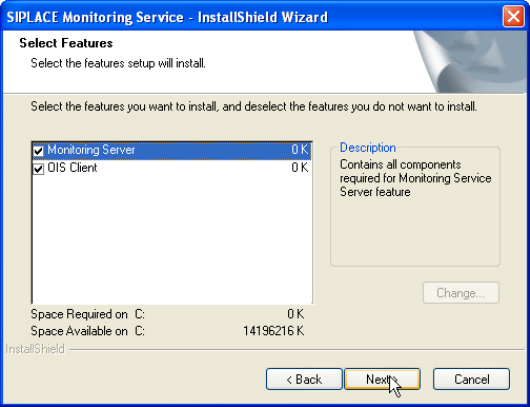
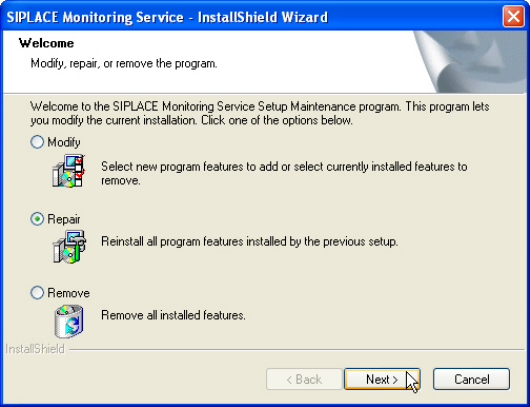
Figure 3-28: Repairing program
► Selec Repair.
► Click Next >.
SIPLACE OIS V11.2 / Installation Manual Ausgabe 05/2014 Edition
25
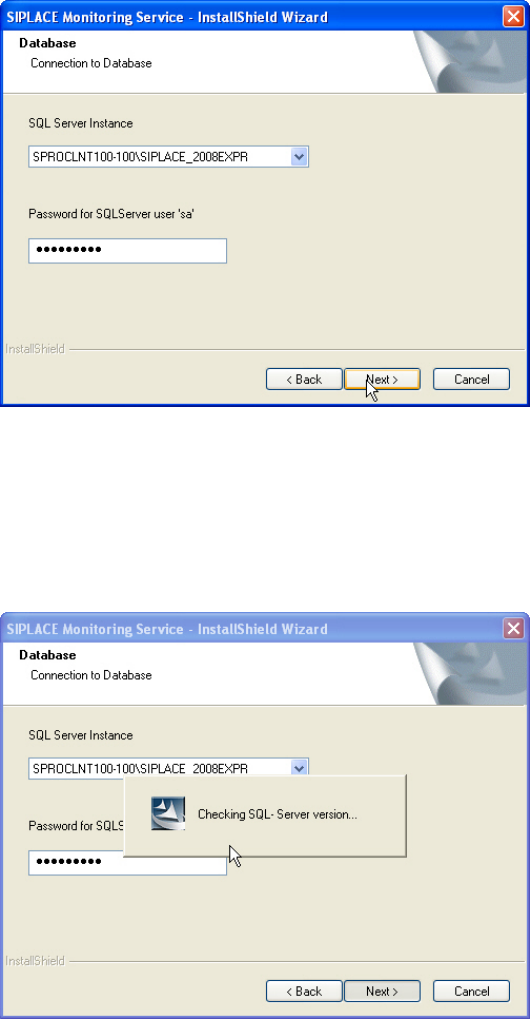
The following dialog box is opened.
Figure 3-29: Connection to database
► Select the database instance.
► Enter the system administrator password.
► Click Next >.
The following dialog is opened.
Figure 3-30: Checking database instance
Information on the selected database instance is gathered.