ET8383-說明書(英文).pdf - 第27页
23 1 The spe ed (machine st eps) can be adjus ted by changing it. 2 A ll axis can be moved m an ually by clicking “X-“, “X+” or “Y -“, “Y+” or “Z -“, “Z+”. 7) Press F4 to enter Point para meter menu. 8) Pres s 2 to set p…
22
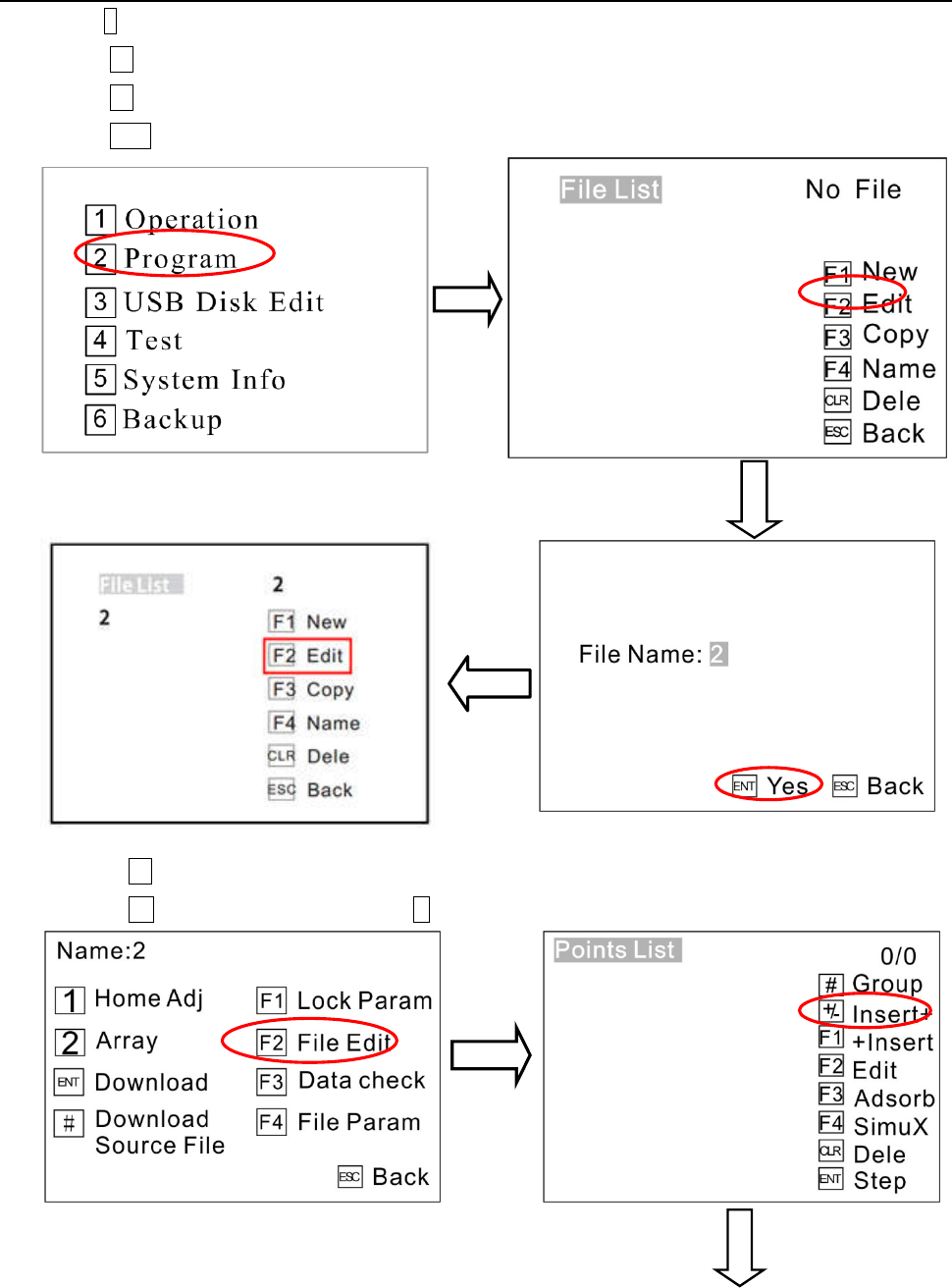
1) P
ress2to enter File List menu
.
2) Press F1to create a new file.
3) Pres
s F2 to edit the new file,
4)
Press ENT to save it, see picture.
5) Pres
s F2 to enter Points List menu.
6) Press +/- to e
nter Insert menu and press 1 to enter Point menu.
23
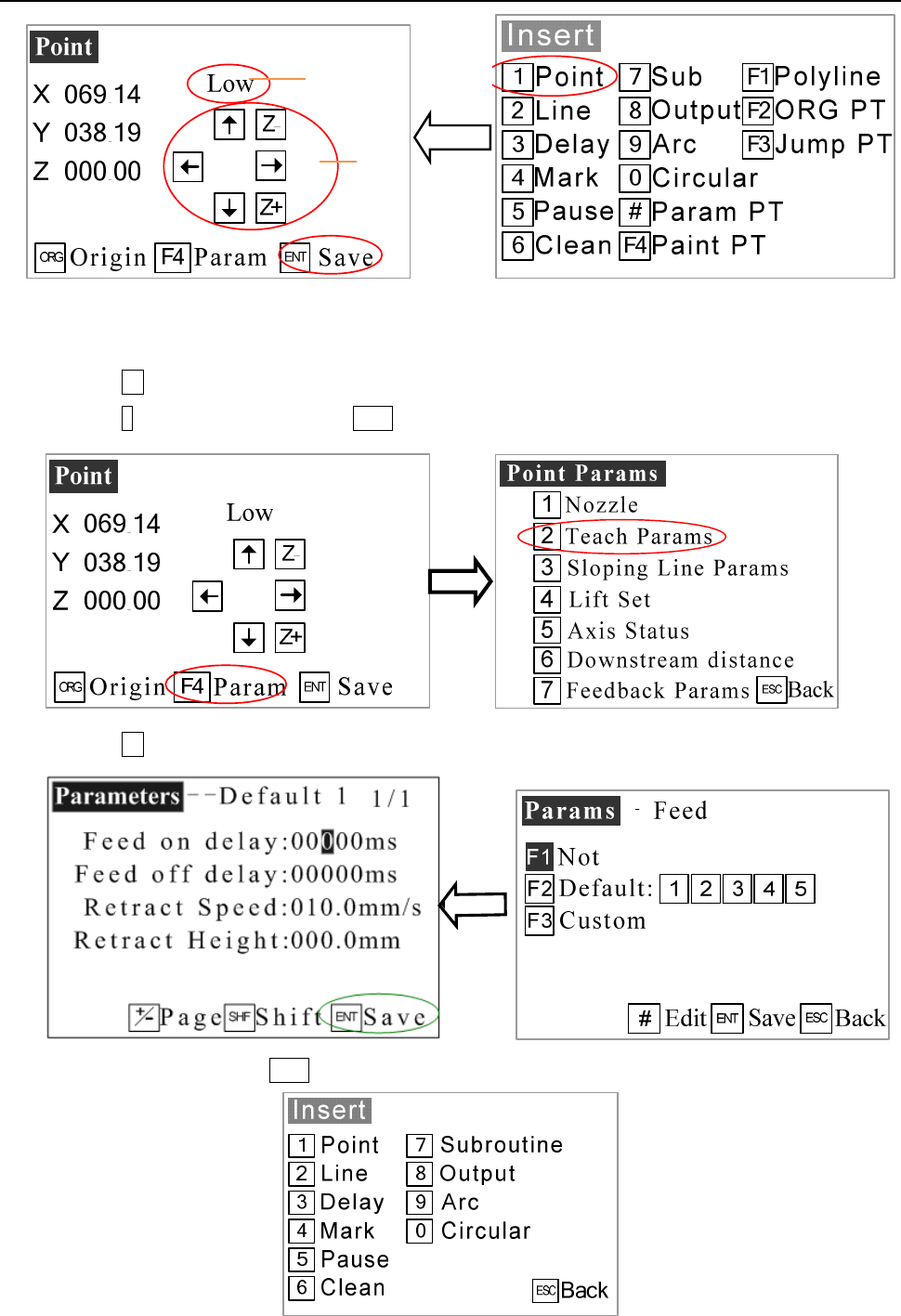
1 The speed (machine steps) can be adjusted by changing it.
2 All axis can be moved manually by clicking “X-“, “X+” or “Y-“, “Y+” or “Z-“, “Z+”.
7) Press F4 to enter Point parameter menu.
8) Pres
s 2 to set parameters and press ENT to enter.
9) Pres
s F2 to enter into parameters menu.
10) Set
parameters and press ENT to save it.
1
2
24
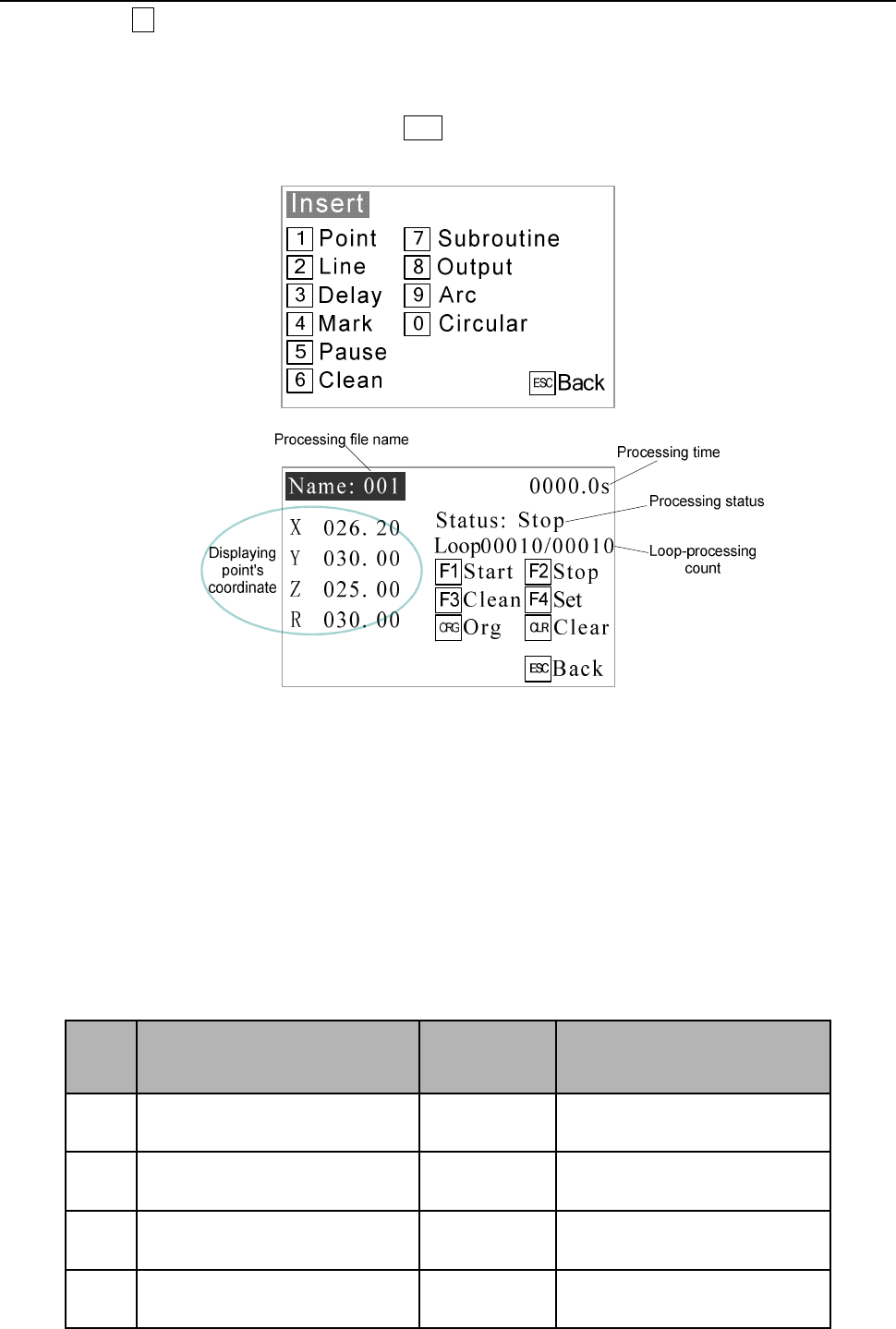
11) P
ress F3 button and the teach pendant will test if the program is out of the limit range. If it disappear
DATA CORRECT, you can operate the follow steps. If it don’t disappear DATA CORRECT, you must back
and edi
t the program.
12) The
n you can run the program after press ENT. If you are not satisfied with the Dispensing result, you
can do t
he STEP.
3
.7 Interrupt and Continue
1. F
unction: For an interrupted processing file, it can continue to work at the next point of the interrupted
point after troubleshooting.
2. The
manner of continue the interrupted work: after troubleshooting, press the “START” button
and
keep m
ore than 2s not loosen, the robot will continue to work from the interrupted point. If press and hold the
“START” button for 2s, the robot will start the work from the start-point of the processing file.
3. As the
different interrupt type, it can classify the interrupted point as the following table:
No. Inte
rrupted condition
Mark
Action o
f Stop after be
Inte
rrupted
1 P
ress STOP BTN A/B/C/D Stop immediately
2 P
ress EMERGENCY BTN A/B/C/D Stop immediately
3 P
ress ORG BTN A/B/C/D Stop immediately
4 P
ress PAUSE BTN A/B/C/D Stop immediately