00198001-01_IM_709.0_DE_EN.pdf - 第23页
Station Software 709.0 / Installation Manual Ausgabe 11/2015 E dition 23 5.2 Performing BI OS Update/Set tings on the Machine / Coplan / Feeder Computer The image files for t he BIOS update/B IOS settings a nd the corres…

Station Software 709.0 / Installation Manual Ausgabe 11/2015 Edition
22
5 Installing the Machine Computer
5.1 Installation Sequence
Back up the machine data
BIOS update on the machine computer
Perform BIOS update
Install Windows Emb. Standard 7 operating
system for the machine computer
(including selection of the computer
configuration and installation of the touch
screen)
Install SIPLACE software
(station software incl. additional programs)
BIOS settings on the machine computer
Perform BIOS settings
Finish the installation
See section 5.2.
See section 5.2.
See separate Installation Manual for details on
installing the Windows 7 operating system,
item no. [00197737-xx].
For details on calibrating the touchscreen, see
section 5.3.2.
See section 5.4.
See section 5.4.6.
Figure 5-1: Installation sequence

Station Software 709.0 / Installation Manual Ausgabe 11/2015 Edition
23
5.2 Performing BIOS Update/Settings on the Machine / Coplan /
Feeder Computer
The image files for the BIOS update/BIOS settings and the corresponding installation instruction
(readme file) are available on the V1.0 BIOS CD that can be ordered via the service technician or
downloaded from the SIPLACE Software Download Center. For more information, see separate
Installation Manual for details on installing the Windows 7 system, item no. [00197737-xx].
5.3 Preparations for Installing the Software
5.3.1 Requirements
Requirements for installing the SIPLACE software, Coplan computer software or feeder computer
software:
– The Windows Embedded Standard 7 SP1 (32-bit or 64-bit) must be installed on the machine
computer and in two-computer operation on the Coplan computer or feeder computer (see
"Installation Manual Operating System Windows Embedded Standard 7", item number
[00197737-xx]).
The station computer has to be equipped with at least 2 GB memory with WES 7, 32-bit and 4
GB memory with WES7, 64-bit respectively. If necessary, station computers in the field have to
be exchanged or upgraded with a memory extension. Please refer to the Technical Information
TI2014-09E04.
Under Windows Embedded Standard 7 the computer configuration has to be selected and the
touch screen calibrated. You must be logged in as Administrator in order to be able to carry out
this work.
Station Software 709.0 / Installation Manual Ausgabe 11/2015 Edition
24
5.3.2 Calibrating the Touch Screen
The touch screen has to be installed by the software configurator during the operating system
installation. If the calibration does not start automatically after installation:
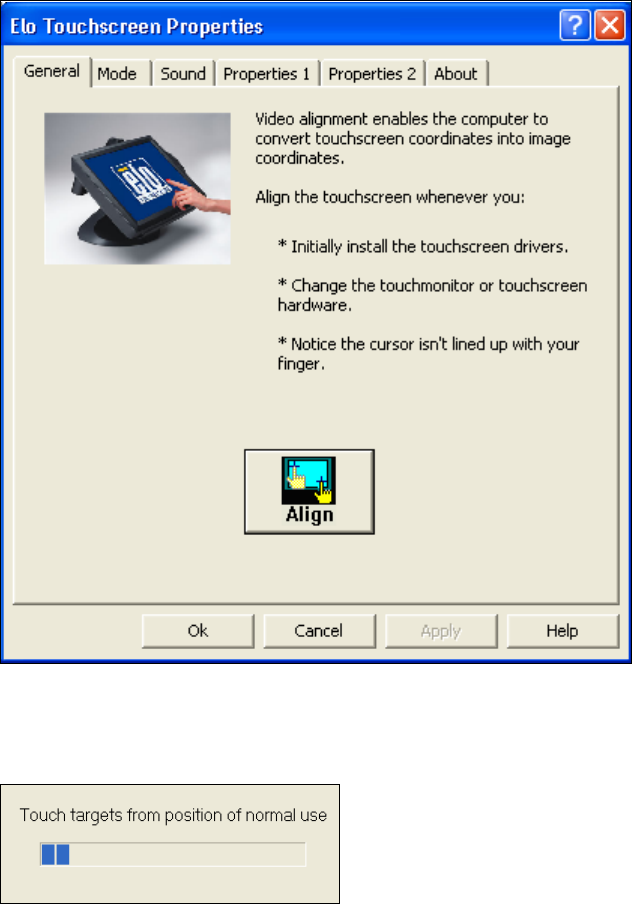
► Select Start – All Programs – Elo to go to EloTouchscreen Properties:
Figure 5-2: Elo Touchscreen properties
► Click the Align button.
The following message then appears:
Figure 5-3: Instruction for the screen to be calibrated
► Follow the instructions on the screen.