00196800-03_IM_Explorer_2.10_EN.pdf - 第44页
3 In stal ling S IP LACE Ex plore r Ins tall ati on and Con figu rati on Guid e SI PLA CE Exp lorer 3. 7 T om cat Con fi gu rat ion E dit i on 02/ 2 012 E N 44 Cha nge the s pecified port nu mber 8080 ( Connector port=…
Installation and Configuration Guide SIPLACE Explorer 3 Installing SIPLACE Explorer
Edition 02/2012 EN 3.7 Tomcat Configuration
43
3
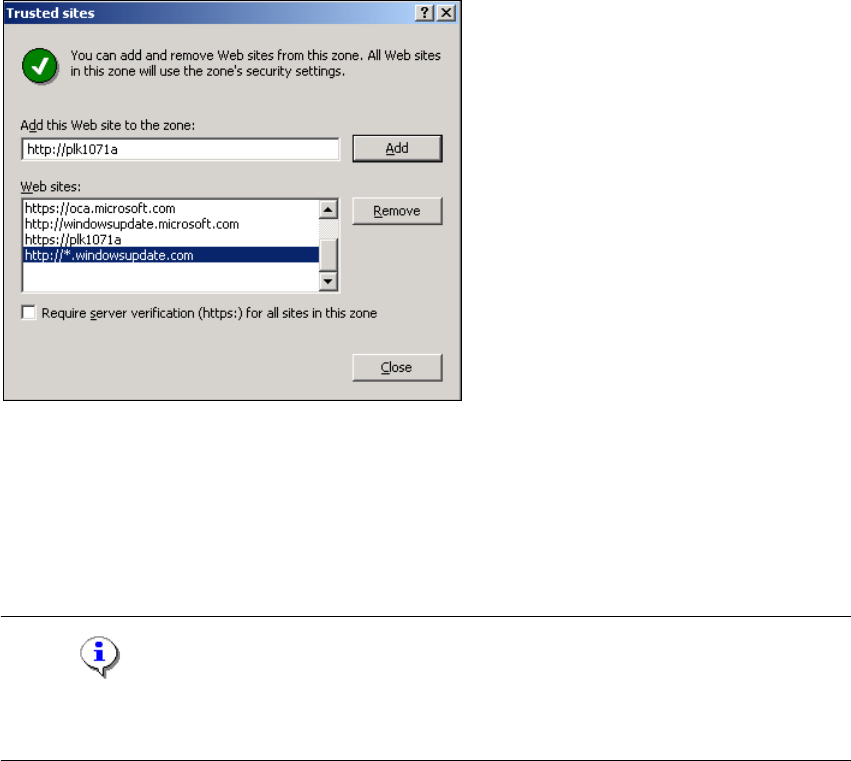
Fig. 3 - 21 Internet Options
Specify the URL or the web server (Tomcat) name. Confirm with Add.
Close the Trusted Sites dialog box with Close.
3.7.2 Port Configuration after Changing Tomcat Port Number
NOTE
By default, Tomcat is installed on port 8080. This means that your users will access your website
as follows: http://yourServerName:8080/yourWebsite. 3
The Tomcat port number needs to be changed (as described below) in the following cases: 3
– When the port is changed to generate a website e.g. via line configuration.
– If the default port number 8080 is already otherwise occupied and you do not want to
additionally use it for this purpose (access to the websites).
To change the port number, find the following lines in the file
<Tomcat-location>\conf\server.xml
Change the port number and change 8080 to your choice of port number as shown below:
<!-- Define a non-SSL Coyote HTTP/1.1 connector on the port specified 3
during installation --> 3
<Connector port="8080" maxThreads="150" minSpareThreads="25" maxSpare-
Threads="75" enableLookups="false" redirectPort="8443" accept-
Count="100" debug="0" connectionTimeout="20000"
disableUploadTimeout="true" /> 3
3

3 Installing SIPLACE Explorer Installation and Configuration Guide SIPLACE Explorer
3.7 Tomcat Configuration Edition 02/2012 EN
44
Change the specified port number 8080 (Connector port="8080") to the required port
number (Connector port="YourPort"). For further information about the port number,
please contact your system administrator.
To make Tomcat your default web server, set the port number to 8080.
NOTE
The port number specified in this xml file needs to be added to the URL address each time you
generate a website: http://yourServerName:yourPort/yourWebsite. 3
3

Installation and Configuration Guide SIPLACE Explorer 4 Configuration
Edition 02/2012 EN 4.1 Standard Monitoring Application (SMA)
45
4 Configuration
This chapter will describe the following configurations: 4
– “Standard Monitoring Application (SMA)” on page 45
– “Configuring the Factory Configuration Utility” on page 66
– “Database Settings” on page 87
4.1 Standard Monitoring Application (SMA)
SIPLACE Explorer allows you to create custom-made applications to monitor production lines.
Standard Monitoring Application (SMA) and a set of corresponding websites are supplied with the
installation CD. SMA features various web pages that capture basic production information such
as machine status and time allocation, performance, components consumption, reject rate, etc.
This section describes how you can easily customize Standard Monitoring Application for your
production line configuration. 4
4.1.1 Runtime Environment: Creating an SMA with Line Configuration
In order to create an SMA with the line configuration option, you must have SIPLACE Explorer
Runtime Environment installed on your computer. SMA creation consists of the following steps: 4
– Line configuration (wizard with 7 steps)
– Establishing a connection to the database (wizard with 3 steps)