00196800-03_IM_Explorer_2.10_EN.pdf - 第45页
Ins tall ati on and Con figu rati on Guid e SIPL AC E Exp lor er 4 Co nfigur atio n Edi tion 02 /201 2 EN 4.1 St an da rd Mo ni to r in g A pp lic a tio n (SM A) 45 4 Configu ration Th i s c hap ter wi ll des cri be t he…

3 Installing SIPLACE Explorer Installation and Configuration Guide SIPLACE Explorer
3.7 Tomcat Configuration Edition 02/2012 EN
44
Change the specified port number 8080 (Connector port="8080") to the required port
number (Connector port="YourPort"). For further information about the port number,
please contact your system administrator.
To make Tomcat your default web server, set the port number to 8080.
NOTE
The port number specified in this xml file needs to be added to the URL address each time you
generate a website: http://yourServerName:yourPort/yourWebsite. 3
3

Installation and Configuration Guide SIPLACE Explorer 4 Configuration
Edition 02/2012 EN 4.1 Standard Monitoring Application (SMA)
45
4 Configuration
This chapter will describe the following configurations: 4
– “Standard Monitoring Application (SMA)” on page 45
– “Configuring the Factory Configuration Utility” on page 66
– “Database Settings” on page 87
4.1 Standard Monitoring Application (SMA)
SIPLACE Explorer allows you to create custom-made applications to monitor production lines.
Standard Monitoring Application (SMA) and a set of corresponding websites are supplied with the
installation CD. SMA features various web pages that capture basic production information such
as machine status and time allocation, performance, components consumption, reject rate, etc.
This section describes how you can easily customize Standard Monitoring Application for your
production line configuration. 4
4.1.1 Runtime Environment: Creating an SMA with Line Configuration
In order to create an SMA with the line configuration option, you must have SIPLACE Explorer
Runtime Environment installed on your computer. SMA creation consists of the following steps: 4
– Line configuration (wizard with 7 steps)
– Establishing a connection to the database (wizard with 3 steps)
4 Configuration Installation and Configuration Guide SIPLACE Explorer
4.1 Standard Monitoring Application (SMA) Edition 02/2012 EN
46
4.1.1.1 Starting Line Configuration
Open Line Configuration.
Proceed by selecting Programs SIPLACE Explorer 2.10 Line Configuration from the
menu in Windows or by clicking on the icon in the console. Right-click with the mouse to
select the Line Configuration menu.
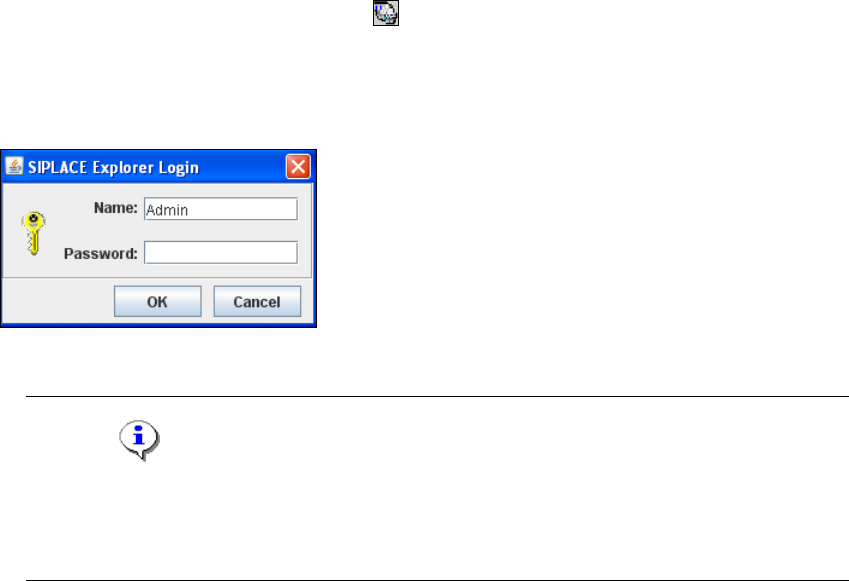
When you first start the Line Configuration, the login dialog box will open. Register yourself
as a default user with "Admin" or "Operator" and leave the password field empty.
4
Fig. 4 - 1 SIPLACE Explorer login
NOTE
Access to the Runtime Environment tools is restricted or permitted as required, by using the
SE Security Manager. For details of the relevant settings in the SE Security Manager, refer
to the Getting Started for SIPLACE Explorer 2.10. 4
The Line Configuration dialog box will open. This is the first step of the line configuration
process.