00197222-02_IM_PCB_Barcode_V2_0_SP2_de_en.pdf - 第8页
PCB Barcode V2.0 SP2 / Installation Manual Ausgabe 03/2012 Edition 4 Installing PCB Barcode 4.1 Installing PCB Barcode Hardware The following sub-section s describe how to in stall the PCB Barcode hardware on the differe…
PCB Barcode V2.0 SP2 / Installation Manual Ausgabe 03/2012 Edition
3 Prerequisites
– The PCB Barcode has to be installed on both station computer and Vision computer on
X-series placement machines in two-computer operation. For this, two dongles are required,
see Scope of Delivery.
– You have to be logged in as administrator.
– A D: partition has to be available on the station computer / Vision computer.
7
PCB Barcode V2.0 SP2 / Installation Manual Ausgabe 03/2012 Edition
4 Installing PCB Barcode
4.1 Installing PCB Barcode Hardware
The following sub-sections describe how to install the PCB Barcode hardware on the different
SIPLACE placement machines.
4.1.1 X-Series Placement Machines in One-Computer Operation
► Unplug the keyboard cable from the box PC and connect it to the USB hub.
► Plug the data cable of the USB hub into the keyboard interface of the box PC.
► Adhere the adhesive tape (Klettostar Flausch) onto the underside of the USB hub and put the
USB hub on the box PC.
► Plug the USB cable into the USB hub.
► Stow the USB cable and secure it with a cable tie.
► Plug the green USB dongle into the USB hub.
► Plug the gray USB stick into the USB hub.
8
PCB Barcode V2.0 SP2 / Installation Manual Ausgabe 03/2012 Edition
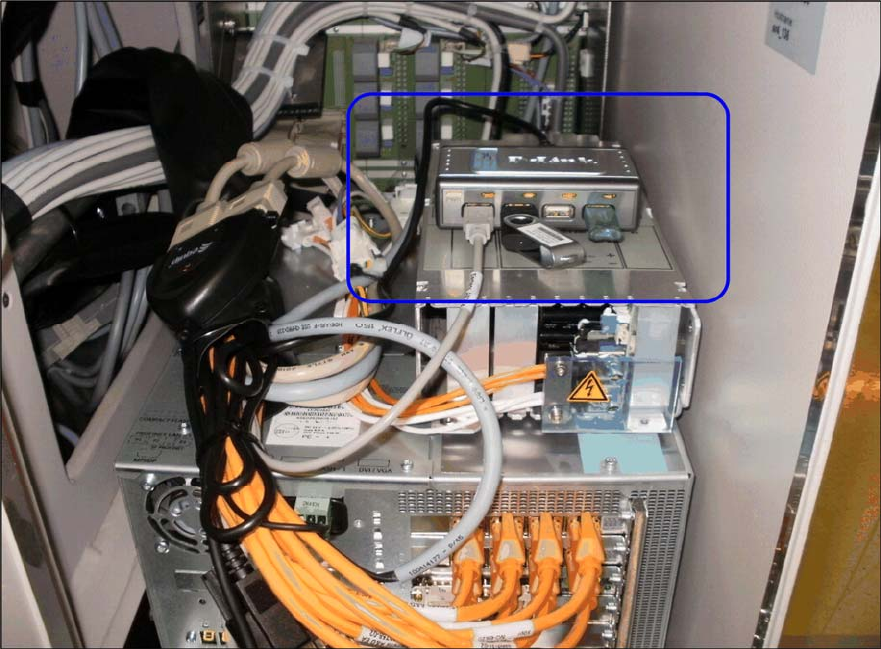
The following picture displays the installed PCB Barcode hardware on an X-series placement
machine in one-computer operation.
Figure 4-1: Installed PCB Barcode hardware on an X-series placement machine
► Install the PCB Barcode software as described in section 4.2.
4.1.2 X-series Placement Machines in Two-Computer Operation
► Plug the green USB dongle and the gray USB stick into the empty USB interfaces on the box
PC of the station computer.
► Plug the green USB dongle and the gray USB stick into the empty USB interfaces on the box
PC of the Vision computer.
► Install the PCB Barcode software as described in section 4.2.
9