i3070+s5i_ReplacePowerSupply+ed2.pdf.pdf - 第7页
i3070 Inline System (E9988E) Replacing the Power Supply 7 7 Mount the bracket for the new Omro n 20 A AC/DC power supply. 8 Fit the new Omr on 20 A A C/DC power supply into the DIN rail and lock it. 9 Cables label ed L1 …
6 Replacing the Power Supply
i3070 Inline System (E9988E)
4 Remove the trunking covers to access the cables.
Installing the Omron 20 A AC/DC power supply
If installing the Omron 20 A AC/DC power supply, follow step 5 through step 13.
5 Locate and remove the cables labeled PF+, F-, E, L5 and N2 that were
connected to PS2, as they are no longer needed.
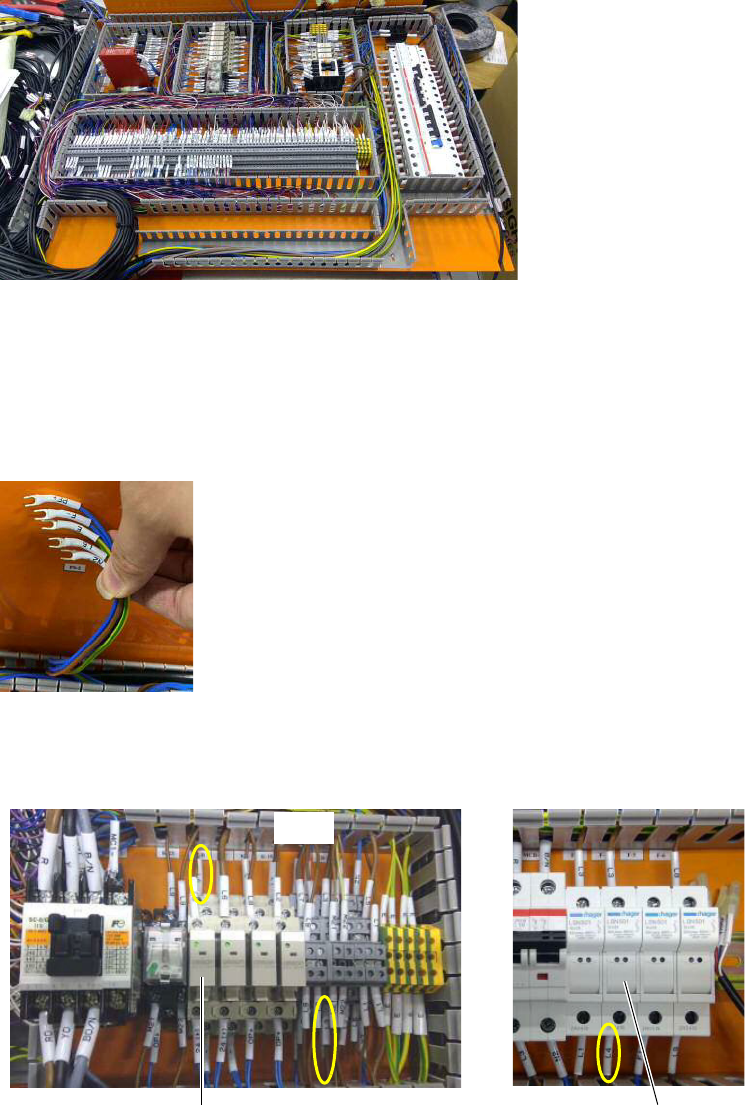
6 Locate and remove these cables:
• brown cable labeled L4 that connects F-4 and K-B (terminal contact 4).
• brown cable labeled L5 that connects TB-2 and K-B (terminal contact 3).
TB-2
K-B F-4
i3070 Inline System (E9988E)
Replacing the Power Supply 7
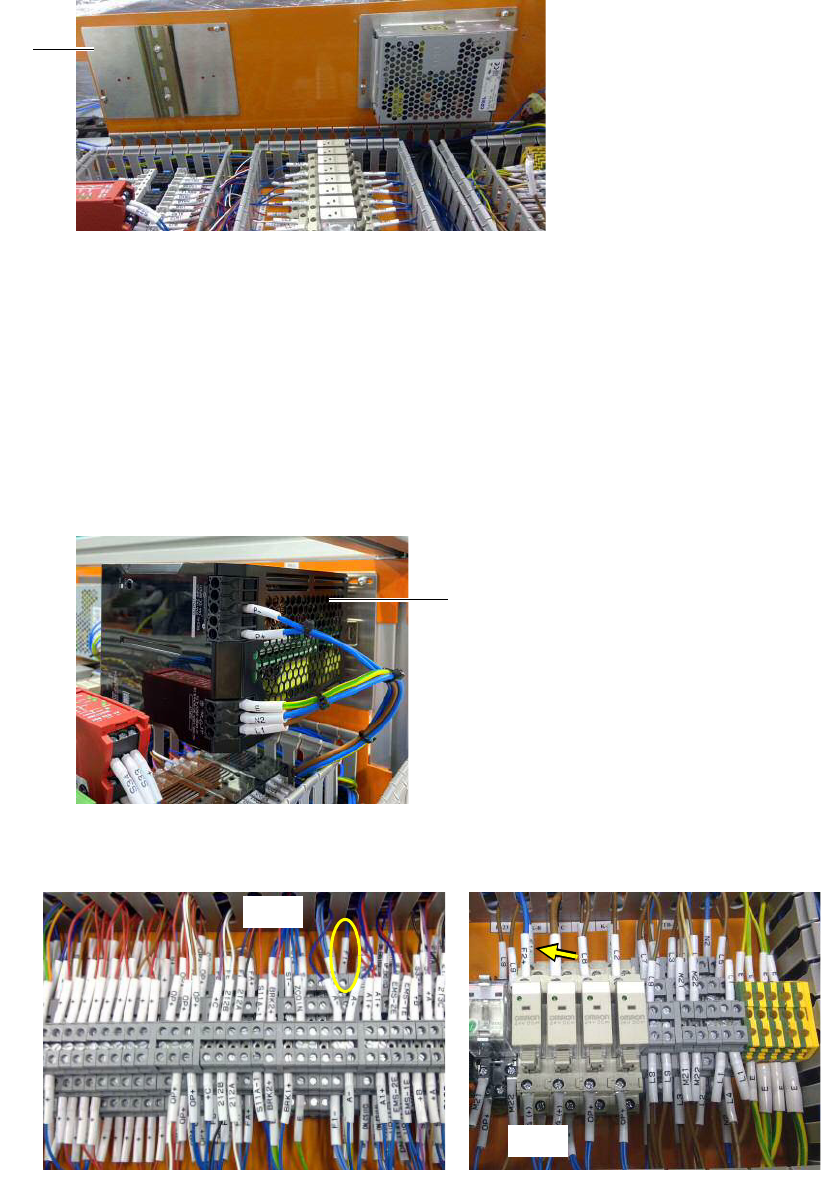
7 Mount the bracket for the new Omron 20 A AC/DC power supply.
8 Fit the new Omron 20 A AC/DC power supply into the DIN rail and lock it.
9 Cables labeled L1, N2, E, P+, and P- (previously connected to PS1) are to be
connected to the Omron power supply. The terminal point connections remain
the same.
• If using the existing cables, the connector heads have to be replaced with
ferrule heads to connect to the Omron power supply.
• If the existing cables are not long enough, replace them with the new cables
that have the same labels. Be sure to connect the new cables to the same
locations as the old cables.
10 Locate the cable labeled F1+ (TB-1 to F-5). Disconnect the cable from TB-1
and connect it to K-B (terminal contact 4).
Mounting bracket for
Omron power supply
Omron 20 A AC/DC power supply
TB-1
K-B