00194398-01.pdf - 第64页
Retrofit instructions SIPLACE HS-60 2.10 Activating the option 12/2004 Edition 64 The "Edit" w indow " contains th e following selec tion options : 2 2 T ab. 2.10 - 1 Explanation of the selection options i…
Retrofit instructions SIPLACE HS-60
12/2004 Edition 2.10 Activating the option
63
2.10.2 Activating and configuring the ceramic substrate centering option
: Start the SITEST program.
DANGER
Read and follow the DANGER text on working with the SITEST program. 2
: Select "Settings" from the menu bar.
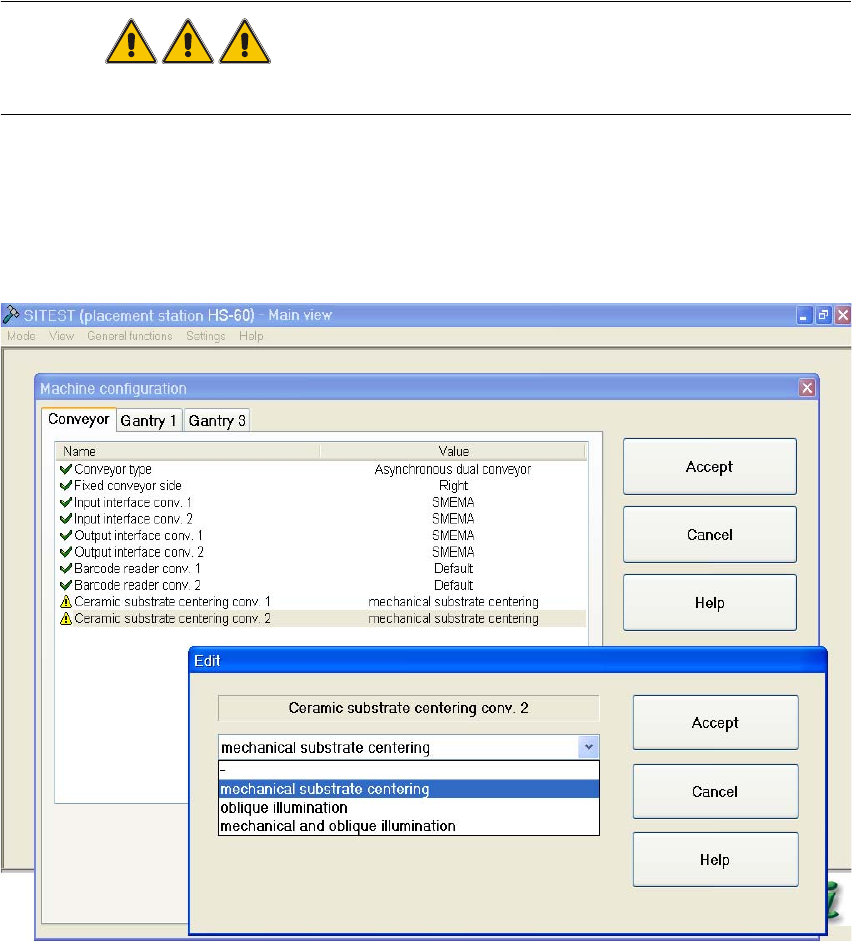
: From the "Machine Configuration" menu, select the "Ceramic substrate centering conveyor 1"
(= processing area 1 and 2) -> "Edit" option. The Edit window appears:
2
Fig. 2.10 - 1 "Machine Configuration" menu, activating the ceramic substrate centering
2
2
2

Retrofit instructions SIPLACE HS-60
2.10 Activating the option 12/2004 Edition
64
The "Edit" window " contains the following selection options: 2
2
Tab. 2.10 - 1 Explanation of the selection options in the "Edit" menu"
CAUTION
The "Oblique lighting" and "None" options are of no relevance for the ceramic substrate centering.
However, if you do select one of these menu options, the mechanical ceramic substrate centering
unit must first be fully removed and the corresponding conveyor set up for PCB clamping once
more, as described in the Service Manual.
If this is not done, the next PCB or the mechanical ceramic substrate centering unit may be dam-
aged. 2
: If you want to use the mechanical ceramic substrate centering option in combination with sub-
strate position detection using PCB vision camera (normal lighting) or optional multi-color PCB
camera, then select:
"Mechanical substrate centering" -> "Accept".
: If you want to use the mechanical ceramic substrate centering option in combination with sub-
strate position detection using the optional oblique lighting, then select:
"Mechanical and oblique lighting" -> "Accept".
: If the machine only has a single conveyor, click on "Accept" to exit the "Machine Configuration"
Selection option in the "Edit"
menu"
Explanation
None Normal PCB conveyor with PCB clamp and PCB position
detection using PCB vision camera with normal lighting or
optional multi-color PCB camera.
The mechanical ceramic substrate centering unit must be
removed and the conveyor for clamping PCBs set up.
Mechanical substrate centering Mechanical ceramic substrate centering and
substrate position detection using PCB vision camera (nor-
mal lighting)
or optional multi-color PCB camera.
Oblique lighting No mechanical centering
Only position detection for PCBs using optional oblique
lighting (ring light)
-> Oblique lighting is only possible for both conveyors.
ATTENTION:
The mechanical ceramic substrate centering unit must be
removed and the conveyor for clamping PCBs set up.
Mechanical and oblique lighting Mechanical ceramic substrate centering and substrate
position detection using optional oblique lighting for PCB
vision camera.
-> Oblique lighting is only possible for both conveyors
Retrofit instructions SIPLACE HS-60
12/2004 Edition 2.10 Activating the option
65
menu.
In the following cases, a note or an error message appears on screen:
– A note appears if you select the SITEST menu option "None" or "Oblique lighting", i.e. a
menu option without mechanical ceramic substrate centering, even though the mechanical
ceramic substrate centering hardware is still installed.
The note text says that the mechanical ceramic substrate centering unit must be removed
from the corresponding conveyor and the plug-in connections on the conveyor control con-
version board must be detached before continuing.
Otherwise the PCB and / or the mechanical ceramic substrate centering unit (X axis cen-
tering unit) may be damaged.
– An error message appears if you select the SITEST menu option "Mechanical" or " Mechan-
ical and Oblique lighting", i.e. a menu option with mechanical ceramic substrate centering,
even though the mechanical ceramic substrate centering hardware is not or is not fully in-
stalled.
The message states that the option is not installed in the corresponding conveyor or, if the
option has been retrofitted successfully, the corresponding plug-in connection on the con-
veyor control is missing or is poorly or incorrectly inserted.
: If a dual conveyor is used, then select from the Edit menu:
"Ceramic substrate centering conveyor 2".
Configure the mechanical substrate centering as described above for conveyor 1.
Note the possible combinations between conveyor 1 and 2, however:
– The combination of "None" and "Mechanical substrate centering" is possible if the conveyor
concerned is set up accordingly (with or without mechanical ceramic substrate centering).
– It is not possible to combine position detection with oblique lighting on one conveyor and
normal lighting or "None" on the other conveyor. If this combination is selected, the position
detection with oblique lighting is automatically adopted for both conveyors. In this case, the
mechanical ceramic substrate centering option is always removed from both conveyors and
the plug-in connections must be detached on the conveyor control conversion boards.
Otherwise the PCB and / or the mechanical ceramic substrate centering unit (X axis cen-
tering unit) may be damaged.
: Click on "Accept" to exit the "Machine Configuration" menu.
If the selected menu option differs from the situation defined by the hardware (mechanical ce-
ramic substrate centering present / not present), an error message or note as described above
appears if the machine is configured for conveyor 1.
: Exit the SITEST program.
: Shut down the machine and restart in order to accept the configuration.