Installation_Manual_SIPLACE_Explorer_2.4_EN.pdf - 第27页
Installation and Configuration Guide SIPLAC E Explorer 3 Installing SIPLACE Explorer Edition 08/2008 EN 3.1 Initial Installation of SIPLACE Explorer 2.4 27 3.1.1 Inst allation of SIPLACE Explorer 2.4 - Initial Ins t alla…
3 Installing SIPLACE Explorer Installation and Configuration Guide SIPLACE Explorer
3.1 Initial Installation of SIPLACE Explorer 2.4 Edition 08/2008 EN
26
(3) MS Excel 2003 with SIPLACE Explorer V2.4
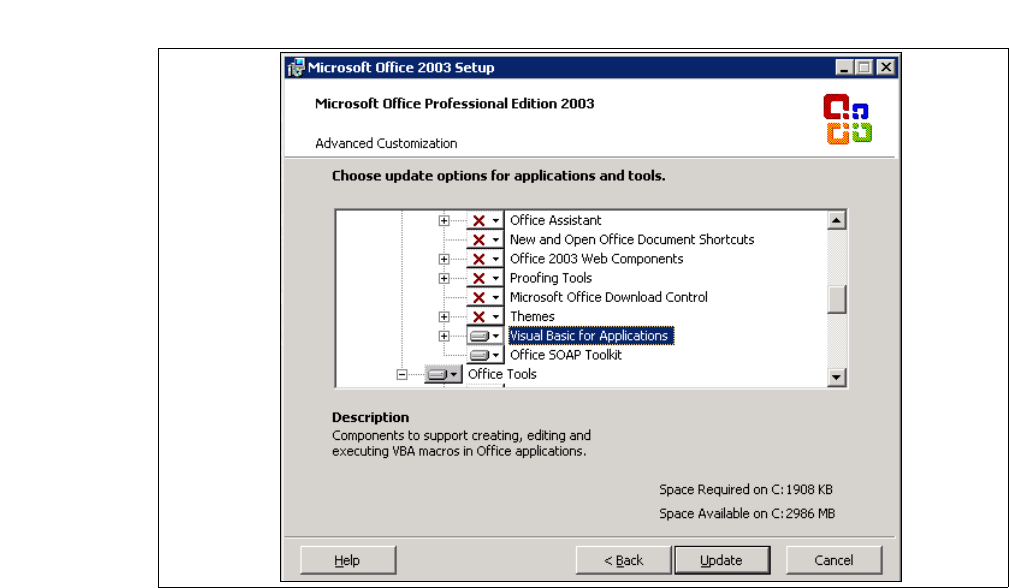
MS Excel is required for the computer on which Factory Reporting is to be installed. For a
successful operation of manually generated reports, the following option has to be enabled
with the MS Excel installation: 3
Custom installed options: Office Shared Features → Visual Basic for Applications 3
3
Fig. 3 - 1 MS Office Setup
(4) SIPLACE Explorer V.2.4 options:
The options SIPLACE Traceability Option V2.0 and SIPLACE Maintenance Manager V1.0 are
not included in the SIPLACE Explorer V2.4 delivery package and must be ordered (installed)
separately. 3
Installation and Configuration Guide SIPLACE Explorer 3 Installing SIPLACE Explorer
Edition 08/2008 EN 3.1 Initial Installation of SIPLACE Explorer 2.4
27
3.1.1 Installation of SIPLACE Explorer 2.4 - Initial Installation
NOTE
You must have Windows administrator privileges to perform installation. 3
→ Place the support media DVD in your DVD drive. Follow the instructions in the document
“Navigation Guide for the Installation Procedure of SIPLACE Software Systems” (Art.No.
00195050-xx).
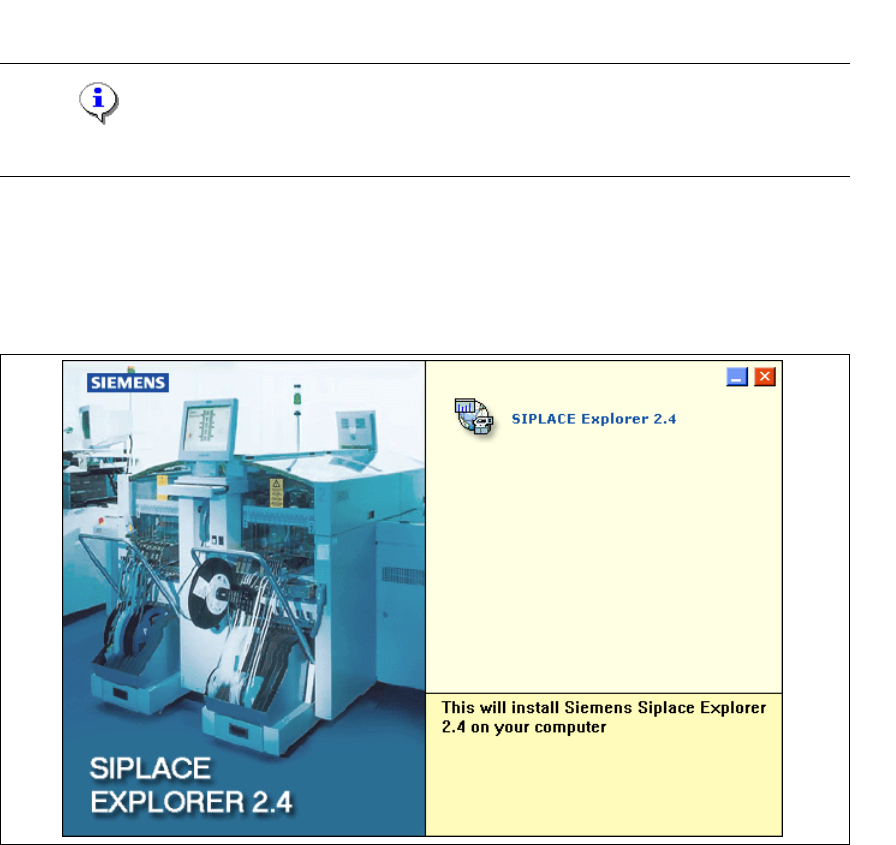
→ Place the SIPLACE Explorer CD in your CD-ROM drive. The Start screen will open.
3
Fig. 3 - 2 SIPLACE Explorer setup - Start screen
→ Select SIPLACE Explorer 2.4.
3 Installing SIPLACE Explorer Installation and Configuration Guide SIPLACE Explorer
3.1 Initial Installation of SIPLACE Explorer 2.4 Edition 08/2008 EN
28
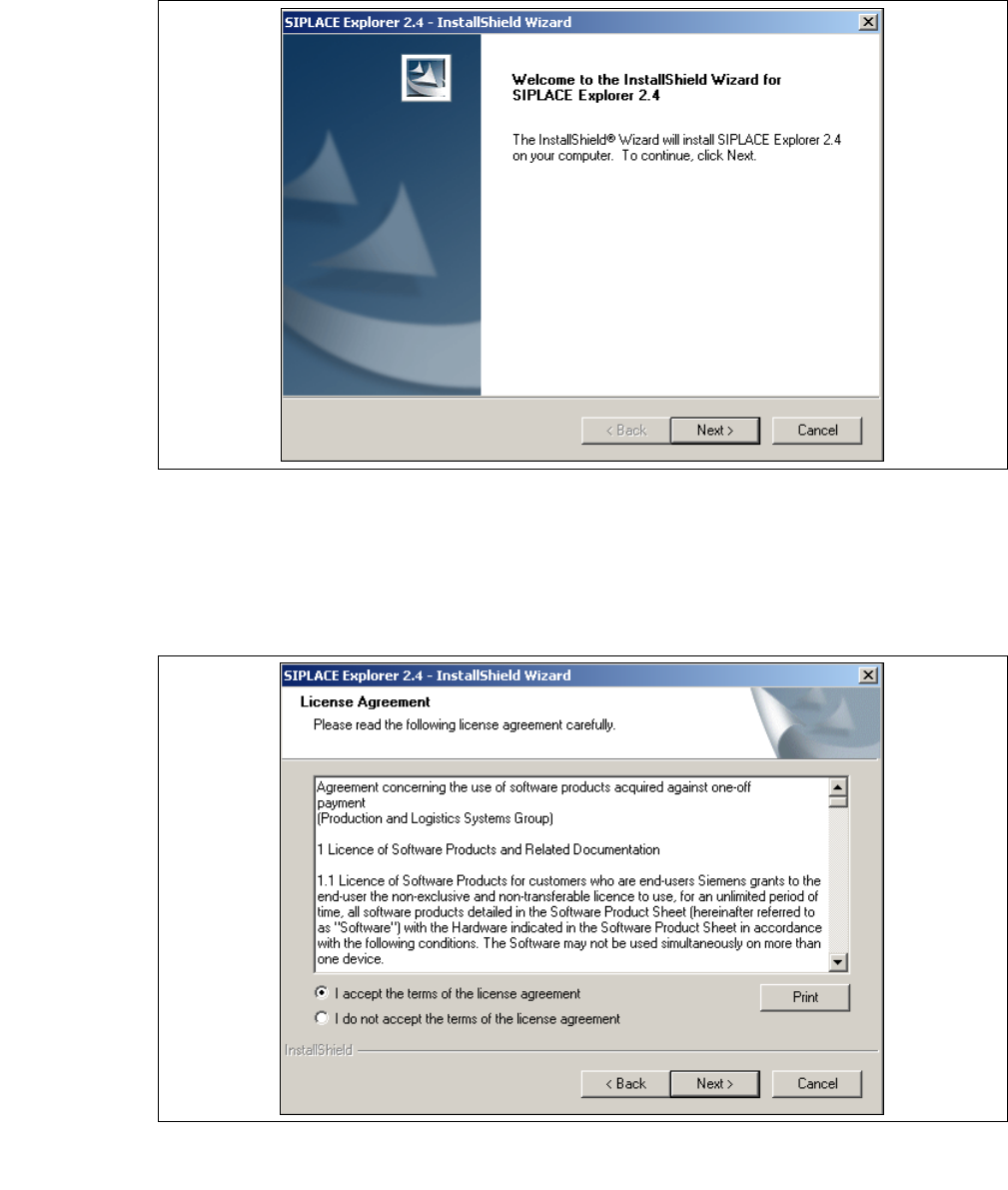
→ You will be guided through the SIPLACE Explorer installation procedure.
3
Fig. 3 - 3 SIPLACE Explorer welcome
→ Exit all other programs and then click on Next. The License Agreement dialog box will open.
→ Read the license agreement. If you agree with the conditions, click I accept ..., otherwise, click
on I do not accept .... If you select I do not accept ..., the installation procedure will be
terminated.
3
Fig. 3 - 4 SIPLACE Explorer setup - license agreement
→ Confirm your selection with Next.