Installation_Manual_SIPLACE_Explorer_2.4_EN.pdf - 第36页
3 Installing SIPLACE Explorer Installation and Configuration Guide SIPLACE Explorer 3.2 Update Installation of SIPLACE Explorer 2.4 Edition 08/2008 EN 36 NOTE After inst alling SIPLACE Explorer , re boot your system. Thi…
Installation and Configuration Guide SIPLACE Explorer 3 Installing SIPLACE Explorer
Edition 08/2008 EN 3.1 Initial Installation of SIPLACE Explorer 2.4
35
3
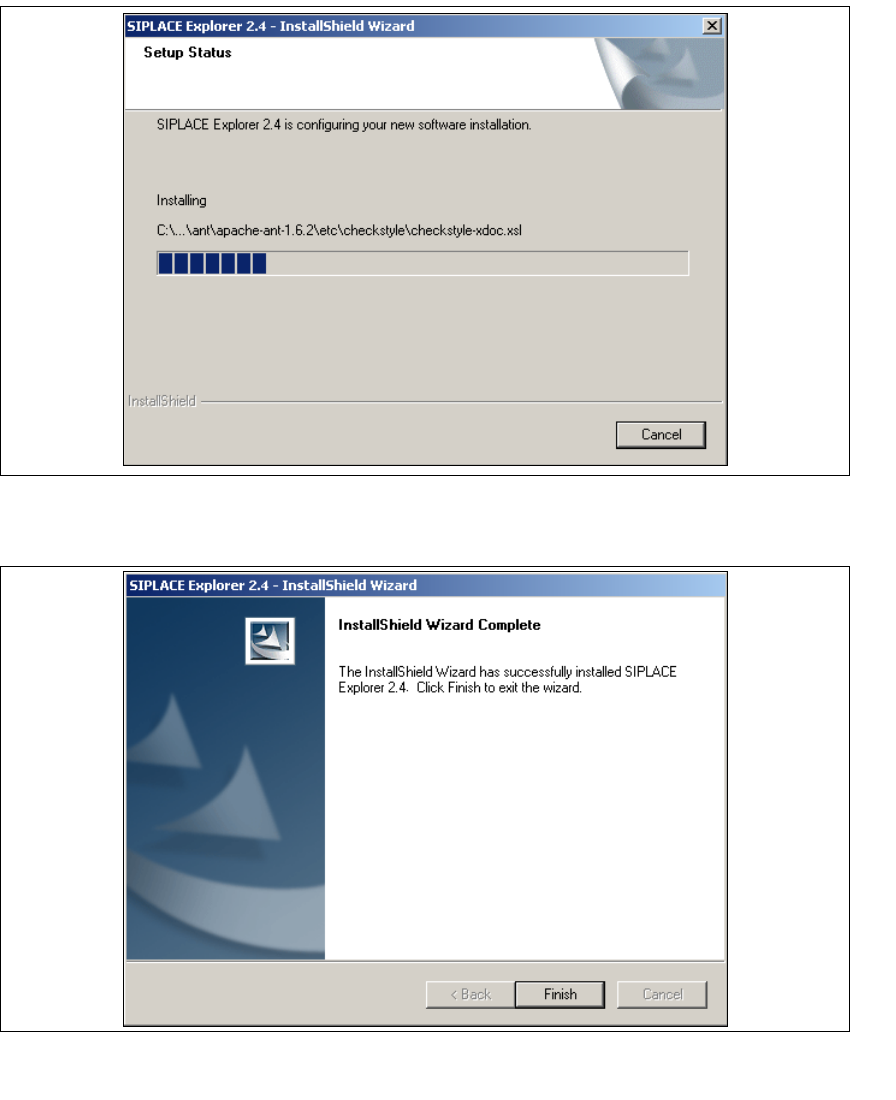
Fig. 3 - 15 SIPLACE Explorer setup - setup status
→ Once the installation procedure has finished, the following dialog box will open.
3
Fig. 3 - 16 SIPLACE Explorer setup - installation complete
→ Click on Finish. After you have rebooted your computer, SIPLACE Explorer will be available
for use. Follow the instructions at “Starting SIPLACE Explorer” on page 41.

3 Installing SIPLACE Explorer Installation and Configuration Guide SIPLACE Explorer
3.2 Update Installation of SIPLACE Explorer 2.4 Edition 08/2008 EN
36
NOTE
After installing SIPLACE Explorer, reboot your system. This ensures that port 1099 is available for
the Java Runtime Environment. In rare cases, port 1099 may be used by another application. If
you start SIPLACE Explorer after the installation, without rebooting the system, the error message
"SIPLACE Explorer 2.4 runtime not found" would be shown in such cases. 3
3.2 Update Installation of SIPLACE Explorer 2.4
To update from a previous version to SIPLACE Explorer V2.4, you must already have an
executable version of SIPLACE Explorer already installed on your system. 3
– Update from SIPLACE Explorer V2.0, V2.1, V2.2 and V2.3 to SIPLACE Explorer V2.4:
Uninstall the previous version with its components. Proceed by following the instructions at
“Uninstallation” on page 103. For the installation, proceed as described at “Initial Installation of
SIPLACE Explorer 2.4” on page 23 3
NOTE
If you want to keep the existing line configurations and other settings, install the new version
of SIPLACE Explorer in the same folder as the previous version. See Fig. 3 - 9 SIPLACE
Explorer Setup - "Choose Folder" dialog box. 3
NOTE
Before installing Tomcat 5.5, make sure that all versions of Tomcat < 5.5 have been
uninstalled. Use the Apache Tomcat uninstallation program. This can be started via the
Start → Programs → Apache Tomcat 5.5 → Uninstall Tomcat menu in Windows. 3
After performing the update, you can also install additional SIPLACE Explorer options: 3
– SIPLACE Explorer V2.4 options:
The options SIPLACE Traceability Option 2.0 and SIPLACE Maintenance Manager V1.0 are
not included in the SIPLACE Explorer V2.4 delivery package and must be ordered (installed)
separately. 3
Installation and Configuration Guide SIPLACE Explorer 3 Installing SIPLACE Explorer
Edition 08/2008 EN 3.2 Update Installation of SIPLACE Explorer 2.4
37
3.2.1 Installation of SIPLACE Explorer 2.4 - Update Installation
NOTE
You must have Windows administrator privileges to perform installation. 3
→ Place the SIPLACE Explorer CD in your CD-ROM drive.
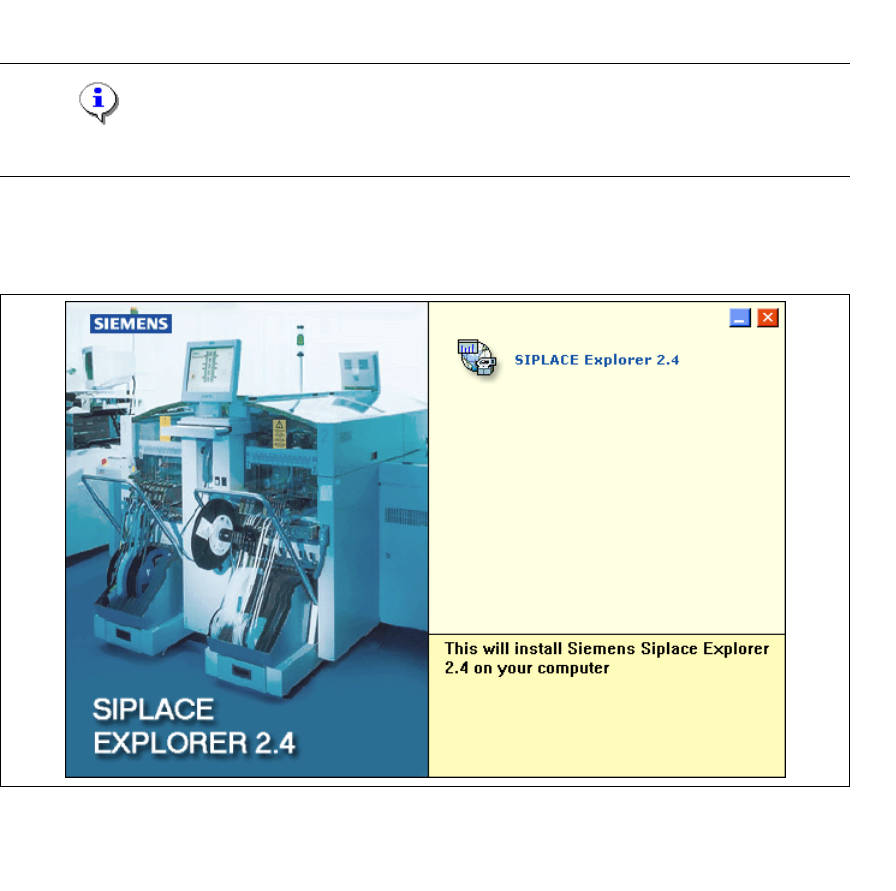
→ The Start screen will open.
3
Fig. 3 - 17 SIPLACE Explorer setup - Start screen
→ Select SIPLACE Explorer 2.4.
→ You will be guided through the SIPLACE Explorer installation procedure.