KE-2030使用说明书.pdf - 第246页
4 – 147 − Feeder Set the Non-st op operation of a f eeder . • No: The Optimization utilit y does not perf orm t he Non-stop operation. • T act priorit y: The Optimization utility assigns com ponents with considering the …
4 – 146
• Arrange feeders according to the placement peak point is fixed on center of the
PWB
Specify the calculation method of the component placement peak point to assign
feeders.
When this option is checked, the system assigns feeders so that the center of a
board can be the component placement peak point.
When this option is not checked, the option selected in the “Placement peak”
pull-down box displayed in the “Feeder arrange” dialog box is activated.
(7) Non-stop operation
You can use the Optimization function to specify a station that is to perform the
Non-stop operation. When you use this option, you can replace components
without stopping the current production.
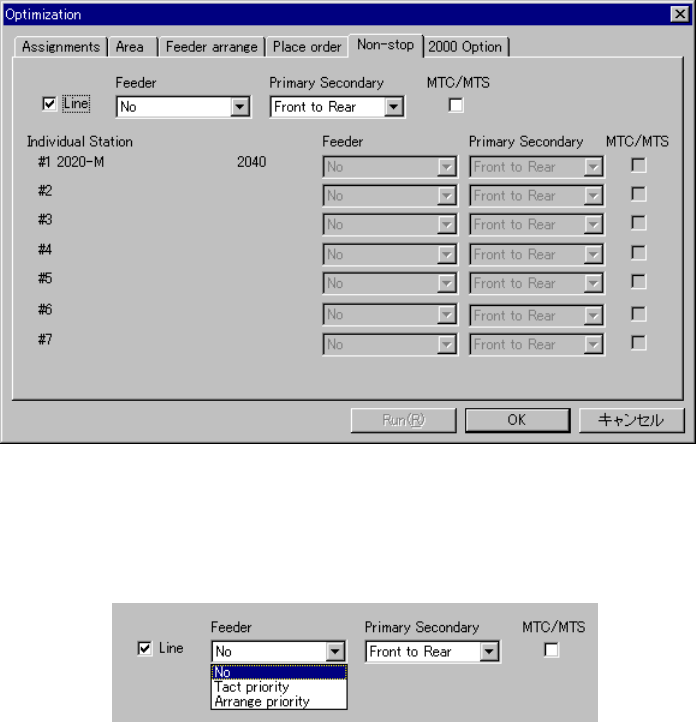
When you select the “Non-stop” tab, the following dialog box appears on the
screen.
Figure 4.10.1.18 “Non-stop” option tab
◇ When you check the check box “Line”, you can specify the Non-stop operation.
Figure 4.10.1.19 Specifying the Non-stop operation

4 – 147
− Feeder
Set the Non-stop operation of a feeder.
• No: The Optimization utility does not perform the Non-stop
operation.
• Tact priority: The Optimization utility assigns components with considering
the tact first.
• Arrange priority: The Optimization utility assigns components with considering
the feeder changeover first.
When you select “Arrange priority” with a KE-2020, an error occurs if the
system executes the line coherence check.
− Primary Secondary
Select which side to be used mainly in Non-Stop operation mode, front or rear.
• Front to Rear: The system performs PWB production with the front side mainly,
and uses the rear side when you replace components.
• Rear to Front: The system performs PWB production with the rear side mainly,
and uses the front side when you replace components.
− MTC/MTS
Select whether to allow an MTC and MTS to perform the Non-stop operation or
not.
4 – 148
4.10.2 Divided Placement Data
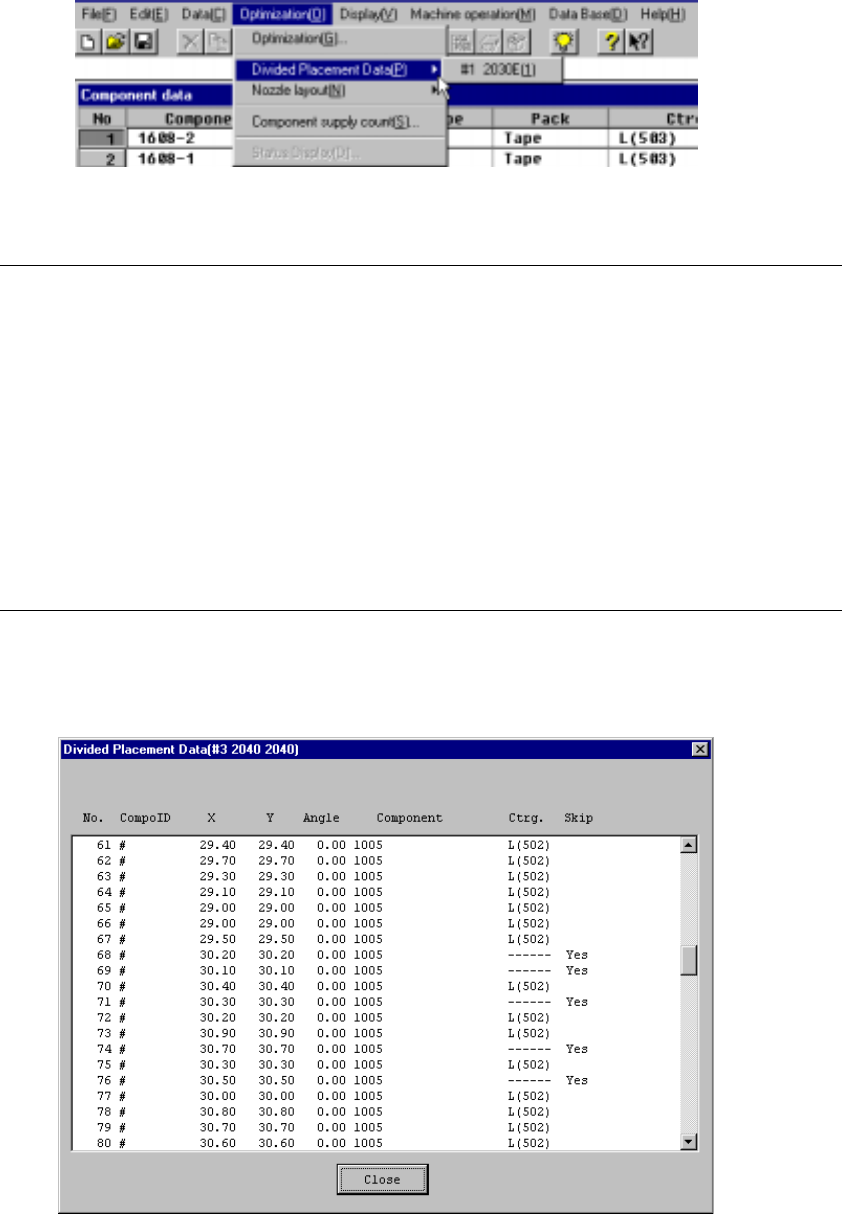
This command displays Placement data which is distributed to each station by the
Optimization utility. Select the menu command [Divided Placement Data] from the
“Optimization” menu. A submenu from which you can select stations displays. Select
a station whose data is to be displayed.
Figure 4.10.2.1 Divided Placement Data selection menu
Notes:
①
This menu cannot be selected if optimization has not been performed
(the divided files do not exist), or if the production program has been
changed after optimization.
②
The display order of divided placement data can be either in the
placement order or optimization order: the order is selected with the
[Environment Settings] command displayed on the File menu.
•
When input order is selected, all Placement data is displayed in
placement order.
•
When optimization order is selected, data on a component to be
placed only is displayed in the optimized placement order as the
result of optimization.
When you select a station on the station selection dialog box, the corresponding
window appears on the screen as shown below.
Figure 4.10.2.2 Divided Placement Data Display Example (placement Order)