KE-2030使用说明书.pdf - 第414页
6 − 68 6.4.8 Checking to see if a laser head is stained W hen y ou check t he check box “Check dir ty of Laser sensor.” of the “ Production (Function 2)” t ab that is invoked f rom the Operat ion Option screen, the syste…
6 − 67
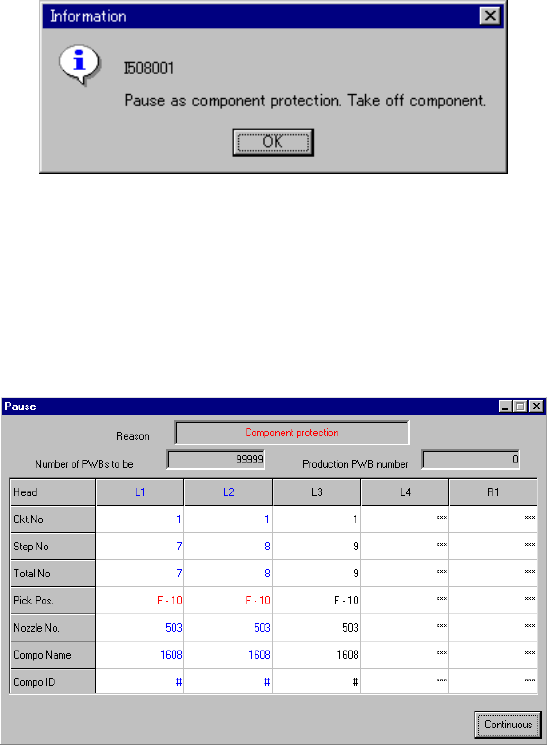
6.4.7 Pause as component protection
If a recognition error occurs at a component designated as a protective component
specified in the component data of production program (on the Expanded window),
the machine is put in the pause state and the message box appears as shown in
Figure 6.4.7.1.
Figure 6.4.7.1 "Pause as component protection" dialog box
Remove the component being picked by the nozzle with your hand, and select the
<OK> button. Then, the machine is put in the pause state with the dialog box
displayed as shown in Figure 6.4.7.2.
Figure 6.4.7.2 Pause dialog box due to component protection
Pressing the <START> switch on the panel of the main unit scraps the component,
and then restarts the production. Pressing the <STOP> switch puts the machine in the
pause state with the production stop dialog box displayed.
6 − 68
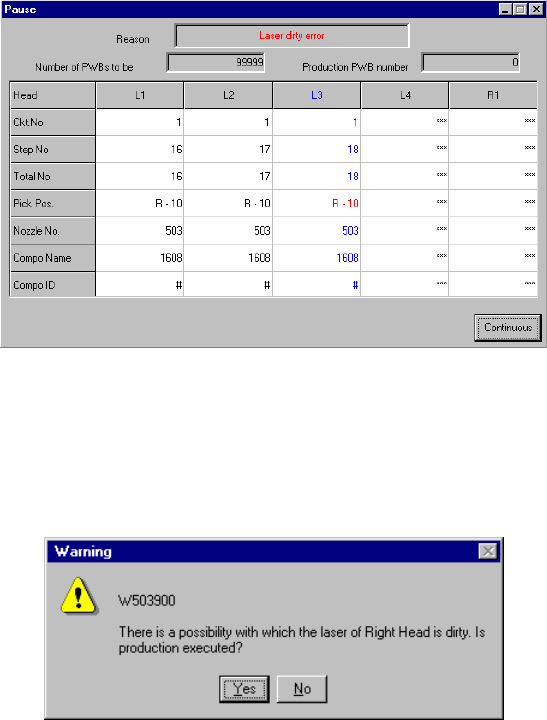
6.4.8 Checking to see if a laser head is stained
When you check the check box “Check dirty of Laser sensor.” of the “Production
(Function 2)” tab that is invoked from the Operation Option screen, the system checks
to see if laser heads are stained when a board is sent into the machine. If the
system detects any stain stuck to the laser head(s), the system pauses.
◇ The laser head(s) that is (are) found to be stained is displayed in blue on the
screen.
◇ The stained head stops temporarily after moving to the front side. Clean the
laser head.
Figure 6.4.8.1 Pause dialog box
When you press the <START> switch, the system checks to see if the laser heads are
stained again. When it does not detect any stain on the laser heads, it restarts
production. Otherwise, the following message appears on the screen.
Figure 6.4.8.2 Dirty laser head message
When you click the <Yes> button: the system starts production.
When you click the <No> button: the “Pause” dialog box reappears on the screen.
◇ The system checks to see if the laser heads are stained again. The stained
laser head(s) is (are) displayed in blue. Clean the laser head(s) displayed in
blue. When you press the <STOP> button on the “Pause” dialog box, the
system displays the “Abort” dialog box to abort the current production.
6 − 69
6.4.9 Filling the feeder with components when the system pauses a production
operation
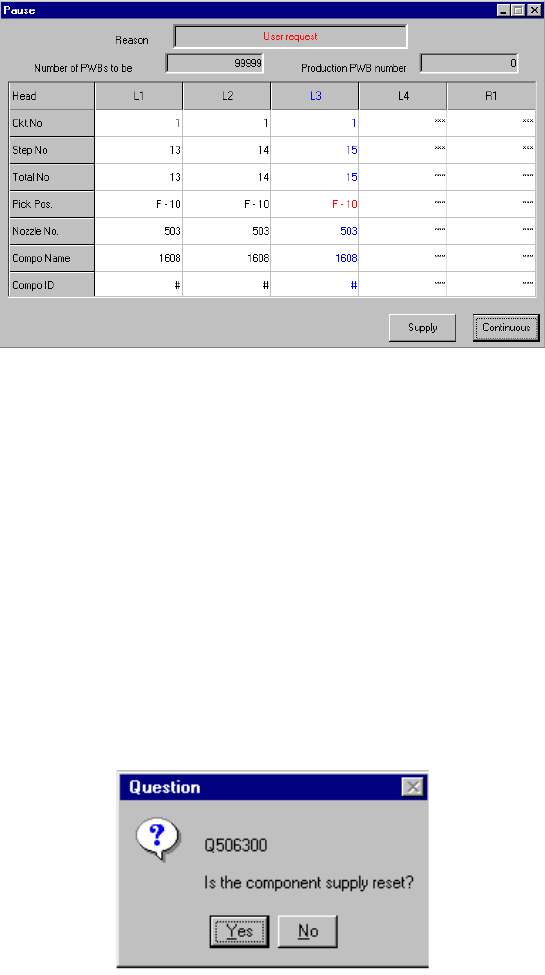
If you check the Production (Display) tag of the Operation option menu, then check
the item "The "Supply" button is applied to the pause dialog", the <Supply> button is
displayed on the "Pause" dialog box as shown below.
This button is displayed when the system temporarily stops a production operation.
However, note that it is not displayed when the system stops because components
run out or the mark recognition error occurs.
Figure 6.4.9.1 Pause dialog box equipped with the Supply button
When you click the <Supply> button, the system fills the feeder such as a tape, stick
or bulk feeder with the corresponding components.
If the remaining number of components is zero, it is reset to the initial value, then
component run-out t information is cleared. If the remaining number is not zero, the
component run-out information is just cleared.
When you click the <Supply> button, the message box as shown below will appear on
the screen. When you click the <OK> button on this box, the system performs the
component-filling operation, then closes the message box. When you click the
<Cancel> button, the system does not perform any operation, then closes the
message box.
Figure 6.4.9.2 "Is the component supply reset?" (Confirmation) dialog box