00196604_Install_SQL2008Server_manual.pdf - 第13页
Installation of SQL Server 2008 02/2011 Edition → Click the Next > button to continue. The feature selection window appears: Fig. 3-10: SQL Server Setup Feature Selection → Ensure the following features being sele cte…
Installation of SQL Server 2008 02/2011 Edition
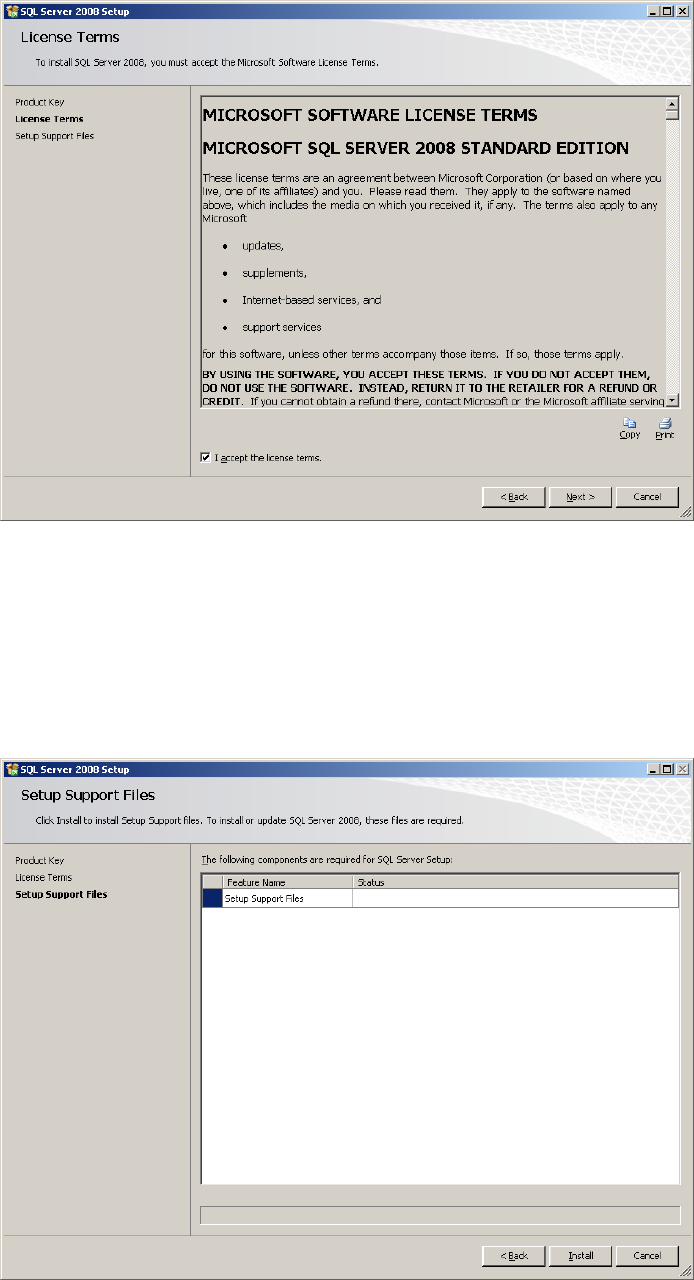
Fig. 3-8: SQL Server Setup License Terms
→ Ensure the checkbox besides I accept the license terms is checked.
→ Click the Next > button to continue.
The following window might be displayed:
Fig. 3-9: SQL Server Setup Support Files
→ Click the Install button to continue installing support files. This may take some seconds.
The “Setup Support Rules” window reappears.
12
Installation of SQL Server 2008 02/2011 Edition
→ Click the Next > button to continue.
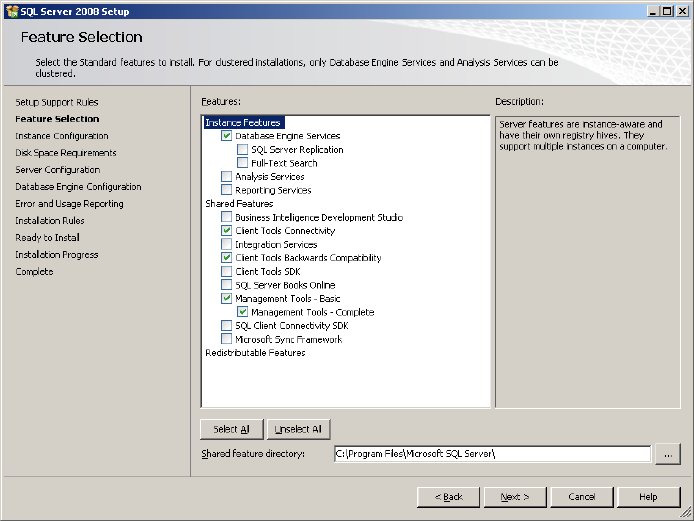
The feature selection window appears:
Fig. 3-10: SQL Server Setup Feature Selection
→ Ensure the following features being selected:
- Database Engine Services
- Client Tools Connectivity
- Client Tools Backwards Compatibility
- Management Tools – Basic
- Management Tools – Complete
→ Click the Next > button to continue.
The following window will be shown:
13
Installation of SQL Server 2008 02/2011 Edition
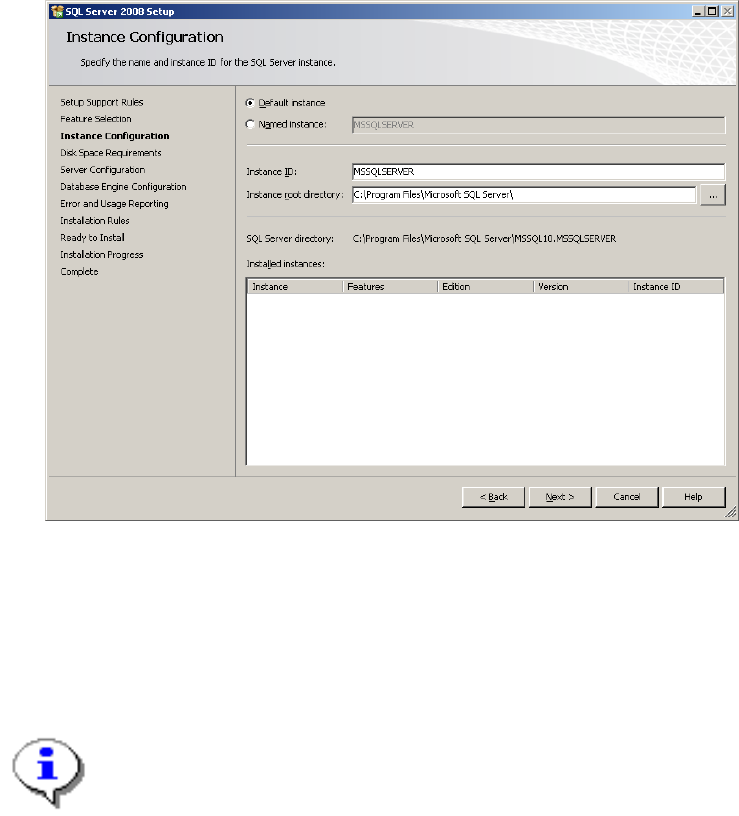
Fig. 3-11: SQL Server Setup Instance Configuration
→ Leave the default instance button checked to install the SQL Server using the
“MSSQLSERVER” – default instance.
→ Click the Next > button to continue.
Note:
SQL Server setup has a known bug if you choose the button “Named instance”, define a
custom instance name and then switch back by clicking the button “Default instance”. Ensure
the instance name is “MSSQLSERVER” when switching back to “Default instance”.
14