00196604_Install_SQL2008Server_manual.pdf - 第5页
Installation of SQL Server 2008 02/2011 Edition 5 1 Introduction SIPLACE software systems make use of a database to st ore data on the hard drive. For scalable solutions SIPLACE recommends SQL Server 2008 Standard wh ich…
Installation of SQL Server 2008 02/2011 Edition
4
Installation of SQL Server 2008 02/2011 Edition
5
1 Introduction
SIPLACE software systems make use of a database to store data on the hard drive. For scalable solutions
SIPLACE recommends SQL Server 2008 Standard which operates on Windows Server 2008 operating
system versions. Both used components – database and operating system – are 32 Bit (x86) versions.
2 Scope of delivery
This document describes the manual procedure to install SQL Server 2008 with default settings for usage
of SIPLACE software products for SIPLACE computer systems.
Further customization settings (e.g. modification of database settings) will be done by the specific product
installation setups.
Subject of this document is a first- time installation on fresh systems (no upgrade).
Installation of SQL Server 2008 02/2011 Edition
3 Installation
Note:
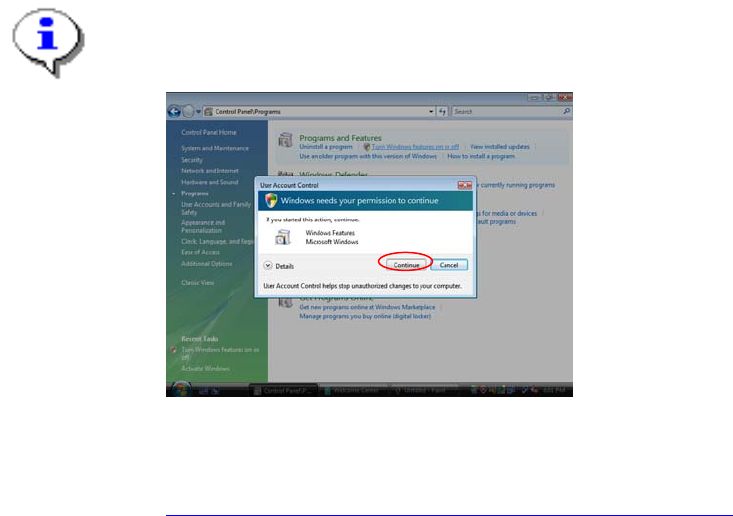
With Windows Vista there is a new feature called “User Account Control” introduced, which
controls access to functions that require permissions above the default user. If you see warning
messages between the described steps you have to acknowledge them before proceeding.
Fig. 3-11: Vista User Account Control
More information on this feature:
http://technet.microsoft.com/en-us/windowsvista/aa905108.aspx
3.1 Installation of SQL Server 2008 Prerequisites
3.1.1 Windows Installer 4.5
SQL Server 2008 requires Microsoft Windows Installer 4.5 or later.
You have to install this package manually if it is missing before you start with the SQL Server installation.
It is provided on the SIPLACE Net Support Media in the directory
<DVD-Drive>\Updates\Windows Installer\4.5.
3.1.2 .Net Framework 3.5 SP 1
SQL Server 2008 requires Microsoft .Net Framework 3.5 SP 1 or later.
→ Insert the SIPLACE Net Support Media CD/DVD into your drive.
→ Navigate to the directory <DVD-Drive>\TOOLS\DOTNETFRAMEWORK\GENERAL\3.5 SP1.
→ Double- click the setup package DOTNETFX35.EXE.
6