00196604_Install_SQL2008Server_manual.pdf - 第22页
Installation of SQL Server 2008 02/2011 Edition 3.3 Af ter the installation 3.3.1 Needed Settings After installation, verify that the option “Windows fibers” is not set: → Click Start – Programs – Microso ft SQL Server 2…
Installation of SQL Server 2008 02/2011 Edition
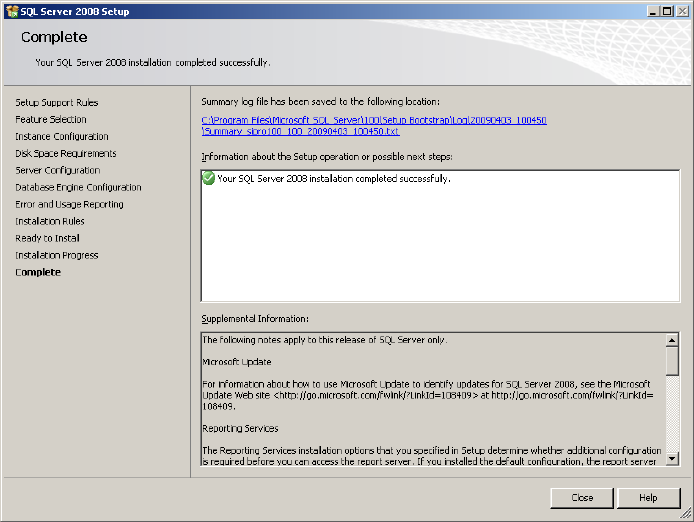
The following window will appear:
Fig. 3-23: SQL Server Setup completed
→ Click the Close button to finish the installation.
21
Installation of SQL Server 2008 02/2011 Edition
3.3 After the installation
3.3.1 Needed Settings
After installation, verify that the option “Windows fibers” is not set:
→ Click Start – Programs – Microsoft SQL Server 2008– SQL Server Management Studio
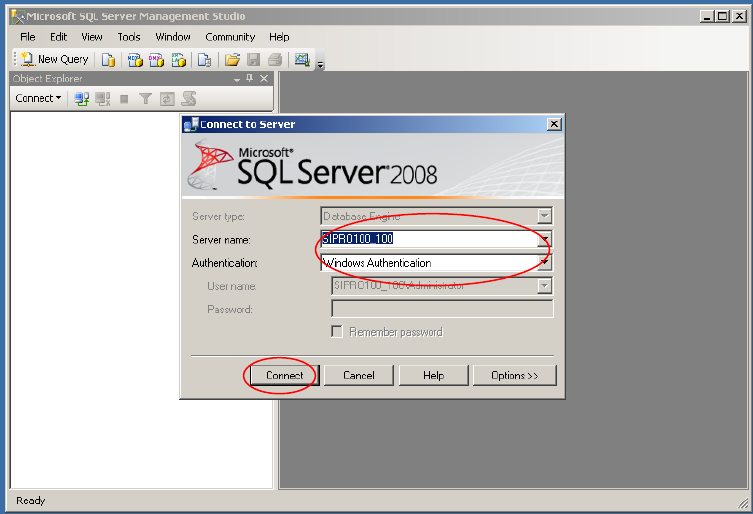
The following dialog is displayed:
Fig. 3-28: SQL Server Enterprise Manager
→ Select your Server- and Instance name and specify the Windows Authentication.
→ Click the Connect button.
22
Installation of SQL Server 2008 02/2011 Edition
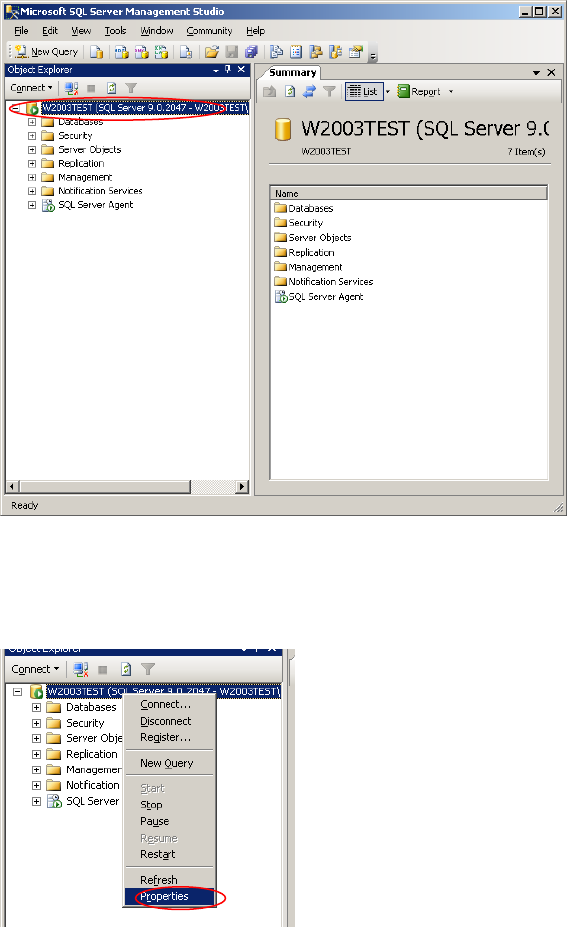
After connecting successfully, the following dialog is displayed:
Fig. 3-29: SQL Server Management Console
→ Right-click on your server connection on the left side and select Properties.
Fig. 3-30: Server connection properties
23