00196604_Install_SQL2008Server_manual.pdf - 第8页
Installation of SQL Server 2008 02/2011 Edition During the installation, the window migh t look like this: Fig. 3-2: .Net Framework 3.5 SP 1 during setup After successful installation, the window should look lik e this: …
Installation of SQL Server 2008 02/2011 Edition
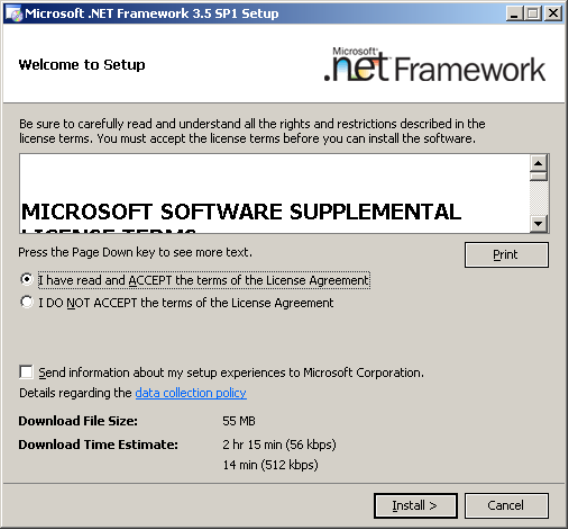
Some files will be extracted to your hard disk. After that, the following window will appear:
Fig. 3-1: .Net Framework 3.5 SP 1 initial setup window
→ Click the I have read and ACCEPT the terms of the License Agreement radio button.
→ Click the Install > button to begin the installation.
7
Installation of SQL Server 2008 02/2011 Edition
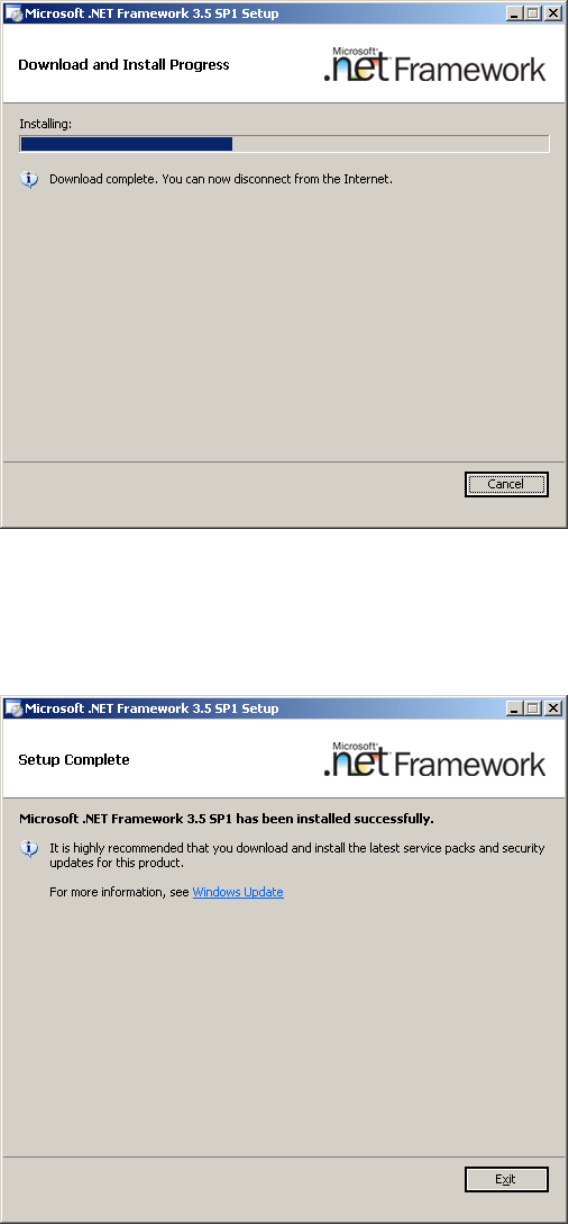
During the installation, the window might look like this:
Fig. 3-2: .Net Framework 3.5 SP 1 during setup
After successful installation, the window should look like this:
Fig. 3-3: .Net Framework 3.5 SP 1 after setup
→ Click Exit to finish the setup.
→ Restart your computer before proceeding!
8
Installation of SQL Server 2008 02/2011 Edition
3.2 Installation of SQL Server 2008
Please follow the instructions below for the manual installation of SQL Server 2008.
Note:
Close all other applications before you start with the installation of SQL Server 2008.
You also need to have administrative privileges to proceed.
→ Insert the SQL Server 2008 installation DVD into your drive.
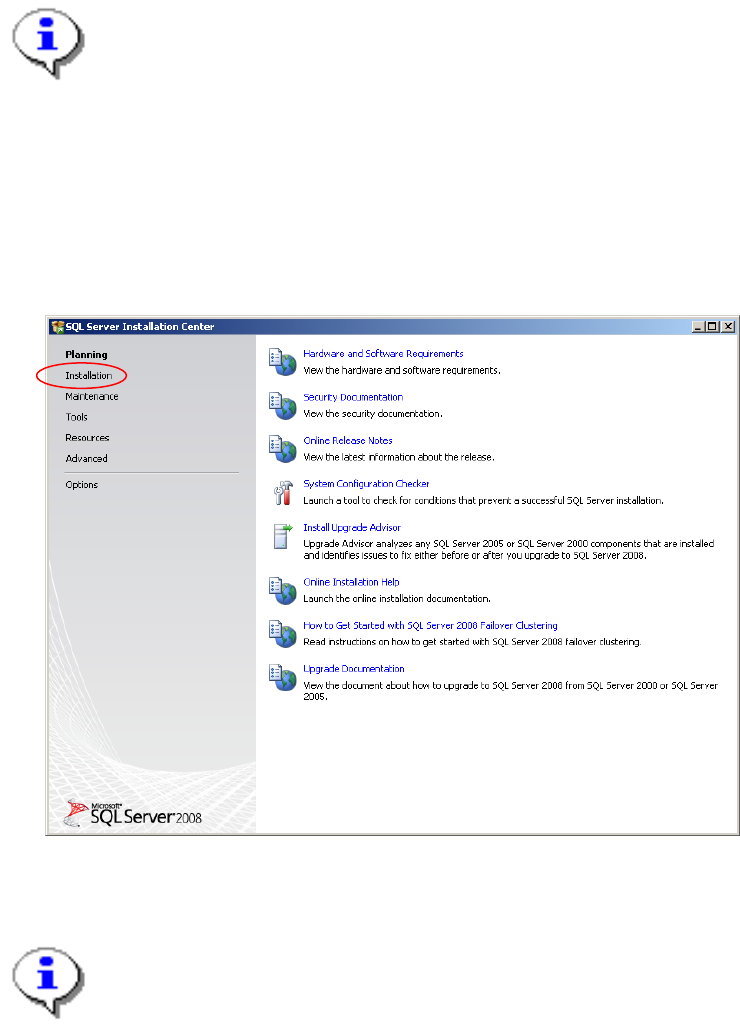
After some seconds, the following dialog is displayed:
Fig. 3-4: SQL Server Installation Center - Planning
Note:
If the dialog does not appear start your Windows Explorer, browse to the file setup.exe on the
SQL Server 2008 installation DVD and double-click it .
→ Click on Installation on the left side
9