00196604_Install_SQL2008Server_manual.pdf - 第15页
Installation of SQL Server 2008 02/2011 Edition The following window will be displayed: Fig. 3-12: SQL Server Setup Disk Space Require ments → Click the Next > button to continue. A window similar to the following wil…
Installation of SQL Server 2008 02/2011 Edition
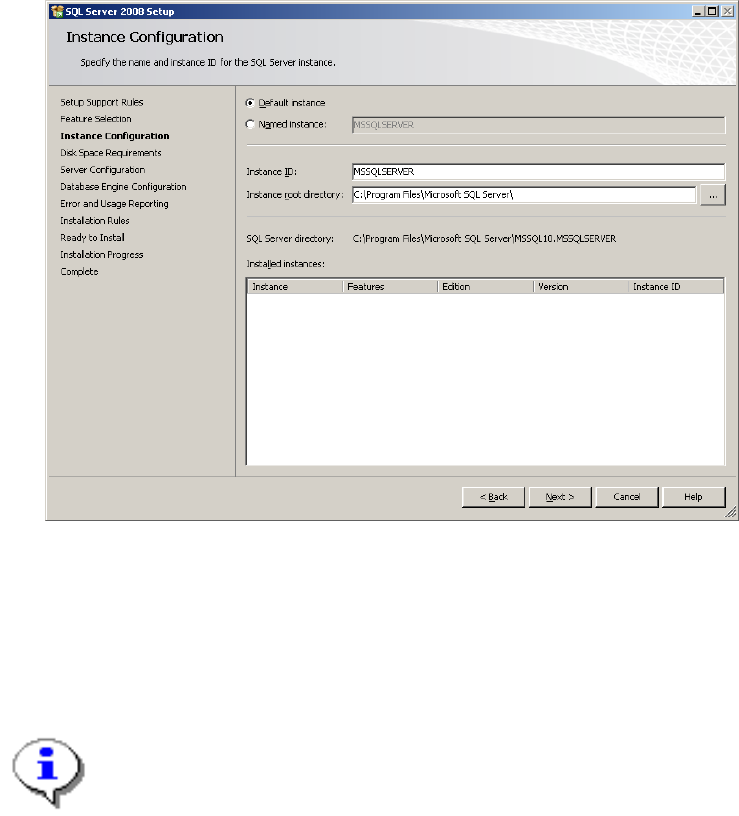
Fig. 3-11: SQL Server Setup Instance Configuration
→ Leave the default instance button checked to install the SQL Server using the
“MSSQLSERVER” – default instance.
→ Click the Next > button to continue.
Note:
SQL Server setup has a known bug if you choose the button “Named instance”, define a
custom instance name and then switch back by clicking the button “Default instance”. Ensure
the instance name is “MSSQLSERVER” when switching back to “Default instance”.
14
Installation of SQL Server 2008 02/2011 Edition
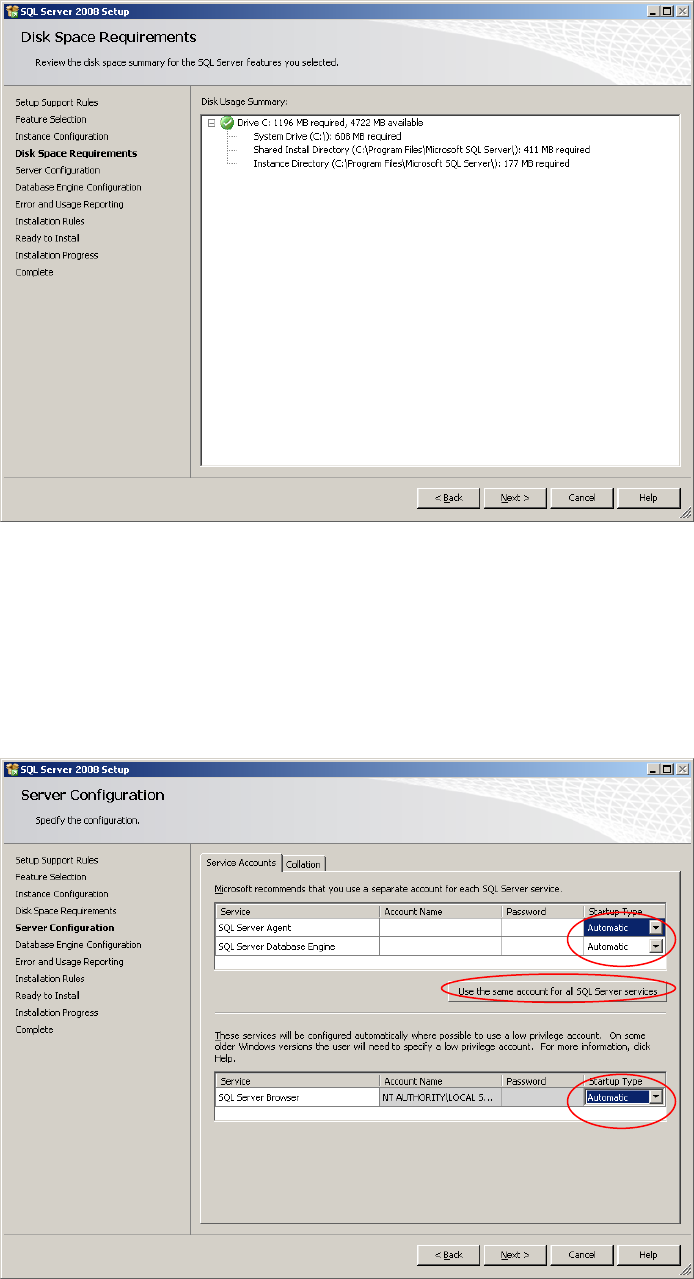
The following window will be displayed:
Fig. 3-12: SQL Server Setup Disk Space Requirements
→ Click the Next > button to continue.
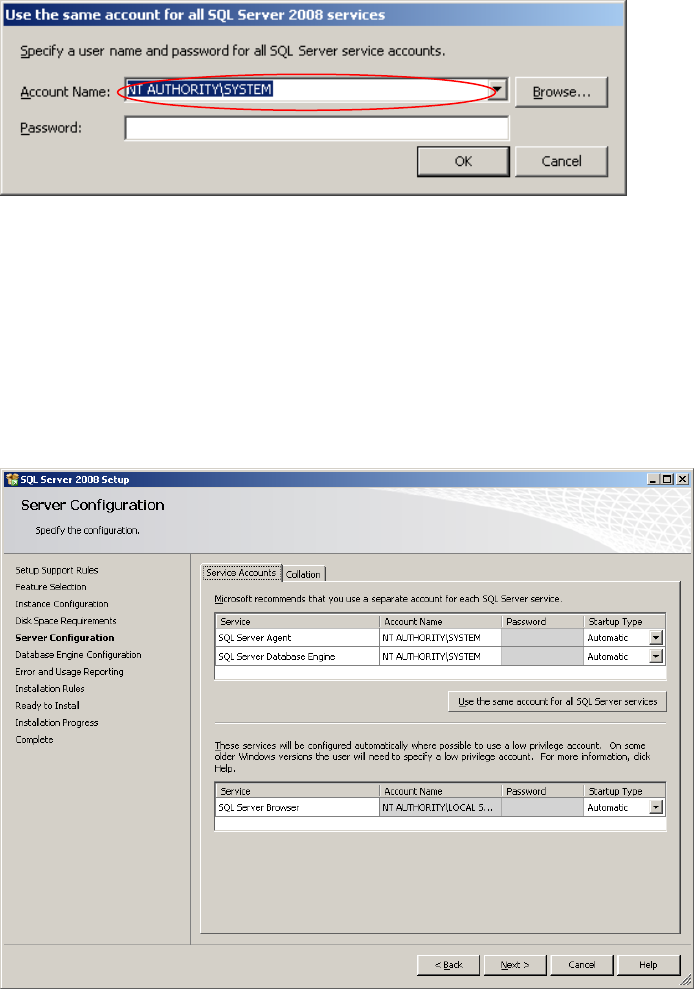
A window similar to the following will be displayed:
Fig. 3-13: SQL Server Setup Server Configuration
15
Installation of SQL Server 2008 02/2011 Edition
→ Ensure the Startup Type of all services is set to “Automatic”
→ Click the Button Use the same account for all SQL Server services.
The following message box should appear:
Fig. 3-14: SQL Server Setup account configuration message box
→ Select the local system account (“NT AUTHORITY\SYSTEM”) from the dropdown menu.
→ Click the OK button to close the message box.
The window now should look like this:
Fig. 3-15: SQL Server Setup Server Configuration – configured to local system account
→ Click the Next > button to continue.
16