00196604_Install_SQL2008Server_manual.pdf - 第14页
Installation of SQL Server 2008 02/2011 Edition Fig. 3-11: SQL Server Setup Instance Configurati on → Leave the default instance button ch ecked to install the SQL Server using the “MSSQLSERVER” – default instance. → Cli…
Installation of SQL Server 2008 02/2011 Edition
→ Click the Next > button to continue.
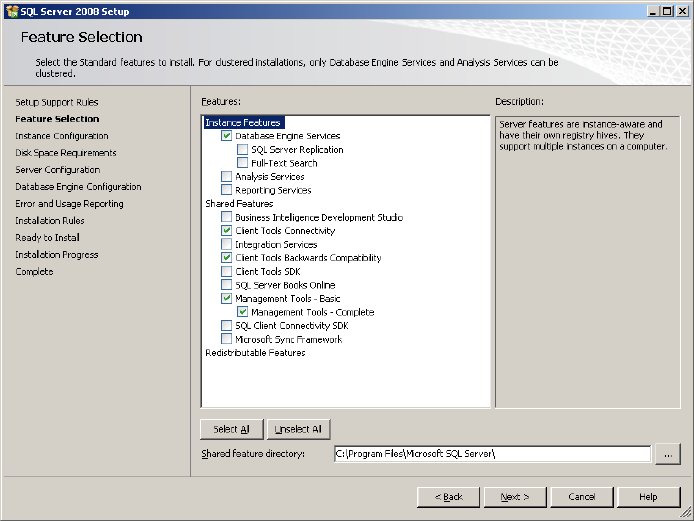
The feature selection window appears:
Fig. 3-10: SQL Server Setup Feature Selection
→ Ensure the following features being selected:
- Database Engine Services
- Client Tools Connectivity
- Client Tools Backwards Compatibility
- Management Tools – Basic
- Management Tools – Complete
→ Click the Next > button to continue.
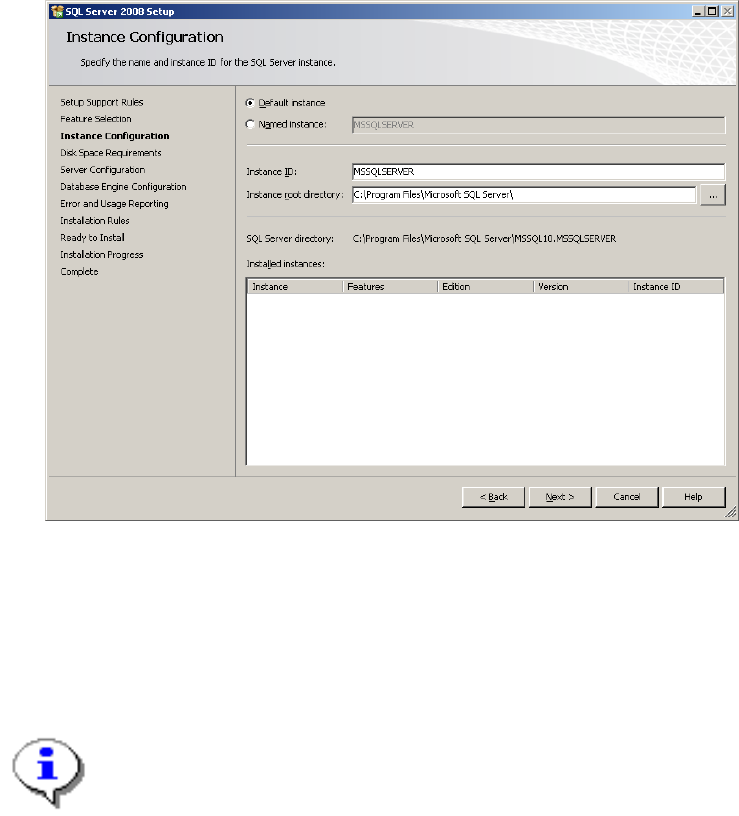
The following window will be shown:
13
Installation of SQL Server 2008 02/2011 Edition
Fig. 3-11: SQL Server Setup Instance Configuration
→ Leave the default instance button checked to install the SQL Server using the
“MSSQLSERVER” – default instance.
→ Click the Next > button to continue.
Note:
SQL Server setup has a known bug if you choose the button “Named instance”, define a
custom instance name and then switch back by clicking the button “Default instance”. Ensure
the instance name is “MSSQLSERVER” when switching back to “Default instance”.
14
Installation of SQL Server 2008 02/2011 Edition
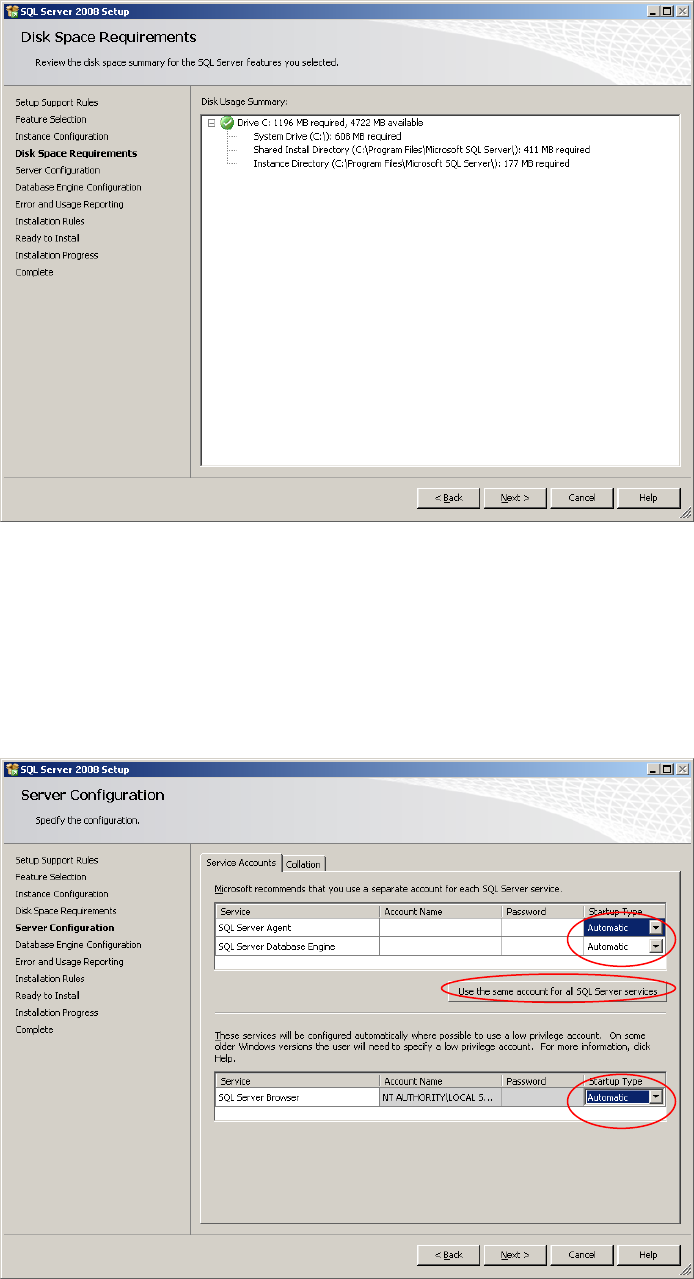
The following window will be displayed:
Fig. 3-12: SQL Server Setup Disk Space Requirements
→ Click the Next > button to continue.
A window similar to the following will be displayed:
Fig. 3-13: SQL Server Setup Server Configuration
15