00197214_IM_SupportMediaV1.13_EN.pdf - 第13页
Support Media V1.13 04/2012 Edition 13 NOTICE Only local drives supported curre ntly Currently, because of security restrictions of some Operatin g Systems, we can’t offer you the possibility to sele ct a network- based …
Support Media V1.13 04/2012 Edition
12
3.4 Download of required but not distributed Software
Due to the fact, that not all required software packages from other vendors can be redistributed by
ASM Assembly Systems, Support Media Prerequisite Analyzer offers multiple ways of downloading
and installing missing software components.
CAUTION
Legal changes regarding redistribution
The redistribution right is affecting the delivery through digital media like DVD as well as
manual delivery through ASM Assembly Systems personnel.
The following chapter describes the available options exemplarily.
3.4.1 Download options of Prerequisite Analyzer
In Prerequisite Analyzer on the Pending Actions Summary page, before installation of Prerequisites
takes place, the media will be checked for the availability of all required Software packages. If at
least one of the required packages is missing, you will get one of the following two dialogs, with the
options sorted by relevance. In this chapter, we give you a basic overview of the options available.
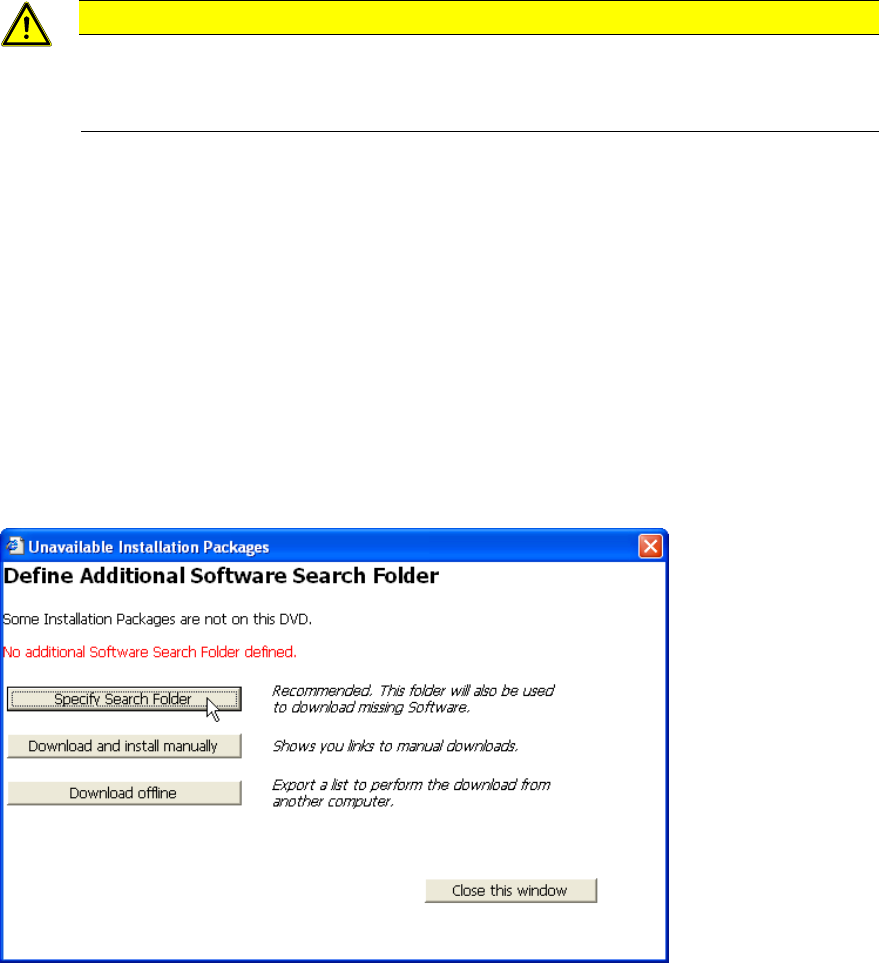
Figure 3-1: Unavailable Installation Packages – No Additional Software Search Folder defined
► Click the Specify Search Folder button to select a (local) folder to search for missing Software
packages.
► Click the button Download and install manually to show the list of missing Software Packages
together with information and links for manual download and installation.
► Click the button Download offline if you don’t have web- access from your computer and want
to download the missing packages using another computer with web- access.
Support Media V1.13 04/2012 Edition
13
NOTICE
Only local drives supported currently
Currently, because of security restrictions of some Operating Systems, we can’t offer you
the possibility to select a network- based Additional Software Search Folder in this first
implementation of the download feature.
In future, we might find a way to guide you through the restrictions and allow you
selecting network locations but for now, you have to use local folders (locally mapped
USB drives are allowed) instead.
Of course, you may copy all the files from the network drive to a local folder to use them.
After you’ve once selected the Additional Software Search Folder you get the following dialog if
required Software packages are still not found.
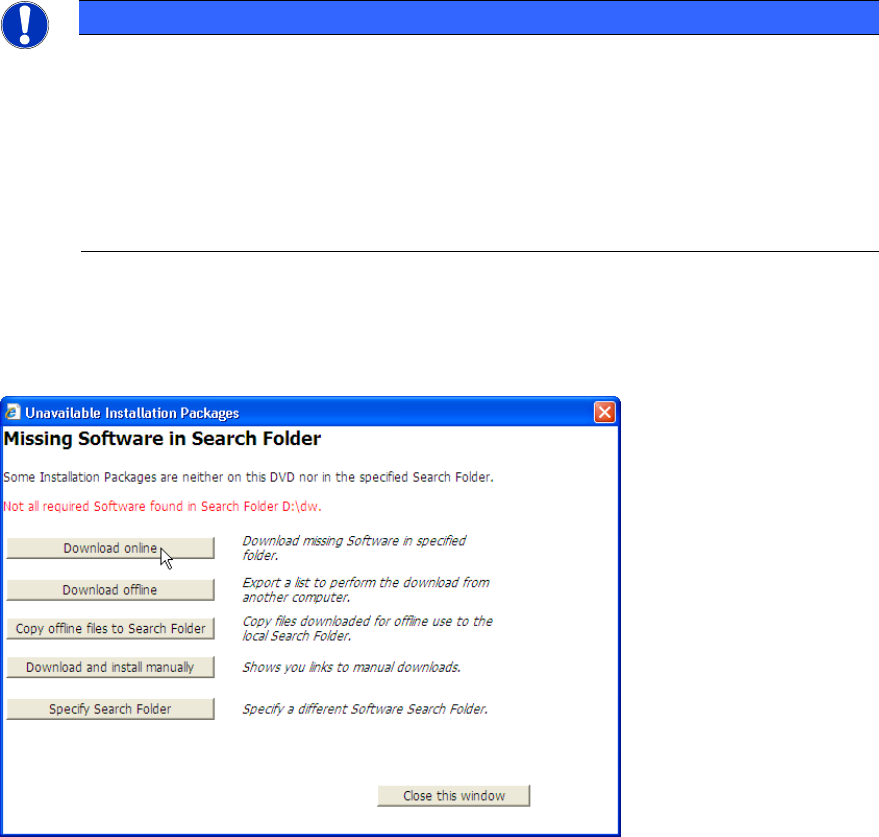
Figure 3-2: Unavailable Installation Packages – Additional Software Search Folder defined, but not all required Software
Packages found
► Click the button Download online to initiate the download of missing Software packages on this
computer directly
► Click the button Download offline if you don’t have web- access from your computer and want
to download the missing packages using another computer with web- access.
► Click the button Copy offline to Search Folder if you’ve already downloaded all needed files on
another computer and now want to copy the files back to this computer. This option also allows
copying files from network drives to the local computer.
► Click the button Download and install manually to show the list of missing Software Packages
together with information and links for manual download and installation.
► Click the Specify Search Folder button to select a different (local) folder to search for missing
Software packages.
3.4.2 Download online option
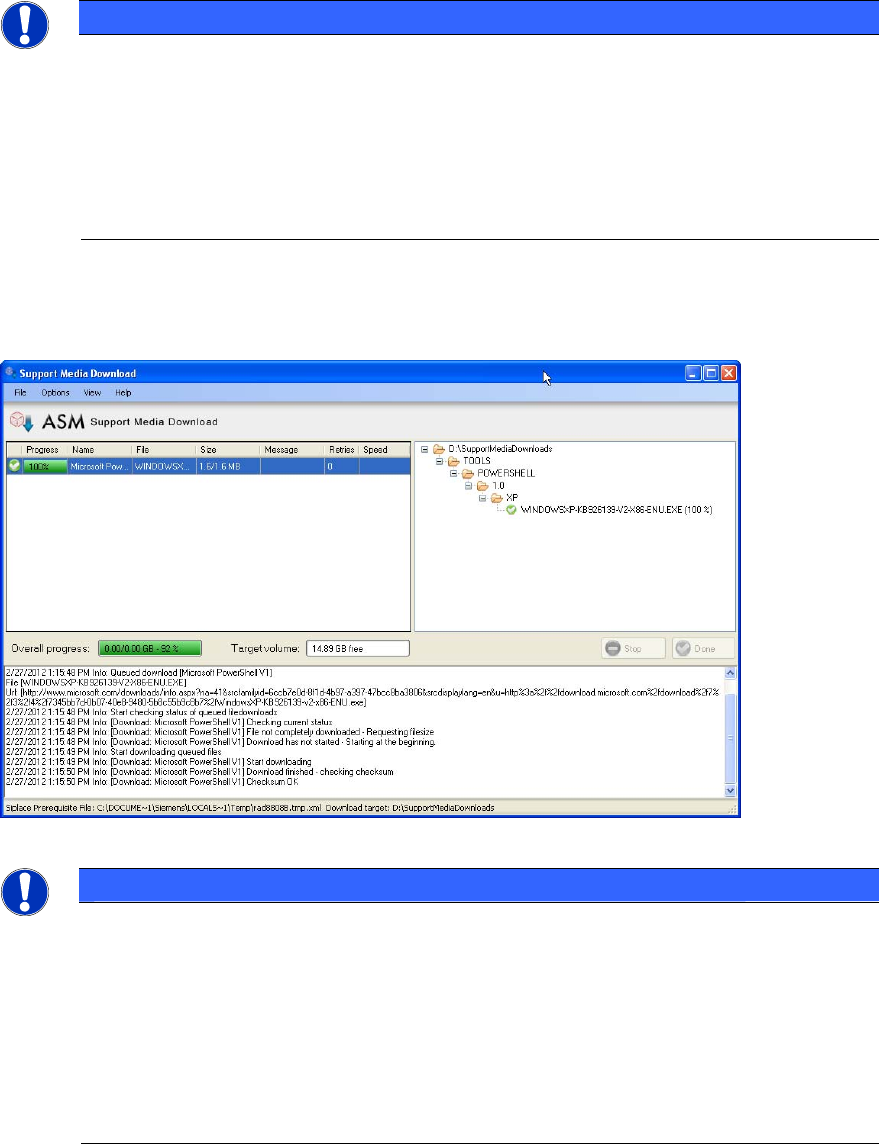
After you’ve selected the Download online option the Support Media Download tool will be used to
download missing required Software Packages to the Additional Software Search Folder you
defined before.
Support Media V1.13 04/2012 Edition
14
NOTICE
Download Tool requires .Net Framework 3.5 SP 1
To use the Download Tool, .Net Framework 3.5 SP 1 is required. Analyzer will detect, if
.Net Framework is missing and hint you to install it using the appropriate Analyzer Profile
from the profile group SIPLACE Net.
If you get this message, step back to the Product Selection page and select the
appropriate Profile in SIPLACE Net\.Net Framework stand- alone Setups only (deselect
previously selected Profiles) to install .Net Framework 3.5 SP 1.
The following picture shows you an example.
Figure 3-3: Screenshot of Support Media Download tool
NOTICE
Complete Download not always possible
Depending on the Products you’ve selected, your Operating System and its
configuration, the availability of web- based links, etc. there might be Software Packages
missing, which can’t be downloaded automatically.
You will get an appropriate warning message, depending on your situation (e.g. all
missing Software Packages not downloadable, only a part of missing Packages not
downloadable).
Please use the Download and install manually option if you encounter this problem. It will
show you alternative hints and links on how to get/install the missing Packages.
When the download of missing Software Packages completed successfully and no other Packages
are missing, the Install button will be visible and Analyzer will allow to continue automatic
preparation of your computer.