00197214_IM_SupportMediaV1.13_EN.pdf - 第16页
Support Media V1.13 04/2012 Edition 16 NOTICE Complete download not al w ays possible Like with the Download onl ine option, there might be cases where Software Packages are missing which can’t be downloaded automaticall…
Support Media V1.13 04/2012 Edition
15
3.4.3 Download offline option
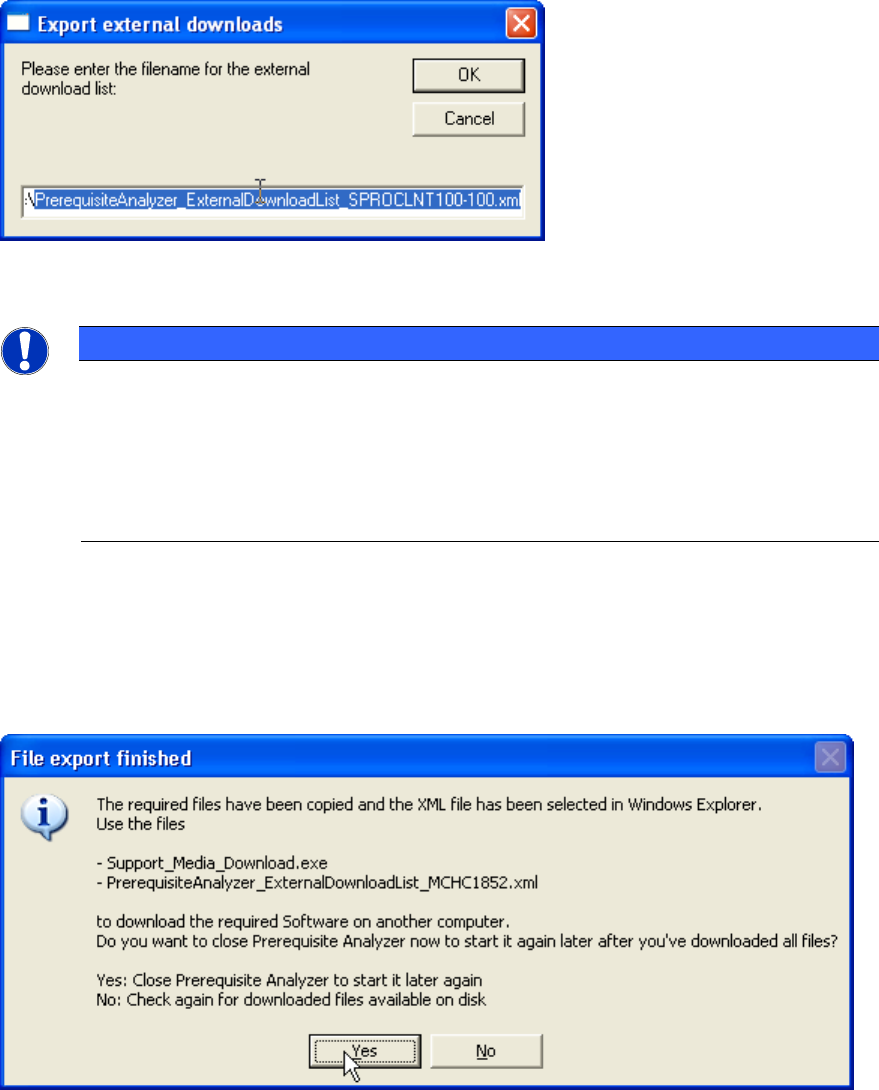
After you’ve selected the Download offline option, Analyzer will ask for the location to store the
Download List as shown in the following picture.
Figure 3-4: Analyzer asking for the location to store the Download List
NOTICE
Default Download List location and naming
The default location for the Download List is
<MyDocumentsFolder>\PrerequisiteAnalyzer_ExternalDownloadList_<ComputerName>.
xml.
Since this list contains information specific to the computer, the name of the download
list contains the computer name for which it was created. This will help you identifying
After you’ve defined the location of the Download List, the Download List and the Support Media
Download Tool (“SUPPORT_MEDIA_DOWNLOAD.EXE”) will be saved to the specified location
and you will see a new Windows Explorer window appearing with the Download List selected, to
simplify finding the files created.
After that, the following message will be displayed.
Figure 3-5: Export finished message of Analyzer
► Click the Yes button if you want to close Analyzer later until you’ve downloaded all files on the
other computer.
► Click the No button to step back to the previous options dialog, allowing you to select an
alternative Additional Software Search Folder containing all missing packages.
Support Media V1.13 04/2012 Edition
16
NOTICE
Complete download not always possible
Like with the Download online option, there might be cases where Software Packages
are missing which can’t be downloaded automatically.
You will get an appropriate warning message, depending on your situation (e.g. all
missing Software Packages not downloadable, only a part of missing Packages not
downloadable).
Please use the Download and install manually option if you encounter this problem. It will
show you alternative hints and links on how to get/install the missing Packages.
► Transfer the files to another computer with access to the Internet (e.g. using an USB drive).
► On the computer with web- access, execute the SUPPORT_MEDIA_DOWNLOAD.EXE tool
and select the appropriate download list using the option File – Open Siplace Prerequisite File.
► After that, the Download tool will ask for a folder to store downloads. Select an appropriate
location.
NOTICE
Subfolder for download structure required
Prerequisite Analyzer only detects downloaded files, if the relative directory structure to
all Tools and Updates remains consistent. To ensure this, use a new custom subfolder to
store all download content. When transferring to the offline computer, only this folder with
all content needs to be copied.
Don’t mistake a created “Tools” or “Updates” subfolder (containing the appropriate
tool/update) with the root folder of all required downloads!
► Click the Start button to initiate the download.
► After you completed the download of all packages successfully, close the Download Tool.
Transfer the contents of the download folder back to the computer you tried to prepare:
► On the computer you tried to prepare, start Prerequisite Analyzer and when asked, click the
option to select a local Additional Software Search folder.
► After you’ve specified the search folder, click the button Copy offline files to Search Folder.
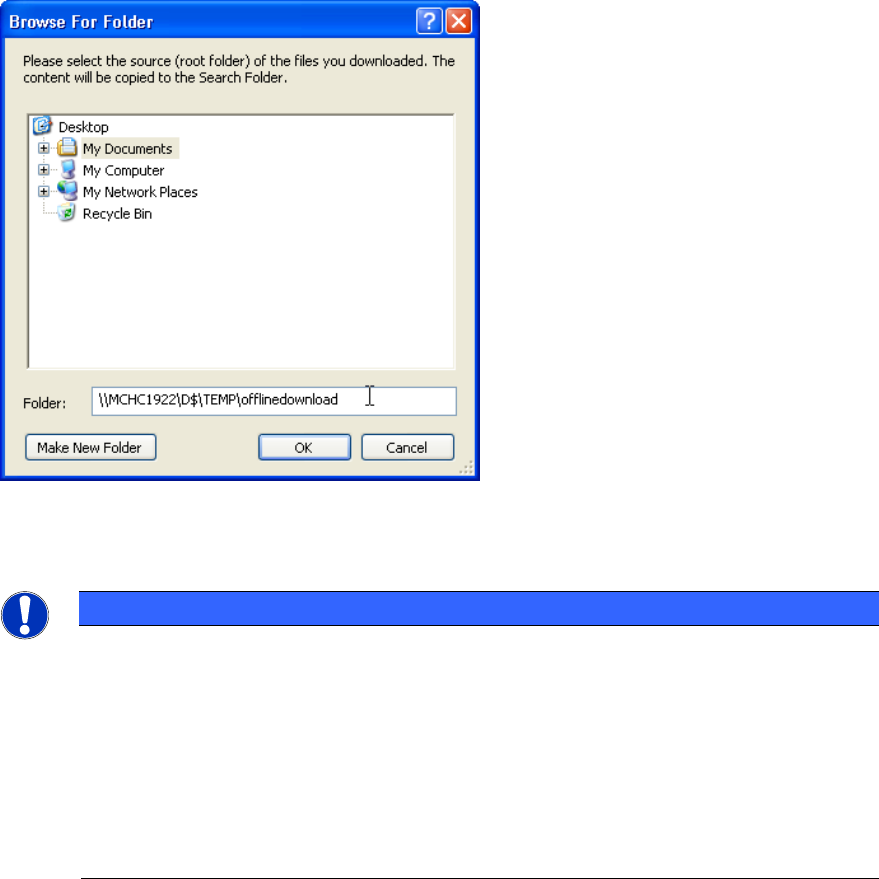
The following window appears.
Support Media V1.13 04/2012 Edition
17
Figure 3-6: Source folder selection dialog for copying download files back to local Search Folder
► Inside the Browse for Folder window, ensure you have a valid connection to the location of your
download files (e.g. USB drive, network path).
NOTICE
Windows Vista or newer: User Account Control complicates accessing network
drives in Prerequisite Analyzer
Although the dialog supports accessing network drives, you may have problems
accessing network drives you’ve mapped in Windows Explorer within Prerequisite
A
nalyzer because of Windows distinguishing between mapped drives during normal user
sessions and admin sessions.
► To access the network drive you’ve mapped during a user session, right- click on “M
y
Network Places” inside the window, choose “map network drive” and re- map the
network drive inside the session of Prerequisite Analyzer.
► Select the appropriate location or enter the path to the location of your download files as shown
in the picture above.
► Click OK to continue.
Prerequisite Analyzer will now copy the downloaded files from the offline folder to the local
Software Search folder you’ve specified before.
The window will look like this: