TP2492.Parts Set Pos Quantity Arrangement.pdf - 第14页
SMT Software Engineering Group IM Operati ons YAMAHA MOTOR CO., LTD. MDO C-SOFT502 34 14 /18 4.2.2.3 T he w ay to change the setting Way 1 : Change setting each 1. Select click [Dual Lane] or [Each Lane]…
SMT Software Engineering Group
IM Operations YAMAHA MOTOR CO., LTD.
MDOC-SOFT50234 13/18
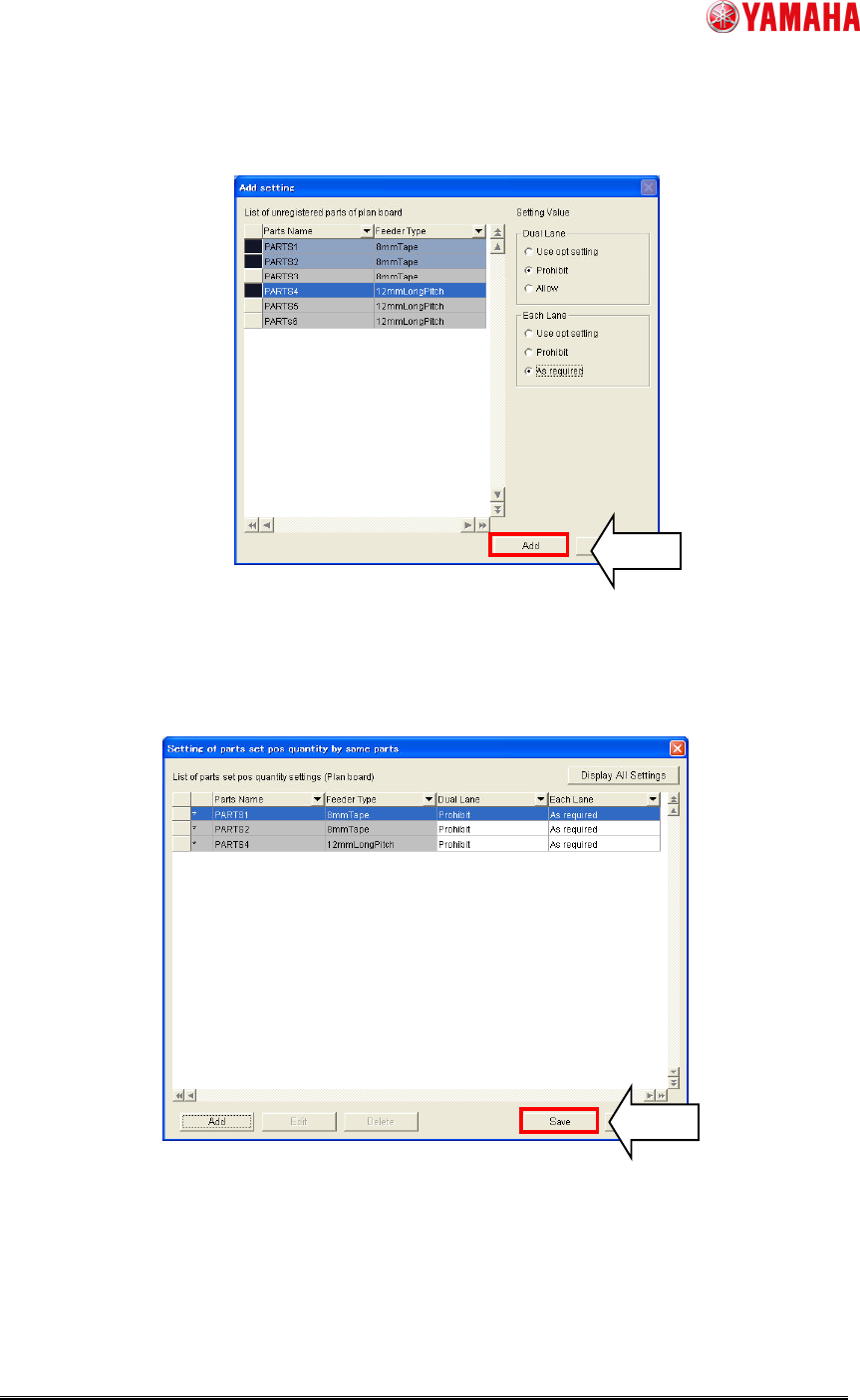
4. Click [add] button in the “Add setting”. Then the setting records will be added
temporarily to “Setting of parts set pos quantity by same parts”.
Fig. 12. [Add] button
5. Click [Save] button. Without this, the setting records won’t be saved.
Fig. 13. Save added setting records
SMT Software Engineering Group
IM Operations YAMAHA MOTOR CO., LTD.
MDOC-SOFT50234 14/18
4.2.2.3 The way to change the setting
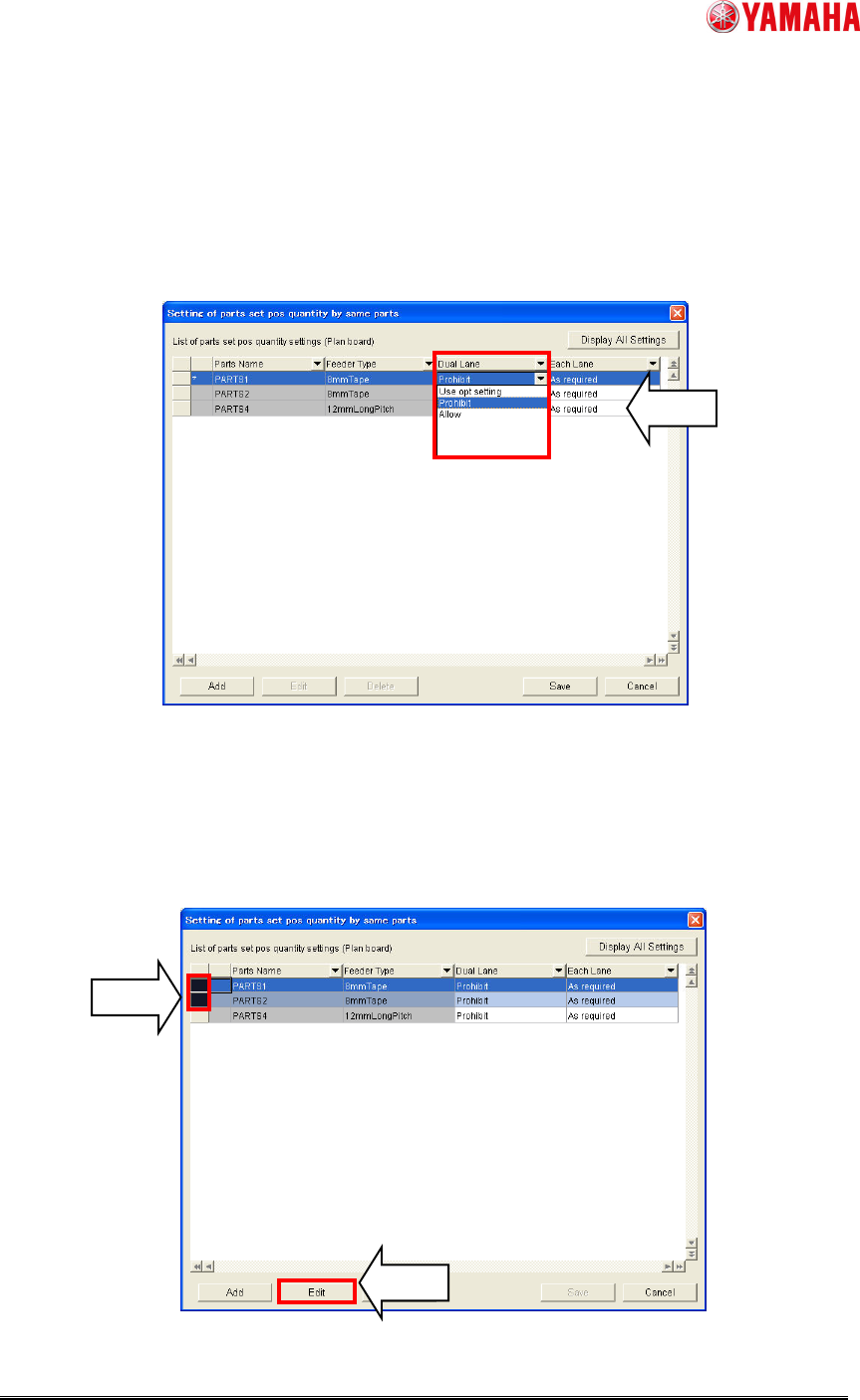
Way 1 : Change setting each
1. Select click [Dual Lane] or [Each Lane] column. Then select the parameter.
2. Click [Save] button. Without this, the setting records won’t be saved.
Fig. 14. Change parameter each
Way 2 : Change plural settings at the same time
1. Drug the left side column of the setting records. Then click [Edit] button. (*9)
(*9) Without selecting parts, the button is gray out. Select parts as above mentioned.
Fig. 15. [Edit] button
SMT Software Engineering Group
IM Operations YAMAHA MOTOR CO., LTD.
MDOC-SOFT50234 15/18
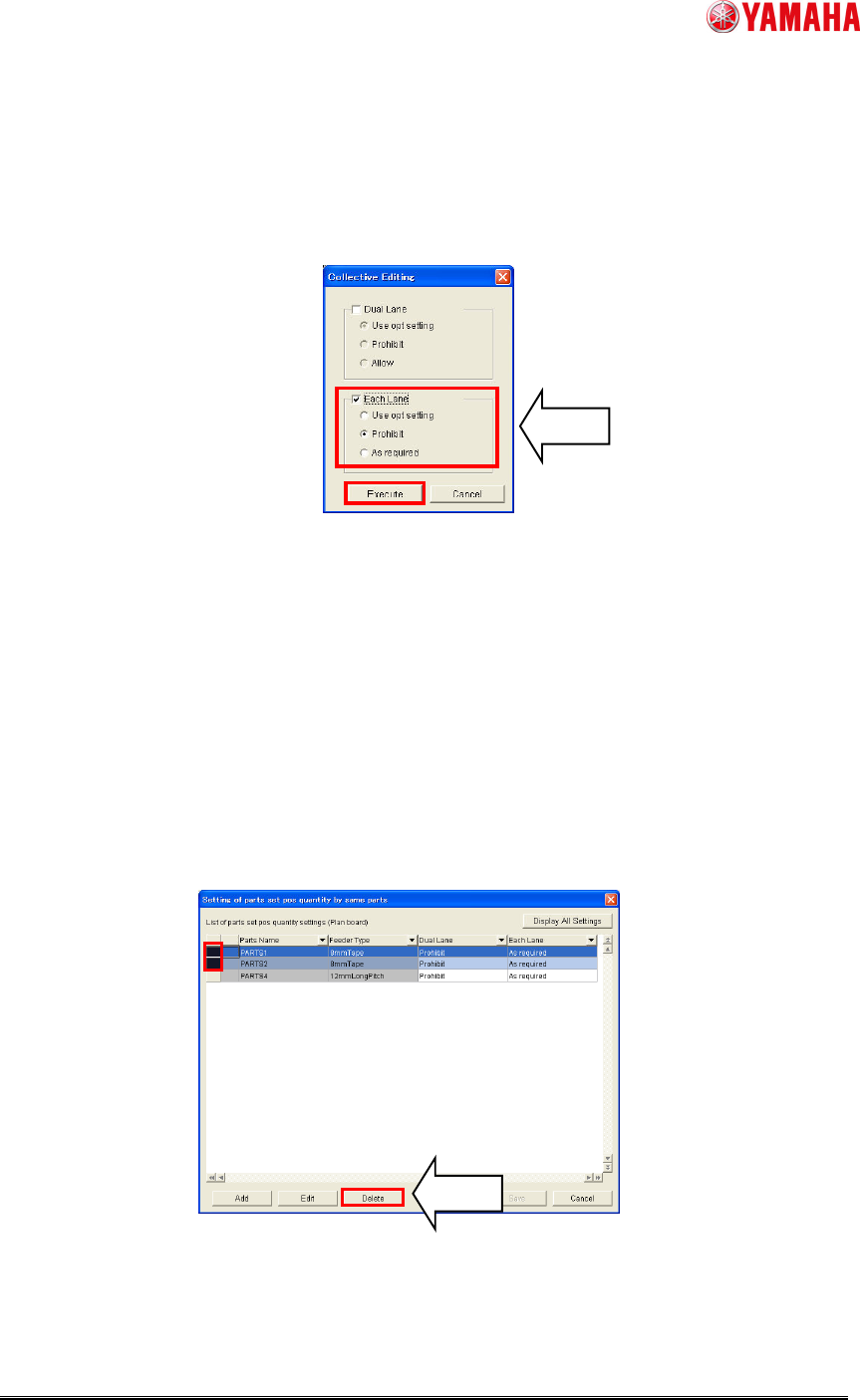
2. Check the check box of the target setting, and select the parameter. (Without
checking the setting, parameters are not selectable.)
3. Click [Execute] button. Then this will applied for the records in “Setting of parts set pos
quantity by same parts”.
Fig. 16. Collective Editing
4. Click [Save] button. Without this, the setting records won’t be saved.
4.2.2.4 The way to delete the setting
1. Select the left side area of the setting records. (To select plural setting records, drug
them.)
2. Click [Delete] button. (*10)
(*10) Without selecting parts, the button is gray out. Select parts as above mentioned.
Fig. 17. [Delete] button
3. Click [Save] button. Without this, the setting records won’t be saved.