TP2492.Parts Set Pos Quantity Arrangement.pdf - 第6页
SMT Software Engineering Group IM Operati ons YAMAHA MOTOR CO., LTD. MDO C-SOFT502 34 6/18 [Enable Each Parts Setting] (*4) “Checked” : Apply the following setting of “p a rts s et pos qua n tity by sam…
SMT Software Engineering Group
IM Operations YAMAHA MOTOR CO., LTD.
MDOC-SOFT50234 5/18
4.2 Detail Settings
4.2.1 Optimizer Setting
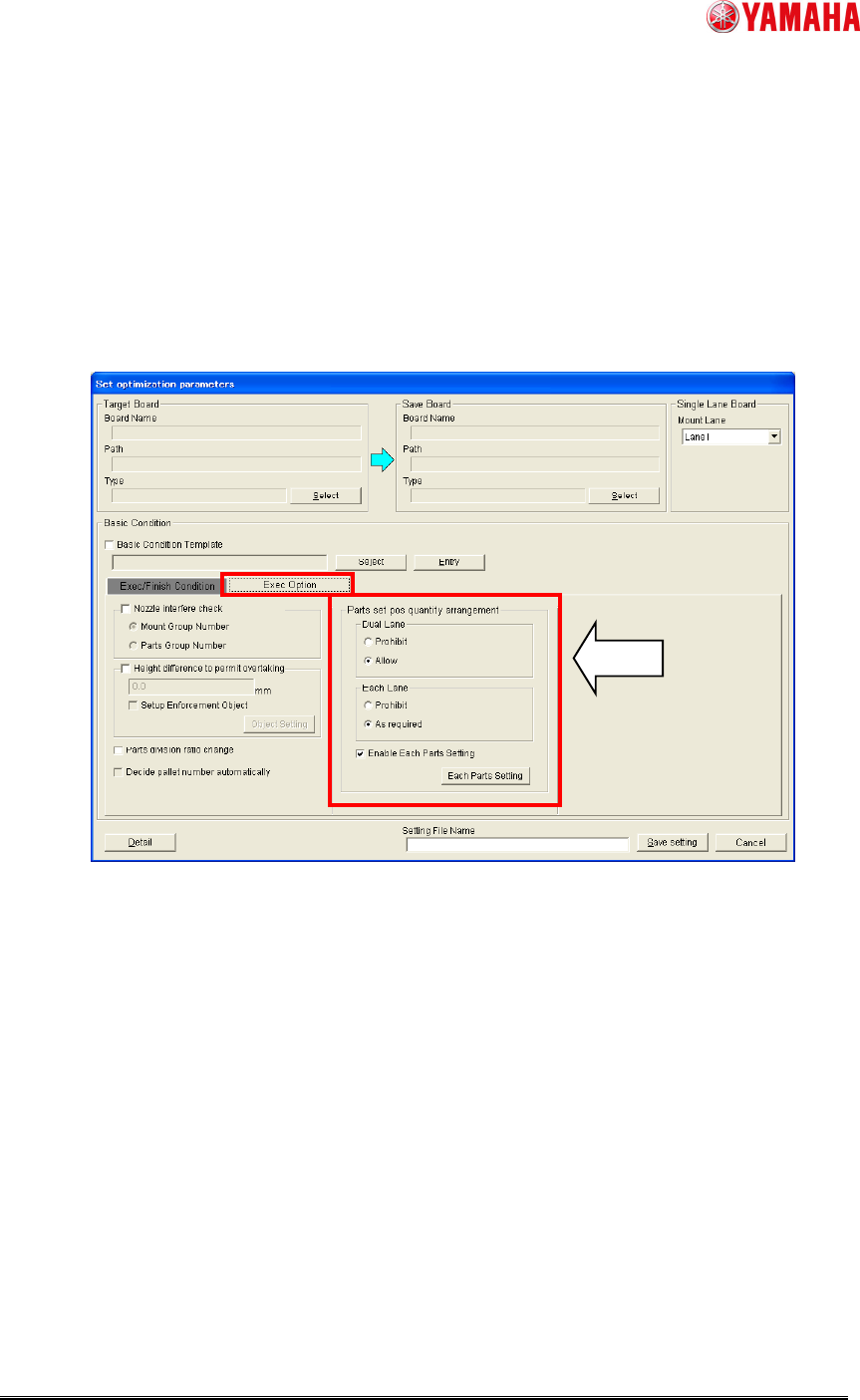
Select “DO” or “NOT” in [Set optimization parameters] – [Basic Condition] – [Exec Option]
– [Parts set pos quantity arrangement] – [Each Lane] / [Dual Lane]. (See Fig.2.) This is
applied for each optimizer setting.
Fig. 2. “Set optimization settings”
[Dual Lane] (*3)
“Prohibit” : “Lane Divide” is NOT executed
“Allow” : Allow “Lane Divide” executed
(*3) This setting appears when dual lane machine exists in the line data.
[Each Lane]
“Prohibit” : Prohibit to set parts to plural set positions in one side lane
“As required” : Allow to set parts to plural set positions in one side lane
SMT Software Engineering Group
IM Operations YAMAHA MOTOR CO., LTD.
MDOC-SOFT50234 6/18
[Enable Each Parts Setting] (*4)
“Checked” : Apply the following setting of “parts set pos quantity by same
parts”
“Not Checked” : Not apply the setting of “parts set pos quantity by same parts”
(*4) This is available in the Optimizer of P-Tool.
[Each Parts Setting]
Open the “Setting of parts set pos quantity by same parts”. See capture 4.2.2 for
more detail.
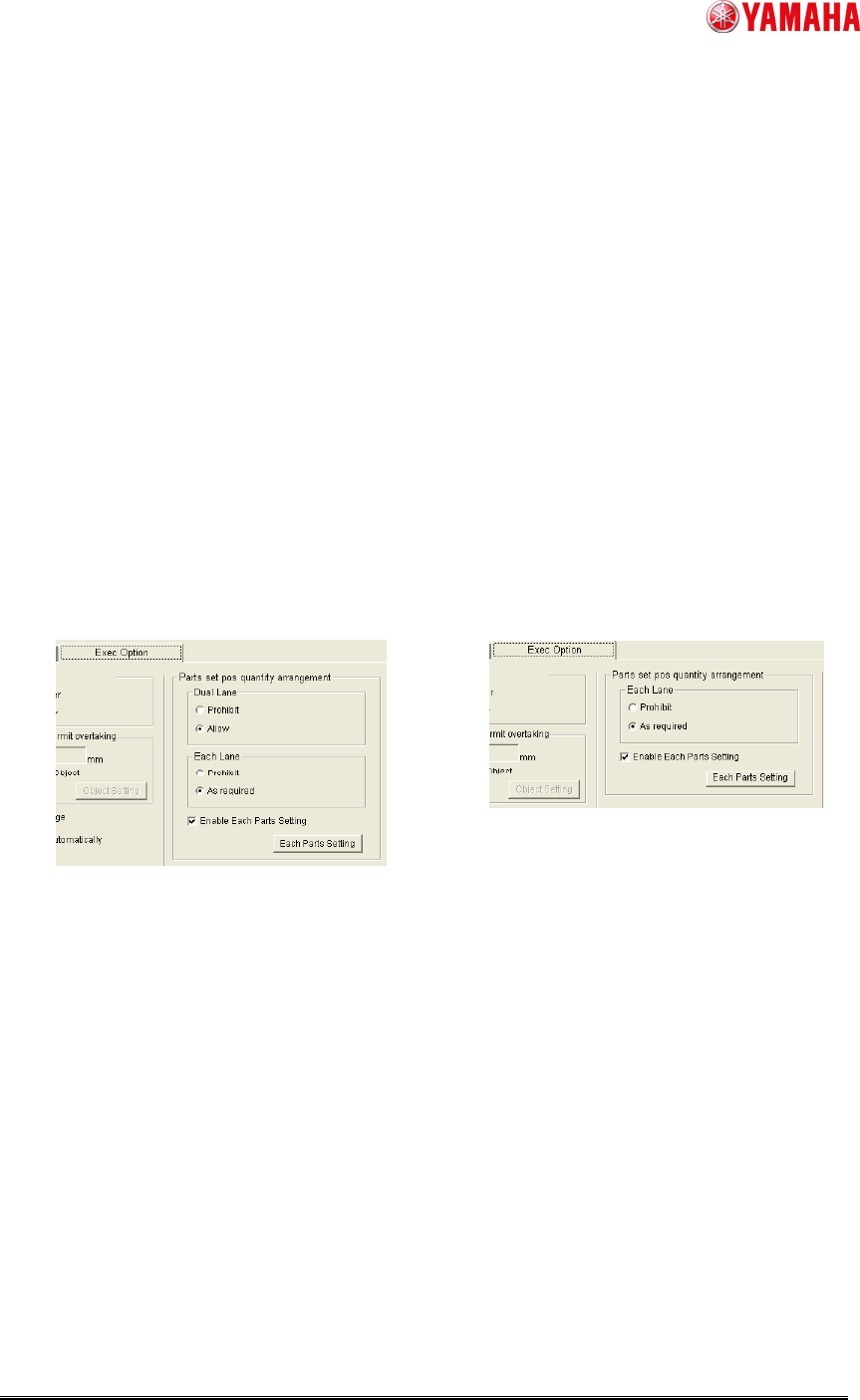
~ Variation of “Exec Option” ~
The contents on the “Exec Option” tab differ by the machine type which is registered to the
line data. When Dual Lane machine is not in the line data, the setting of [Dual Lane] is not
shown.
Fig. 3. Difference of “Part set pos quantity arrangement” contents
(Left) Dual Lane Machine (Right) Single Lane Machine
SMT Software Engineering Group
IM Operations YAMAHA MOTOR CO., LTD.
MDOC-SOFT50234 7/18
4.2.2 Setting of “parts set pos quantity by same parts”(*5,*6)
In order to create the setting of “parts set pos quantity”, make the following two settings.
This setting is prior to the Optimizer Setting.
(*5) This is valid in the Optimizer of P-Tool.
(*6) It is possible to make this setting by same part. (The parts whose “Part Name” and
“Feeder Type” are same.)
In [Set optimization parameters] – [Basic Condition] – [Exec Option] – [Parts set pos
quantity arrangement],
1. Check the check box of “ Enable Each Parts Setting”. (See Fig. 2.)
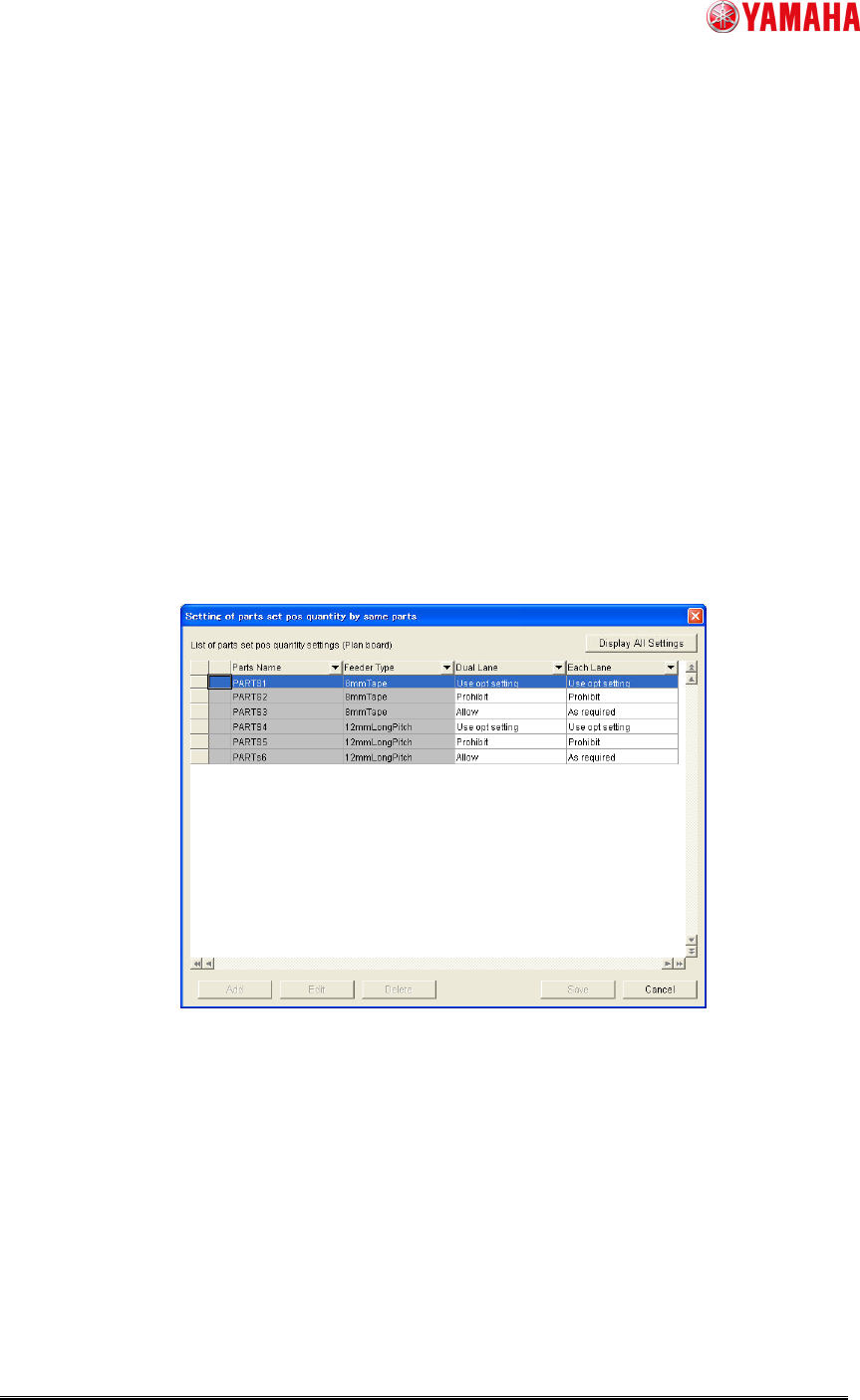
2. Click [Each Parts Setting] button. (See Fig. 2.) Then add the target parts to “Setting
of parts set pos quantity by same parts” and enter the parameter by same part. (See
Fig.4.)
Fig. 4. Setting of parts set pos quantity by same parts
[Dual Lane](*3)
“Use opt setting” : Use the same parameter which is set to “Dual Lane” in
[Set optimization parameters] – [Basic Condition]
– [Exec Option] – [Parts set pos quantity arrangement]
“Prohibit” : “Lane Divide” is NOT executed
“Allow” : Allow “Lane Divide” executed