TP2492.Parts Set Pos Quantity Arrangement.pdf - 第9页
SMT Software Engineering Group IM Operati ons YAMAHA MOTOR CO., LTD. MDO C-SOFT502 34 9/18 2. From the Optimizer Click [Pos Qty] butt on in the right area in the Optimizer . In “Setting of pa rts set po…
SMT Software Engineering Group
IM Operations YAMAHA MOTOR CO., LTD.
MDOC-SOFT50234 8/18
[Each Lane]
“Use opt setting” : Use the same parameter which is set to “Each Lane” in
[Set optimization parameters] – [Basic Condition]
– [Exec Option] – [Parts set pos quantity arrangement]
“Prohibit” : prohibit to set parts to plural set positions
“As required” : Allow to set parts to plural set positions
4.2.2.1 The way to display the setting
There are 3 ways to display “Setting of parts set pos quantity by same parts.
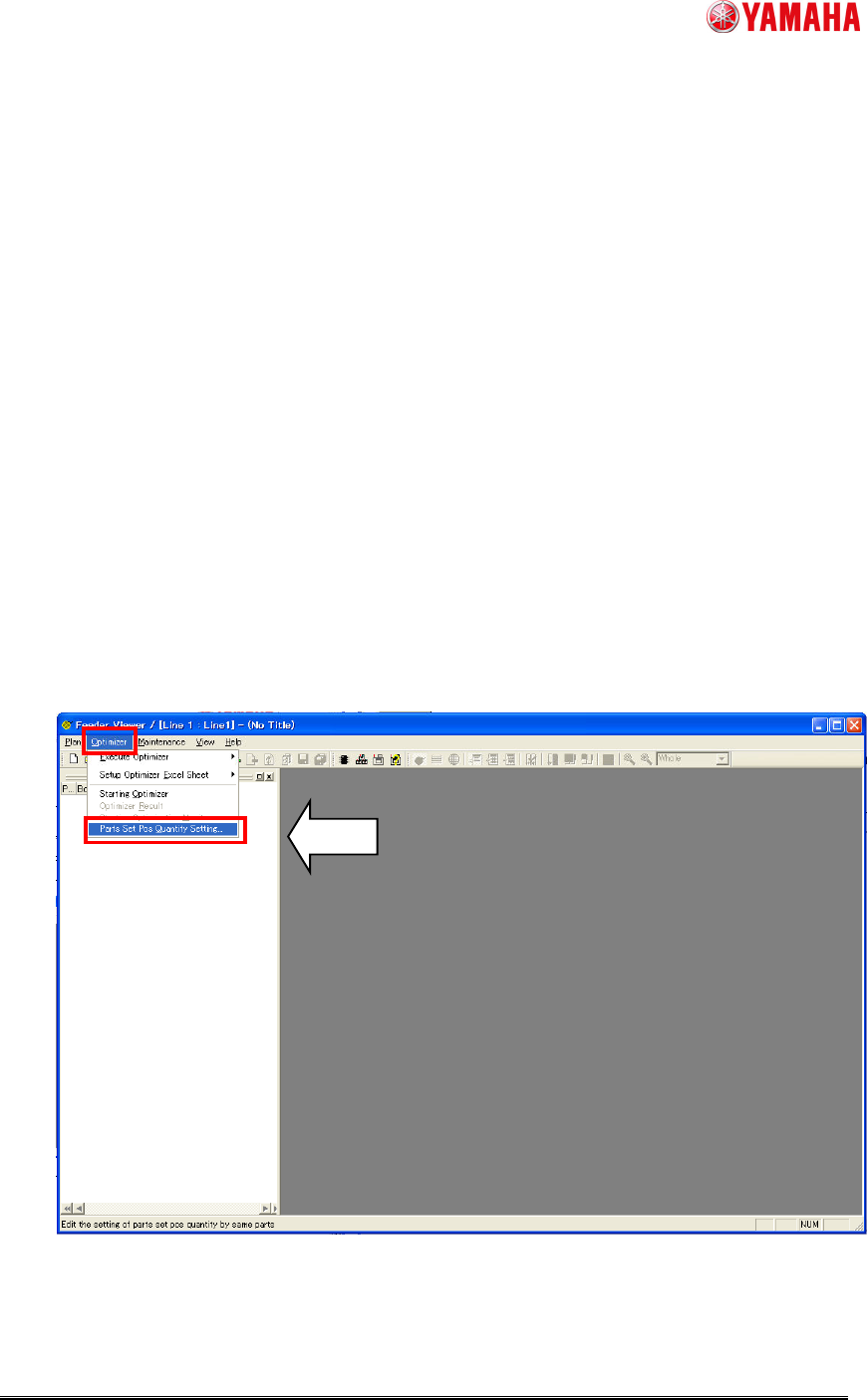
1. From the Feeder Viewer (*7)
Click [Optimizer] - [Parts Set Pos Quantity Setting] in the menu bar.
In “Setting of parts set pos quantity by same parts”, the parts which are exist in the
board data are shown by default. Before this, the board data has to be added to the
plan.
(*7) This is in P-Tool only.
Fig. 5. Display the setting from Feeder Viewer
SMT Software Engineering Group
IM Operations YAMAHA MOTOR CO., LTD.
MDOC-SOFT50234 9/18
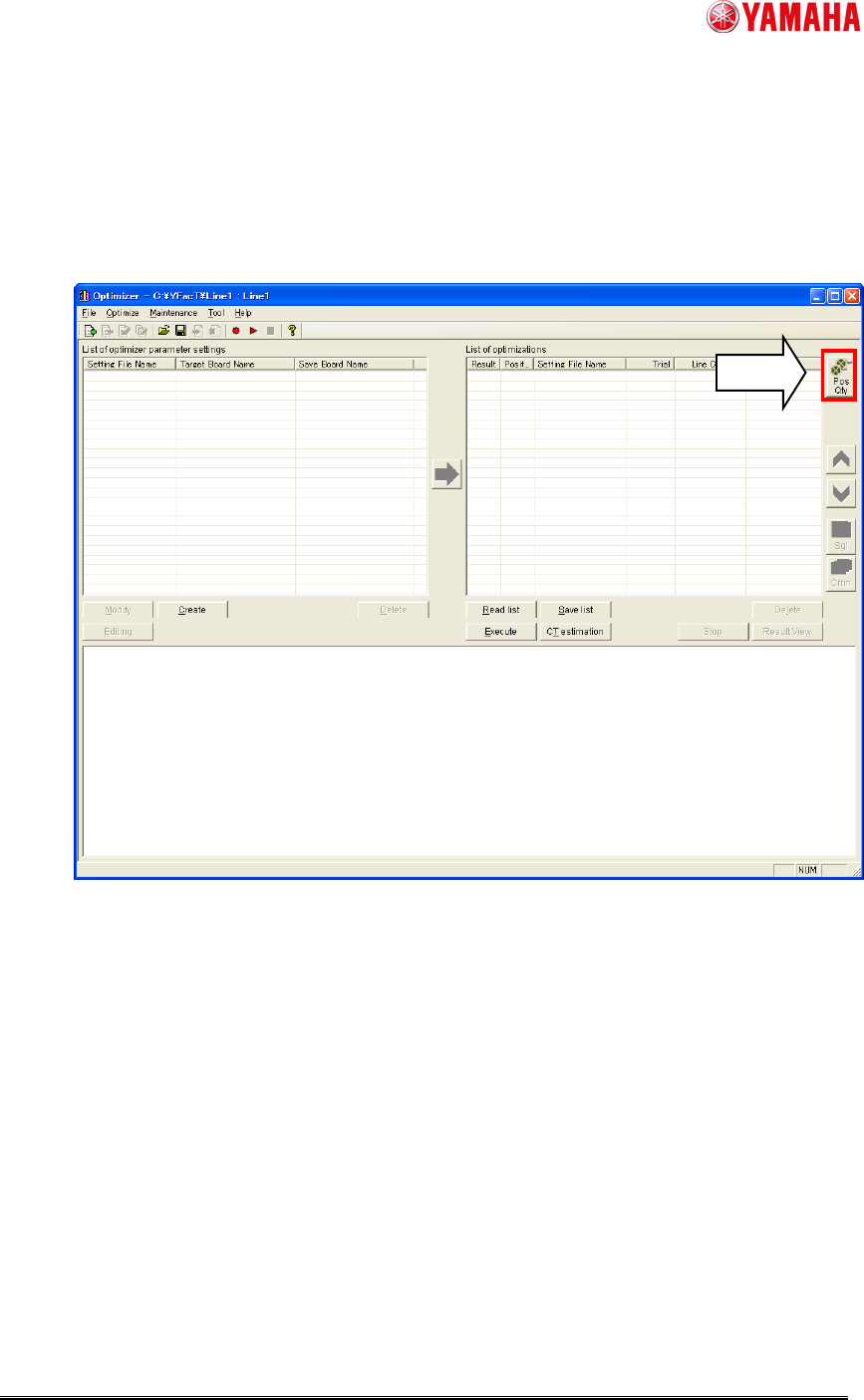
2. From the Optimizer
Click [Pos Qty] button in the right area in the Optimizer.
In “Setting of parts set pos quantity by same parts”, the parts which are exist in the
board data which are added to “List of optimizations” are shown by default.
Fig. 6. Display the setting from Optimizer
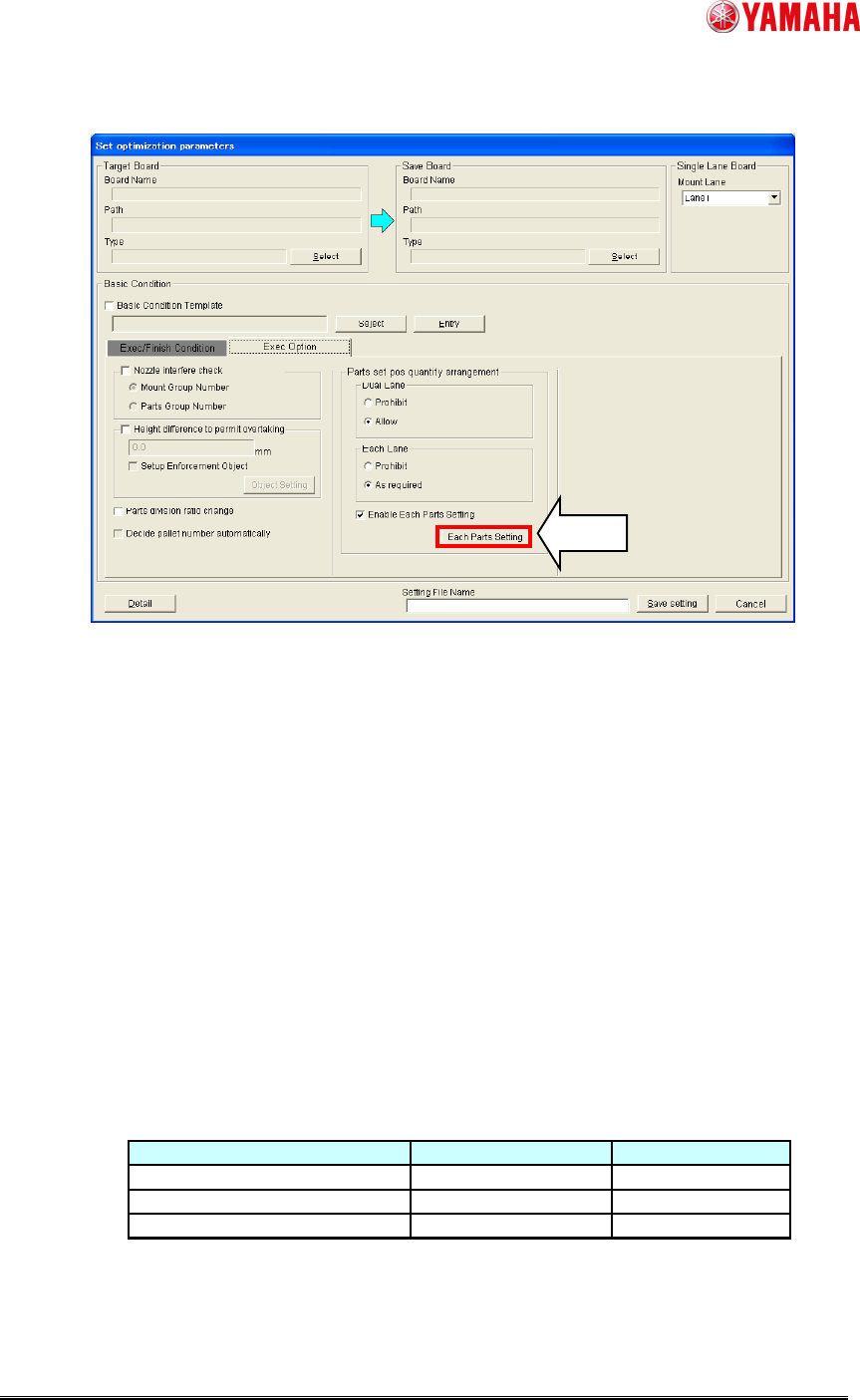
3. From the “Set optimization parameters”
Click [Each Parts Setting] button in [Set optimization parameters] – [Basic Condition] –
[Exec Option] – [Parts set pos quantity arrangement].
In “Setting of parts set pos quantity by same parts”, the parts which are exist in the
board data which are added to “List of Optimizations” are shown by default.
SMT Software Engineering Group
IM Operations YAMAHA MOTOR CO., LTD.
MDOC-SOFT50234 10/18
Fig. 7. Display the setting from Optimizer Setting
4.2.2.2 The way to add the setting
1. Click [Add] button (*8)
The setting records which are shown in “Setting of parts set pos quantity by same
parts” differ depending on from what window it is started. Their parts are exit in the
board data which are registered to the lists as shown in sheet 2.
(*8) When there are no parts to newly add, the button is gray out.
Add board data to “List op optimizations” in the Optimizer or to the Plan in the Feeder
Viewer.
Sheet 2. Target Board Data
StartWindow TargetBoardData ReferenceFigure
FeederViewer Plan Fig.4
Optimizer Listofoptimizations Fig.5
Setoptimizationparameters Listofoptimizations Fig.6