0197787-01_UM_HeadVerification_708_EN.pdf - 第11页
SIPLACE Head V erification User Manual Edition 01/2015 11 2.2.4 Overview of Measurements - Progress Figure 4: Over view of measur ements and progress The following inform ation is sho wn in the "Progress" menu:…
SIPLACE Head Verification
User Manual Edition 01/2015
10
2.2.3 Selection of Measurements
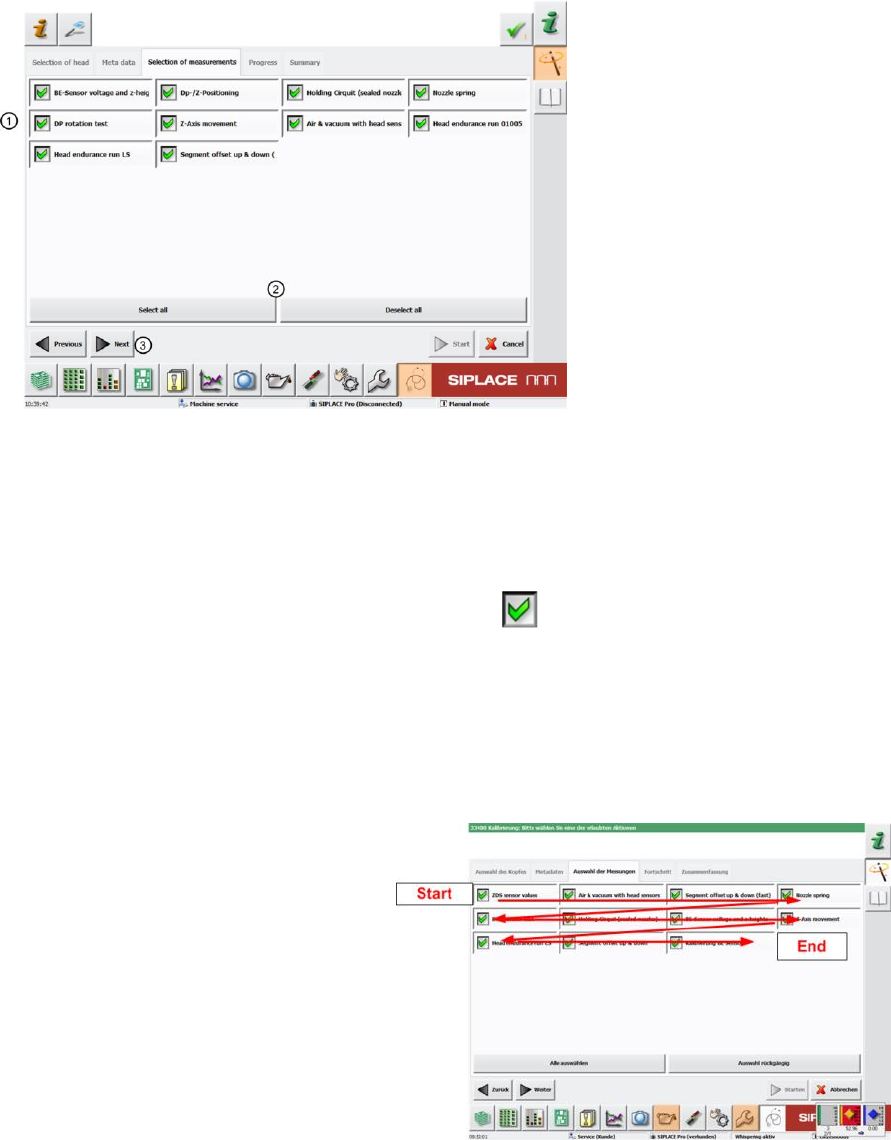
Figure 3: Selection of measurements using example of CPP
The "Selection of Measurements" shows all head verification measurements which are possible for the
previously selected head type.
Our example shows all possible measurements for a CPP head.
The "Selection of Measurements" menu provides an overview of all individual measurements (1).
The green tick marks those which have been enabled.
Individual measurements can be selected separately by ticking or unticking.
You can also enable or disable all measurements at once with the following buttons (2)
"Select all" all measurements enabled or "Deselect all" all measurements disabled.
All measurements are enabled as a default!
In general, we recommend performing a complete head verification with all measurements as this is
the only way to gain a reliable conclusion about the overall state of the head.
The measurements are then conducted
"row for row” from top left to bottom right.
Then click "Next" (3),
SIPLACE Head Verification
User Manual Edition 01/2015
11
2.2.4 Overview of Measurements - Progress
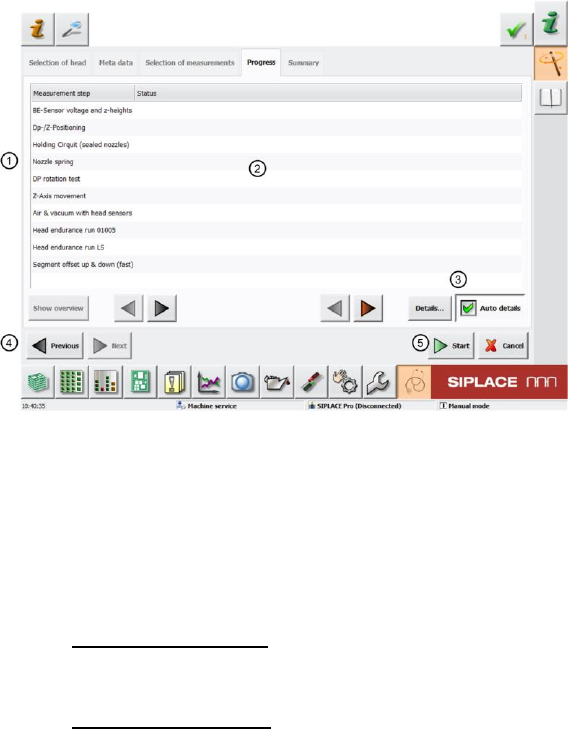
Figure 4: Overview of measurements and progress
The following information is shown in the "Progress" menu:
1. All selected measurements are shown at "Measurement Step".
2. The "Status" shows the progress of any measurement currently being performed. If the
measurement has been completed you will see a "green tick for OK" or a "red cross for NOK"!
3. The "Auto details" button is enabled as a default
"Auto details" enabled
The GUI always shows the current measurement as soon as new measurement values
have been found.
"Auto details" disabled
During an ongoing measurement, you can use the arrow keys (black/red) to navigate
through completed measurements, while the current measurement is performed in the
background.
4. The "Previous" button switches over to the previous menu "Selection of Measurements" so
that you can make a new selection.
5. Click the "Start" button (5) to start the measurement and the software will change to the
"Measurement Step“ "Component sensor voltage and Z heights" (in our example)
SIPLACE Head Verification
User Manual Edition 01/2015
12
2.2.5 During Measurements - Progress
After clicking the "Start" button, the machine automatically switches over to measurement mode and
works through the "Selection of Measurements" (chapter 4.2.3) specified.
The following example shows the GUI during the measurement.
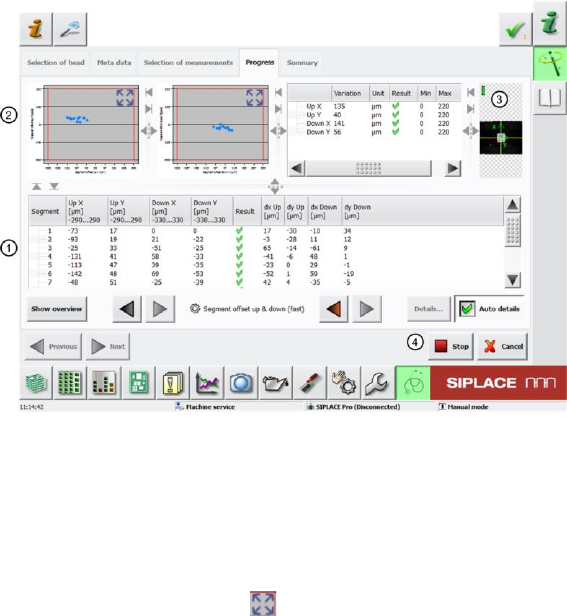
Figure 5: During the measurement
The screen (1) shows the segment being measured and the results of the partial measurements. You
can also see whether the measurement for this segment was successful (OK green tick / NOK
red X).
The diagrams (2) show the results of the individual partial measurements.
Select the extraction button to zoom in on the diagram. The diagram bar shows the measurement
values depicted.
If an image is captured with the camera (PCB or component) during measurement, a live image will be
displayed (3).This is not the case in each measurement!
If you want to interrupt or terminate the measurement, use the "Stop" button (4).
The measurement will not stop immediately as the sequence currently running for a segment will be
finished first.
After the procedure has been stopped, click "Continue" to start the process again. The partial
measurement will start again at the beginning and will not just continue from the place at which it was
stopped.
In the event of an emergency stop, click on the "Stop" button and/or the emergency STOP button. The
"Stop" button alone is too slow!