00196799-02_InstallGuide_DE.pdf - 第40页
3 In st al lati o n de s SIP LACE E xplor e r Inst al l atio ns - und Ko nfi gu ra tio ns an le itun g S IPL AC E Exp lo rer 3. 4 S IPL A CE E xplo r er st art en Au s ga be 06 / 201 1 D E 40 HINWEIS Nach der Installatio…
Installations- und Konfigurationsanleitung SIPLACE Explorer 3 Installation des SIPLACE Explorer
Ausgabe 06/2011 DE 3.3 Installationsvorgang SIPLACE Explorer 2.9
39
3
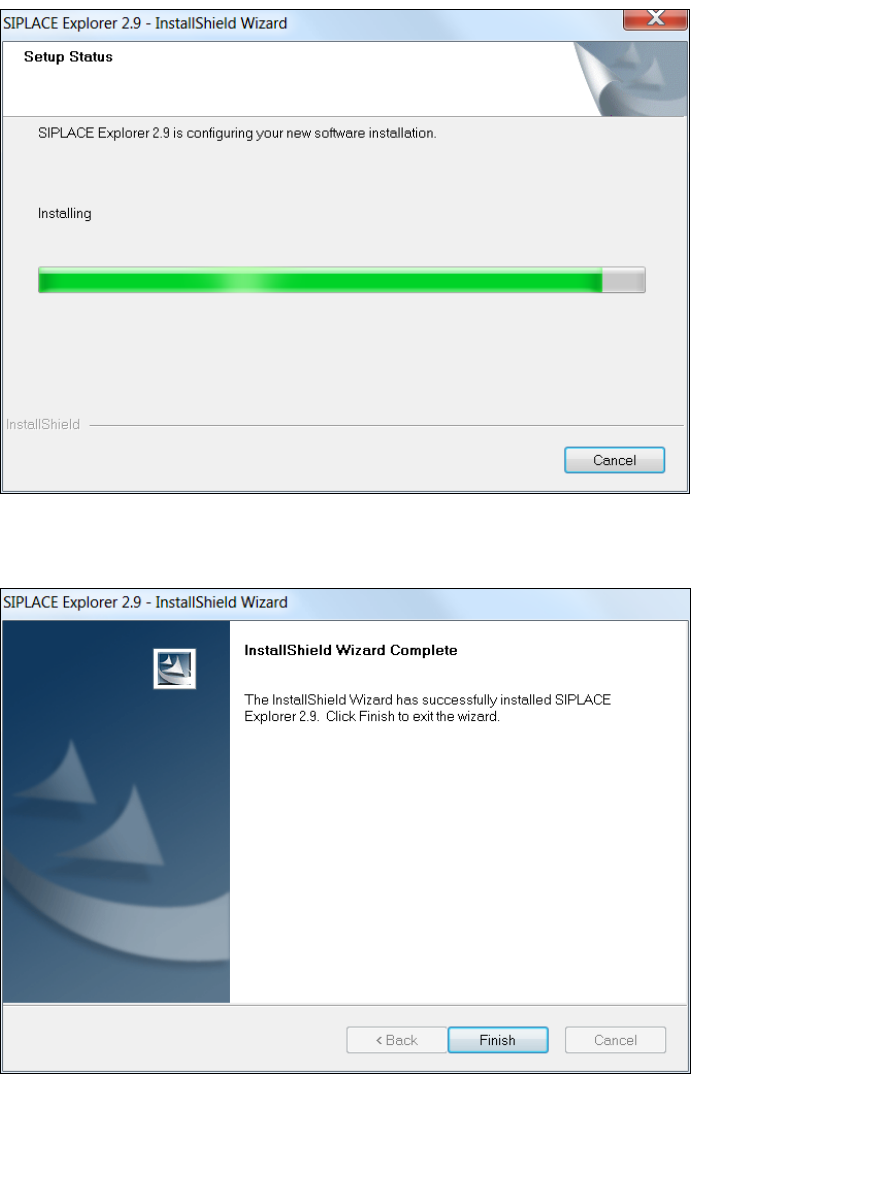
Abb. 3 - 12 SIPLACE Explorer Setup - Dialogfenster 'Setup Status' (Status der Installation)
Wenn die Installation beendet ist, erscheint nachfolgendes Dialogfenster.
3
Abb. 3 - 13 SIPLACE Explorer Setup - Installation beendet
Klicken Sie auf Finish. Nach dem nächsten Start Ihres Computers können Sie SIPLACE
Explorer starten. Gehen Sie dazu vor, wie unter “SIPLACE Explorer starten” auf Seite 40
beschrieben.
3 Installation des SIPLACE Explorer Installations- und Konfigurationsanleitung SIPLACE Explorer
3.4 SIPLACE Explorer starten Ausgabe 06/2011 DE
40
HINWEIS
Nach der Installation von SIPLACE Explorer muss das System neu gestartet werden. Dies ist
notwendig, um sicherzustellen, dass der Port 1099 für die Java Runtime Environment verfügbar
ist. In seltenen Fällen wird der Port 1099 von einer anderen Applikation verwendet. Wird SIPLACE
Explorer ohne Neustart des Systems nach der Installation gestartet, so wird in solchen Fällen der
Fehler "SIPLACE Explorer 2.9 runtime not found" angezeigt. 3
3.4 SIPLACE Explorer starten
In Abhängigkeit der ausgewählten Installationsoptionen können Sie SIPLACE Explorer aus
dem Menü Programme SIPLACE Explorer 2.9 in Windows starten.
SIPLACE Explorer V.2.9 Runtime Environment:
Runtime Environment wird bei jedem Neustart des Computers als Windows Service
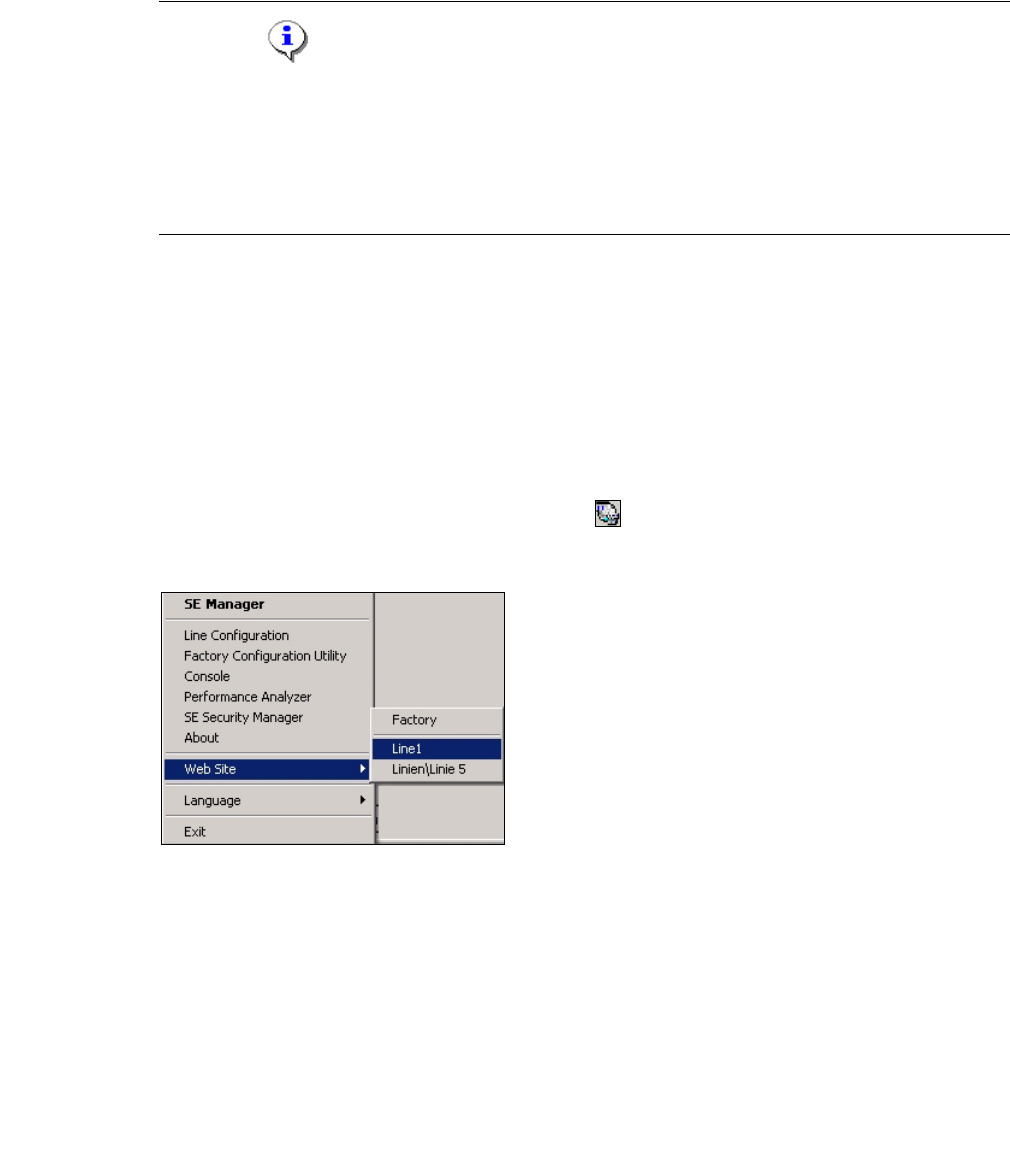
automatisch gestartet. Sie sehen das Symbol in der Konsole. Mit dem rechten Mausklick
können Sie weitere Applikationen und Tools starten. 3
3
Abb. 3 - 14 RTE Windows Start Menü
Sie haben folgende Auswahlmöglichkeiten: 3
– SE Manager
– Line Configuration
– Factory Configuration Utility
–Console
– Performance Analyzer
– SE Security Manager
– About
– Website
Installations- und Konfigurationsanleitung SIPLACE Explorer 3 Installation des SIPLACE Explorer
Ausgabe 06/2011 DE 3.4 SIPLACE Explorer starten
41
Über dieses Menü können Sie die Websites oder auch die Werks-Website öffnen
– Language
–Exit
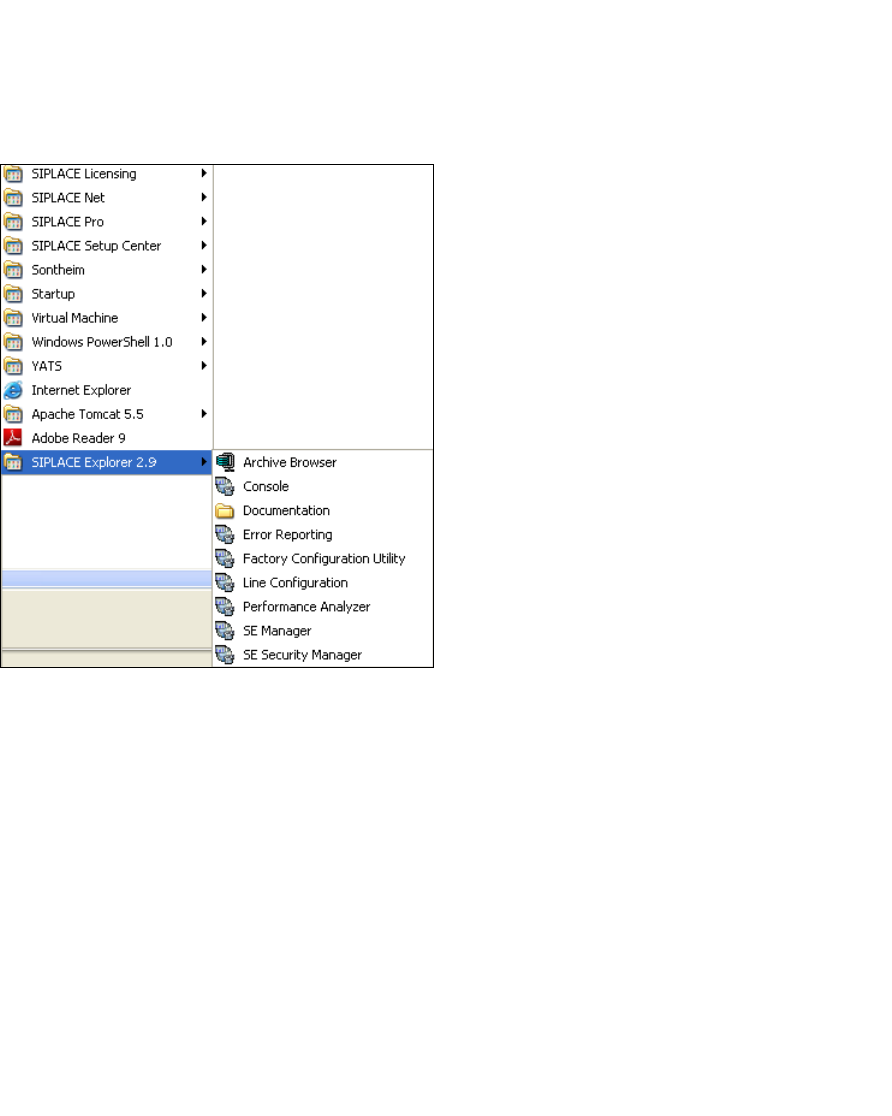
Sie können die weiteren Applikationen und Tools auch über das Windows-Menü
Programme SIPLACE Explorer 2.9 starten. 3
3
Abb. 3 - 15 RTE Windows Start Menü
Sie haben folgende Auswahlmöglichkeiten: 3
–Archive Browser
–Console
– Documentation
– Error Reporting
– Factory Configuration Utility
– Line Configuration
– Performance Analyser
– SE Manager
– SE Security Manager