00194547-09_InstallationManual_60103SP4_EN_DE.pdf - 第57页
Installation Manual, Station Software Version 601.03 SP4 Edition 05/2007 → If you have selected “Yes“, the installati on is continued and the following screen display appears. >>> >>> -----No -----Yes 2…
Installation Manual, Station Software Version 601.03 SP4 Edition 05/2007
Note:
If a submenu or a function in the installation program is selected, the cursor flashes gray.
→ Select the function "Install Revision of SIPLACE Operating System" and confirm with
<RETURN>.
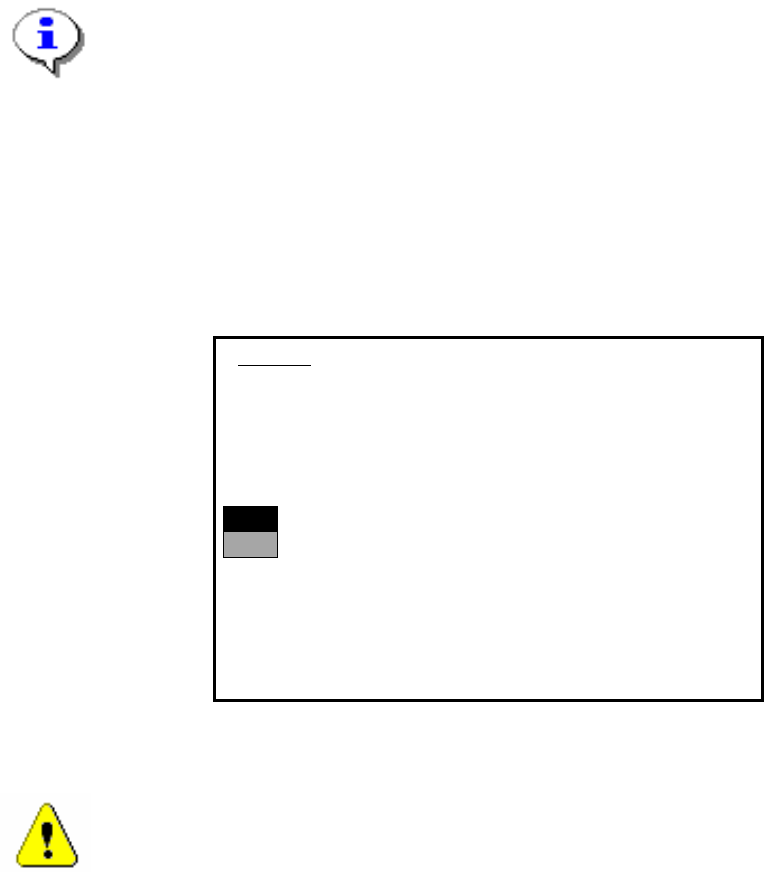
The installation is started. The following query appears:
>>>
>>>
-----No
-----Yes
1. WARNING
installation of SIPLACE operating system will only save files keeping machine data.
A
ll other files of user’s interrest have to be saved on floppy disc by user manually.
Otherwise these files will bedeleted.
Continue SIPLACE Installation Job?
Use the [Up Arrow] [Down Arrow] [Pg Up] [Pg Dn] keys to move the highlight bar to select the
button you prefer.
Press [Enter] to activate your selection
→ Use the cursor keys to select the option to continue.
Warning:
Only machine data is saved. All user data is deleted. If necessary, save your user data to
floppy.
→ Confirm your selection with <RETURN>.
56 of 89
Installation Manual, Station Software Version 601.03 SP4 Edition 05/2007
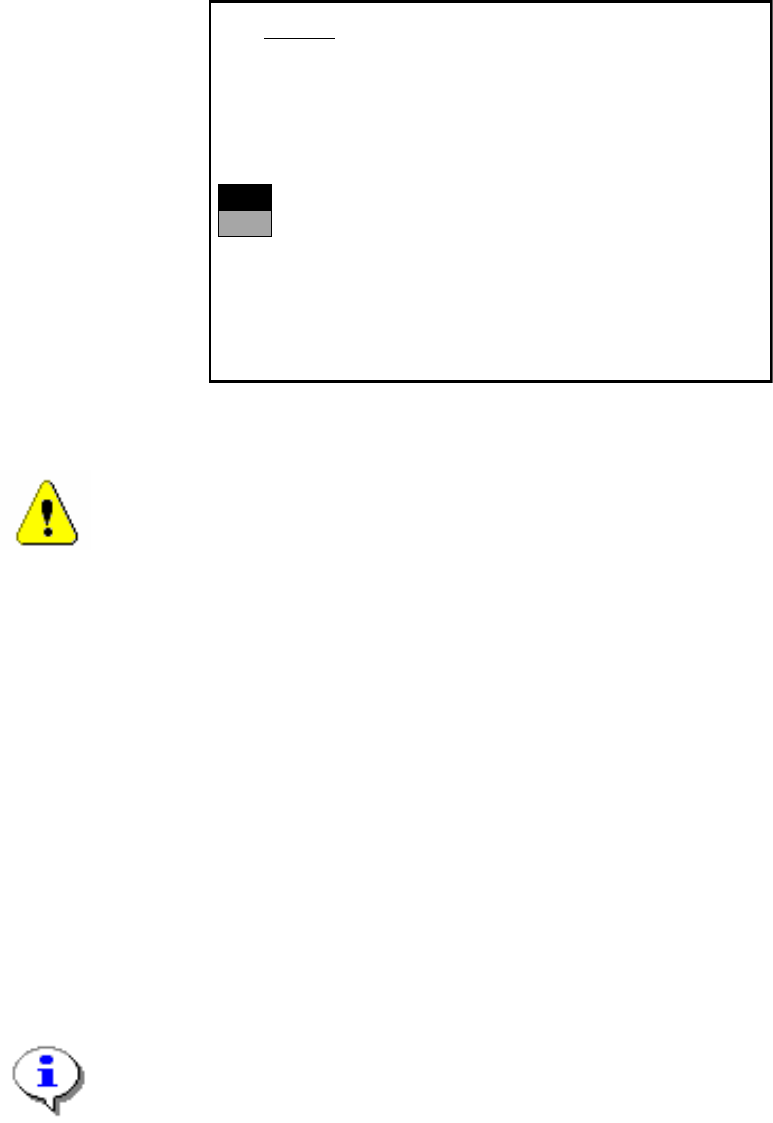
→ If you have selected “Yes“, the installation is continued and the following screen display
appears.
>>>
>>>
-----No
-----Yes
2. WARNING
Partition “C:“ of your hard disc will be formatted:
⇒
all files will be deleted.
Continue SIPLACE Installation Job?
Use the [Up Arrow] [Down Arrow] [Pg Up] [Pg Dn] keys to move the highlight bar to select the
button you prefer.
Press [Enter] to activate your selection
→ Use the cursor keys to select whether to continue ("Yes") or cancel ("No").
Warning:
The C: partition will be formatted. All data which has not been saved will now be deleted.
→ Confirm your selection with <RETURN>. The installation is then continued.
→ You are now requested to insert the floppy MCRMOS Disk -1/2- into the drive.
→ After both floppies have been installed, the message "Installation finished" appears.
The operating system has been completely installed.
→ Now remove the floppy from the drive and switch the machine off and then on again.
4.5.4 Troubleshooting
→ If the installation program terminates prematurely due to an error, remove the floppy from the
drive and switch the machine off.
→ Insert floppy #1 into the drive and switch the machine on again.
→ Try installing the machine controller operating system again.
Note:
If the software can still not be installed on the second attempt, contact your Service center.
57 of 89

Installation Manual, Station Software Version 601.03 SP4 Edition 05/2007
4.6 Manual installation of the machine controller software
If it is necessary to install the machine controller software after installation has been completed, do
so as follows:
→ Open the Start menu and select Programs Æ Siplace Æ MC Distributor. The installation is
started.
→ Follow the instructions on screen.
Note:
To convert the machine data manually from SR 601.01 to SR 601.03 or SR 601.03 SP4, the
software package has to be installed.
To install it, activate the option Installing SW-Package at the MC in the MC Distributor.
58 of 89