00194547-09_InstallationManual_60103SP4_EN_DE.pdf - 第58页
Installation Manual, Station Software Version 601.03 SP4 Edition 05/2007 4.6 Manual inst allation of the machine controller software If it is necessary to install the machine contro ller software after installation has b…
Installation Manual, Station Software Version 601.03 SP4 Edition 05/2007
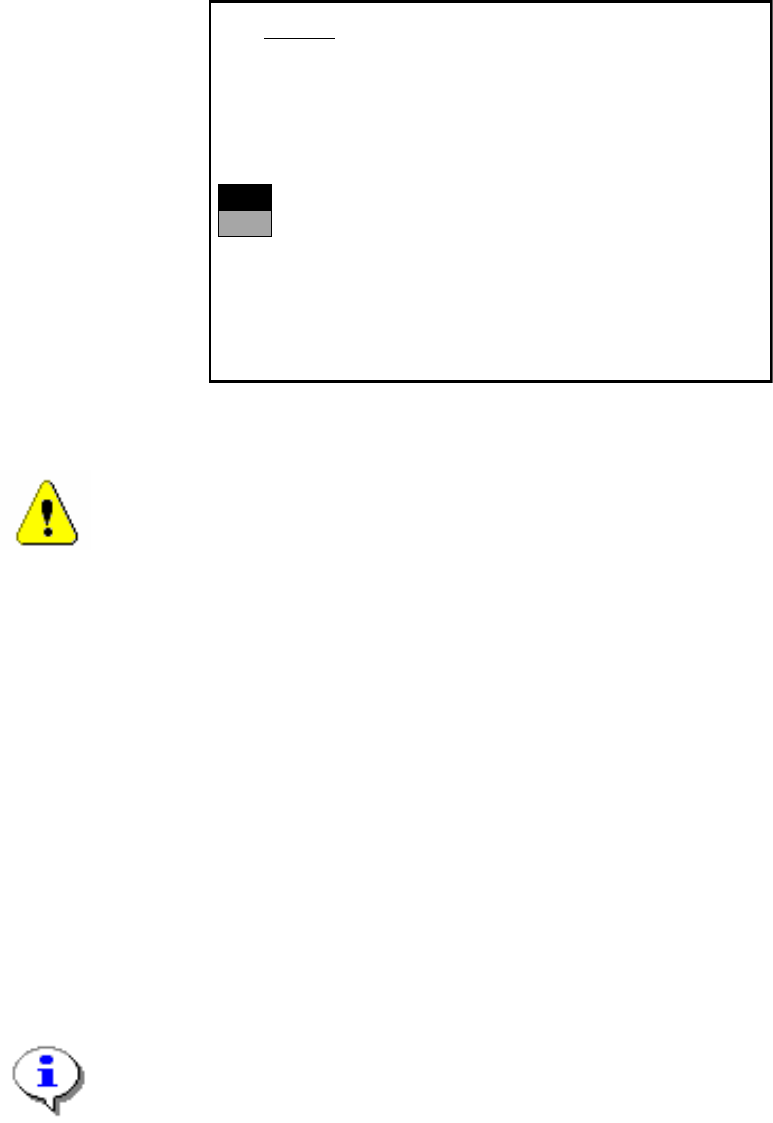
→ If you have selected “Yes“, the installation is continued and the following screen display
appears.
>>>
>>>
-----No
-----Yes
2. WARNING
Partition “C:“ of your hard disc will be formatted:
⇒
all files will be deleted.
Continue SIPLACE Installation Job?
Use the [Up Arrow] [Down Arrow] [Pg Up] [Pg Dn] keys to move the highlight bar to select the
button you prefer.
Press [Enter] to activate your selection
→ Use the cursor keys to select whether to continue ("Yes") or cancel ("No").
Warning:
The C: partition will be formatted. All data which has not been saved will now be deleted.
→ Confirm your selection with <RETURN>. The installation is then continued.
→ You are now requested to insert the floppy MCRMOS Disk -1/2- into the drive.
→ After both floppies have been installed, the message "Installation finished" appears.
The operating system has been completely installed.
→ Now remove the floppy from the drive and switch the machine off and then on again.
4.5.4 Troubleshooting
→ If the installation program terminates prematurely due to an error, remove the floppy from the
drive and switch the machine off.
→ Insert floppy #1 into the drive and switch the machine on again.
→ Try installing the machine controller operating system again.
Note:
If the software can still not be installed on the second attempt, contact your Service center.
57 of 89

Installation Manual, Station Software Version 601.03 SP4 Edition 05/2007
4.6 Manual installation of the machine controller software
If it is necessary to install the machine controller software after installation has been completed, do
so as follows:
→ Open the Start menu and select Programs Æ Siplace Æ MC Distributor. The installation is
started.
→ Follow the instructions on screen.
Note:
To convert the machine data manually from SR 601.01 to SR 601.03 or SR 601.03 SP4, the
software package has to be installed.
To install it, activate the option Installing SW-Package at the MC in the MC Distributor.
58 of 89

Installation Manual, Station Software Version 601.03 SP4 Edition 05/2007
4.7 Installing the machine controller on a CPU086 (SIPLACE X-series)
Unlike the CPU076, the CPU086 has no floppy drive. For this reason, BIOS updates, automatic
BIOS settings and installation of the RMOS have to be carried out with a CD using the USB CD
drive.
4.7.1 Installing the RMOS machine controller operating system
Note:
The following description refers to the "Phoenix FirstBIOS(tm)1.06" version of the BIOS.
Depending on the current version, it is possible that the structure of the BIOS menus, the
names of the submenus and the names of the settings may change.
The CDs mentioned below (RMOS installation, BIOS update and BIOS settings) can be created
from ISO images located on the installation CD for the station software. These images can be used
to create bootable CDs with suitable CD writing software on a PC with a CD writer. You should do
this before proceeding.
4.7.1.1 Preparing to install the RMOS on the machine controller
→ Create the RMOS installation CD (see ISO image on the station software CD).
→ Remove the keyboard from the station computer and connect it to the machine controller.
→ Switch the video multiplexer to SR2/MC.
→ Insert the CD in the USB CD drive and connect the drive to the machine controller using a USB
cable.
→ Press <Ctrl><Alt><Del> to warm start the machine controller.
→ During the warm start, press <Del>. The main BIOS Setup menu appears.
59 of 89