TR7500_Hardware_en.pdf - 第56页
55 6 . 2 Au t o mat i c Con v e y o r W i d t h l A u t o m a t i c C o n v e y o r Wi d t h : F i r s t pe r f o r m a t e s t m a nu a lly ( t h e t w o h i d d en bu t t on s m u s t be p r e ss e d s i m u l t a ne o…
54
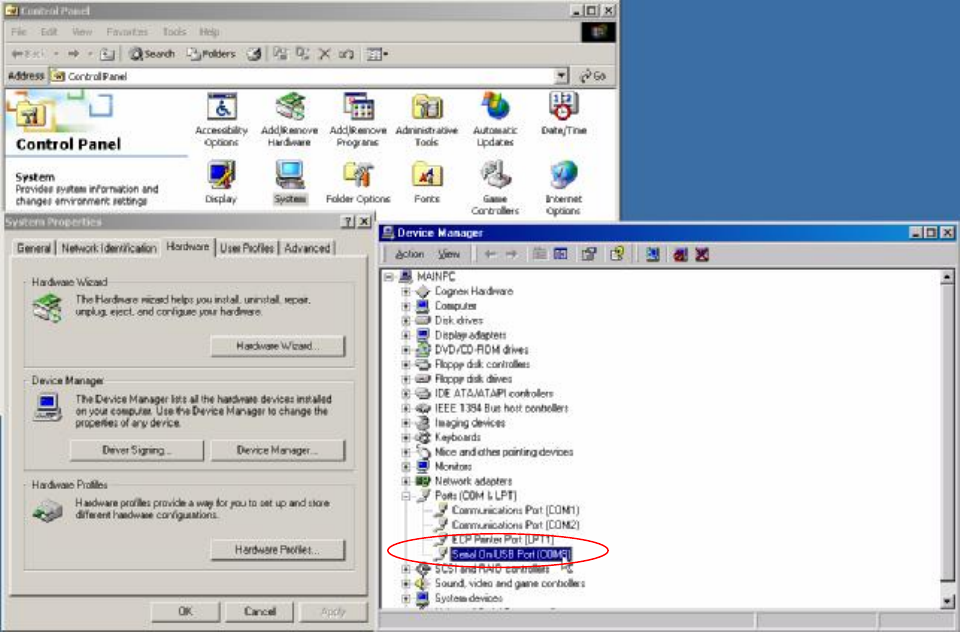
6.1.5 System Configuration:
l Check the Control Panel/System/Hardware/Device Manager/Port to check if the USB to
RS-232 (COM8) device is operating normally.
55
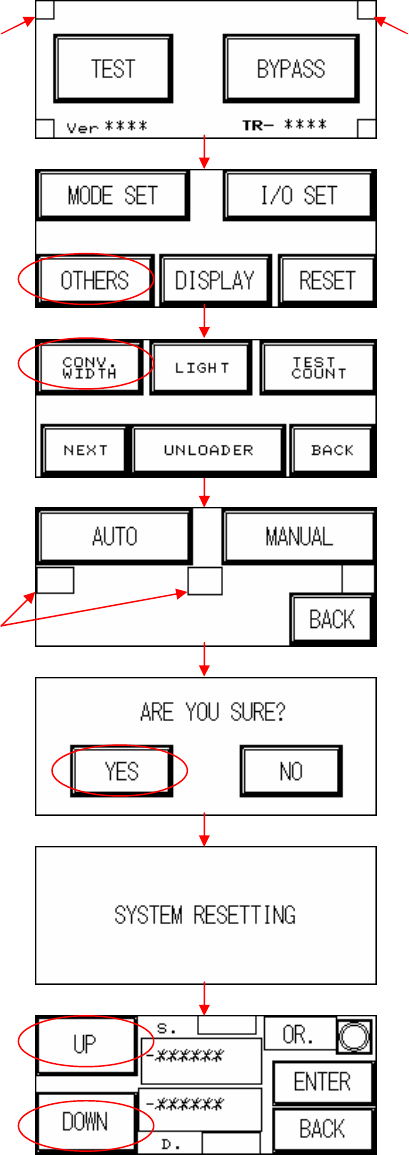
6.2 Automatic Conveyor Width
l Automatic Conveyor Width: First perform a test manually (the two hidden buttons must be
pressed simultaneously, the setting procedure is as shown in the figures below) and
depending on the results, refer to the table below and troubleshoot.
Hidden button Hidden button
Hidden button
56
Problem Cause Solution
Motor does not work at all
1. Motor malfunction
2. Wiring problem
1. Replace motor
2. Check to see if wiring *1 is
malfunctioning or detached.
Current in Motor, but
Does Not Run
1. Mechanical obstruction
2. Incorrect driver setting
1. Remove obstruction
2. Check current and switch
settings.
Motor reaches end limit
but does not stop
1. Incorrect limit sensor position
2. Limit sensor malfunction
1. Check installation position of
sensor
2. Replace sensor
6.2.1 Stepping Motor Driver Problem
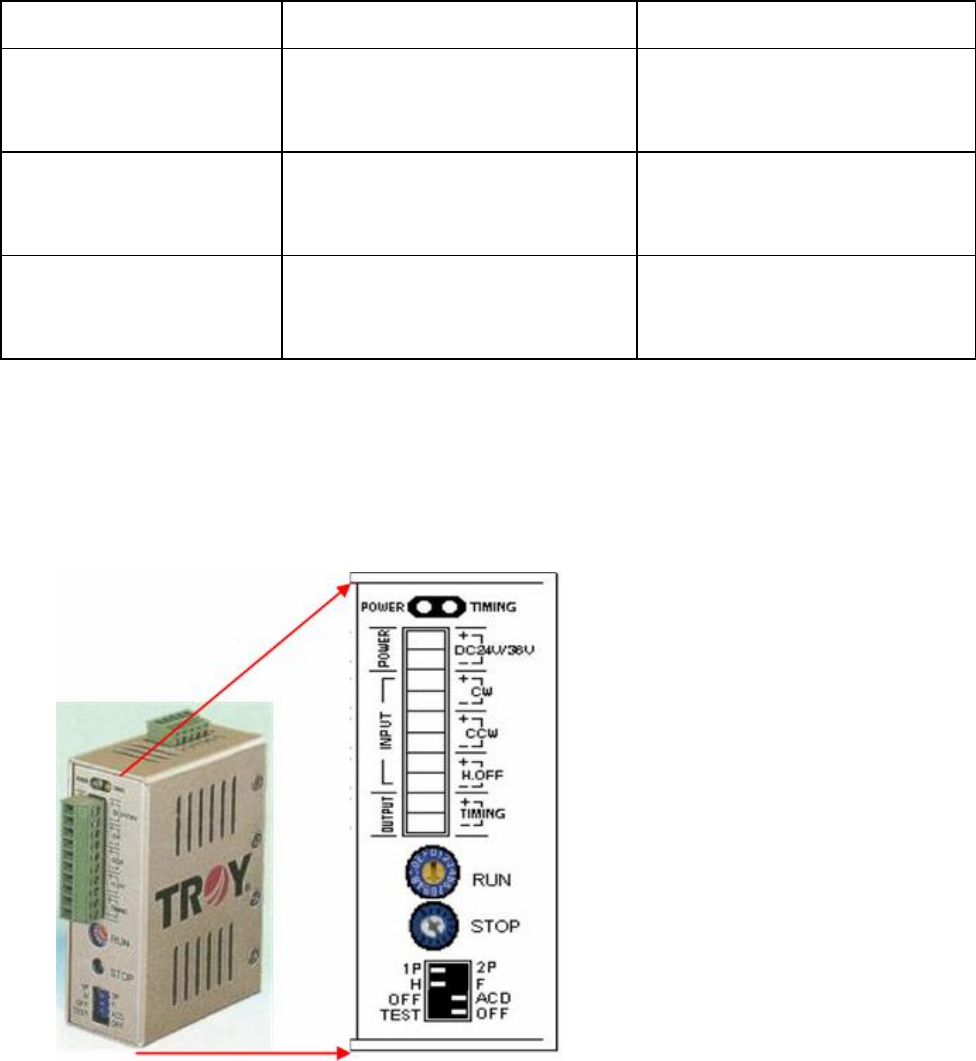
6.2.1.1 RUN and STOP adjustment
l There are two variable resistors located below the Driver. There’s a cross-shaped location
where the variable resistor can be adjusted. Use the adjustment rod to turn the arrow at the
cross location, turn in a clockwise direction to increase.
6.2.1.2 Replacement
l First turn off the power then remove the two sets of wires and two DC +24V power supply cables
from the Driver. There’s a screw at the top and bottom of the driver, remove the screws to install the
new Driver. Once replacement is complete, reconnect the wiring and power cables. After
replacement re-adjust the driver using the adjustment method.
6.2.2 Wiring Problem: Refer to the Wiring Diagram