YG200_200L_E.pdf - 第83页
3-6 3 Starting and ending pr oduction 2 . E n d i n g p r o d u c t i o n a n d t u r n i n g p o w e r o f f U s e t h e f o l l o w i n g p r o c e d u r e t o e n d b o a r d p r o d u c t i o n . 1 S t o p m a c h i …
3-5
3
Starting and ending production
1.1.2 Editing mount flags
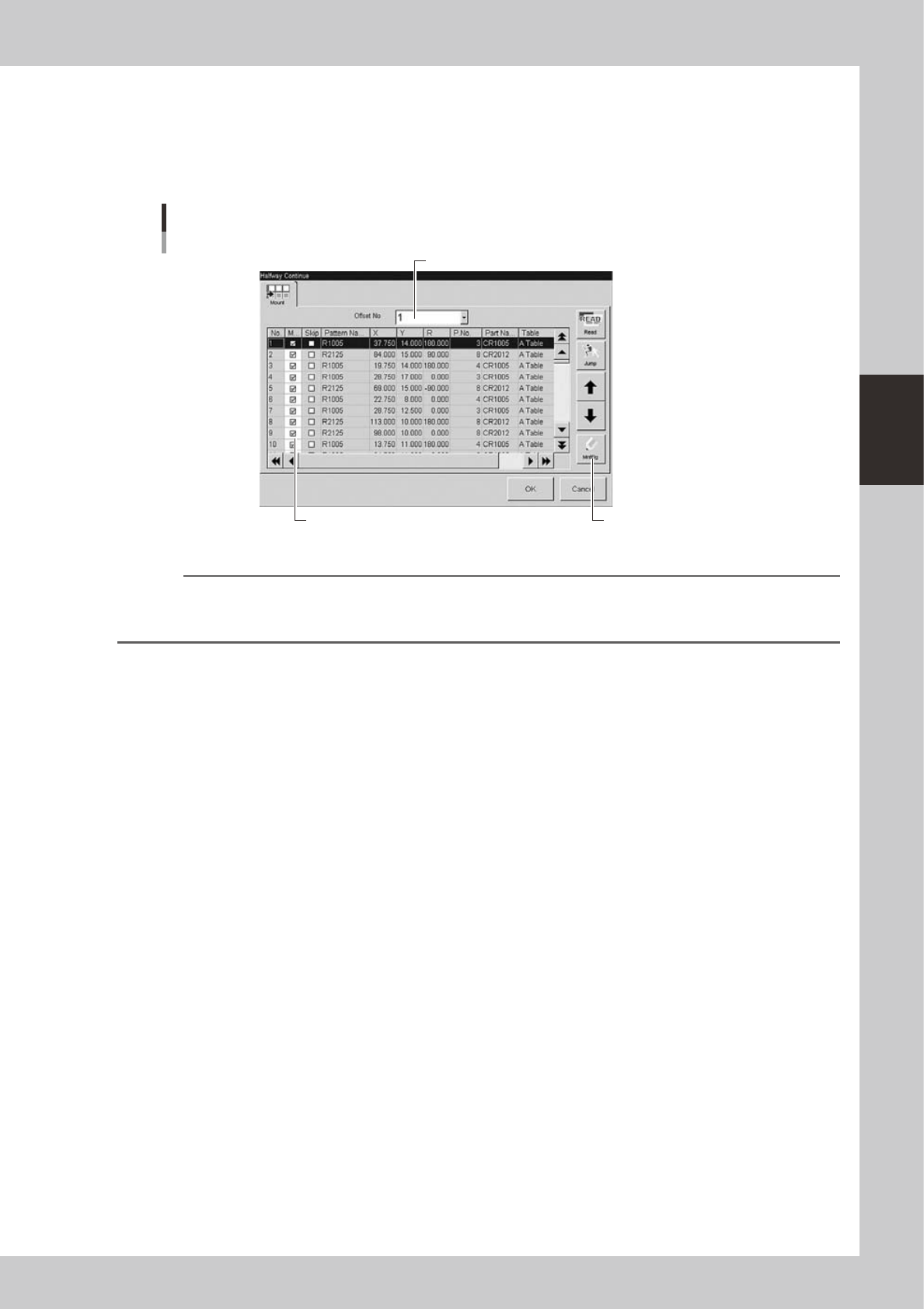
The "Halfway Continue" dialog box also allows you to mount components at specific mounting points by
specifying the mount data numbers. When you have paused and reset operation data while component
mounting was in progress, you can reload that operation data by pressing the [Read] button and then edit each
mounting point as necessary by using the [MntFlg] button.
[MntFlg] button
Editing mount flags
Offset No. selection box
Mounted flag (checkmark)
24318-M2-00
n
NOTE
When the offset function for multi-block boards (multi-board panels) is used, the mount data for each block can be
edited by selecting the "Offset No." Note that this function is enabled just for the first board, after the operation is
resumed with routine mounting operation beginning from the next board.
3-6
3
Starting and ending production
2. Ending production and turning power off
Use the following procedure to end board production.
1
Stop machine operation.
There are four methods for stopping the machine operation.
e
1. Emergency stop button:
Press this button to trigger emergency stop. Do not use this button in normal operation.
2. [STOP] button (operation panel):
Pressing the [STOP] button stops the machine operation immediately. To resume operation, press the
[START] button on the operation panel.
3. [Cycle Stop] button (operation screen):
Pressing this button stops the machine operation just after components are mounted on the current
board.
4. [Convey-out stop] button (operation screen):
Use this button when you want to end production after completing component mounting on the
boards currently on the conveyor. All boards on the conveyor are carried out after component
mounting, but new boards are not carried in from the upstream side.
c
CAUTION
Do not press the emergency stop button during operation except in case of emergency.
2
Reset the operation.
Press the [RESET] button on the operation panel. The machine then returns to the board production
standby status.
3
Press the [Off] button.
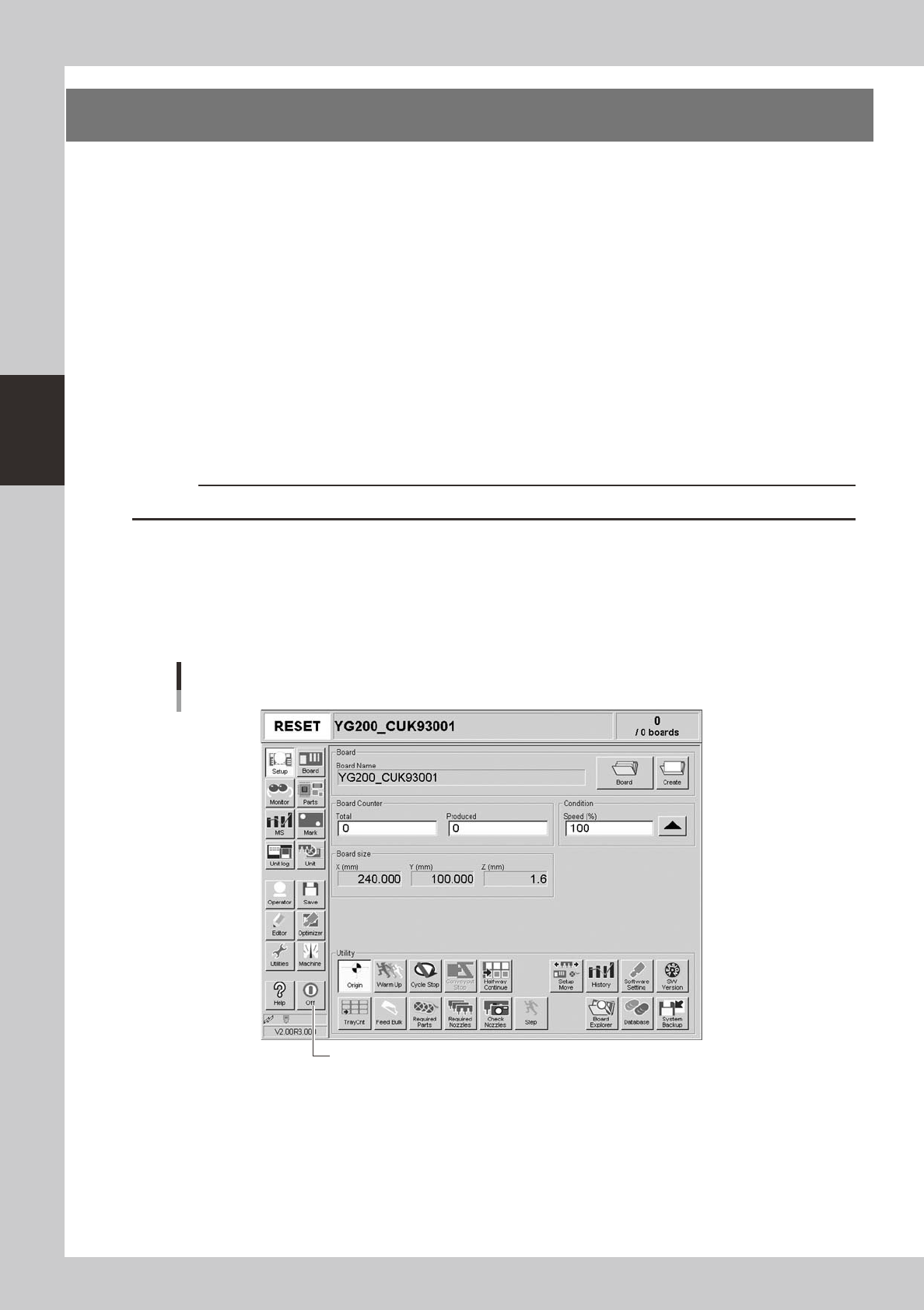
Press the [Off] button in the left button area of the screen.
[Off] button
[Off] button
24306-M2-00
3-7
3
Starting and ending production
4
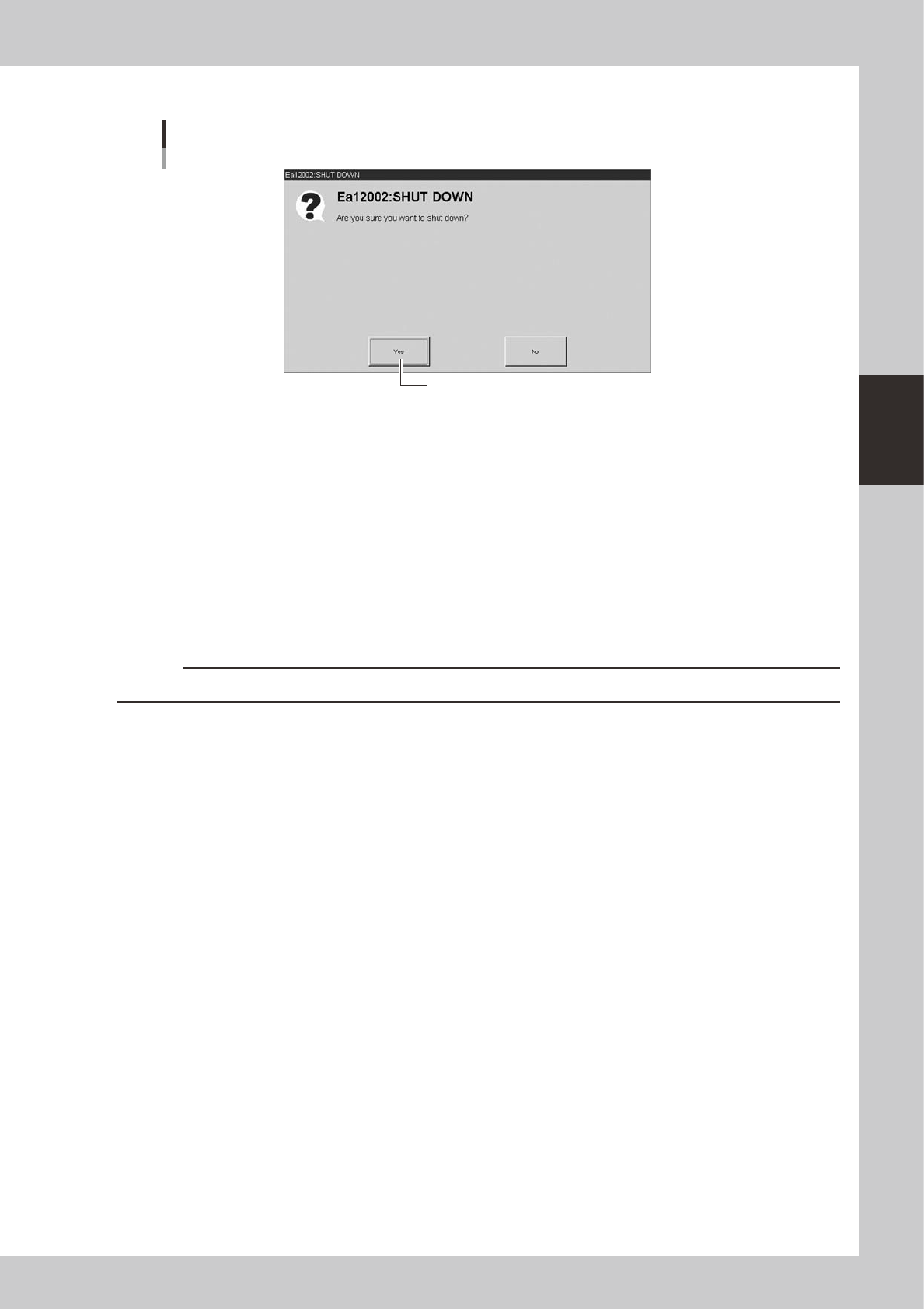
Press [Yes] when a conirmation dialog box appears.
Press [Yes].
Shutdown confirmation dialog box
24315-M0-00
5
Move the machine to the origin position.
When the move-to-origin dialog box appears, press [OK].
6
Press the [OK] button when the shutdown confirmation dialog box appears.
e
7
Press the emergency stop button.
When the emergency stop dialog box appears, press the emergency stop button and then press the
[OK] button.
8
Turn off the power switch on the machine.
When the message "Ready to shut down" appears, press the [OK] button and then turn off the power
switch on the lower right of the machine.
c
CAUTION
If you turn off the power without following the correct sequence, the data and machine might be damaged.