00198610-01_VD_712.0_R18-2_DE_EN.pdf - 第20页
Station Software 71 2.0 (R18 - 2) / Versio n Description 11/2018 Edition 20 Explanation of the states Icon State Calibration has been s uccessfully perfo rmed Calibration has not be en performed Calibration must be pe rf…
Station Software 712.0 (R18-2) / Version Description 11/2018 Edition
19
4.13 Redesigned Calibration View
Compatible mode: Compatible
For a better overview of the calibration steps, the following new views replace the current automatic
calibration dialog:
– Calibration state
– Automatic calibration
– Calibration scripts
After clicking the Automatic calibration button in the main service dialog, the views can be
accessed via the right toolbar.
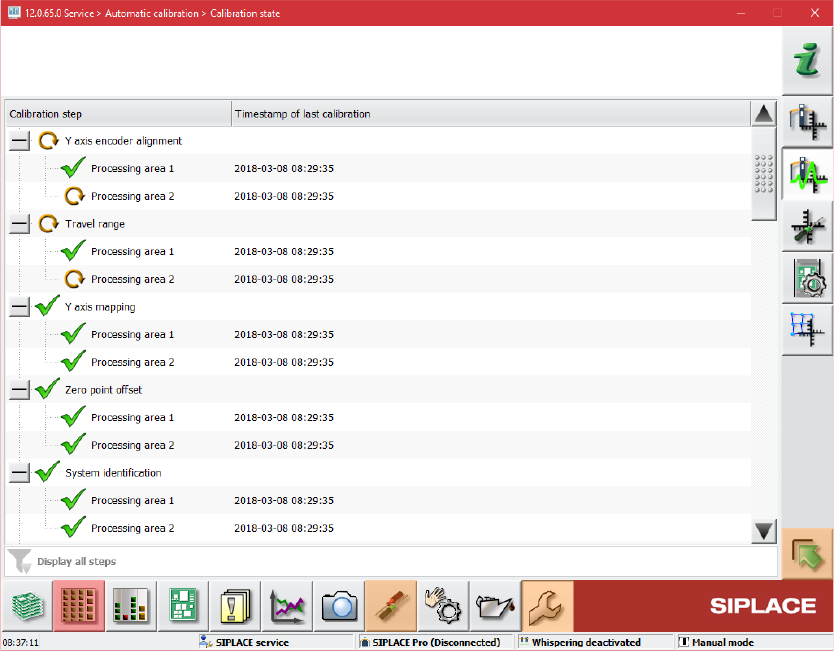
Calibration state overview
Figure 4-4: Calibration state overview
This view is introduced for displaying the state of the calibration items. A list with all calibration
items is displayed as a tree. The list is dynamic and is updated e.g. after an automatic calibration
run has been performed, during production or after single calibrations.
The following information is displayed:
– Name of the calibration item
– Timestamp of the last calibration
– State of the calibration (icon in front of the item name)
Station Software 712.0 (R18-2) / Version Description 11/2018 Edition
20
Explanation of the states
Icon State
Calibration has been successfully performed
Calibration has not been performed
Calibration must be performed again because of a dependency to another calibration
item (i.e. if board mapping is executed, the head mapping should also be performed)
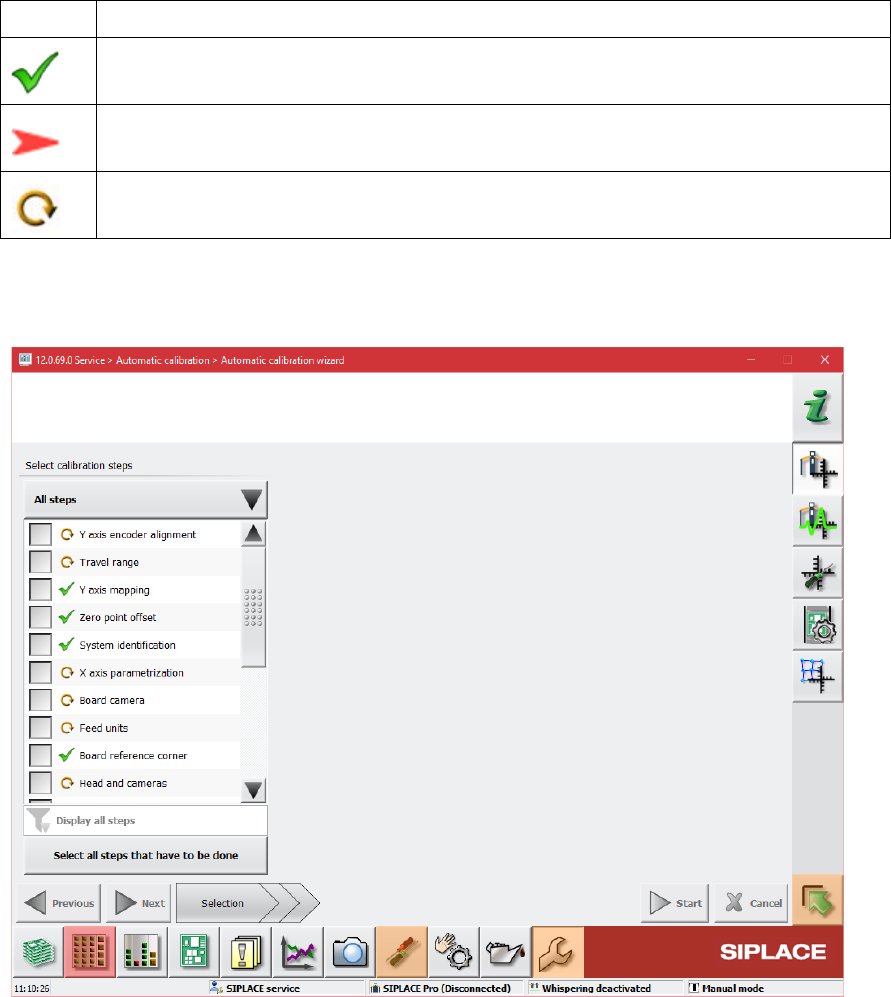
Automatic calibration wizard
Figure 4-5: Automatic calibration wizard
The second new view is intended for executing the calibration steps and consists of three pages.
The first page of the wizard lists the calibration steps and their states but no locations. The
contents of the list can be different depending on the user choice done through the button above
the list. The user choice will be stored. There are three possible choices:
– Combined steps: The offered steps are combined steps, they represent common tasks and
give a quick access to them.
– All steps: All calibration steps are in the list. The user can select every step to be executed.
– Single steps only: The steps that are not part of combined steps are displayed. Thus, the user
can quickly access steps like Bulkfeeder X, Vacuum tooling, etc.
There is no check if the user steps are compatible to each other and no automatic selecting of
other steps.
Station Software 712.0 (R18-2) / Version Description 11/2018 Edition
21
By clicking the Select all steps that have to be done button, all calibration steps that must be
performed are selected and also the locations where the calibration must be performed.
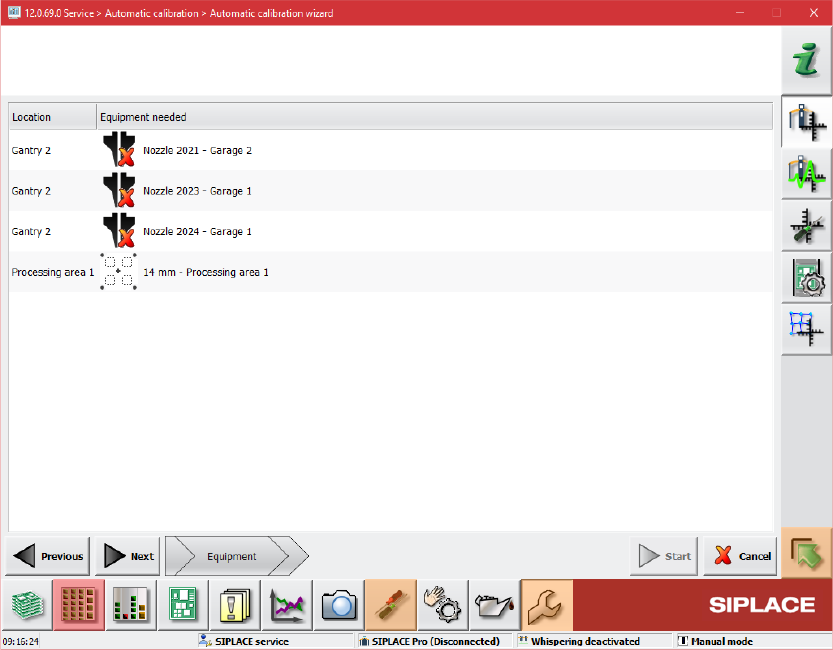
On the second page of the wizard the required equipment for the selected steps is displayed.
Figure 4-6: Required equipment
The third page of the wizard is reserved for preparation steps and will only be displayed if
preparation steps are needed, i.e. for mapping.