Horizon Generic Tooling.pdf - 第29页
MACHI NE PROG RAMMI NG STAGE 5 D - MULTIFLEX TOOLING User Manual 1.45 carria ge moves to the rear of the machi ne. The message ‘T able a t Home Height’ is displayed. 28. Sel ect T ransprt Height (F3). The message ‘T able…
MACHINE PROGRAMMING
STAGE 5D - MULTIFLEX TOOLING
1.44 User Manual
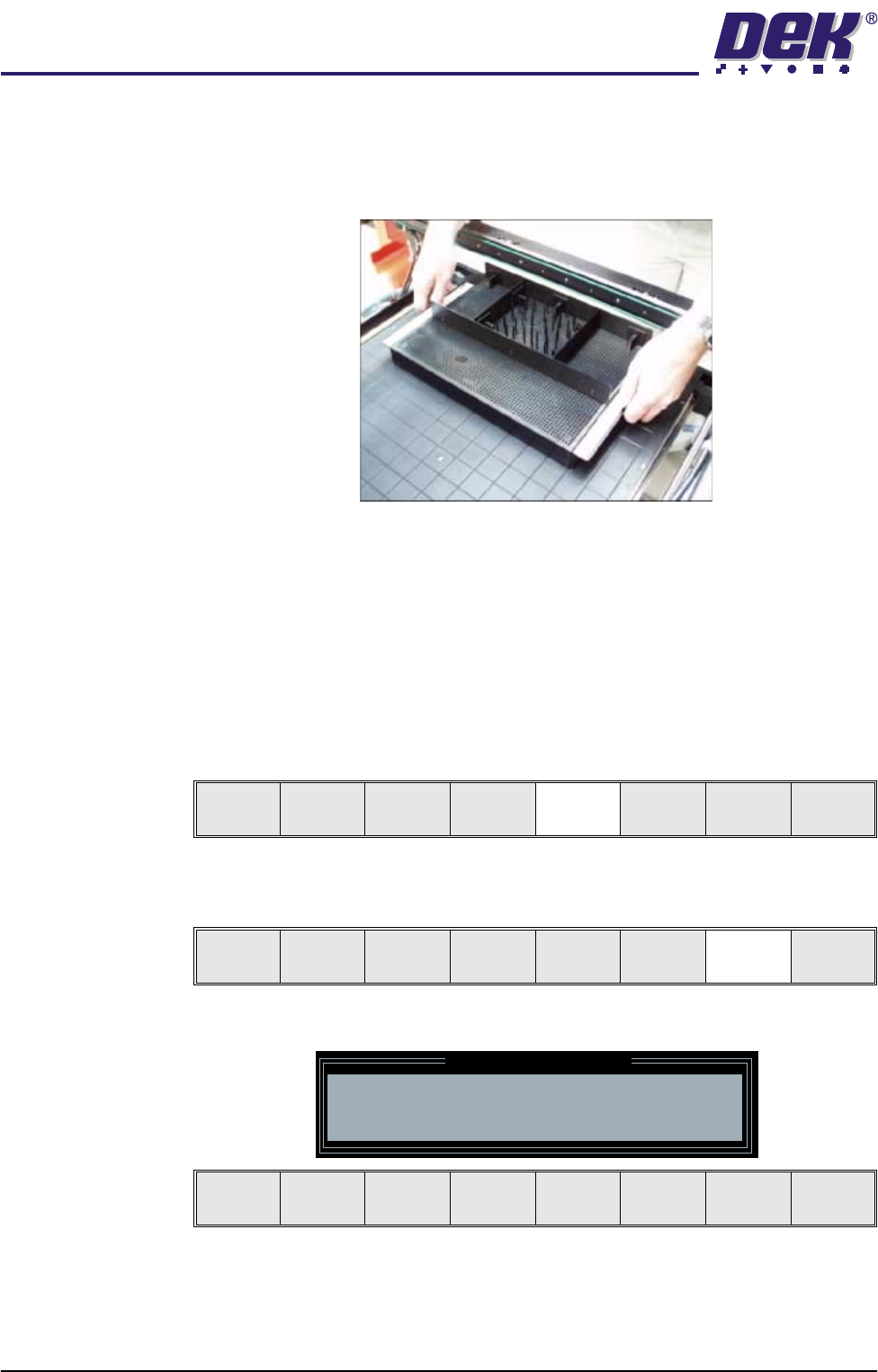
22. The MultiFlex tooling can now be fitted into the appropriate location holes in
the tooling plate. Ensure that the tooling is placed into the correct set of
holes, taking regard of the type of stencil being used and hence the position
of the fixed rail.
23. Either:
a. Close the front printhead cover.
or
b. Raise the drop down panel and lower the printhead shutter.
24. Press the System button.
25. Select Board Width (F5). The message ‘Checking for a board on the
belts’ is displayed. Whilst the rear rail is moving the message ‘Rail
moving...’ is displayed.
26. Select Generic Tooling (F7). The print carriage moves to the front of the
machine.
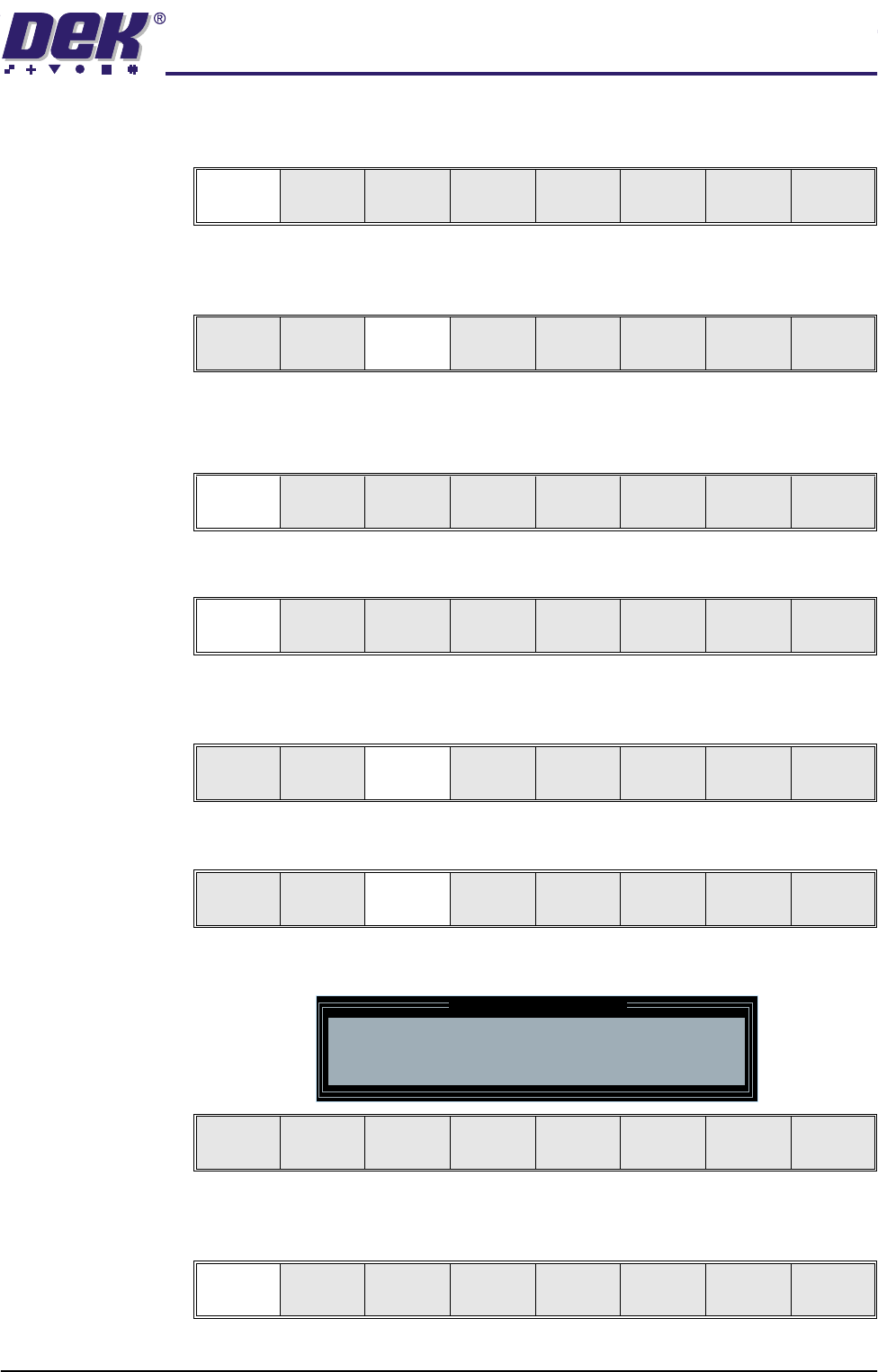
The following window and menu bar is displayed:
NOTE
If contaminated squeegees are fitted, these should be replaced at this point.
27. Select Continue (F1). Cleaner moves to the Home position and the print
Adjust
Open
Cover
Home
Cleaner
Board
Stop
Board
Width
Load
Width
Generic
Tool ing
Exit
Adjust
Open
Cover
Home
Cleaner
Board
Stop
Full
Width
Load
Width
Generic
Tooling
Exit
Generic Tooling Warning
WARNING Paste may drip into the machine
Remove Squeegees NOW
Continue
Open
Cover
Exit
MACHINE PROGRAMMING
STAGE 5D - MULTIFLEX TOOLING
User Manual 1.45
carriage moves to the rear of the machine. The message ‘Table at Home
Height’ is displayed.
28. Select Transprt Height (F3). The message ‘Table at Transport Height’ is
displayed.
29. Place a board on the input sensor of the upline conveyor of the machine.
30. Select Load (F1).
31. Select Auto Board (F1).
32. Select Vision Height (F3). The message ‘Table at Vision Height. Check
Tooling Clearance’ is displayed.
33. Select Contact Height (F3).
The following window and menu bar is displayed:
34. Select Continue (F1). The message ‘Table at Contact Height. Check
Tooling Clearance’ is displayed.
Continue
Open
Cover
Exit
Load
Transprt
Height
Board
Clamps
Change
Screen
Open
Cover
Exit
Load
Vision
Height
Home
Height
Board
Clamps
Change
Screen
Open
Cover
Exit
Auto
Board
Manual
Board
Unload
Vision
Height
Home
Height
Board
Clamps
Change
Screen
Open
Cover
Exit
Contact
Height
Tra nsp r t
Height
Change
Screen
Open
Cover
Exit
Contact Height Warning
WARNING Check for obstructions between
the Rails and the Screen
Continue
Open
Cover
Exit
Continue
Open
Cover
Exit
MACHINE PROGRAMMING
STAGE 5D - MULTIFLEX TOOLING
1.46 User Manual
35. Select Open Cover (F7).
36. Either:
a. Open the front printhead cover.
or
b. Raise the printhead shutter.
37. Check that the setup of the tooling is adequate for the board, adjust as
necessary.
NOTE
If adjustment is required, this can be carried out at Transport Height.
38. Either:
a. Close the front printhead cover.
or
b. Lower the printhead shutter.
39. Press the System button.
40. Select Exit (F8).
41. Select Exit (F8).
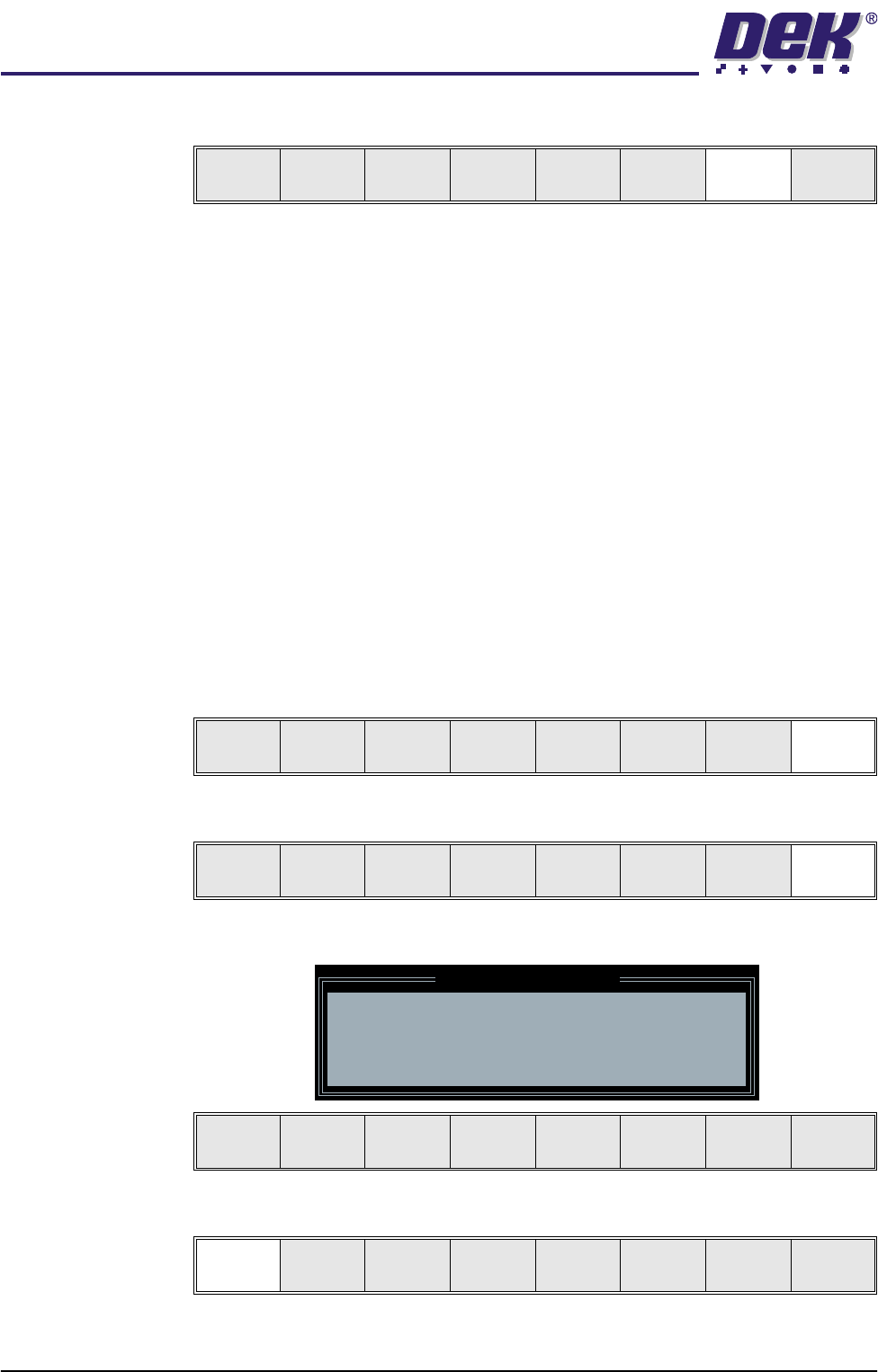
The following window and menu bar is displayed:
42. Select Continue (F1).
43. Select Auto Board (F1). The message ‘Board on rails, remove and
Vision
Height
Open
Cover
Exit
Exit
Vision
Height
Open
Cover
Exit
Leaving Generic Tooling
WARNING You are about to return
to the Setup Page
Clear all tooling setup
equipment before proceeding
Continue Exit
Continue Exit