Horizon Generic Tooling.pdf - 第50页
MACHI NE PROG RAMMI NG STAGE 5E - FORM FLEX TOOLING 1.66 User Manual The following windo w and menu bar is displayed: 41. Sel ect Continue (F1). 42. Sel ect Auto Board (F1). The message ‘B oard o n rails , rem ove an d c…
MACHINE PROGRAMMING
STAGE 5E - FORMFLEX TOOLING
User Manual 1.65
The following window and menu bar are displayed:
36. Select Continue (F1). The message ‘Table at Contact Height. Check
Tooling Clearance.’ is displayed.
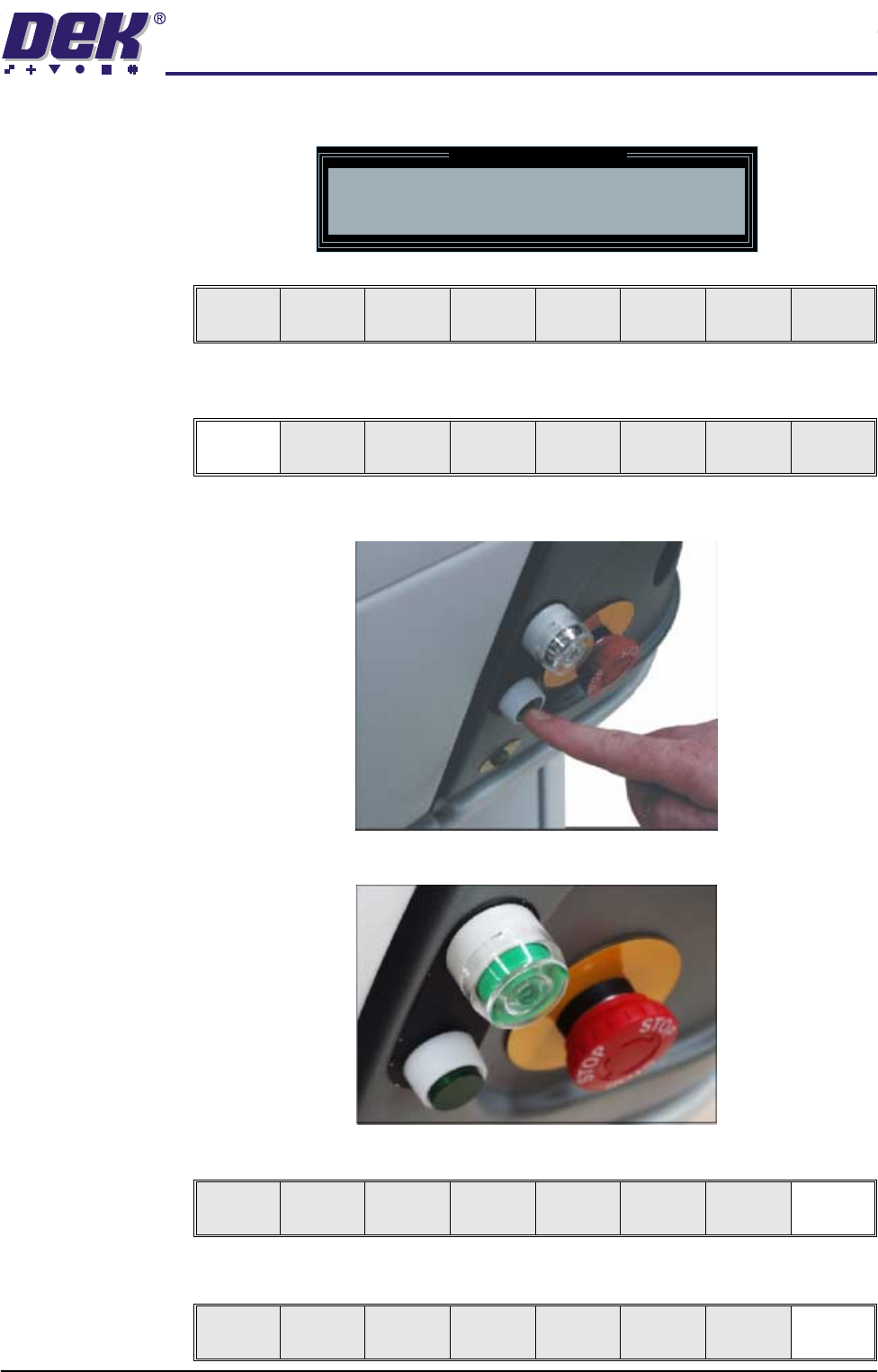
37. Press the operator switch on the front of the machine covers.
38. Wait until the pneumatic indicator on the front cover displays green
39. Select Exit (F8).
40. Select Exit (F8).
Contact Height Warning
WARNING Check for obstructions between
the Rails and the Screen
Continue
Open
Cover
Exit
Continue
Open
Cover
Exit
Exit
Vision
Height
Open
Cover
Exit
MACHINE PROGRAMMING
STAGE 5E - FORMFLEX TOOLING
1.66 User Manual
The following window and menu bar is displayed:
41. Select Continue (F1).
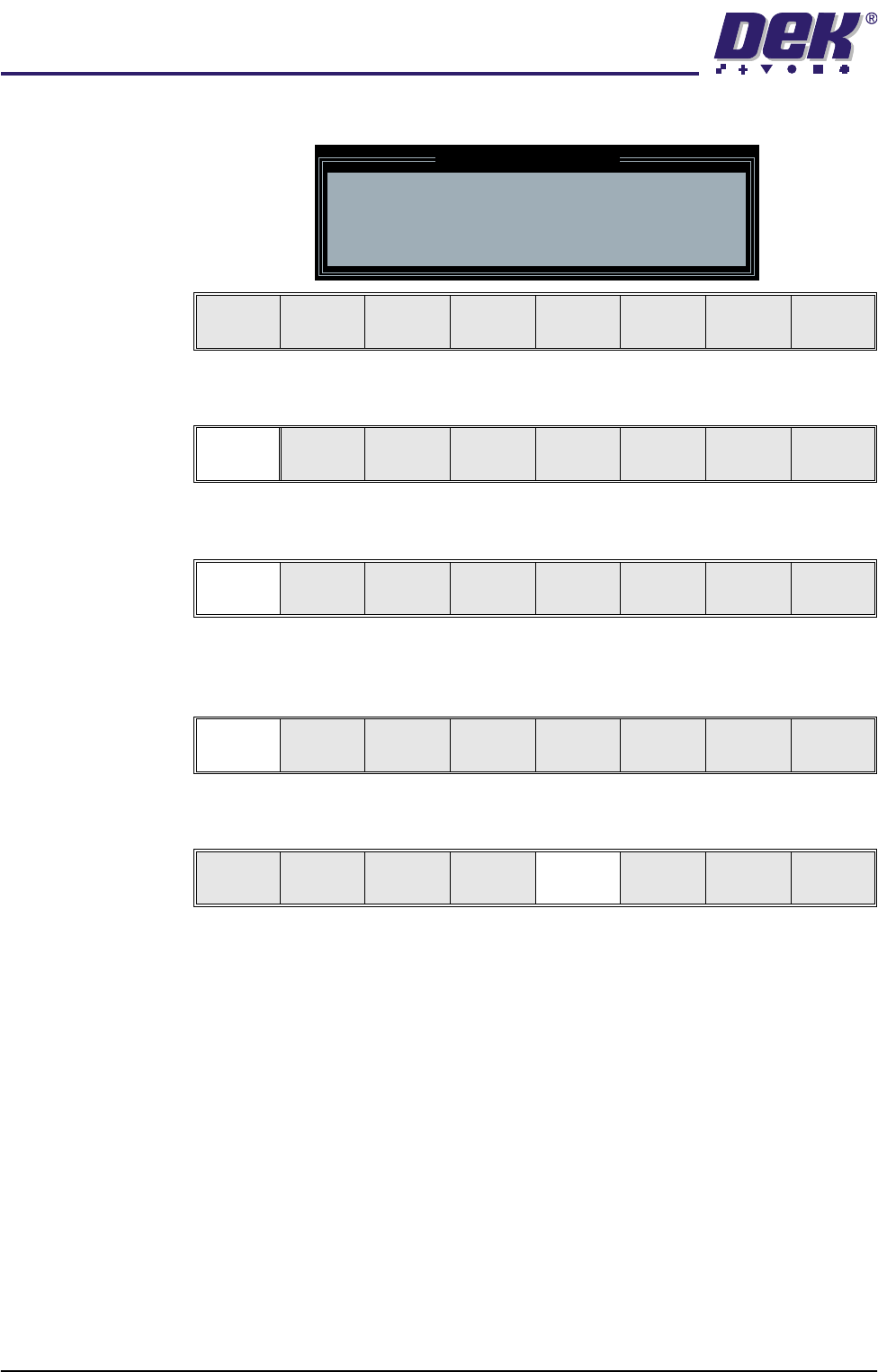
42. Select Auto Board (F1). The message ‘Board on rails, remove and
continue’ is displayed.
43. Remove the board from the rails.
44. Select Continue (F1).
45. Select Change Screen (F5).
46. Either:
a. Open the front printhead cover.
or
b. Raise the printhead shutter and lower the drop down panel.
47. Remove the screen from the printer and release the universal set plate from
the screen.
Leaving Generic Tooling
WARNING You are about to return
to the Setup Page
Clear all tooling setup
equipment before proceeding
Continue Cancel
Continue Cancel
Auto
Board
Manual
Board
Continue
Open
Cover
Mode
Load
Data
Edit
Data
Setup
Squeegee
Change
Screen
Change
Tool ing
Change
Language
Exit
MACHINE PROGRAMMING
STAGE 5E - FORMFLEX TOOLING
User Manual 1.67
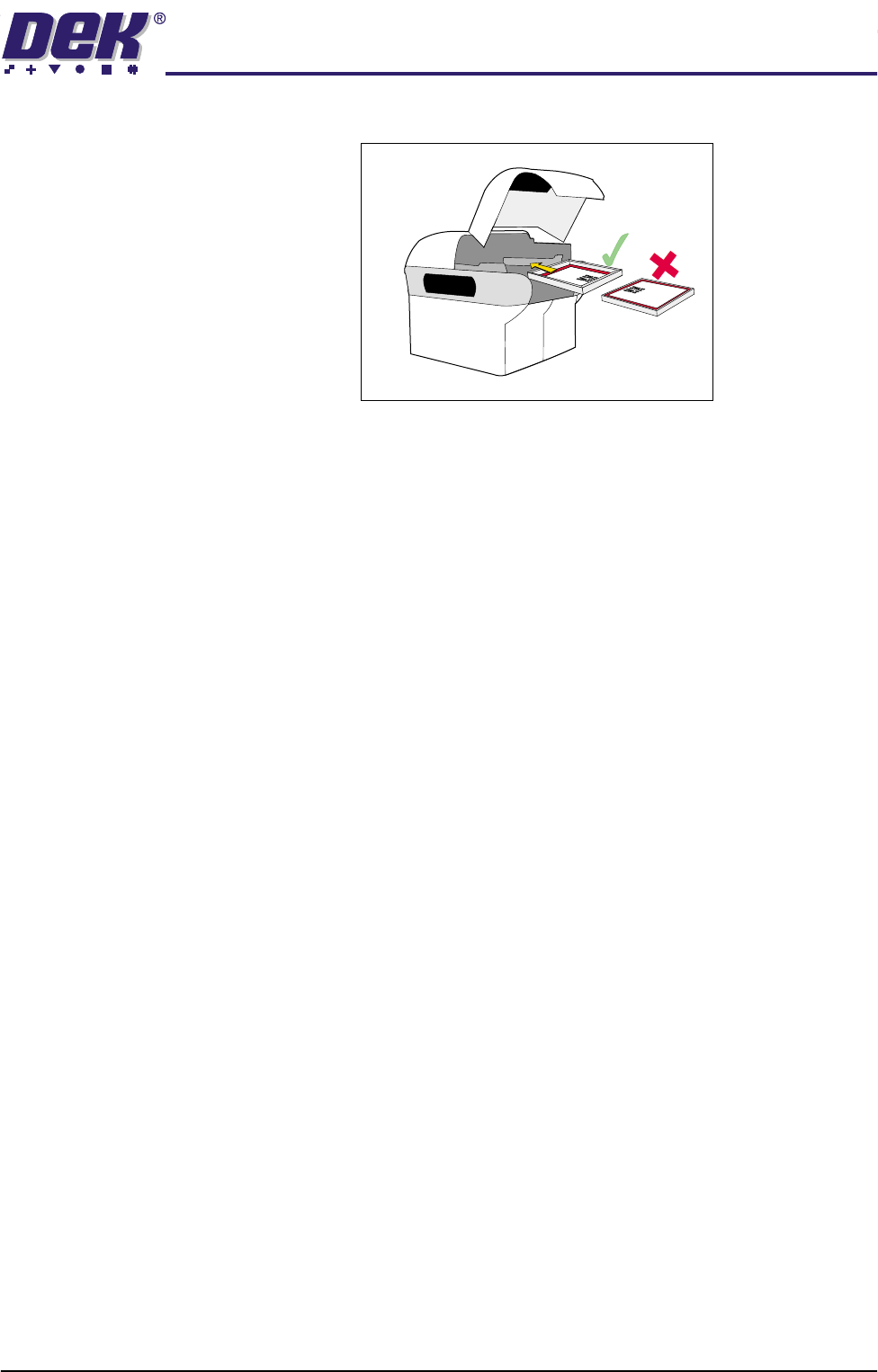
48. Ensuring correct orientation, refit the screen
49. Either:
a. Close the front printhead cover.
or
b. Raise the drop down panel and lower the printhead shutter.
50. Press the System button.
51. Go to Stage 6.