User-Manual-NeoDen-IN12-Reflow-oven.pdf - 第11页
10 ♦File generation Wi zard (Note: due to t he great difference in complexity of each product, the tempera ture parameters generated are onl y used as reference. In order to achieve the best solder effect, it is necessar…
9
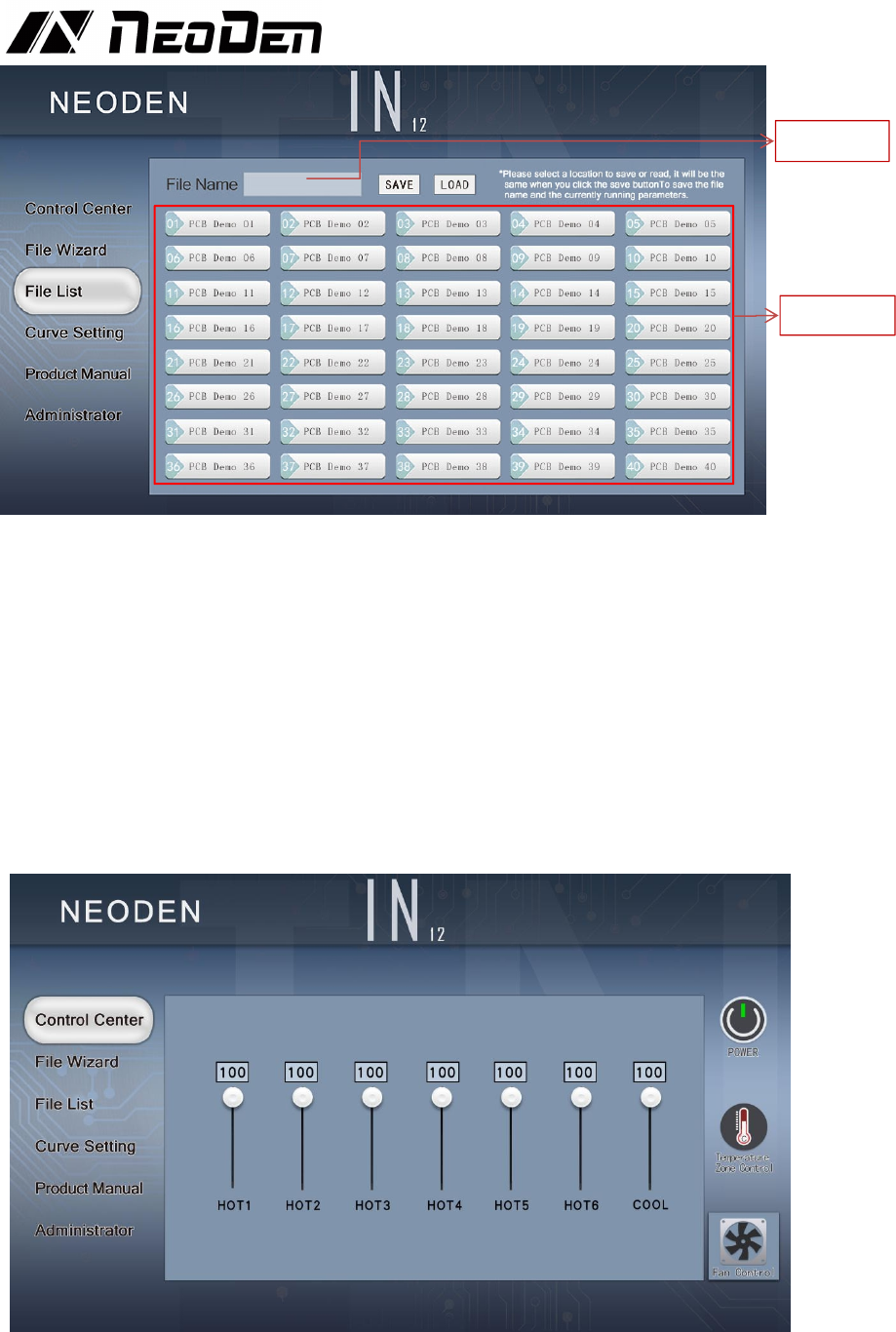
♦Save and use of soldering formula
♦Save method: Click ‘SAVE AS’ on the main control page or click the file list page on
the left to enter the file management page. Select the location you want to save (the
file list box will turn green when selected). Click the SAVE button to save the current
used formula and file name at the same time, there will be a beep after success.
♦How to modify the file name: select a location to be stored in the file list. At this time,
the file name in the file list box will be updated to the text box of the file name. Click
the text box of the file name to pop up the input keyboard. After filling in the required
name, click OK, and then click the Save button. After success, there will be a beep.
♦Usage: select the required file and click the load button. After success, there will be
a‘beep’ sound.
♦Fan management
Click the Fan Control button in the lower right corner to enter the management page.
Drag the adjustment button to adjust the required wind speed. The default value is 100.
HOT1-HOT6 is the hot wind speed of 1-6 temperature zone, COOL is the wind speed
of cooling zone.
Text box
File List
10
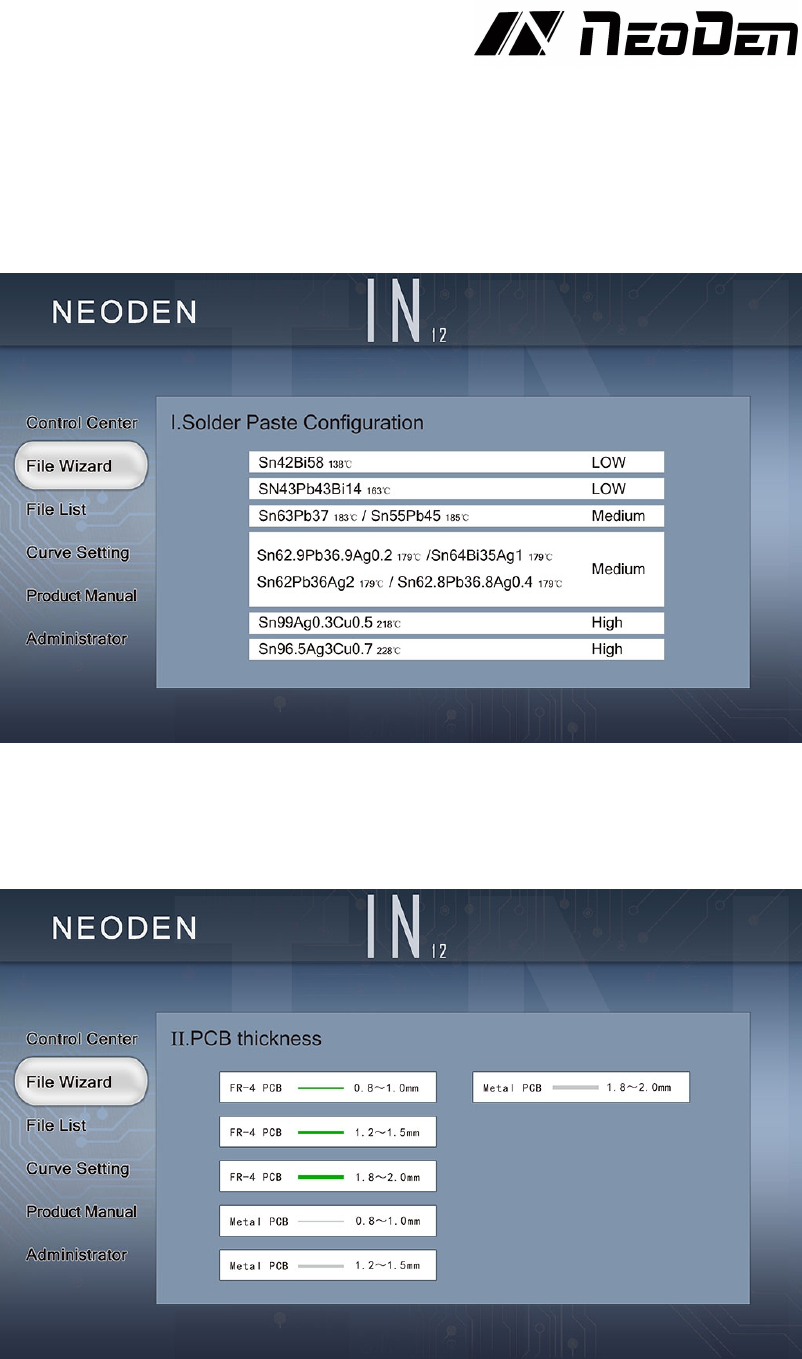
♦File generation Wizard
(Note: due to the great difference in complexity of each product, the temperature
parameters generated are only used as reference. In order to achieve the best solder
effect, it is necessary to measure the temperature curve and improve the parameters
after comparing with the temperature curve provided by the solder paste manufacturer.)
Step 1: select the type of solder paste to solder the product. If the model is not found in
the list, please go to search in the appendix, or ask the solder paste manufacturer about
the melting point, and then select the option with the closest melting point.
Step 2: select the material and thickness of PCB to be soldered.
After selection, the system will automatically generate the corresponding soldering
formula.
11
♦Temperature curve
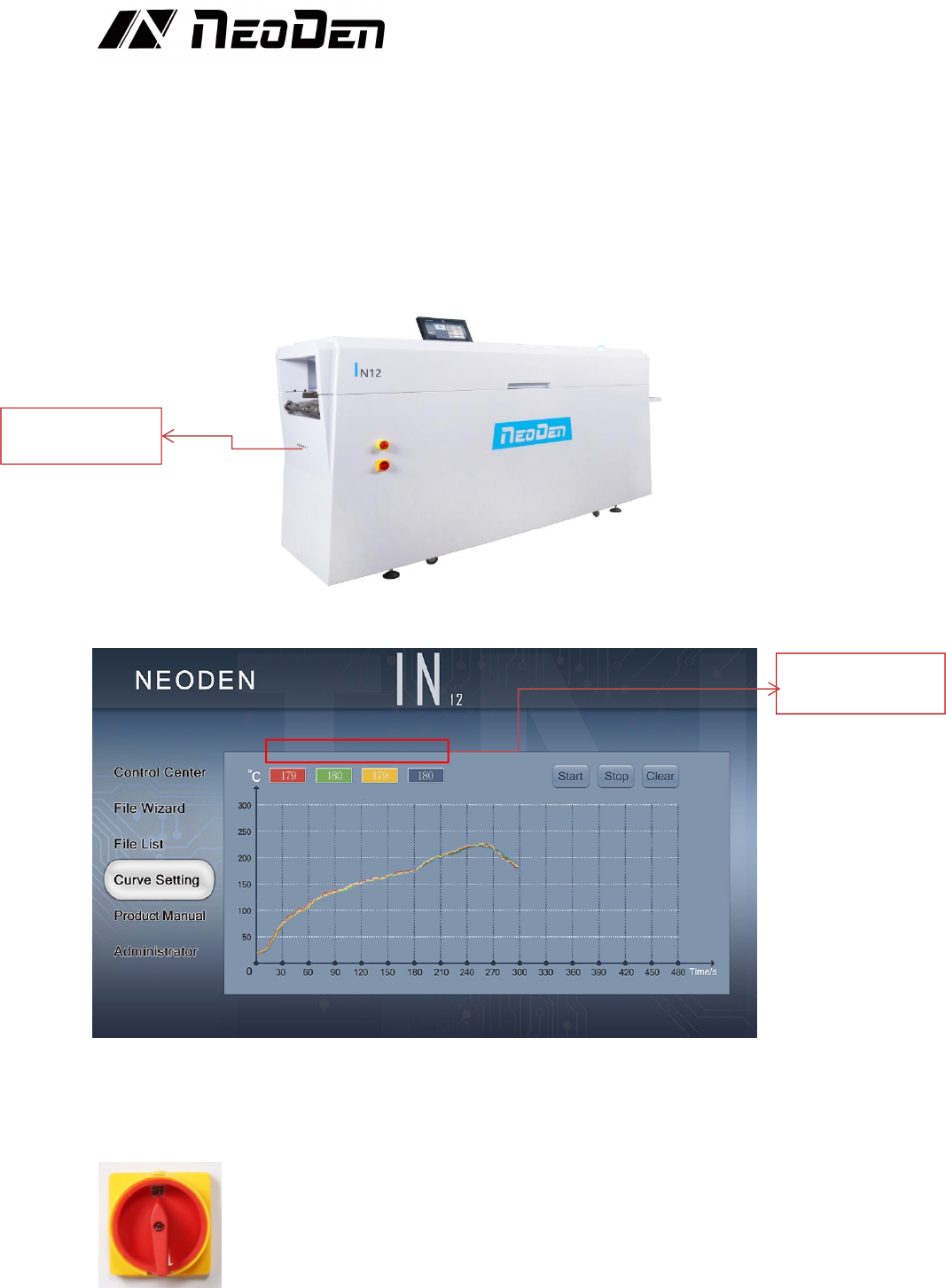
Connect the Temperature sensor to the SENSOR CONNECTOR, attach the sensor
to PCB, and then click "start" button in the curve setting interface after PCB is put
into the oven to get the temperature curve, click "stop" to pause the generation of
temperature curve, and click "clear" to clear the temperature curve record. The "red,
green, yellow and blue" sub table represents the real-time temperature of sensor on
four interfaces corresponding to the same color.
♦Power off
Click the temperature zone switch on the main control page to close the temperature
zone. Turn the switch to the off position, and the machine will turn off.
Real-time
temperature
Temperature sensor
connector