User-Manual-NeoDen-IN12-Reflow-oven.pdf - 第9页
8 4.3 Status o f I ndicators There’s tri-color light on top of the cover, it is used to indicate whether all zones’ temperature have reached the well-set temperature. When all temperature reach to well-set temperature, i…
7
4. Installation Instruction
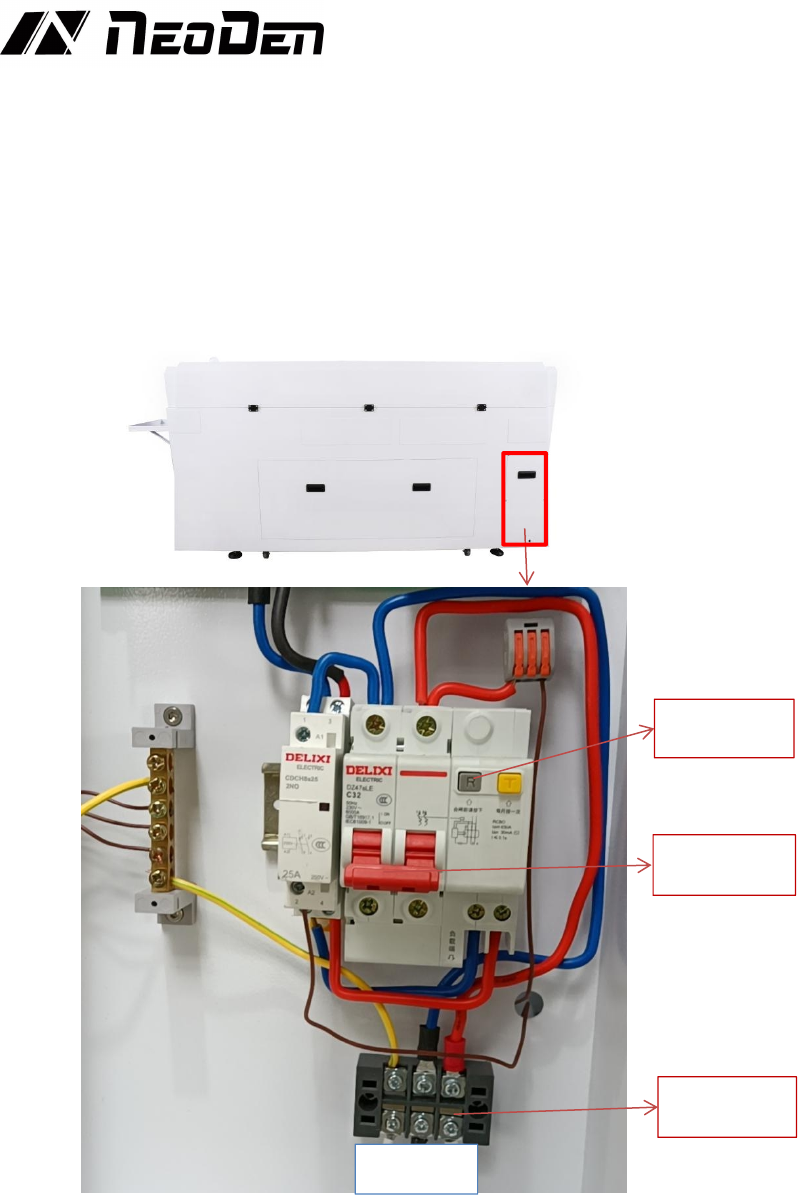
4.1 Power Supply Connection
IN12 power connection is single phase 220V, please connect it against local users
actual situation. Connection as below picture: Open the cover on bottom right corner,
L stands for the live wire, N stands for the zero wire, and E stands for the ground wire,
connect to the 220V power supply. According to the wiring requirements, the L
should be connected to one live wire, and the N should be connected to one zero wire;
the E should be connected to one ground wire properly.
4.2 Installation Attentions
♦ Put down the bearing foot cup, level it and then connect it to the power supply,
voltage requirement 220V;
♦ The electricity wire need no less than 2.5mm
2
, it’s better to directly use 4mm
2
(If
2.5mm
2
, then it can only connect with one set of IN12 Reflow oven, other equipment
Will not be allowed to connect together.
♦ The machine should be set in standard SMT workshop, stay away from flammable
and explosive if couldn’t meet previous requirements.
♦ Exposed wire harness should be well protected, prohibit to expose at the passage or
flue in case of causing any accident.
E N L
Air switch
RCD (Leakage
protector)
Wire
connection
8
4.3 Status of Indicators
There’s tri-color light on top of the cover, it is used to indicate whether all zones’
temperature have reached the well-set temperature. When all temperature reach
to well-set temperature, indicator light up green; While in the heating-up status,
indicator will flash as yellow; Only when the temperature zone is closed (without
flash) or in any faulty (in flash status), it will show as red .
4.4 Operation instructions
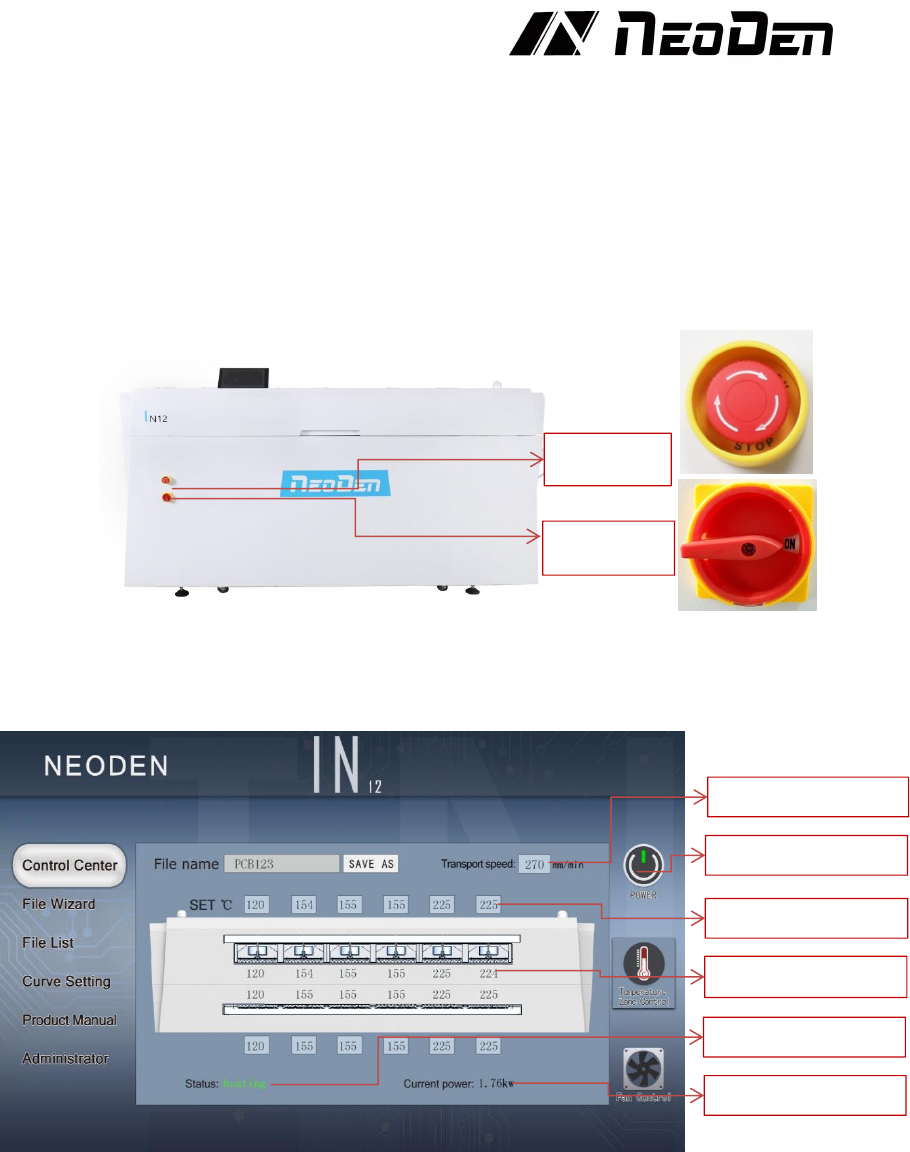
♦ Power on
Switch the button to ON status, machine start up. Please check the emergency button,
air switch and RCD before power on the machine.
♦ Chain mesh speed setting
Click the speed parameter,a blank parameter dialog will pop out, type into the
temperature you need set. Generally suggestion 250-300mm/min (Remarks:
temperature will also be influenced once chain speed changed, please re- test the
temperature curve and adjust temperature according to the test result)
♦ Temperature setting
As above picture showed, data on upper side is well-set temperature from zone1 to
zone6; data in the middle is the real-time temperature. Click the temperature parameter
dialog, directly type into the set temperature, the heating zone will start heating and
keep it in a stable situation while temperature reached.
Setting Transport
speed setting
Set temperature
Real-time temperature
Real-time status
Real-time power
Power on/ off
Emergency
Zone power on/ off
9
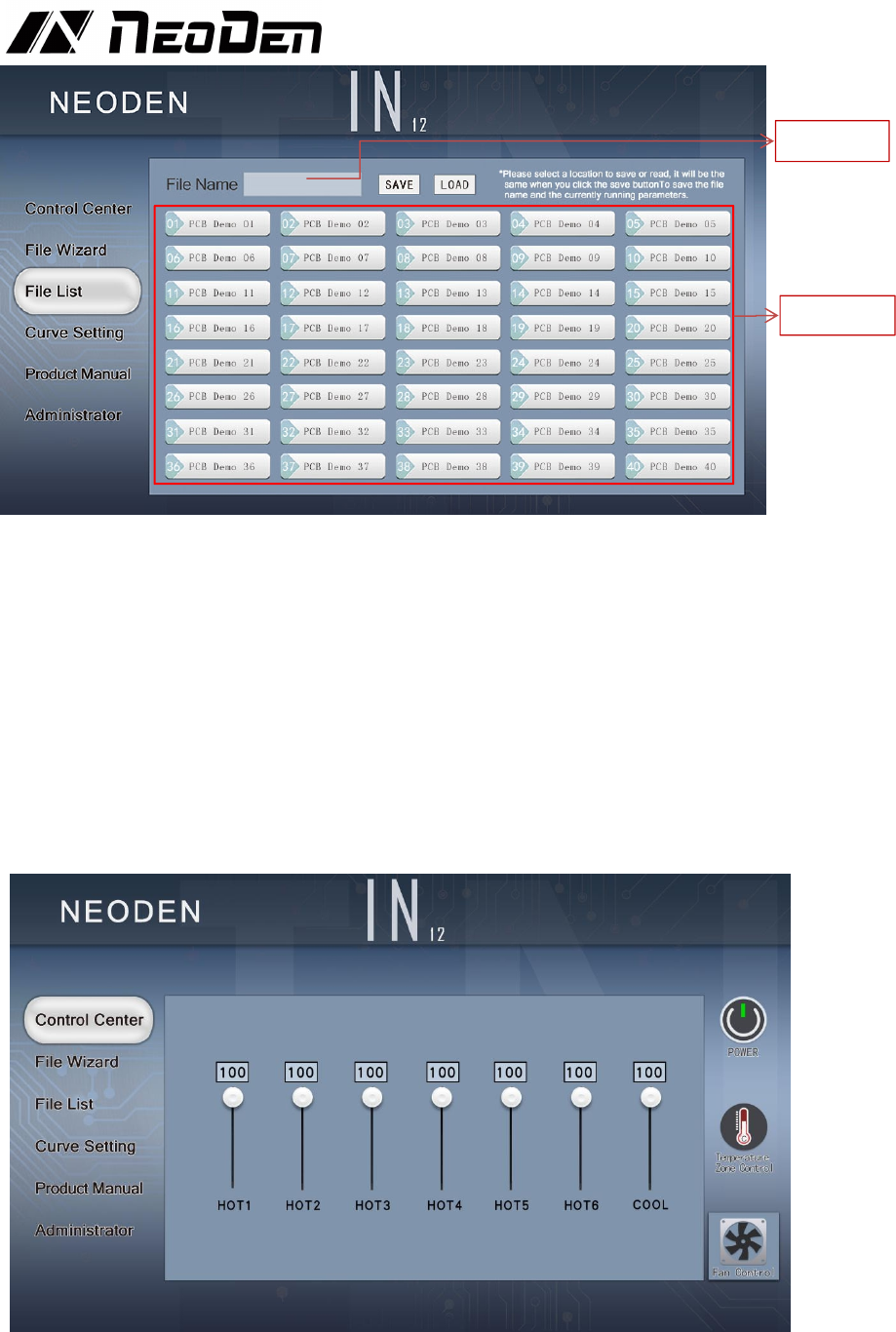
♦Save and use of soldering formula
♦Save method: Click ‘SAVE AS’ on the main control page or click the file list page on
the left to enter the file management page. Select the location you want to save (the
file list box will turn green when selected). Click the SAVE button to save the current
used formula and file name at the same time, there will be a beep after success.
♦How to modify the file name: select a location to be stored in the file list. At this time,
the file name in the file list box will be updated to the text box of the file name. Click
the text box of the file name to pop up the input keyboard. After filling in the required
name, click OK, and then click the Save button. After success, there will be a beep.
♦Usage: select the required file and click the load button. After success, there will be
a‘beep’ sound.
♦Fan management
Click the Fan Control button in the lower right corner to enter the management page.
Drag the adjustment button to adjust the required wind speed. The default value is 100.
HOT1-HOT6 is the hot wind speed of 1-6 temperature zone, COOL is the wind speed
of cooling zone.
Text box
File List