3MAINTENANCE__O.pdf - 第146页
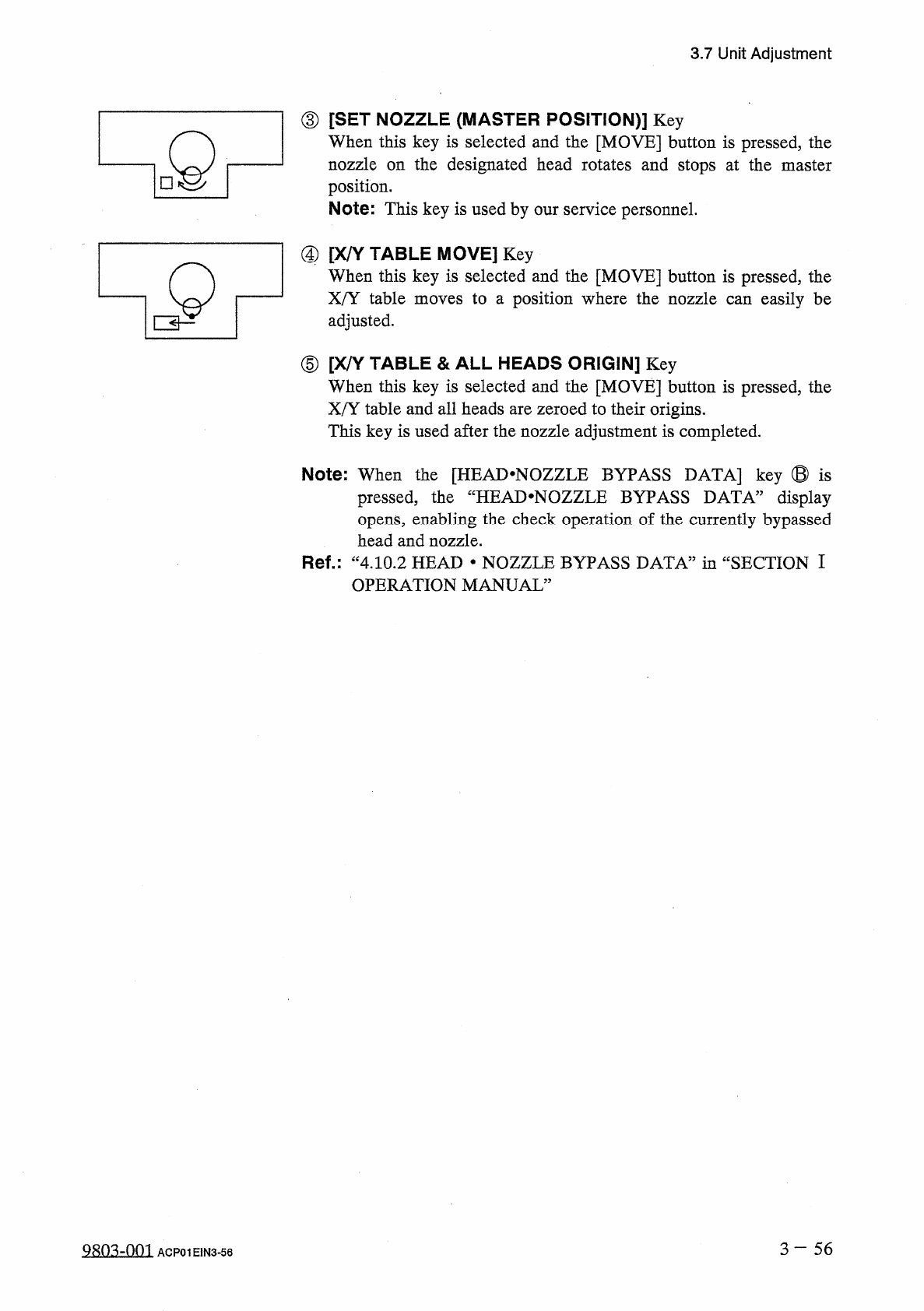
3.7 Unit Adjustment ③ [ SET NOZZLE ( MASTER POSITION ) ] Key When this key is selected and the [ MOVE ] button is pressed , the nozzle on the designated head rotates and stops at the master position . Note : This key is …
3.7
Unit
Adjustment
3.7
.
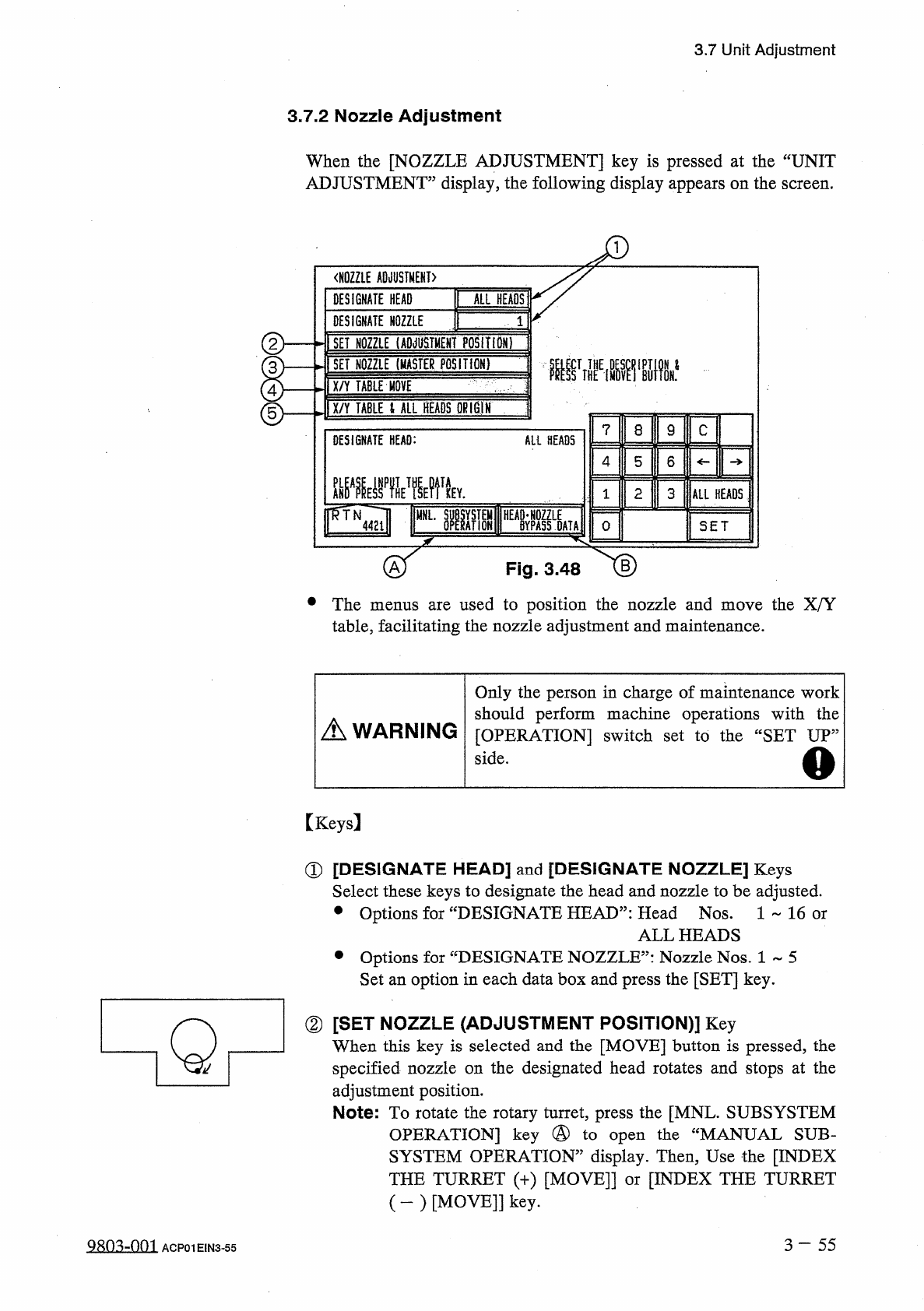
2
Nozzle
Adjustment
When
the
[
NOZZLE
ADJUSTMENT
]
key
is
pressed
at
the
“
UNIT
ADJUSTMENT
”
display
,
the
following
display
appears
on
the
screen
.
<
H
0
ZZLE
ADJUSTMENT
〉
DESIGNATE
HEAD
ALL
HEADS
DESIGNATE
NOZZLE
②
I
SET
NOZZLE
1
ADJUSTMENT
POSITIDNT
I
SET
NOZZLE
(
MASTER
POSITION
)
腿
IX
/
Y
TABLE
HOVE
'
ix
/
Y
TABLE
t
ALL
HEADS
QKIGIN
]
©
?
8
9
C
DESIGNATE
HEAD
:
All
HEADS
4
5
6
龇器
EffVMfk
2
3
ALL
HEADS
1
腦
HEA
»
Lk
MNL
.
4421
0
SET
Fig
.
3.48
•
The
used
to
position
the
nozzle
and
move
the
X
/
Y
table
,
facilitating
the
nozzle
adjustment
and
maintenance
.
menus
are
Only
the
person
in
charge
of
maintenance
work
should
perform
machine
operations
with
the
[
OPERATION
]
switch
set
to
the
“
SET
UP
,,
side
.
A
WARNING
o
[
Keys
]
①
[
DESIGNATE
HEAD
]
and
[
DESIGNATE
NOZZLE
]
Keys
Select
these
keys
to
designate
the
head
and
nozzle
to
be
adjusted
.
•
Options
for
“
DESIGNATE
HEAD
”
:
Head
Nos
.
1
~
16
or
ALL
HEADS
•
Options
for
“
DESIGNATE
NOZZLE
”
:
Nozzle
Nos
.
1
~
5
Set
an
option
in
each
data
box
and
press
the
[
SET
]
key
.
②
[
SET
NOZZLE
(
ADJUSTMENT
POSITION
)
]
Key
When
this
key
is
selected
and
the
[
MOVE
]
button
is
pressed
,
the
specified
nozzle
on
the
designated
head
rotates
and
stops
at
the
adjustment
position
.
Note
:
To
rotate
the
rotary
turret
,
press
the
[
MNL
.
SUBSYSTEM
OPERATION
]
key
@
to
open
the
“
MANUAL
SUB
-
SYSTEM
OPERATION
”
display
.
Then
,
Use
the
[
INDEX
THE
TURRET
(
+
)
[
MOVE
]]
or
[
INDEX
THE
TURRET
(
-
)
[
MOVE
]
]
key
.
Q
3
-
55
Q
80
^
-
001
ACP
01
EIN
3
-
55
3.7
Unit
Adjustment
③
[
SET
NOZZLE
(
MASTER
POSITION
)
]
Key
When
this
key
is
selected
and
the
[
MOVE
]
button
is
pressed
,
the
nozzle
on
the
designated
head
rotates
and
stops
at
the
master
position
.
Note
:
This
key
is
used
by
our
service
personnel
.
dQ
④
[
X
/
Y
_
When
TABLE
MOVE
]
Key
this
key
is
selected
and
the
[
MOVE
]
button
is
pressed
,
the
X
/
Y
table
moves
to
a
position
where
the
nozzle
can
easily
be
adjusted
.
⑤
[
X
/
Y
-
When
TABLE
&
ALL
HEADS
ORIGIN
]
Key
this
key
is
selected
and
the
[
MOVE
]
button
is
pressed
,
the
X
/
Y
table
and
all
heads
are
zeroed
to
their
origins
.
This
key
is
used
after
the
nozzle
adjustment
is
completed
.
Note
:
When
the
[
HEAD
*
NOZZLE
BYPASS
DATA
]
key
®
is
pressed
,
the
“
HEAD
*
NOZZLE
BYPASS
DATA
”
display
opens
,
enabling
the
check
operation
of
the
currently
bypassed
head
and
nozzle
.
Ref
.
:
“
4.10
.
2
HEAD
•
NOZZLE
BYPASS
DATA
”
in
“
SECTION
I
OPERATION
MANUAL
”
3
一
56
QRO
^
-
nm
ACP
01
E
1
N
3
-
56
3.7
Unit
Adjustment
3.7
.
3
Camera
Position
Adjustment
When
the
[
CAMERA
POSITION
ADJUSTMENT
]
key
is
pressed
at
the
“
UNIT
ADJUSTMENT
”
display
,
the
following
display
appears
on
the
screen
.
〈
CAMERA
POSITION
ADJUSTMENT
)
NOZZLE
IMACE
|
|
BRiGHTlI
NQZ
;
iN
.
LENGTH
~
CAMERA
SELECT
|
’
CAMERA
tl
NOZ
.
OUT
.
LENGTH
LIGHTING
MODE
BACK
LIG
.
DESIGNATE
NOZZLE
T
rEmii
[
^
»
MlF
11
lir
DESIGNATE
NOZZLE
:
5
L
8
9
C
4
5
6
m
晶
MV
2
3
0
±
SET
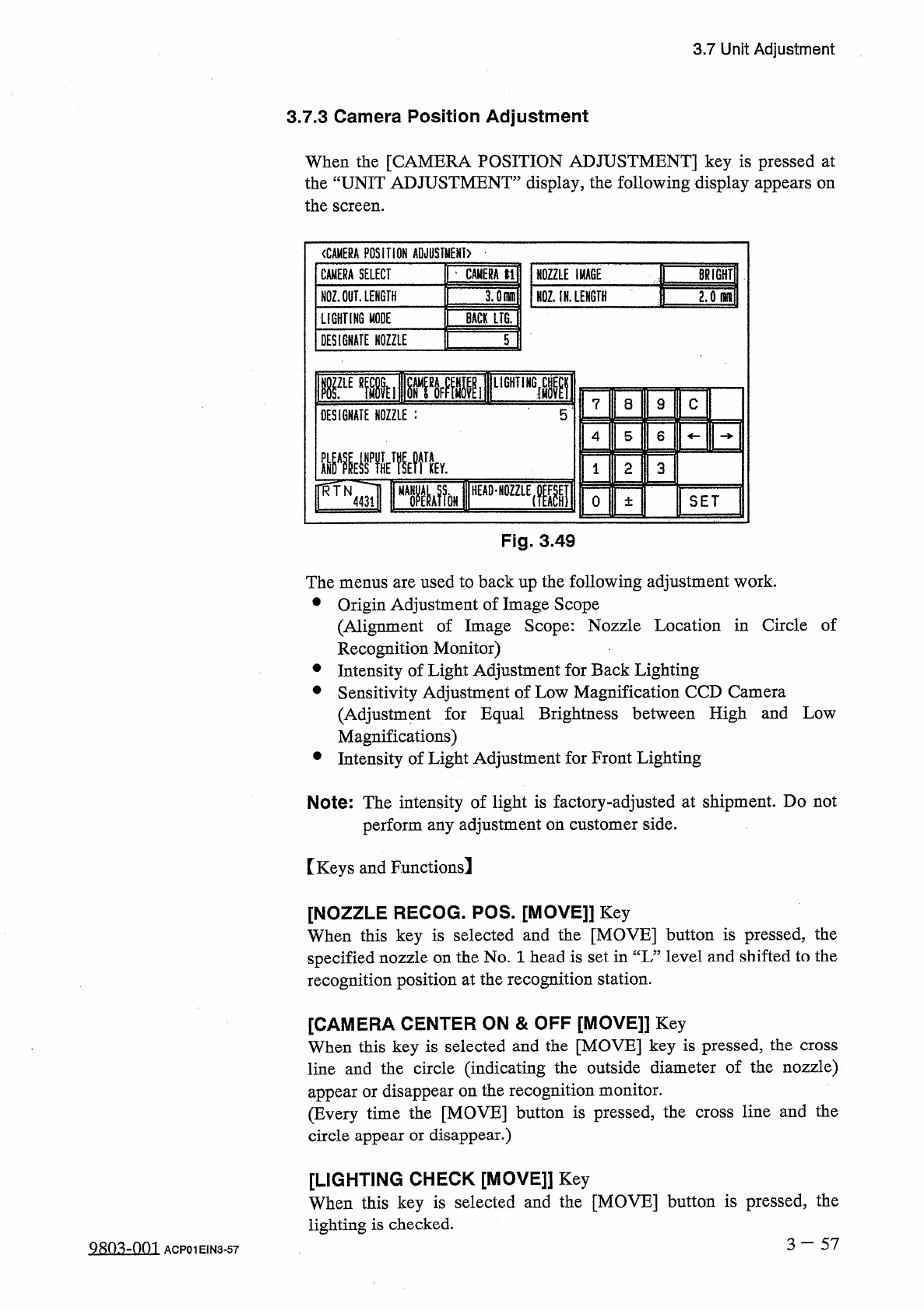
Fig
.
3
49
The
menus
are
used
to
back
up
the
following
adjustment
work
.
•
Origin
Adjustment
of
Image
Scope
(
Alignment
of
Image
Scope
:
Nozzle
Location
in
Circle
of
Recognition
Monitor
)
•
Intensity
of
Light
Adjustment
for
Back
Lighting
•
Sensitivity
Adjustment
of
Low
Magnification
CCD
Camera
(
Adjustment
for
Equal
Brightness
between
High
and
Low
Magnifications
)
•
Intensity
of
Light
Adjustment
for
Front
Lighting
Note
:
The
intensity
of
light
is
factory
-
adjusted
at
shipment
.
Do
not
perform
any
adjustment
on
customer
side
.
[
Keys
and
Functions
!
[
NOZZLE
RECOG
.
POS
.
[
MOVE
]]
Key
When
this
key
is
selected
and
the
[
MOVE
]
button
is
pressed
,
the
specified
nozzle
on
the
No
.
1
head
is
set
in
“
L
”
level
and
shifted
to
the
recognition
position
at
the
recognition
station
.
[
CAMERA
CENTER
ON
&
OFF
[
MOVE
]]
Key
When
this
key
is
selected
and
the
[
MOVE
]
key
is
pressed
,
the
cross
line
and
the
circle
(
indicating
the
outside
diameter
of
the
nozzle
)
appear
or
disappear
on
the
recognition
monitor
.
(
Every
time
the
[
MOVE
]
button
is
pressed
,
the
cross
line
and
the
circle
appear
or
disappear
.
)
[
LIGHTING
CHECK
[
MOVE
]
】
Key
When
this
key
is
selected
and
the
[
MOVE
]
button
is
pressed
,
the
lighting
is
checked
.
3
一
57
Q
8
m
-
om
ACP
01
EIN
3
-
57