i3070_Software_Installation.pdf.pdf - 第15页
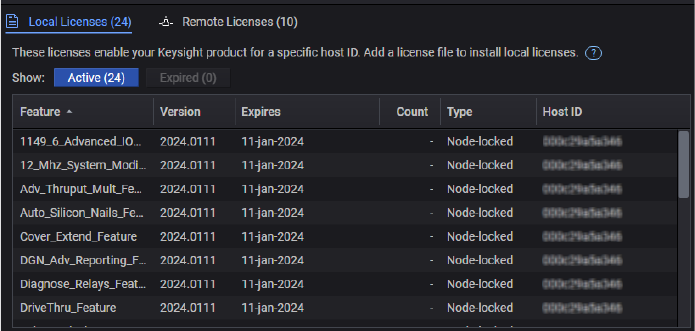
i3070 Software Installation 15 Viewing Licenses Once licenses ar e successfully inst all ed, you can view them fr om the License Status module. Floating licenses can be found on the Remote L icense s tab.
14 i3070 Software Installation
Setting Up Client Machines to Use Floating Licenses
Follow these steps to enable client machines to make use of floating licenses, which
are shared from one or more remote license servers. You will need the hostname(s)
of the license server(s).
1 Launch PathWave License Manager (Start > Keysight PathWave License
Manager > Keysight PathWave License Manager).
2 Click Specify a Remote License Server.
3 Enter the hostname of the license server, for example,
27009@server1
If your system relies on a triple redundant server setup, enter the hostnames of
the three license servers, separated by commas. The three servers should be
listed in the same order as specified in the license files. For example:
27009@server1,27009@server2,27009@server
4 Click Verify Connection and Save.
5 Click Done when the process is completed.
6 In a Command Prompt window, go to
C:\I3070_ICT\util and run
LicenseSearchPathReg.bat as an administrator.
Enter
All if prompted to overwrite.
7 Open Task Manager (right-click on the taskbar and click Task Manager).
8 On the Services tab, right-click i3070 License Communication Service and
select Restart.
You can now run the i3070 In-Circuit Test Software.
View licenses and their status from the License Status module (see Viewing
Licenses).
i3070 Software Installation 15
Viewing Licenses
Once licenses are successfully installed, you can view them from the License Status
module. Floating licenses can be found on the Remote Licenses tab.
16 i3070 Software Installation
Other Tasks
– Copying user data
– Installing the online help
– System backup and recovery
Copying user data
If you are upgrading a test development station, you can copy your user data from
the old workstation. Do not copy the license files.
• From release 10.00p, the default installation folder for the i3070 In-Circuit Test
Software is C:\I3070_ICT.
• Copy your data from the old workstation (C:\I3070_ICT or C:\Agilent_ICT) to
corresponding subfolders in C:\I3070_ICT on the new workstation.
If your board data is not in the default
boards folder (C:\I3070_ICT\boards), follow
the procedure below to change ownership of the board directory.
Changing ownership of the boards directory
If you change the location of the default boards directory, follow the instructions
below to change the ownership of your custom directory. Otherwise, error
messages may appear.
To change the ownership of the boards directory:
1 In Windows Explorer, right-click the boards directory and select Properties.
2 In the boards Properties dialog box, click the Security tab.
3 In the Security tab, click Edit.
4 In the Permissions dialog box, click Add.
5 Under Enter the object names to select, type
Everyone and click OK.
The group Everyone is added to the Group or user names list in the Permissions
dialog box.
6 Under Group or user names, select Everyone.
7 In the Allow column, select the Full Control check box.
8 Click OK to save the changes.