i3070_Software_Installation.pdf.pdf - 第16页
16 i3070 Software Installation Other Tasks – Copying user data – Installing the online help – System bac kup and r ecovery Copying user data If you ar e upgra ding a test devel opment stat ion, you can copy your user dat…
i3070 Software Installation 15
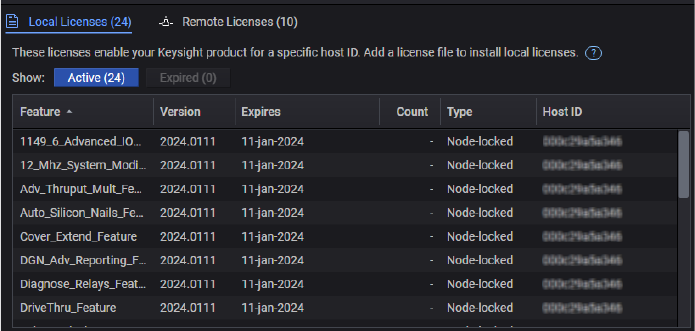
Viewing Licenses
Once licenses are successfully installed, you can view them from the License Status
module. Floating licenses can be found on the Remote Licenses tab.
16 i3070 Software Installation
Other Tasks
– Copying user data
– Installing the online help
– System backup and recovery
Copying user data
If you are upgrading a test development station, you can copy your user data from
the old workstation. Do not copy the license files.
• From release 10.00p, the default installation folder for the i3070 In-Circuit Test
Software is C:\I3070_ICT.
• Copy your data from the old workstation (C:\I3070_ICT or C:\Agilent_ICT) to
corresponding subfolders in C:\I3070_ICT on the new workstation.
If your board data is not in the default
boards folder (C:\I3070_ICT\boards), follow
the procedure below to change ownership of the board directory.
Changing ownership of the boards directory
If you change the location of the default boards directory, follow the instructions
below to change the ownership of your custom directory. Otherwise, error
messages may appear.
To change the ownership of the boards directory:
1 In Windows Explorer, right-click the boards directory and select Properties.
2 In the boards Properties dialog box, click the Security tab.
3 In the Security tab, click Edit.
4 In the Permissions dialog box, click Add.
5 Under Enter the object names to select, type
Everyone and click OK.
The group Everyone is added to the Group or user names list in the Permissions
dialog box.
6 Under Group or user names, select Everyone.
7 In the Allow column, select the Full Control check box.
8 Click OK to save the changes.
i3070 Software Installation 17
Installing the online help
1 Insert the Keysight installation disk into the drive. It should auto-start.
Click Install Keysight i3070 Help to install the online help.
If the installation does not auto-start after several seconds:
a Open Windows Explorer and browse to the disc.
b Double-click setup.exe in the W10\Help folder.
2 Close any open windows and log out.
System backup and recovery
Use a disk imaging application to create a custom recovery image of your test
development workstation that includes changes and updates to the system since it
was first installed.
It is the responsibility of the customer to create a full backup of the files on their
i3070 ICT systems so that the system and data can be recovered in case of a
disaster such as a disk crash. It is recommended that you set up a backup schedule
and procedure to create regular backups.
IN NO EVENT WILL KEYSIGHT OR ITS SUPPLIERS BE LIABLE FOR LOSS OF DATA
OR FOR DIRECT, SPECIAL, INCIDENTAL, CONSEQUENTIAL (INCLUDING LOST
PROFIT OR DATA), OR OTHER DAMAGE WHETHER BASED IN CONTRACT, TORT,
OR OTHERWISE.