i3070_Software_Installation.pdf.pdf - 第5页
i3070 Software Installation 5 System requirements Befor e installing the softwar e, ensur e tha t the workstation has a DVD-ROM drive and meets the following specifications. T able 1 System r e quirements Specifications …
4 i3070 Software Installation
Preparation
1 Ensure that the PC meets the System requirements on page 5.
2 Make a complete system backup before installing the software.
3 If you are upgrading the i3070 software from a previous release:
a At least back up the critical files listed in Table 2, if you are unable to do a
full backup.
b Remove the previous releases of the i3070 software using the Remove All
option.
4 Obtain the host ID of the PC for license redemption.
a Insert the Keysight software installation disk into the drive.
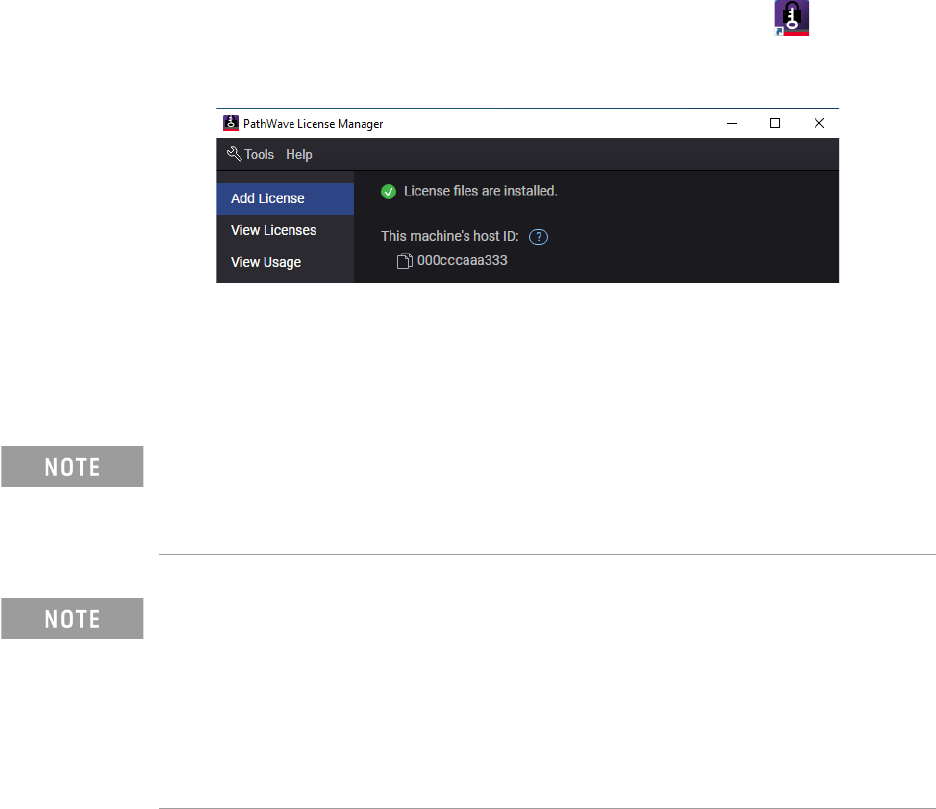
b In the installation window, click Install Keysight PathWave License
Manager.
c Launch PathWave License Manager using its desktop icon .
d On the Add License tab, note the MAC address listed under This machine's
host ID. If there is more than one host ID, you can choose to use any one.
5 Redeem your software licenses following the instructions in your Software
Entitlement Certificate.
Then proceed to Installing the i3070 Software on page 7.
Starting from Pathwave License Manager version 7, frequently disconnected
Ethernet devices (such as docking stations or USB Ethernet dongles) can no
longer be used to host Keysight software licenses. If you have current licenses tied
to such a device, contact a Keysight representative to rehost the licenses.
i3070 system with ControlXTPA module control cards:
• Uninstalling the i3070 software using Remove All removes the BOOTP Turbo
program, which is required for network configuration of ControlXTPA cards.
• After completing the i3070 software installation, reinstall BOOTP Turbo and
reconfigure the system. Refer to the BOOTP Turbo Installation and Network
Configuration guide.
This is not needed if the i3070 system uses ControlXTPB cards.
i3070 Software Installation 5
System requirements
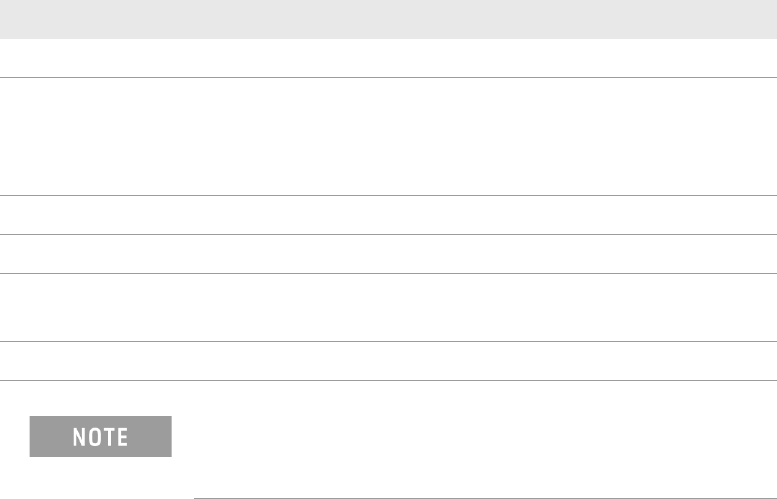
Before installing the software, ensure that the workstation has a DVD-ROM drive
and meets the following specifications.
Table 1 System requirements
Specifications
Processor Recommended: Intel Core i5 and above
Operating System Windows 10 Pro (64-bit)
Windows 10 Enterprise (64-bit) version 22H2 or later
Windows 11 Pro
Ensure that all Windows updates are installed.
Memory Recommended: 8 GB of RAM (minimum 4 GB)
Available Disk Space Recommended: 10 GB (minimum 5 GB), must be on drive C
Display Properties • Screen resolution: at least 1280 x 1024 pixels
• Color quality: at least 16-bit
Language Setting Must be English (United States).
If you are upgrading a controller to Windows 10, ensure that
it meets the Windows system requirements and there are no
compatibility issues.

6 i3070 Software Installation
Critical folders and files
If you are upgrading a system, you can use the following shell command to capture
most of the computer’s networking information:
ipconfig /all > mynetwork.txt
This saves the networking data to mynetwork.txt, which you can refer to when
restoring the network settings.
Back up the critical files if you are unable to make a complete system backup.
1. The default installation folder may be I3070_ICT or Agilent_ICT.
2. These files are not on a test development workstation.
3. This file is updated by BOOTP Turbo, which is required for network configuration only if the
i3070 system has ControlXTPA module control cards.
Table 2 Critical folders and files
Folders/files
1
Description
\windows\system32\drivers\etc\hosts Local hostname resolution and networking information
\windows\system32\drivers\etc\bootptab Hardware addresses for the testhead
2
3
\<installation folder>\autofile Fixtures ID auto numbers
\<installation folder>\boards Board test programs. If your board files are in a different folder,
back up that folder.
\<installation folder>\diagnostics\th1\ASRU_Reference System Calibration file (system dependent)
\<installation folder>\diagnostics\th1\config Testhead hardware configuration
2
\<installation folder>\home User’s home folder
\<installation folder>\standard\config Testhead resources configuration
2
\<installation folder>\dev Back up any ps (DUT power supply) files that were customized.
Any other custom folders and files containing important
data.
Any other user data