i3070_Software_Installation.pdf.pdf - 第19页
i3070 Software Installation 19 Obtaining an installer err or log If you encounter an err or duri ng installation, you can obtain an installer log for mor e information on the err or: 1 Close the inst aller wiza r d. 2 In…
18 i3070 Software Installation
Troubleshooting
Troubleshooting software installation
If you encounter problems after software installation and find that you are unable
to uninstall or reinstall the i3070 In-Circuit Test Software, follow the instructions
below. These steps will not remove all i3070 files from your system, but will clean
up the system sufficiently to enable you to reinstall the software.
1 If there are any i3070 programs running, you must stop them.
a Press Ctrl+Alt+Delete and select Start Task Manager.
b On the Processes tab, check whether any of the following programs are
running:
• rmiregistry.exe
• RmiServer.exe
• translogd.exe
• xinitcolorcells.exe
c Select each program that is running and click End Process.
2 Rename your existing i3070 installation folder.
3 Remove the i3070 uninstall key from the registry.
a Select Start > Run, type
regedit and click OK.
b Navigate to the following:
64-bit OS:
HKEY_LOCAL_MACHINE\SOFTWARE\WOW6432Node\Microsoft\
Windows\CurrentVersion\Uninstall
.
c Look for the key whose Product Name in the right panel shows i3070.
d Delete that key.
4 Remove the i3070 configuration information from the registry. Look for
HKEY_LOCAL_MACHINE\SOFTWARE\Keysight. If you find this key, delete it.
At this point there will still be some i3070 icons and programs on your system.
However, you should now be able to successfully reinstall the i3070 In-Circuit Test
Software.
i3070 Software Installation 19
Obtaining an installer error log
If you encounter an error during installation, you can obtain an installer log for more
information on the error:
1 Close the installer wizard.
2 In a Command Prompt window, run the installer using the following command:
<path for installer> /v"/L*v <path for output log file>.log
For example,
E:\W10\Software\KeysightIOlibraries\IOLibSuite_18_1_25310.exe
/v"/L*v C:\temp\install_log.log
3 Let the installation run until the error stage.
4 Navigate to the output log file to review the error information.
Troubleshooting i3070 software on Windows 11
If any of the i3070 software applications cannot be launched or do not work
correctly in Windows 11, try setting Windows Console Host as the default terminal
app:
1 Select Start > Settings > Privacy & security > For developers.
2 In Terminal, select Windows Console Host.
Now try launching the i3070 software applications again.
Reinstall XServer
Follow these instructions to reinstall XServer when needed.
1 On the Keysight software installation disk, browse to the
\W10\Software\xserver folder. Right-click setup64x.exe and click Run as
administrator. Continue the installation.
2 Browse to the \W10\Software\xserver\hf-xserver folder. Right-click
XS10.4p0-SPR15428615.exe and click Run as administrator. Continue the
installation.
3 Open a Command Prompt window as administrator. Go to the xserver folder:
cd C:\11.10p\W10\Software\xserver\keysight
4 Run
xserver.bat.
5 Restart the PC.
20 i3070 Software Installation
Uninstalling the i3070 In-Circuit Test Software
1 Uninstall the i3070 software from either Settings or Control Panel.
• Click Start > Settings > Apps & Features.
Click Keysight In-circuit Test <xx.xx>p and click Modify.
or
• From Control Panel, click Programs and Features.
Click Keysight In-circuit Test <xx.xx>p and click Change.
2 Select one of the options:
• Remove All to remove the i3070 In-Circuit Test Software together with
associated third party software.
Choose this option if you no longer want the i3070 In-Circuit Test Software
on this PC, or when you are upgrading the i3070 In-Circuit Test Software
from one release to another.
• Select Remove to remove the i3070 In-Circuit Test Software only.
You can choose this option if you want to reinstall the same release.
3 Follow the instructions to complete the uninstallation.
4 If the Keysight LXI Mdns Responder dialog box appears, click Ignore.
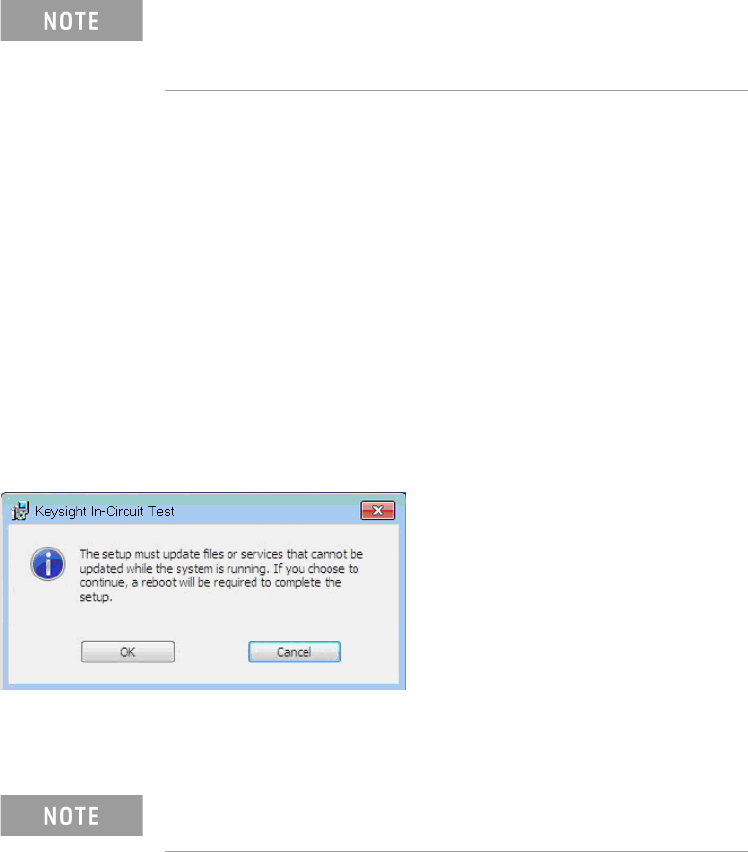
5 If the following dialog box appears, click OK to continue.
6 (Optional) Remove the i3070 online help.
7 Reboot the PC.
• xx.xx indicates the release that is currently installed.
• You can click Uninstall if you want to remove the i3070
software only. Third party software will not be removed.
The uninstall process does not remove the i3070 user
accounts.