i3070_Software_Installation.pdf.pdf - 第8页
8 i3070 Software Installation Installing the software Ta s k Steps 1 Insert the K eysight installation disk into the driv e. It should auto-start. a If the User Account Control dialog box appears, click Ye s to allow the…
i3070 Software Installation 7
Installing the i3070 Software
• All software must be installed to drive C, which must also be the drive where
the operating system is installed.
• Disable anti-virus software before starting the installation. Otherwise, some of
the components might not install properly. Remember to reactivate the anti-
virus software after the i3070 software is installed.
• Unless directed otherwise, always accept the default selections. Otherwise,
errors could occur when using the software.
Before installation
Task
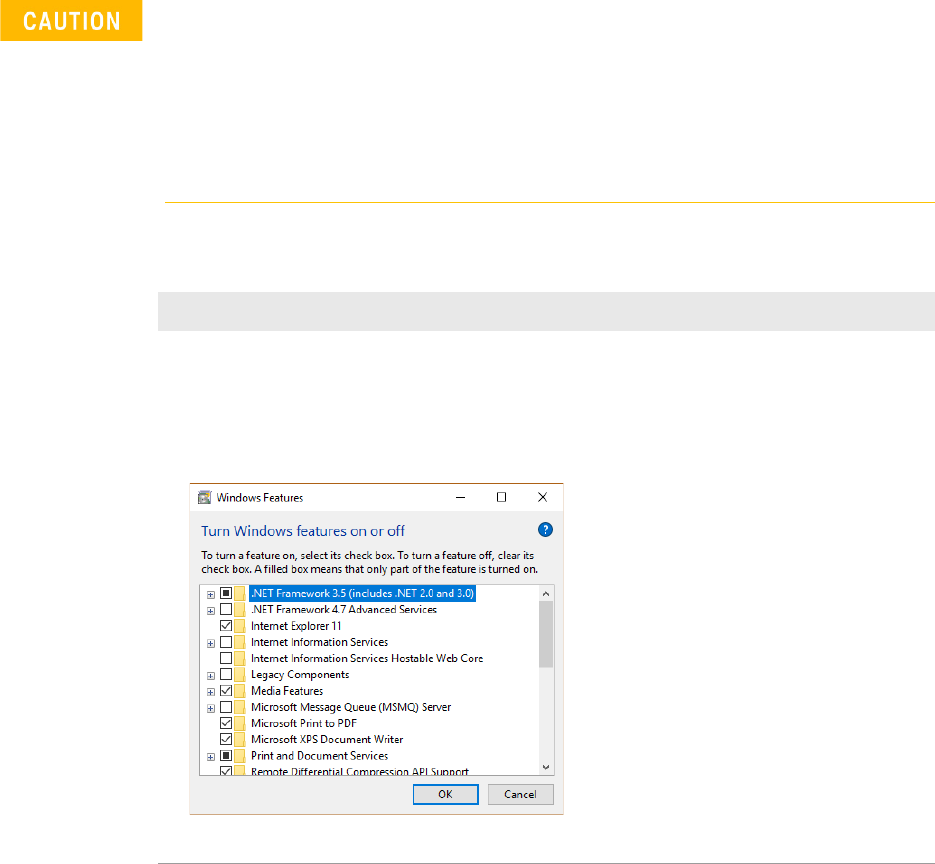
Turn on .NET Framework:
a Use Search on the taskbar to find Control Panel and click Programs and Features > Turn
Windows features on or off.
b In the Windows Features dialog box, select .NET Framework 3.5 (includes .NET 2.0 and 3.0)
and click OK.
c Reboot the computer if prompted.
You do not need to select any of the items
under .NET Framework 3.5, unless you are
a developer who requires WCF script and
handler mapping functionality.
8 i3070 Software Installation
Installing the software
Task Steps
1 Insert the Keysight installation
disk into the drive.
It should auto-start.
a If the User Account Control dialog box appears, click Yes to allow the installation
to continue.
b In the installation window, click Install Keysight i3070 Software.
If the installation does not auto-start after several seconds:
a Open Windows Explorer and browse to the disc.
b Double-click setup.exe in the W10\Software folder.
c If the User Account Control dialog box appears, click Yes to allow the installation
to continue.
2 Install required components, if
missing:
The installer checks that system requirements are met and that required
components are installed.
• If system requirements are not met, the installer may exit. See Table 1 for the
requirements.
• If any component is missing, a dialog box will be displayed.
a Click Install if you see any of these dialog boxes.
NOTE: This can happen at any time during the installation process.
b When installation is complete, click Next to continue.
3 Accept license agreement: a Accept the license agreement and click Next to proceed.
4 In the Destination Folder
window:
a Accept the default folder for installing the software, unless you have a specific
need to change it.
NOTE: Spaces are not allowed in the path of the destination folder, which must
be on drive C.
b Click Next.
i3070 Software Installation 9
5 Check license files for Testhead
Controller (node-locked):
(Licenses will be installed on the
controller together with the
i3070 software.
If you are installing on a test
development workstation, go to
step 7.)
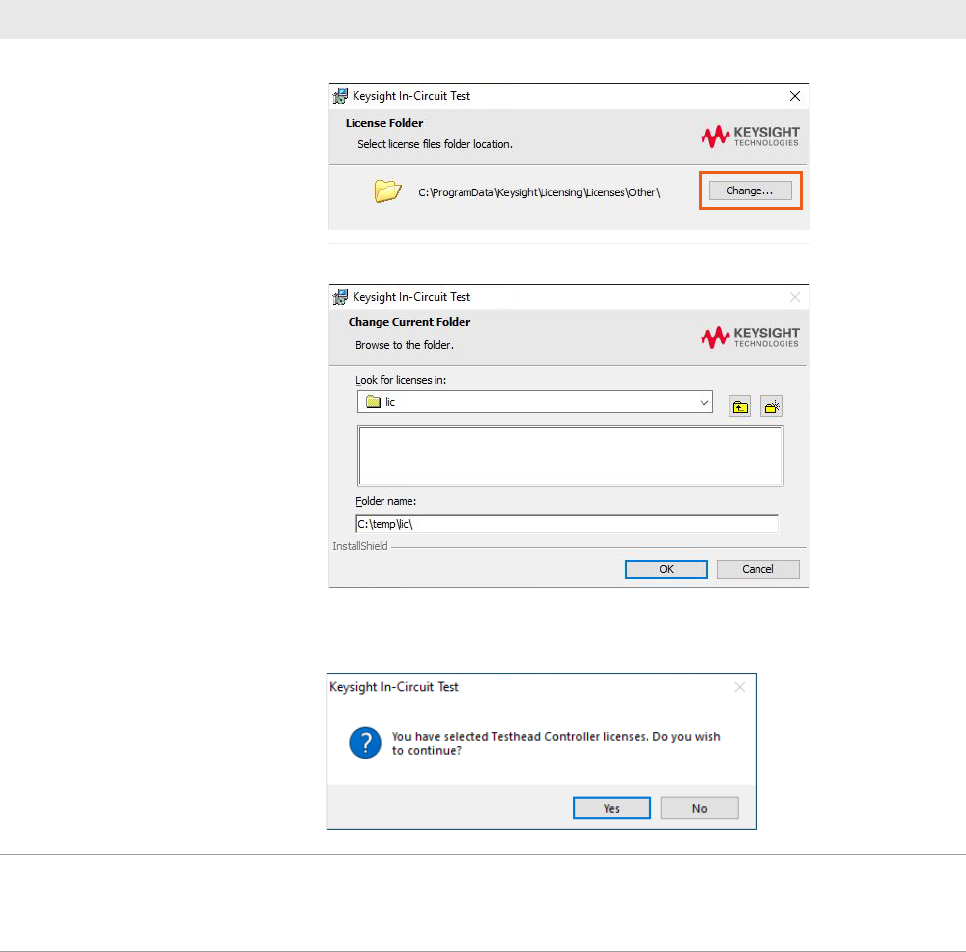
a In the License Folder dialog box, click Change.
b Select the temporary folder where you saved your license files and click OK.
c The installer lists the licenses found in the selected folder. Click Next.
d Click Yes to confirm you are installing on a testhead controller.
6 Create user accounts (testhead
controller)
• User accounts will be created for first-time installation on testhead controllers.
• Where i3070 user accounts already exist, no new users will be created.
Click Next to continue (skip to step 8).
Installing the software (continued)
Task Steps