00195044-10_UM_VisionTeachStation_DE EN.pdf - 第150页
7 Software Vision Teach Station User Manual 7.4 Licensing 12/2012 Edition 150 7.4 Licensing As of the 5.0.2 version, the SIPLACE Vision Teach Station is available as a pure licensed software product. 7 A "Vision Tea…

Vision Teach Station User Manual 7 Software
12/2012 Edition 7.3 Installing for the first time
149
Troubleshooting: 7
Open the Device Manager.
Search for a deactivated device under "Display adapters".
Activate the adapter.
Select "no Internet access" and then "Automatical installation".
Restart the computer after the installation has been completed.
7.3.3 Installing with "Recovery Media" as of Celsius W510 computer
As of April 2012 the VTS is delivered with the Celsius W510 computer. The Recovery Media for
Windows 7, 32-bit and 64-bit are delivered ex works for this computer .
Celsius W510 is equipped with the new PowerCAN-PCI-II CAN card that supports the 32-bit and
64-bit operating systems.
The VTS software supports Windows 7, 32-bit and 64-bit as of the 5.0.1 version.
Start the Recovery DVD and follow the instructions on the screen.
Create a user account with administrator authorization.
Configure the network parameters as described in Tab. 7.3 - 4, page 147.
The drivers for the Hotlink and CAN cards get installed together with the VTS software.
7 Software Vision Teach Station User Manual
7.4 Licensing 12/2012 Edition
150
7.4 Licensing
As of the 5.0.2 version, the SIPLACE Vision Teach Station is available as a pure licensed software
product. 7
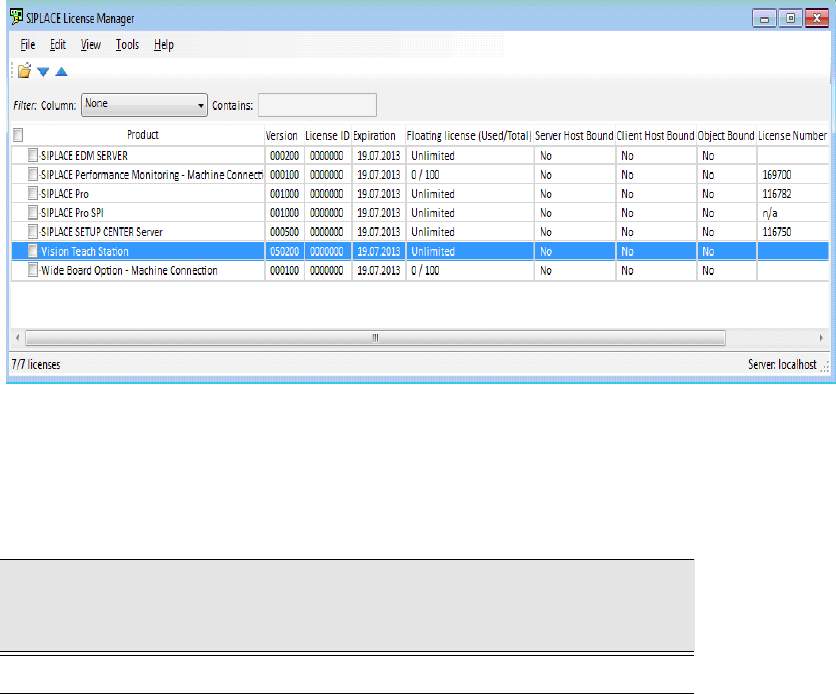
A "Vision Teach Station" license is required in the SIPLACE License Manager for operation. The
SIPLACE License Manager has to run on the same computer as the SIPLACE Vision Teach
Station software. 7
Fig. 7.4 - 6 License entry for the SIPLACE Vision Teach Station in the SIPLACE License Manager
The SIPLACE Vision Teach Station can be ordered as a licensed software product with the
following data:
Tab. 7.4 - 5 Vision Teach Station with software license
Software
Vision Teach Station
with software license
Software package required
V5.0.2
SIPLACE Vision Teach Suite V5.x, item no. 00119789-xx
Vision Teach Station User Manual 7 Software
12/2012 Edition 7.5 Error report
151
7.5 Error report
7.5.1 SIPLACE Vision Station
The "BugReporter" is provided on the following path for reporting errors that occur while the
SIPLACE vision teach station is in use to SIPLACE Service:
<Install path for SIPLACE Vision Teach Station>\BugReporter.exe 7
Alternatively, you can also run the BugReporter from the Start menu -> Programs -> TeachStation.
This allows you to save information about the SIPLACE vision teach station in a compressed file
(Zip file) and to send it to the Service for investigation, if necessary.
7.5.2 SIPLACE Pro
Errors that occur in association with SIPLACE Pro can be reported via the SIPLACE Pro Error
Reporter. This is called up from the "Start" menu Programs SIPLACE Pro SIPLACE Pro
Error Reporting.