00198763-02_VD_SIPLACE_Pro_17.1_R20-1_EN_DE.pdf - 第17页
SIPLACE Pro 17.1 (R 20-1) / Versi on Description 05/2020 Edition 17 4 Features of SIPLACE Pro 17.1 If not differently desc ribed, the features of the previous SIPLA CE Pro versions are contained in SIPLACE Pro 17.1. The …

SIPLACE Pro 17.1 (R20-1) / Version Description 05/2020 Edition
16
Cameras
Cameras
R19-2
R20-1
SST23
✓
CP 40
✓
✓
FC 20
✓
✓
IC 10
✓
✓
IC 11
✓
✓
IC 17 Cop
✓
✓
IC 22
✓
✓
IC 7
✓
✓
IC 8
✓
✓
RV 12
✓
✓
RV 13
✓
✓
RV 14
✓
✓
Table 3-8: List of camera types hidden by default
You can hide additional hardware or display hidden hardware again with the Hide Unused
Hardware dialog under Tools – Settings.
SIPLACE Pro 17.1 (R20-1) / Version Description 05/2020 Edition
17
4 Features of SIPLACE Pro 17.1
If not differently described, the features of the previous SIPLACE Pro versions are contained in
SIPLACE Pro 17.1. The main new features of SIPLACE Pro 17.1 are listed below.
NOTICE
Detailed information on the individual functions can be found in the Online Help for
SIPLACE Pro.
4.1 SIPLACE TX2 micron V2, SIPLACE TX2i micron V2, TX2 V2 HD
and TX2i V2 HD Supported
The SIPLACE TX2 micron V2, SIPLACE TX2i micron V2 placement machine types are supported.
Also, the hardware upgrade kit High Density option package TX, item no. [588510-xx] is
supported. With this hardware upgrade kit, a SIPLACE TX2 V2/TX2i V2 can be remodeled to a
SIPLACE TX2 V2 HD/TX2i V2 HD. These upgraded machine types can perform high density
placement and place components at 20µm/3s.
4.2 ASM Printer Programming 2.0 Supported
ASM Printer Programming 2.0 is supported. For this, SIPLACE Pro Desk has been extended by
new functionalities. In SIPLACE Pro Desk, the Board Family object type has been introduced. A
Board Family consists of at least one board and a referenced independent printer board which
describes the printer program.
Except for the Printer device, library objects originating from ASM Printer Programming cannot be
edited in SIPLACE Pro Desk itself. When you select a printer related object, you are shown a link
to the related ASM Printer Programming that you can follow to edit the printer related object in ASM
Printer Programming. You can, however, add comments and links as basic object attributes to a
printer related object in SIPLACE Pro Desk.
Inside the Recipe List of the Job Editor, a new icon has been added that can be used to
automatically assign printer data (i.e. printer programs and printer setups) to a recipe, as long as
the board and printer board are assigned to one Board Family. Alternatively to the new “assign”
icon in the toolbar, the Assign Printer Data automatically during optimization option under
Tools – Settings can be used. Each addressable lane in a recipe can be assigned its own printer
program. Furthermore, the functionality of the already existing icons in the toolbar for adding or
deleting a printer setup from the recipe has been extended. You can now use these icons to not
only add or delete a printer setup from a recipe, but also a printer program.
The Boards, Boards 2 and Grid Boards tabs in the Recipe List have been extended by the new
Printer Program field, where a printer program can be assigned to a conveyor lane.
SIPLACE Pro 17.1 (R20-1) / Version Description 05/2020 Edition
18
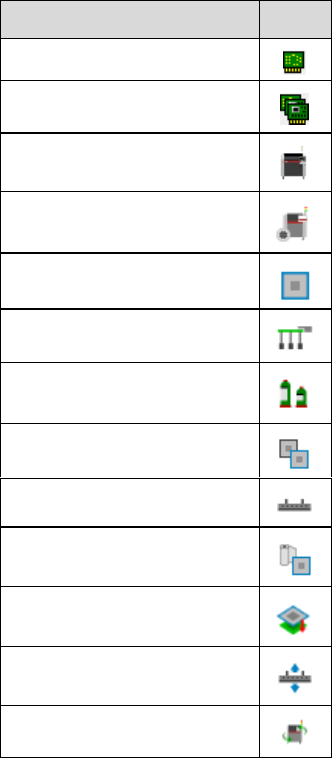
The following object types are related to ASM Printer Programming:
Object Type
Icon
Printer Board
*)
Board Family
*)
Printer
Printer Setup
Stencil
*)
Printer Tooling
*)
Printer Material
Printer Stencil Frame
Squeegee
*)
Printer Cleaning Profile
Printer Separation
Process
*)
Deposition Process
*)
Printer Program
*)
*)
newly introduced with ASM Printer Programming 2.0
Additional information on ASM Printer Programming can be found in the ASM Printer Programming
User Guide, item no. [00900288-xx].
4.3 Verifying Vacuum Tooling by Barcode Fiducial
Vacuum tooling uses suction to pick up a PCB and hold it precisely and level on a vacuum plate
(tool top plate of vacuum tooling) during the placement process, establishing optimal conditions for
placement. The different vacuum tooling types are often designed for specific PCB types only.
Using a wrong vacuum tooling type can not only lead to inaccurate placements, but also to
damaging or destroying a PCB. To make sure that the correct vacuum tooling types have been
installed in the station, they must be checked against the vacuum tooling types defined in the
vacuum tooling configurations specified in SIPLACE Pro.
As a verification method, a barcode fiducial can be used that is placed on the vacuum tooling
surface. The barcode contains information about the vacuum tooling, e.g. its name and exact
vacuum tooling type. The barcode is scanned by the PCB camera at start of production or
whenever a new vacuum tooling has been installed in a station.