00198763-02_VD_SIPLACE_Pro_17.1_R20-1_EN_DE.pdf - 第22页
SIPLACE Pro 17.1 (R 20-1) / Versi on Description 05/2020 Edition 22 4.5 Selecting Acc uracy Per Com ponent Placement P osition It is now possible to se lect individual accuracy values per placeme nt position. Wit h this …
SIPLACE Pro 17.1 (R20-1) / Version Description 05/2020 Edition
21
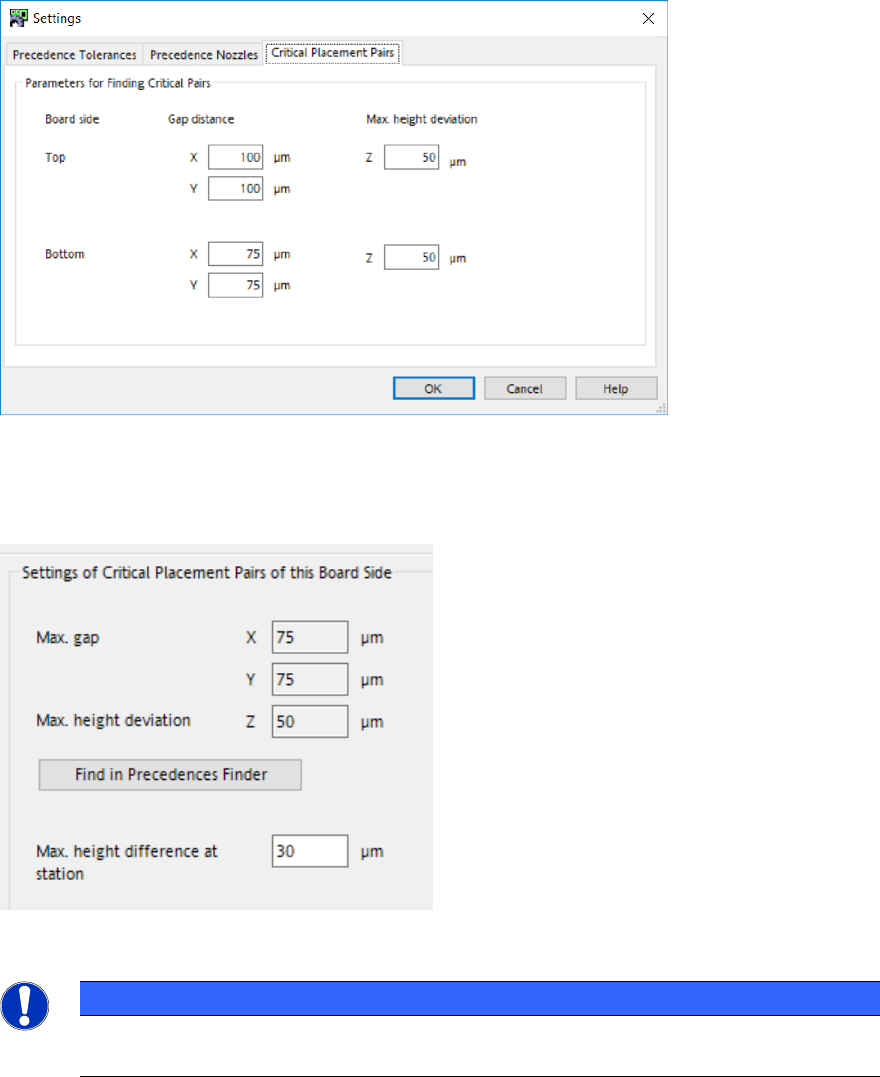
Figure 4-5: Setting tolerances for critical pairs
Additionally, in the Precedences tab of the Board Editor, you can specify as of which height
difference between components the station should heed the placement sequence specified by
SIPLACE Pro Optimizer. This value can be specified and saved individually for each board side.
Figure 4-6: Setting height value for when to check preferences
NOTICE
The placement sequence for critical pairs is decided at the station, and therefore is not
simulated during optimization.
SIPLACE Pro 17.1 (R20-1) / Version Description 05/2020 Edition
22
4.5 Selecting Accuracy Per Component Placement Position
It is now possible to select individual accuracy values per placement position. With this feature, you
can define which components need to be placed with a different accuracy than defined in the
component shape definition, e.g. for high density placement.
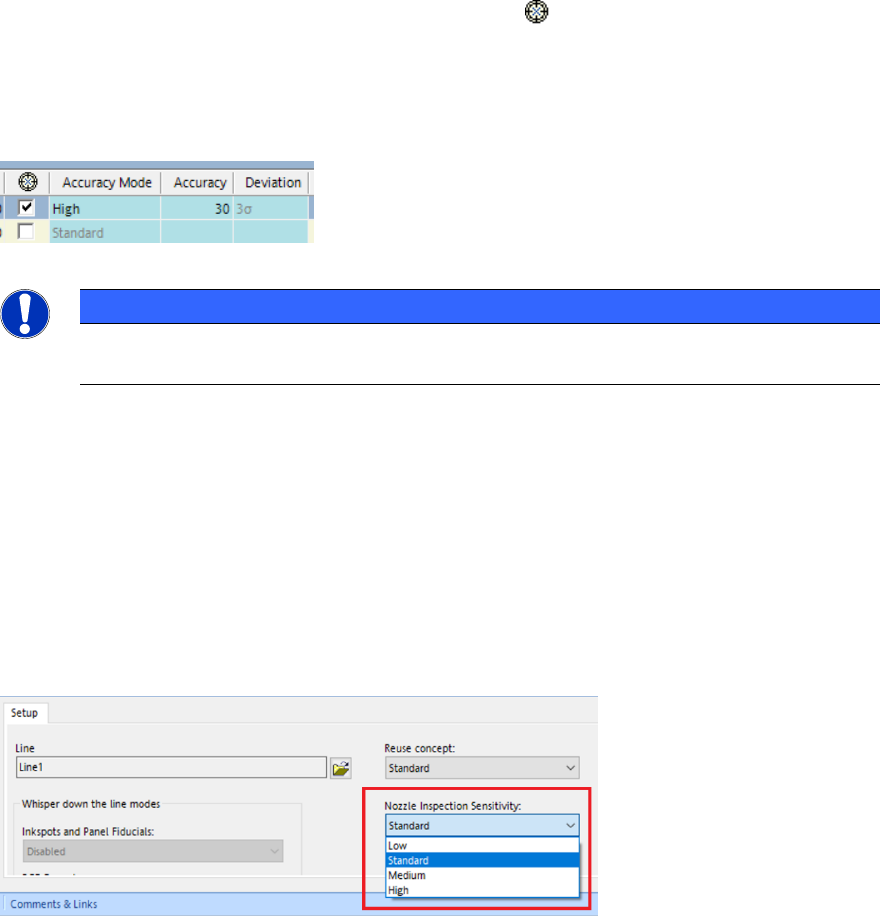
In the toolbar of each placement list a new cross hairs icon has been added. In the placement
list a new “accuracy settings” column has been added. The header of this new column also
contains the cross hairs icon from the toolbar. By clicking the new icon in the toolbar or by checking
at least one item in the new “accuracy settings” column, the three columns Accuracy Mode,
Accuracy and Deviation, which are also related to placement accuracy, are made visible and
highlighted in color in the placement list. By default, these accuracy related columns are hidden.
Figure 4-7: New “accuracy settings” columns in placement list
NOTICE
In order to change any accuracy values, you need to activate the Expert Mode under
Tools – Settings – User Options.
4.6 Configuring Settings for Sensitivity of Nozzle Verification
It is now possible to configure in how much detail nozzles are scrutinized during nozzle check. This
new feature can be used, for example, to adjust the nozzle check according to your specific quality
requirements for nozzles. It can also be used to better identify contamination of the nozzle – like
solder contamination – even if just the tip of the nozzle is contaminated.
The sensitivity level of the nozzle check can only be adjusted for a whole production line. To select
a sensitivity level, use the Nozzle Inspection Sensitivity list in the Setup editor of SIPLACE Pro
Desk.
Figure 4-8: Settings for sensitivity level of nozzle check in SIPLACE Pro

SIPLACE Pro 17.1 (R20-1) / Version Description 05/2020 Edition
23
The following sensitivity levels are available:
Sensitivity
Level
Check Settings
Examples for Use Cases
Low
Standard nozzle scanning
sensitivity + low nozzle
check limit values
● Low quality requirements
● Placement of bigger components
with low accuracy requirements
● Longer nozzle maintenance
intervals possible
Standard
(Default)
Standard nozzle scanning
sensitivity + standard
nozzle check limit values
● Standard processes
● Placement of small components,
e.g. 01005
Medium
Middle nozzle scanning
sensitivity + middle nozzle
check limit values
● Placement of very small
components, e.g. 0201m
● High density placement
● Low placement defect rate required
High
High nozzle scanning
sensitivity + high nozzle
check limit values
● High density placement
● “Zero defect” process
Table 4-1: Selectable sensitivity levels for nozzle check in SIPLACE Pro
After download, the selected sensitivity level is forwarded to each station of the production line.
Restrictions
– The nozzle check can only be adjusted for serial nozzles.
– This feature is only supported for the following camera types: SST23, SST30, SST41, SST45,
SST48, and SST49.
4.7 Measuring Component Position Before Initial Pickup
Due to different incidents, e.g. the feeder tape shifting, it might occur that the pocket position of
larger components deviates from the expected position at production start or restart, which can
cause the initial pickup to either fail or the operator having to teach the pocket position before
production start.
To solve this problem, it is now possible to measure the pocket position of components before the
initial pickup. The measurement is performed after a feeder log on, when new setup data has been
entered, when the track is empty and after a longer machine stop. To activate this feature, activate
the Measure before initial pickup checkbox in the Feeders tab of the component editor in
SIPLACE Pro Desk. The feature can be activated individually for each feeder type.