00198763-02_VD_SIPLACE_Pro_17.1_R20-1_EN_DE.pdf - 第24页
SIPLACE Pro 17.1 (R 20-1) / Versi on Description 05/2020 Edition 24 Figure 4-9: Measur e before init ial pick chec kbox in Feeder tab of co mponent editor 4.8 Inspecting Components After Pl acement at Too High Speed – En…

SIPLACE Pro 17.1 (R20-1) / Version Description 05/2020 Edition
23
The following sensitivity levels are available:
Sensitivity
Level
Check Settings
Examples for Use Cases
Low
Standard nozzle scanning
sensitivity + low nozzle
check limit values
● Low quality requirements
● Placement of bigger components
with low accuracy requirements
● Longer nozzle maintenance
intervals possible
Standard
(Default)
Standard nozzle scanning
sensitivity + standard
nozzle check limit values
● Standard processes
● Placement of small components,
e.g. 01005
Medium
Middle nozzle scanning
sensitivity + middle nozzle
check limit values
● Placement of very small
components, e.g. 0201m
● High density placement
● Low placement defect rate required
High
High nozzle scanning
sensitivity + high nozzle
check limit values
● High density placement
● “Zero defect” process
Table 4-1: Selectable sensitivity levels for nozzle check in SIPLACE Pro
After download, the selected sensitivity level is forwarded to each station of the production line.
Restrictions
– The nozzle check can only be adjusted for serial nozzles.
– This feature is only supported for the following camera types: SST23, SST30, SST41, SST45,
SST48, and SST49.
4.7 Measuring Component Position Before Initial Pickup
Due to different incidents, e.g. the feeder tape shifting, it might occur that the pocket position of
larger components deviates from the expected position at production start or restart, which can
cause the initial pickup to either fail or the operator having to teach the pocket position before
production start.
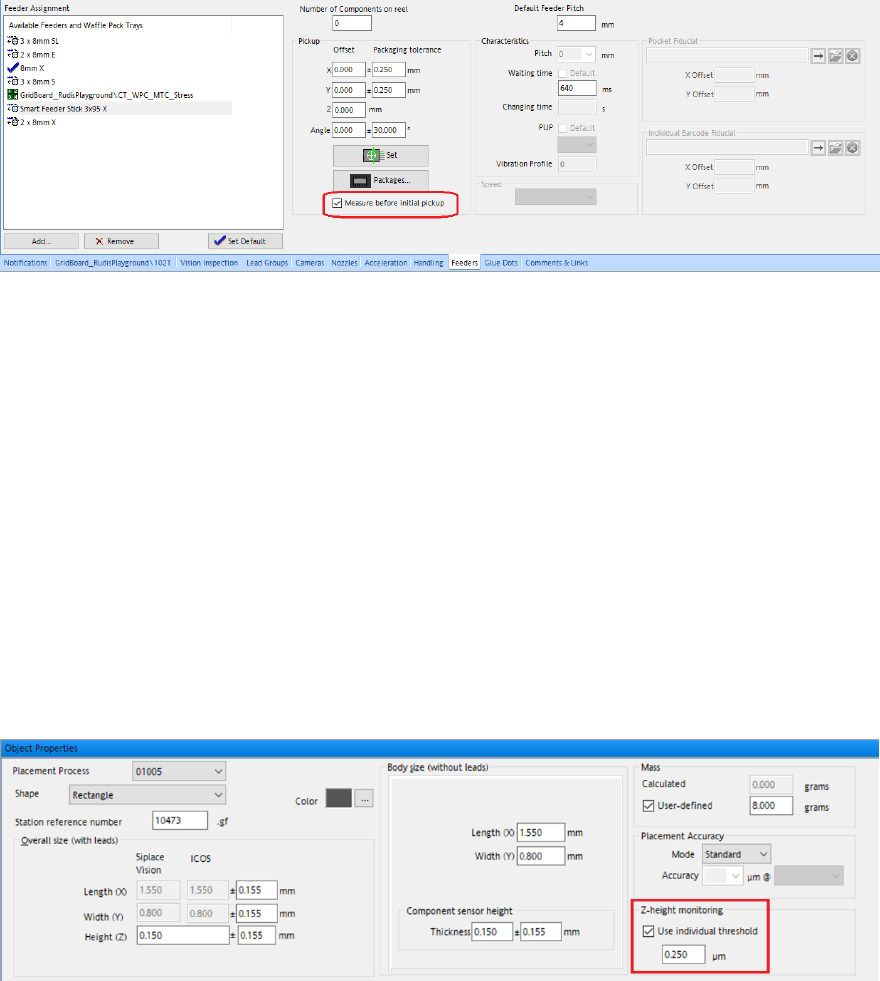
To solve this problem, it is now possible to measure the pocket position of components before the
initial pickup. The measurement is performed after a feeder log on, when new setup data has been
entered, when the track is empty and after a longer machine stop. To activate this feature, activate
the Measure before initial pickup checkbox in the Feeders tab of the component editor in
SIPLACE Pro Desk. The feature can be activated individually for each feeder type.
SIPLACE Pro 17.1 (R20-1) / Version Description 05/2020 Edition
24
Figure 4-9: Measure before initial pick checkbox in Feeder tab of component editor
4.8 Inspecting Components After Placement at Too High Speed –
Enhancements
If the PCB description is incorrect or if there are bends in the PCB, the nominal z-position
(placement position) of the PCB top edge might deviate distinctly from its actual z-position. The
component might therefore be placed at too high speed, and consequently, get damaged. If the
deviation between nominal and actual z-positions exceeds a certain threshold value, the z-heights
are corrected automatically, the respective placement position is set to inspect, and an error
message is displayed on the station GUI, where you can check if the component has been
damaged.
It is now possible to configure the threshold value that triggers the z-height correction and error
message in SIPLACE Pro. An individual threshold value for each component shape can be
selected. You can configure the threshold value with the Z-height monitoring option in the Object
Properties of the respective component shape.
Figure 4-10: Threshold value for z-height monitoring
If no individual threshold value is configured, the default threshold value (1 mm) is used for all
components.
4.9 Avoiding Nozzle Collisions on CPP Placement Heads
In order to avoid nozzle collisions with high components, the automatic precedence rule finder for
CPP placement heads in the SIPLACE Pro Optimizer has been enhanced. The SIPLACE Pro
Optimizer now performs height checks for components with a height of 4 – 22 mm.
Precedence rules are generated for the CPP placement head during optimization. If this function is
not used, SIPLACE Pro attempts to place components without precedence rules. Components
which are suitable for placement in Pick&Place mode by the CPP placement head are distributed
to other Pick&Place heads.
SIPLACE Pro 17.1 (R20-1) / Version Description 05/2020 Edition
25
5 Features of SIPLACE Pro 17.0
5.1 Board Editor / Grid Board Editor – Enhancements
For the Board Editor and Grid Board Editor, several enhancements have been made. The
enhancements are listed below.
Using Custom Delay Time for Vacuum Tooling
It is possible to configure the delay time between PCB entering the machine and vacuum sensor
detecting the PCB, overwriting the default value set for the machine.
This feature can be activated using the Use custom waiting time for 'Vacuum OK' checkbox in
the Process Requirements tab in the Object Properties of the Board Editor or in the Vacuum
tooling tab of the Grid Board Editor.
New Field for Resulting Z-Height in Board Editor and Grid Board Editor
In the Board Editor and the Grid Board Editor, the Resulting Z-Height field has been added. When
entering the board height and panel height, the resulting z-height is calculated and displayed in this
field in the Board Editor and the Grid Board Editor respectively.
In the Board Editor, the Resulting Z-Height field is in the Panel Properties tab. In the Grid Board
Editor, it is in the panel list.
Changing Origin of the Coordinate System for Grid Panel and Package in Grid Board Editor
In the Grid Board Editor, the origin for the coordinate system of the grid panel and package type is
no longer fixed to a center position but can also be set to a position in the bottom left. It is possible
to switch between both origin positions.
The origin can be changed via the Origin of Coordinate System list in the Grid Panel Type tab
and Packages tab of the Grid Board Editor.
Programming Wafer Edge and Notch Alignment
It is possible to configure the wafer edge and notch alignment. For this, the Wafer Carrier fiducial
type has been introduced. If this new fiducial type is selected, the wafer diameter and notch angle
can be entered manually.
Additionally, the context menu of the fiducial in the graphics has been extended by the entry
Center Fiducial. With this new option, the fiducial can be centered on its structure.
Restrictions
– If the Wafer Carrier fiducial type is selected, only the evaluation modes Standard X, Y and
X, Y, Angle are available.
Restricting Clearance of Pickup Threshold Errors
In the Reject Thresholds group of the Component Editor, a checkbox has been added that allows
only users with activity level “Advanced Production” to clear occurring pickup threshold errors.