00196785-01-IM-Traceability 3.2_en.pdf - 第22页
Installation Trace Host and Trace Service Support Media DVD Software Components and Configuration 22 Installation Manual SIPLACE Traceability 3.2 In this dialog window you see information abou t your system configuration…
Installation Trace Host and Trace Service
Software Components and Configuration Support Media DVD
Installation Manual SIPLACE Traceability 3.2
21
5.2 Support Media DVD
Before you install the SIPLACE Traceability you need to install some software components which are
available on the Support Media DVD.
To start using the SIPLACE Net Support Media, you have to open the main window: The SIPLACE Net
Software Launcher.
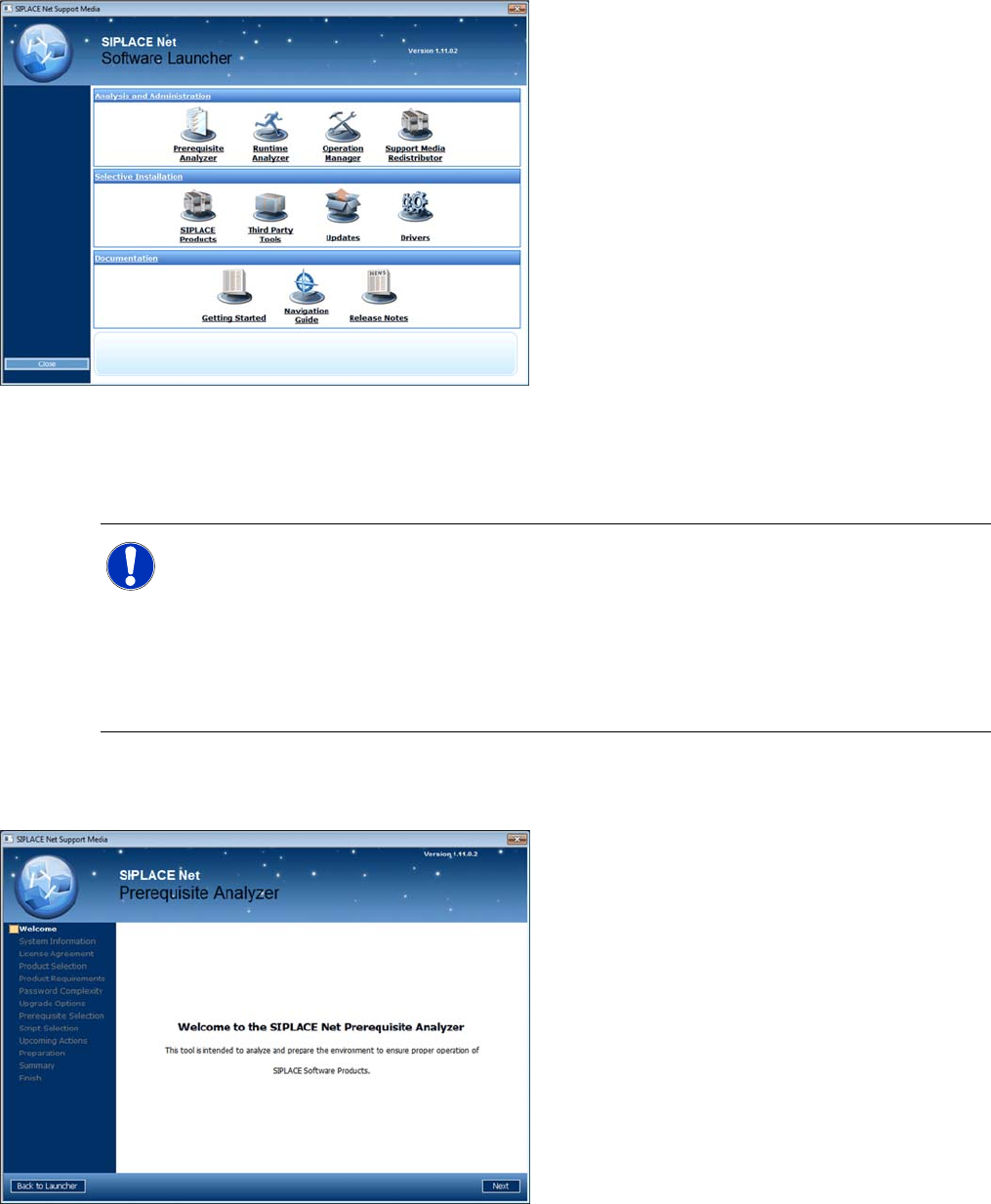
The Prerequisite Analyzer
You need to use this tool to prepare your software environment for the usage of SIPLACE Traceability.
This tool is able to install the necessary prerequisites and customize your environment.
X To execute the Prerequisite Analyzer, click on Item Requirements within the Software Launcher
window. After a few seconds the following window appears:
X Insert the SIPLACE Net Support Media into
your drive.
The Software Launcher opens.
NOTE:
Before you start modifying your system by using the Prerequisite- or Runtime Analyzer you
should ensure that a copy of the content of the operating system CD/DVD is available on the
local hard drive.
If windows components are requested during installation you don’t have to eject the Support
Media which could lead to interruption of the installation process. Instead of replacing the
Support Media you would specify the folder on hard drive as installation source for windows
components.
X Click Next to continue.
A new dialog window opens.
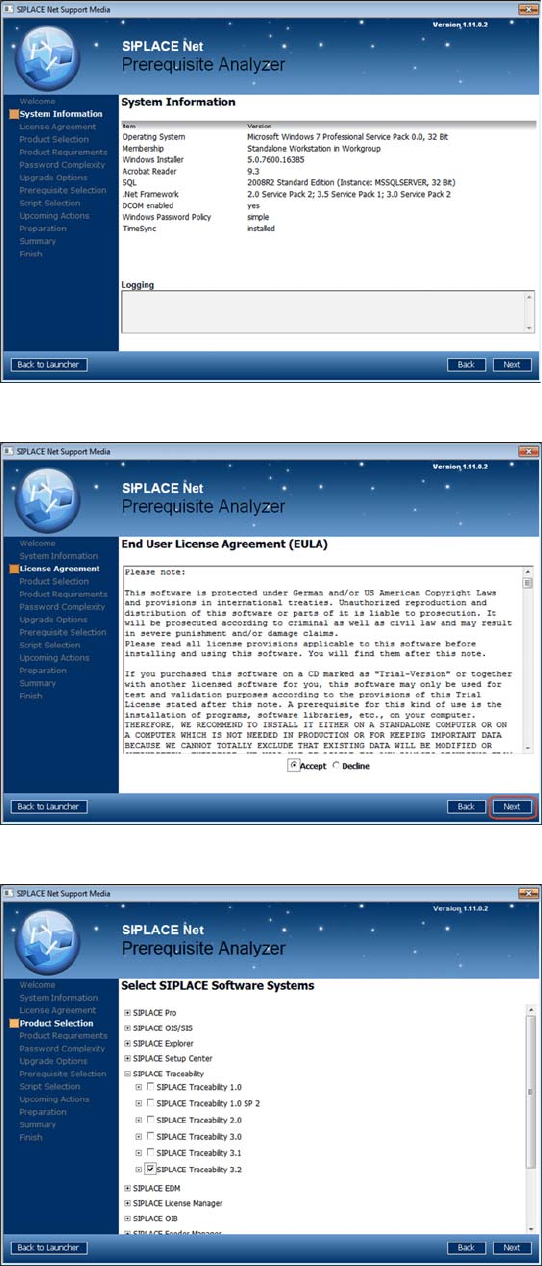
X Please wait until the Prerequisite Analyzer has
checked your software environment.
The following window appears (Next button
visible):
Installation Trace Host and Trace Service
Support Media DVD Software Components and Configuration
22 Installation Manual SIPLACE Traceability 3.2
In this dialog window you see information about
your system configuration.
Important hints and warnings are displayed in the
Logging area.
X Click Next to continue.
The following window appears:
X Accept the EULA by selecting the Accept
radio button.
X Click Next to continue.
The following window appears:
X Navigate through the tree structure by clicking
in a line with the plus symbol.
X Activate the checkboxes of the SIPLACE
Traceability 3.2.
X After selecting the SIPLACE products click
Next to continue.
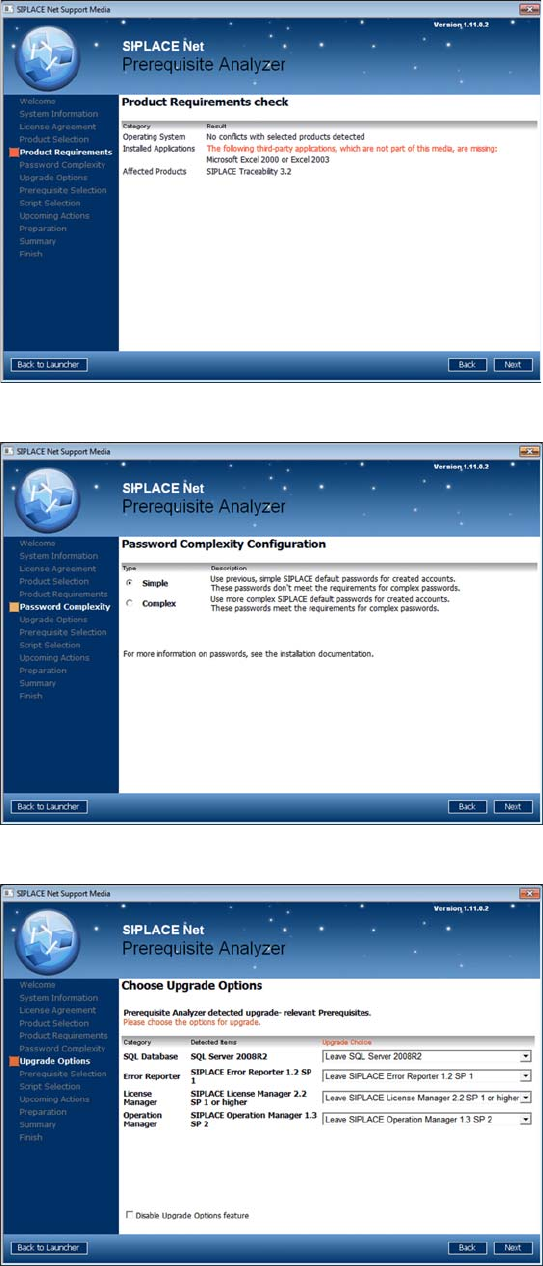
The following window may appear:
Installation Trace Host and Trace Service
Software Components and Configuration Support Media DVD
Installation Manual SIPLACE Traceability 3.2
23
The page shows possible conflicts with your
operating system/installed third- party applications
and the selected SIPLACE products.
X Read the advices and click Next to continue
The following window is displayed:
In this window, you have to select the complexity
of default SIPLACE account passwords. Please
choose an uniform setting on all involved
computers and Unattended Setup Operating
System installations to avoid problems.
X Choose the appropriate password complexity.
X Click the Next button to continue.
The following window opens:
This page shows the upgrade options you have.
X Choose the appropriate SQL version
X Regarding all the other options we
recommend to upgrade to the newest version.
For Traceability 3.2 the License Manager 2.2
SP1 is the minimum version which is required.
X Click the Next button to continue.
The following window opens: