00196785-01-IM-Traceability 3.2_en.pdf - 第37页
Installation Trace Host and Trace Service Installation Trace Host Installation Manual SIPLACE Traceability 3.2 37 Once the installation procedure has finishe d, the following dialog box will open: X Click on Finish . The…
Installation Trace Host and Trace Service
Trace Host Installation
36 Installation Manual SIPLACE Traceability 3.2
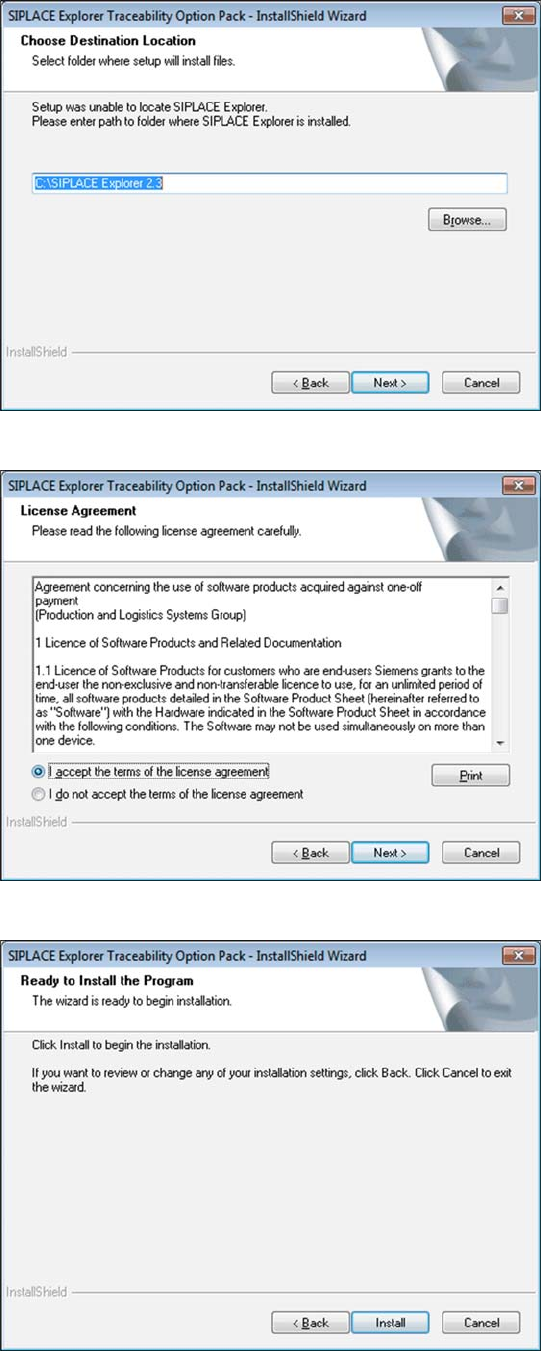
X Specify the SIPLACE Explorer installation
folder here. If SIPLACE Explorer has not yet
been installed on your computer, you can click
on Cancel to terminate the SIPLACE Explorer
Traceability installation procedure.
X Install SIPLACE Trace Host and SIPLACE
Explorer on your computer and then restart the
SIPLACE Traceability installation procedure.
X If SIPLACE Trace Host and SIPLACE Explorer
are already installed on your system, the
installation procedure will continue.
X Read the license conditions. Click on I accept
... to accept and on I do not accept ... if you
do not want to accept. If you click on I do not
accept ..., the installation procedure will be
terminated.
The following dialog box will be shown:
X Click on the Install button to start the actual
installation of SIPLACE Explorer Traceability.
Installation Trace Host and Trace Service
Installation Trace Host
Installation Manual SIPLACE Traceability 3.2
37
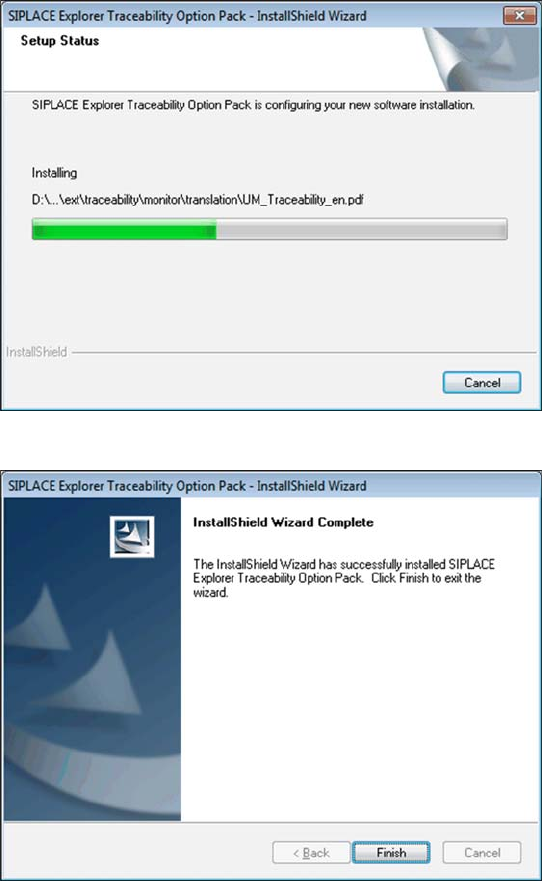
Once the installation procedure has finished, the
following dialog box will open:
X Click on Finish. The SIPLACE Explorer
Traceability option is now available on the
SIPLACE Explorer factory website.

Installation Trace Host and Trace Service
Trace Host Steps to perform after installation
38 Installation Manual SIPLACE Traceability 3.2
5.4.2 Steps to perform after installation
5.4.3 Troubleshooting
5.4.3.1 Port Configuration after Changing Tomcat Port Number
The Tomcat port number needs to be changed (as described below) in the following cases:
If the port is changed for website generation, in the Trace Host Manager, General tab.
If the standard port number 8080 is already in use and you do not want to use it again for this job
(website access).
X To change the port number, find the following lines in the file
<Tomcat-location>\conf\server.xml
X and change 8080 to your choice of port number as shown below:
<!-- Define a non-SSL Coyote HTTP/1.1 connector on the port specified during installation-->
<Connector port="8080" maxThreads="150" minSpareThreads="25" maxSpareThreads="75"
enableLookups="false" redirectPort="8443" acceptCount="100" debug="0"
connectionTimeout="20000" disableUploadTimeout="true" />
X Change the specified port number 8080 (
Connector port="8080"
) to the required port number
(
Connector port="YourPort"
). For further information about port number, please contact your
system administrator.
X To make Tomcat your default web server, set the port number to 8080.
5.4.3.2 Collation conflicts when restoring database backup
When restoring the database backup, the SQL Server must have the same collation as the database
backup. Otherwise run time errors and collation conflicts will occur when performing data query in Trace
Host Monitor.
X In case of collation conflicts we recommend you to recreate the SQL Server.
NOTE:
By default, Tomcat is installed on port 8080. This means that your users will access your website
as follows: http://yourServerName:8080/yourWebsite.
NOTE:
The port number specified in this xml file needs to be added to the URL address each time you
generate a website: http://yourServerName:yourPort/yourWebsite.