00196785-01-IM-Traceability 3.2_en.pdf - 第29页
Installation Trace Host and Trace Service Troubleshooting Trace Service Installation Manual SIPLACE Traceability 3.2 29 5.3.2 T roubleshooting 5.3.2.1 Inst allation of SIPLACE T race Service fails The Problem is locate d…
Installation Trace Host and Trace Service
Trace Service Installation
28 Installation Manual SIPLACE Traceability 3.2
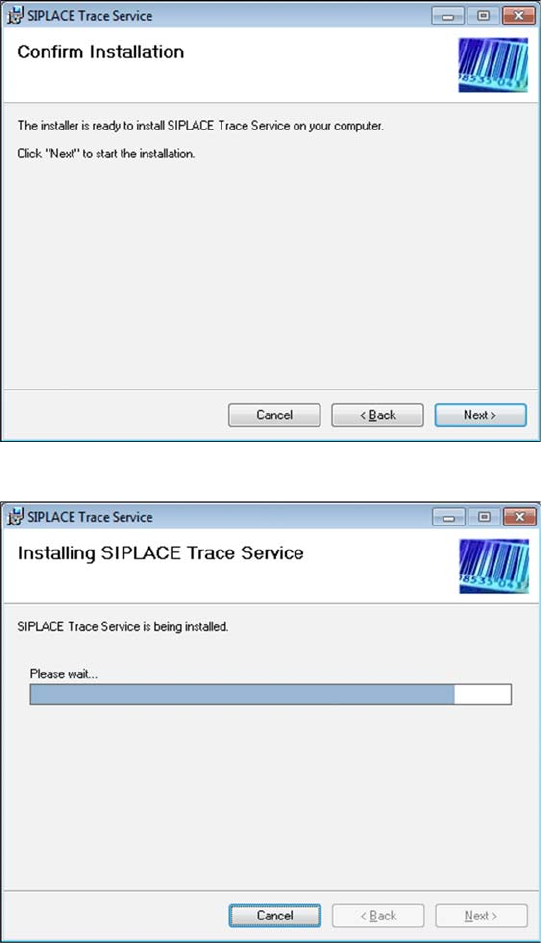
X Confirm the installation by clicking on Next.
X The installation of Trace Service will begin.
Installation Trace Host and Trace Service
Troubleshooting Trace Service
Installation Manual SIPLACE Traceability 3.2
29
5.3.2 Troubleshooting
5.3.2.1 Installation of SIPLACE Trace Service fails
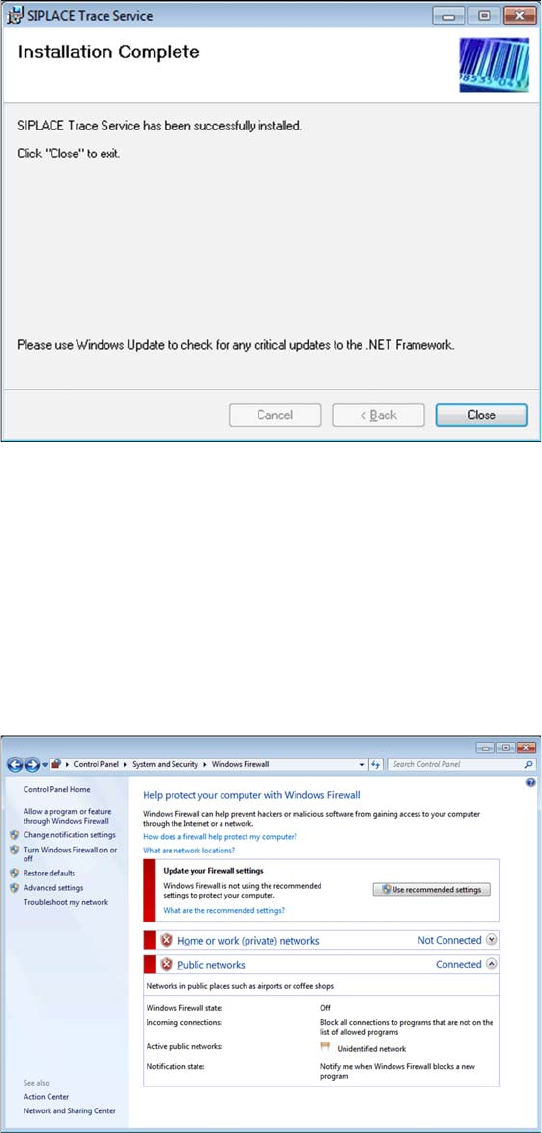
The Problem is located in the Windows Vista Firewall settings. The
TraceService.exe
must be allowed
through the Windows firewall.
You must be logged as Administrator and the firewall must be turned off.
To perform this do the following.
X The installation is successfully finished. Click
Close to exit.
X In Windows start menu click Start > Control
Panel > Security Center.
X Choose Windows Firewall and click Allow a
program through Windows Firewall.
X In the Windows firewall settings, click Add
program.
X Type in the path where the TraceService once
will be installed e.g
.: C:\Program
Files\SIPLACE\SIPLACE Trace
Service\TraceService.exe
X Browse for TraceService.exe. It may not exist
at that time. Create a dummy
TraceSer-
vice.exe
within the future installation folder.
X Browse for it and press OK.
Installation Trace Host and Trace Service
Trace Host Installation
30 Installation Manual SIPLACE Traceability 3.2
5.4 Trace Host
5.4.1 Installation
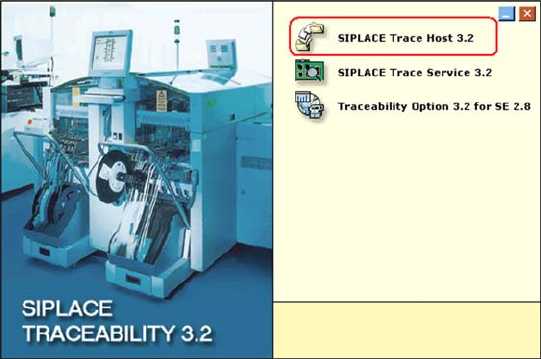
X Place the SIPLACE Traceability CD into the
CD-ROM drive of your line computer. The start
screen will appear.
X Make sure that the following software
components available from the Support Media
DVD are already installed:
(1) Java 2 JRE 1.6
(2) Tomcat 5.5
(3) Microsoft.NET 3.5 SP1 Framework
(4) MSXML Core Services 6.0