2500_Users_Manual-.pdf - 第56页
Installation and Setup Setting Up the Thermal Printer Before labels can be printed and applied to processed devices, the label and ribbon material must first be loaded. The following sections cover the correct procedures…
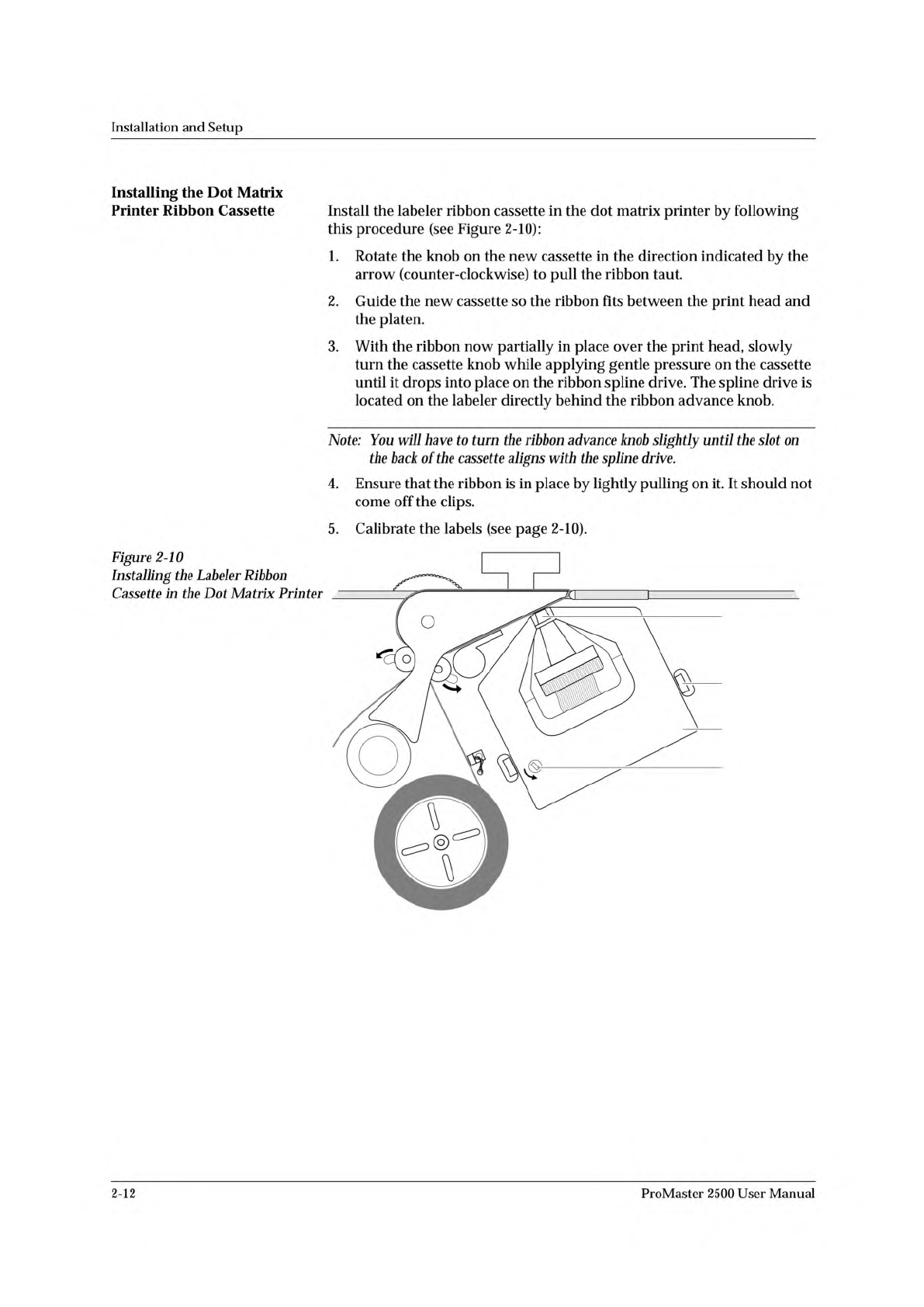
1852-2
PRINT HEAD
SPRING CLIP
(1 of 2)
RIBBON
ADVANCE
KNOB
RIBBON
CASSETTE
Installation
and
Setup
Installing
the
Dot
Matrix
Printer
Ribbon
Cassette
Install
the
labeler
ribbon
cassette
in
the
dot
matrix
printer
by
following
this
procedure
(see
Figure
2-10):
1.
Rotate
the
knob
on
the
new
cassette
in
the
direction
indicated
by
the
arrow
(counter-clockwise)
to
pull
the
ribbon
taut.
2.
Guide
the
new
cassette
so
the
ribbon
fits
between
the
print
head
and
the
platen.
3.
With
the
ribbon
now
partially
in
place
over
the
print
head,
slowly
turn
the
cassette
knob
while
applying
gentle
pressure
on
the
cassette
until
it
drops
into
place
on
the
ribbon
spline
drive.
The
spline
drive
is
located
on
the
labeler
directly
behind
the
ribbon
advance
knob.
Note:
You
will
have
to
turn
the
ribbon
advance
knob
slightly
until
the
slot
on
the
back
of
the
cassette
aligns
with
the
spline
drive.
4.
Ensure
that
the
ribbon
is
in
place
by
lightly
pulling
on
it.
It
should
not
come
off
the
clips.
5.
Calibrate
the
labels
(see
page
2-10).
Figure
2-10
Installing
the
Labeler
Ribbon
Cassette
in
the
Dot
Matrix
Printer
2-12
ProMaster
2500
User
Manual
Installation
and
Setup
Setting
Up
the
Thermal
Printer
Before
labels
can
be
printed
and
applied
to
processed
devices,
the
label
and
ribbon
material
must
first
be
loaded.
The
following
sections
cover
the
correct
procedures
for
loading
and
calibrating
labels
and
loading
a
new
ribbon
and
repairing
a
torn
ribbon.
Loading
Labels
Threading
labels
on
the
thermal
labeler
is
similar
to
threading
labels
on
the
dot
matrix
labeler
(see
Figure
2-11).
The
major
difference
on
the
thermal
printer
is
that
the
retractable
rollers
(platen
pinch
and
label
pinch
rollers)
snap
back
into
position
if
you
release
them.
On
the
dot
matrix
labeler,
the
rollers
remain
in
the
open
position.
Note:
Do
not
tighten
the
label
roll
on
its
core.
The
roll
is
intentionally
loose
so
the
combination
of
high
temperature
and
humidity
do
not
cause
the
labels
to
peel
incorrectly.
Follow
this
procedure
to
load
a
new
roll
of
labels.
1.
Push
the
label
pinch
roller
and
the
platen
pinch
rollers
into
their
retracted
positions
away
from
the
platen.
2.
Remove
the
magnetic
cover
from
the
label
roll.
3.
Install
the
new
label
roll
on
the
label
supply
hub
so
that
the
leader
comes
off
from
the
right
side
of
the
hub
(see
Figure
2-11).
4.
Mount
the
magnetic
cover
over
the
label
roll
to
hold
the
labels
in
place.
5.
Prepare
the
label
path
by
raising
the
application
plate
and
retracting
the
platen
pinch
and
label
pinch
rollers.
6.
Thread
about
2
feet
(60
cm)
of
label
liner
around
the
left
side
of
the
label
alignment
roller
and
through
the
gap
between
the
application
plate
and
the
output
track.
Lay
the
liner
along
the
output
track
for
the
time
being.
7.
Position
the
label
liner
on
the
underside
of
the
platen
and
guide
the
platen
pinch
roller
back
into
its
operating
position
against
the
platen
to
hold
the
liner
in
place.
8.
Thread
the
liner
between
the
ADC
optic
and
the
platen,
and
then
between
the
print
head
and
the
platen.
9.
Make
sure
that
the
label
liner
is
flat
against
the
underside
of
the
platen.
10.
Feed
the
liner
back
over
the
top
of
the
platen
and
through
the
gap
between
the
platen
and
the
track.
11.
Thread
it
between
the
label
drive
roller
and
the
label
pinch
roller
(see
Figure
2-11).
12.
Thread
the
liner
between
it
and
the
drive
roller.
Guide
the
spring-
loaded
pinch
roller
back
into
its
operating
position
against
the
drive
roller.
Make
certain
that
there
is
no
slack
in
the
liner.
13.
Lower
the
label
application
plate.
This
completes
the
installation
procedure.
Be
sure
to
calibrate
the
labels
as
described
in
the
next
section
before
attempting
to
label
devices.
ProMaster
2500
User
Manual
2-13
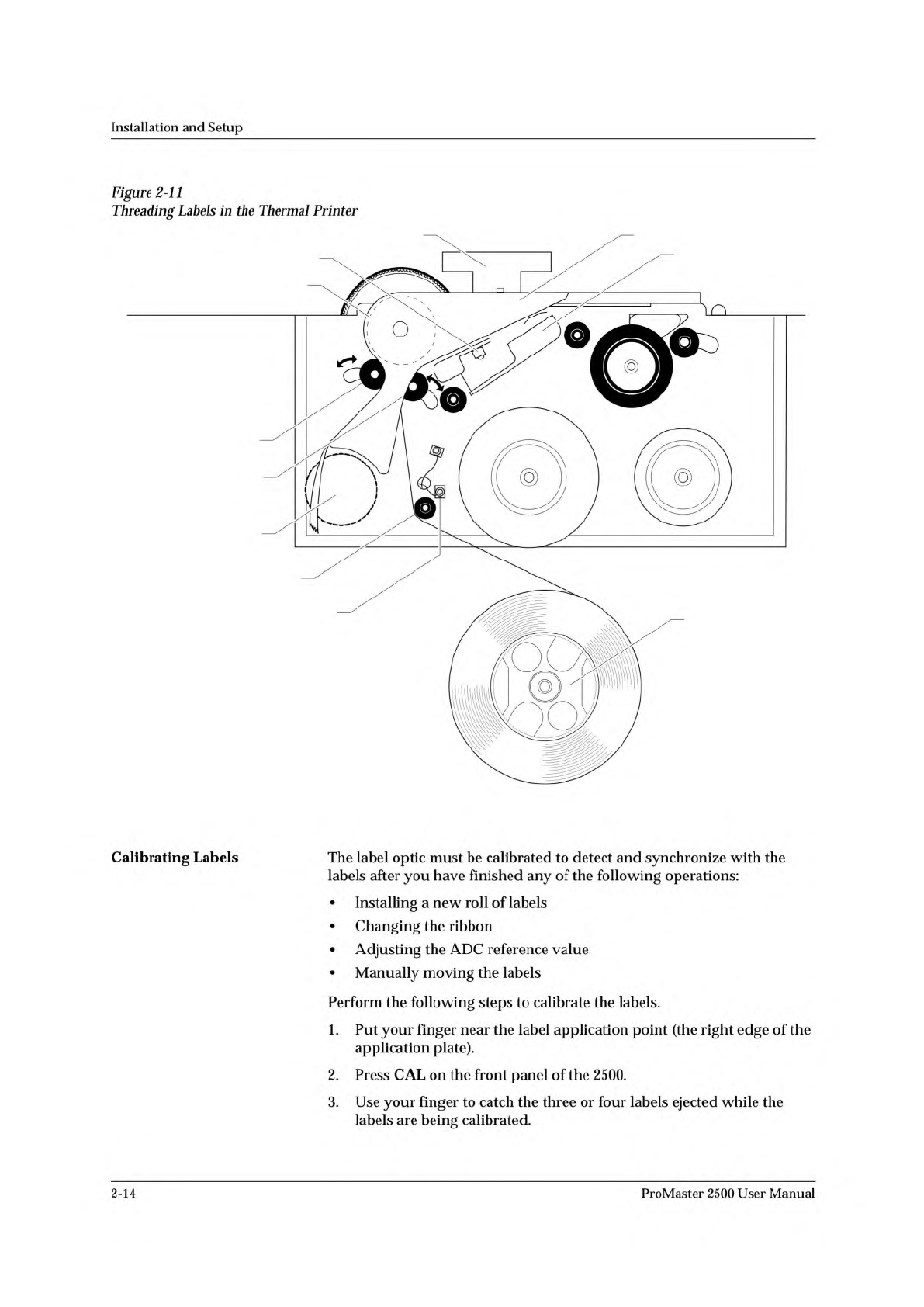
2303-1
LABEL DRIVE ROLLER (hidden)
LABEL PINCH ROLLER
LABEL ADVANCE KNOB
LABEL ALIGNMENT ROLLER
LABEL DETECTION OPTIC
LABEL ROLL
(cover removed)
APPLICATION PLATE (raised)
PLATEN
PRINT HEAD
(retracted position)
LABEL ADC OPTIC
PLATEN PINCH ROLLER
Installation
and
Setup
Figure
2-11
Threading
Labels
in
the
Thermal
Printer
Calibrating
Labels
The
label
optic
must
be
calibrated
to
detect
and
synchronize
with
the
labels
after
you
have
finished
any
of
the
following
operations:
•
Installing
a
new
roll
of
labels
•
Changing
the
ribbon
•
Adjusting
the
ADC
reference
value
•
Manually
moving
the
labels
Perform
the
following
steps
to
calibrate
the
labels.
1.
Put
your
finger
near
the
label
application
point
(the
right
edge
of
the
application
plate).
2.
Press
CAL
on
the
front
panel
of
the
2500.
3.
Use
your
finger
to
catch
the
three
or
four
labels
ejected
while
the
labels
are
being
calibrated.
2-14
ProMaster
2500
User
Manual