2500_Users_Manual-.pdf - 第76页
3 Tasks and Kits For Administrators This chapter, which is directed to system administrators, describes how to set up Tasks and Kits in TaskLink after installation and setup are complete, as described in Chapter 2. Syste…
Device(s)
Manufacturers
Devices for ...
↵
Tasks
and
Kits
Dev
ice(
s)
LATTICE
16U8/A/BPL
AMD-XPGM
CE16Ua-PLCC
AS
16R8-PLCC
PC
Disk
File
16V
8.
Jed
Data
Source
( )
None
(
•
)
PC
Disk
File
( )
Master
Device
(
)
Host
Download
( )
Terninal/Host
(
)
PrograMMer
Disk
Description
|PLD
task
using
the
systen
defaults.
Process(
es)
12m
[][][]
Blank
Check
[XJ [XJ
[
J
rx] rx]
[
1
rx]
[
1
r
]
rxi
r
1
Illegal
B
it
PrograM
Uerify
Label
PrograMMer
Type
Default
Handler
Type
Default,
Translation
Format
(91)
JEDEC
(full)
Edit
Task
"LOGIC
TASK"
Enter
text
;
Tab
for
next
iteM
Fl=Help
<
More.
..
> <
Save
> <
Cancel
>
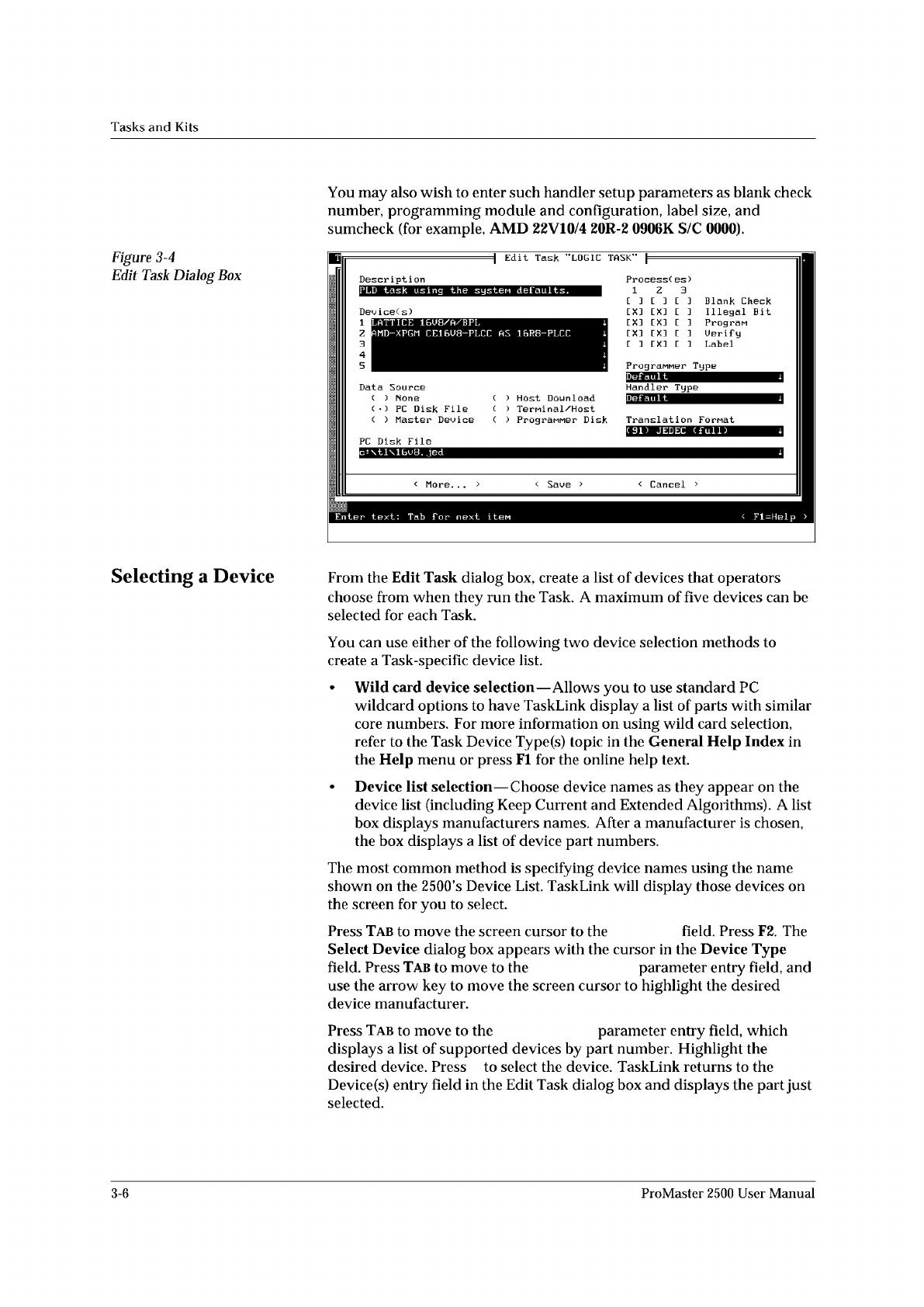
Figure
3-4
Edit
Task
Dialog
Box
You
may
also
wish
to
enter
such
handler
setup
parameters
as
blank
check
number,
programming
module
and
configuration,
label
size,
and
sumcheck
(for
example,
AMD
22V10/4
20R-2
0906K
S/C
0000).
Selecting
a
Device
From
the
Edit
Task
dialog
box,
create
a
list
of
devices
that
operators
choose
from
when
they
run
the
Task.
A
maximum
of
five
devices
can
be
selected
for
each
Task.
You
can
use
either
of
the
following
two
device
selection
methods
to
create
a
Task-specific
device
list.
•
Wild
card
device
selection
—
Allows
you
to
use
standard
PC
wildcard
options
to
have
TaskLink
display
a
list
of
parts
with
similar
core
numbers.
For
more
information
on
using
wild
card
selection,
refer
to
the
Task
Device
Type(s)
topic
in
the
General
Help
Index
in
the
Help
menu
or
press
Fl
for
the
online
help
text.
•
Device
list
selection
—
Choose
device
names
as
they
appear
on
the
device
list
(including
Keep
Current
and
Extended
Algorithms).
A
list
box
displays
manufacturers
names.
After
a
manufacturer
is
chosen,
the
box
displays
a
list
of
device
part
numbers.
The
most
common
method
is
specifying
device
names
using
the
name
shown
on
the
2500's
Device
List.
TaskLink
will
display
those
devices
on
the
screen
for
you
to
select.
Press
Tab
to
move
the
screen
cursor
to
the
field.
Press
F2.
The
Select
Device
dialog
box
appears
with
the
cursor
in
the
Device
Type
field.
Press
Tab
to
move
to
the
parameter
entry
field,
and
use
the
arrow
key
to
move
the
screen
cursor
to
highlight
the
desired
device
manufacturer.
Press
Tab
to
move
to
the
parameter
entry
field,
which
displays
a
list
of
supported
devices
by
part
number.
Highlight
the
desired
device.
Press
to
select
the
device.
TaskLink
returns
to
the
Device
(s)
entry
field
in
the
Edit
Task
dialog
box
and
displays
the
part
just
selected.
1
z
3
4
5
3-6
ProMaster
2500
User
Manual
3
Tasks
and
Kits
For
Administrators
This
chapter,
which
is
directed
to
system
administrators,
describes
how
to
set
up
Tasks
and
Kits
in
TaskLink
after
installation
and
setup
are
complete,
as
described
in
Chapter
2.
System
operators
should
skip
this
chapter
and
read
the
daily
operating
procedures
described
in
Chapter
4.
A
Task,
which
is
used
by
system
operators
to
program,
test,
and
label
devices,
is
the
cornerstone
of
the
2500
system's
daily
operation.
This
chapter
describes
how
to
create
a
Task
and
how
to
modify
the
system
default
parameters
to
meet
your
specific
operating
requirements.
The
information
in
this
chapter
is
organized
as
follows:
What
Is
a
Task?
3-2
Creating
a
Task
for
a
Logic
Device
3-4
Creating
a
Task
for
a
Memory
Device
3-14
Other
TaskLink
Parameters
3-18
Introduction
to
Kits
3-33
ProMaster
2500
User
Manual
3-1
↵
Tasks
and
Kits
What
Is
a
Task?
A
Task
is
a
job
setup
containing
all
the
information
necessary
to
process
a
set
of
devices.
A
Task
records
all
the
parameters
of
the
job
setup
including
the
device
type,
the
data
file
to
be
used,
and
the
label
text
to
print
and
place
on
the
programmed
device.
The
Task
is
created
once
and
saved
on
disk
so
that
it
is
available
whenever
that
programming/labeling
job
needs
to
be
run.
Overview:
Creating
a
Task
Figure
3-1
shows
the
major
steps
involved
in
creating
a
Task
for
a
programmable
logic
device
(PLD).
Once
the
Task
has
been
created,
the
system
operator
simply
selects
it
from
a
screen
similar
to
screen
2
(see
Figure
3-1)
and
the
entire
system
configuration
and
data
file
download
is
completed
with
a
single
keystroke.
The
steps
below
outline
the
task
creation
process
(see
Figure
3-1).
For
purposes
of
this
example,
ignore
all
references
to
Kits.
These
are
special
applications
for
Tasks
that
will
be
discussed
later
in
this
chapter.
1.
From
the
Main
TaskLink
screen,
select
Tasks
(see
screen
1).
2.
Select
Add
Task
(see
screen
1).
3.
Enter
the
new
Task
name
on
the
Task
Name
line
on
screen
2.
Press
to
move
to
screen
3.
4.
Select
at
least
one
Device
(s),
a
Data
Source,
and
at
least
one
Process(es)
(see
screen
3).
If
your
Data
Source
is
a
PC
disk
file,
you
must
select
a
data
file
Translation
Format
and
give
the
name
and
path
for
the
Data
File.
5.
There
are
some
additional
logic
programming
parameters,
which
you
may
choose
to
change
from
their
default
settings.
Choose
<
More...
>
to
access
these
parameters.
See
“General
Parameters”
on
page
3-20.
6.
Screen
4
allows
you
to
select
Logic
Parameters
from
a
list
of
parameter
menu
options.
7.
Screen
5
lets
you
select
device
verify
and
file
download
parameters.
When
you
have
finished,
select
<
OK
>
to
save
your
choices
and
close
the
dialog
box.
8.
Select
<
Save
>
to
record
all
the
parameters
on
your
PC
disk.
3-2
ProMaster
2500
User
Manual