TM4642.TM4406.PickupMACS.pdf - 第13页
SMT Software Engineering Group IM Ope ration s Y A MAHA MOTOR CO ., L TD. MDOC-SOFT50 177 13 /23 2). The follo wing dialog is displa yed. Chec k [G et No zzle MACS] and press the [ OK] butt on. Fig.4.4 Sel ect func tio…
SMT Software Engineering Group
IM Operations YAMAHA MOTOR CO., LTD.
MDOC-SOFT50177
12/23
Refer to [6. Appendix] about setup.
Load of the parts data is performed at the machine start up, or at loading board data.
4.2.4. Case of Nozzle MACS failure
When the Nozzle MACS is failed, pickup action without Feeder MACS correction is
executed. In that case, Nozzle MACS is not retried. If you want to execute Nozzle MACS again,
please refer to “4.2.2. Execution Timing”.
Even If you fail to execute Nozzle MACS, pick up action continues without any error
message. Instead, “Ea7998: “ or “Ea7999 “ is recorded in [MIS] - [Error log]. Refer to “4.3
Error Message” for more details. When you want to stop and display error message at a
Feeder MACS failure, set [Nozzle MACS] – [Error Stop] to “Use” (Refer to “3.1. Machine
Setting”).
4.2.5. Simultaneous Pickup
Simultaneous pickup is executed for the parts which are larger than that specified in
[Machine] - [Setting] - [Machine Data] - [Precision] - [Pickup MACS] - [Sim Pick Parts Size Limit
X (Y)].
4.2.6. Using with Pick Position Correct
Nozzle MACS is possible to use with [Pick Position Correct].
4.2.7. Nozzle MACS by manual operation
When nozzles are exchanged by manually (Ex. Nozzle maintenance), it is necessary to get
Nozzle MACS correction value again. In this case, you need to execute Nozzle MACS manually.
How to execute Nozzle MACS manually is as below.
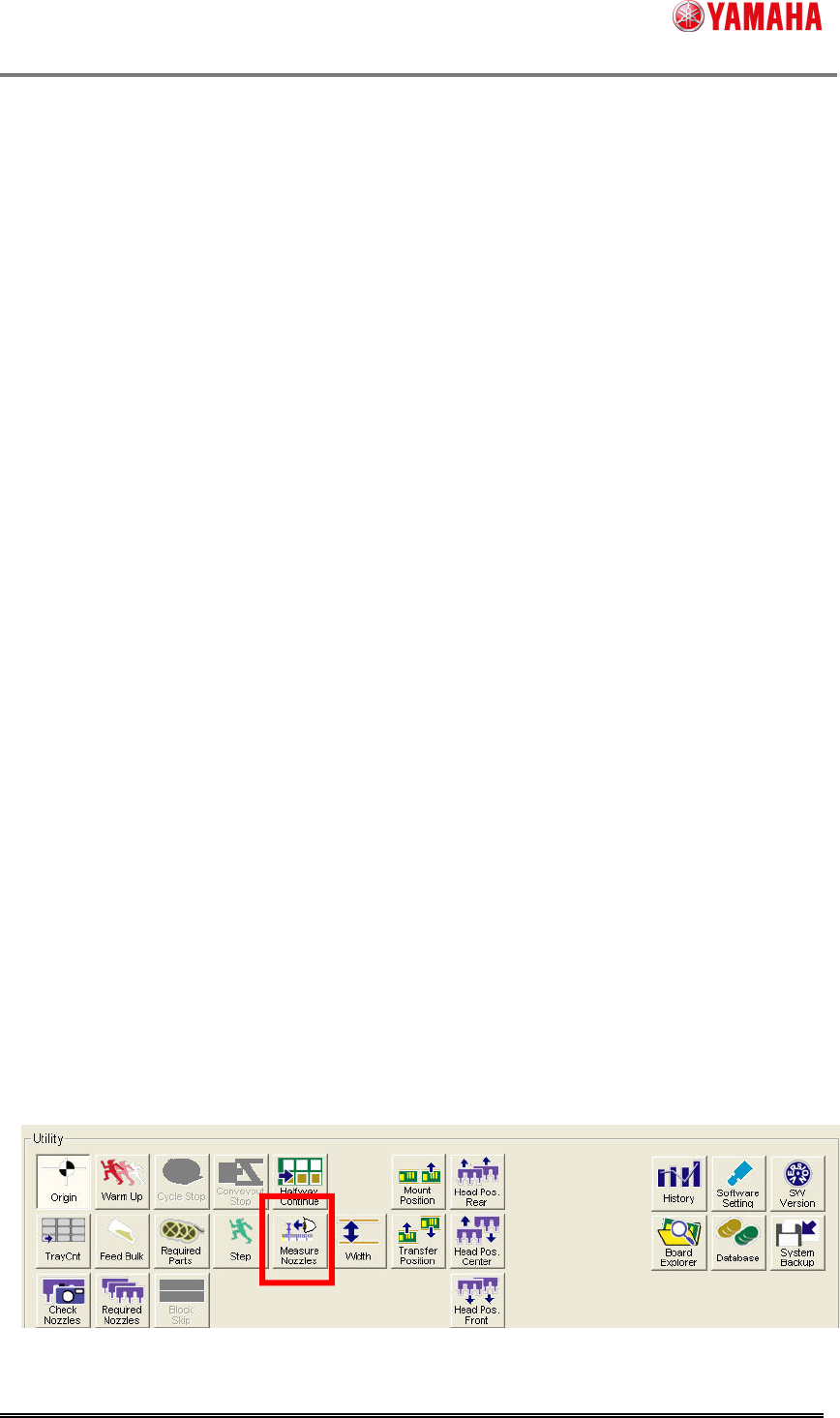
1). Press the [Measure Nozzle] button on the [Setup] screen.
The [Measure Nozzles] button is displayed when [Measure Nozzles] or [Nozzle MACS] is
enabled.
Fig.4.3. [Setup] - [Utility] window
SMT Software Engineering Group
IM Operations YAMAHA MOTOR CO., LTD.
MDOC-SOFT50177
13/23
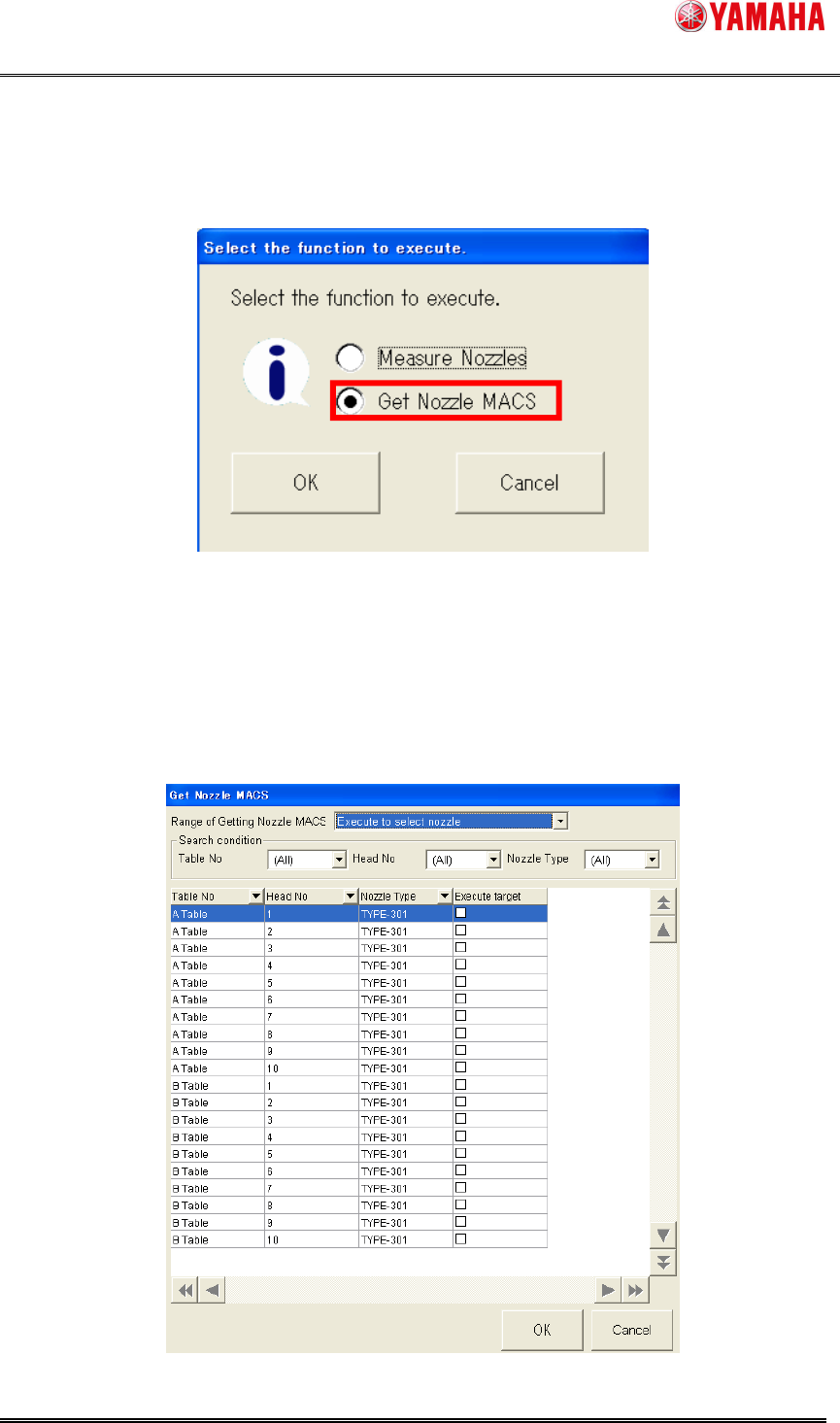
2). The following dialog is displayed. Check [Get Nozzle MACS] and press the [OK] button.
Fig.4.4 Select function window
This dialog is displayed only when both [Measure Nozzles] and [Nozzle MACS] are enabled.
When only either one is disabled, this dialog doesn’t appear. This dialog shows a screen of each
function directly.
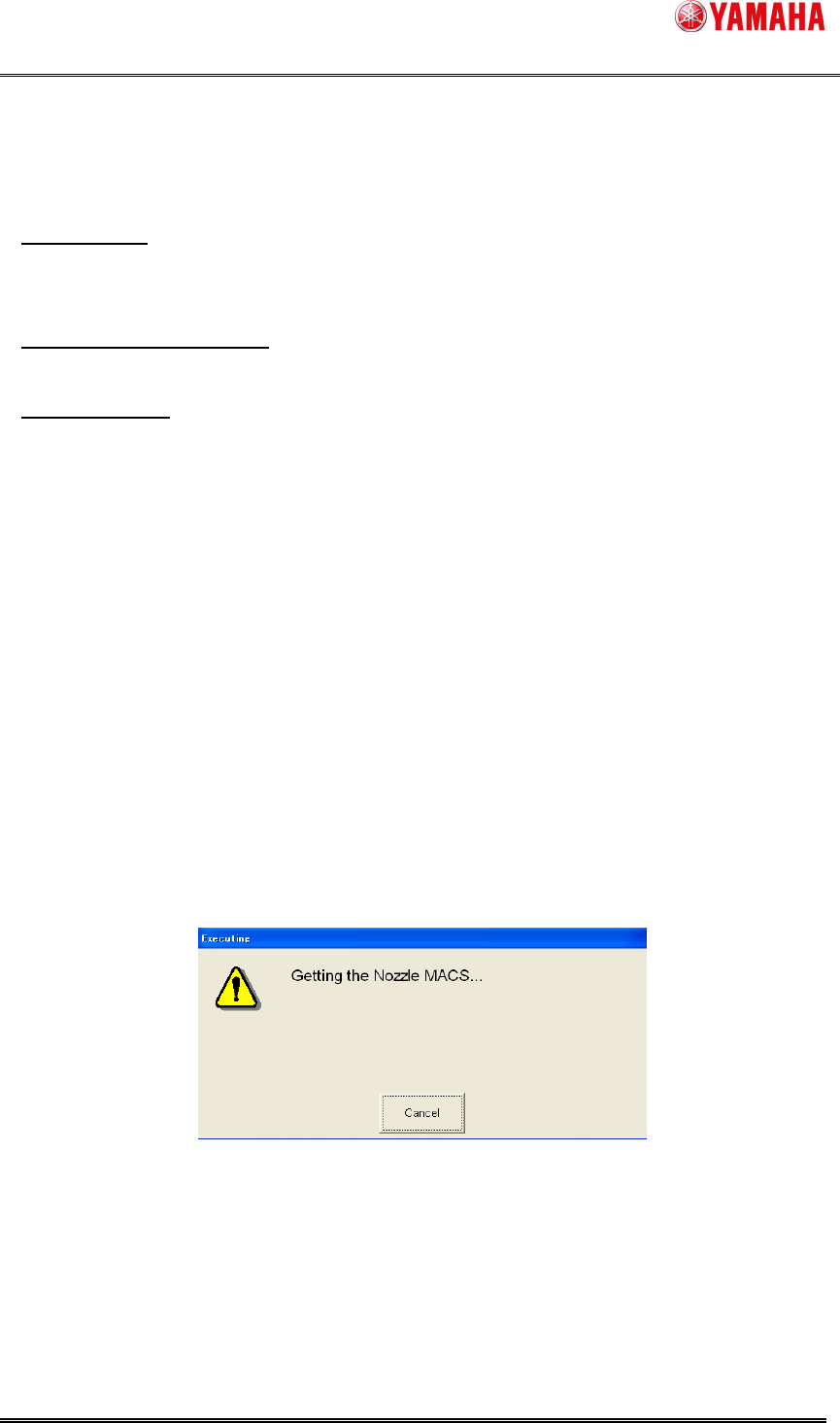
3). [Get Nozzle MACS] window opens.
Fig.4.5. [Get Nozzle MACS] window
SMT Software Engineering Group
IM Operations YAMAHA MOTOR CO., LTD.
MDOC-SOFT50177
14/23
4). Select [Range of Getting Nozzle MACS].
- [Execute all]
Executes for all the checked nozzles on [Machine] - [Setting] - [Machine Data] - [Precision] -
[Pickup MACS] - [Nozzle MACS] - [Execute].
- [Execute to select nozzle]
Executes for all nozzles used in the loaded board data.
- [Select Nozzle]
Executes for all nozzles checked on [Check type]. (Checked state is not saved)
If the selected nozzles are stored in the nozzle station, nozzle change is performed.
When [Machine] - [Setting] - [Machine Data] - [Installation Setting] - [Nozzle Station] is set to
“None”, you can select one nozzle for each head. In that case, the nozzle is supposed to be set
on the head.
For fixed nozzle, only selected nozzles on [Machine] - [Setting] - [Machine Data] - [Head] -
[Head Offset] - [Nozzle Type] can get a Nozzle MACS correction value.
5). Press the [OK] button, and Nozzle MACS is executed for the nozzle selected at step (4).
When the [Cancel] button is pressed, Nozzle MACS is not executed.
6). The following message is displayed, while executing Nozzle MACS.
When [Cancel] button is pressed in this dialog, Nozzle MACS is interrupted.
Fig.4.6 Getting Nozzle MACS